Viewing PIR Details
On the Priority Intelligence Requirements page, you can click any of the listed PIRs to view its details. The PIR details page provides a full picture of the PIR, including its summary, description, priority, category, and metadata such as status, owner, schedule, and stakeholders. It also shows the configured intelligence inputs (tags, data types, and keywords), the analytical process used to generate results, and the outputs produced, including reports, threat models, and investigations. In addition, you can review a run history log, edit any section of the PIR, access more actions such as running the PIR on demand or sharing it, and manage sharing and permissions.
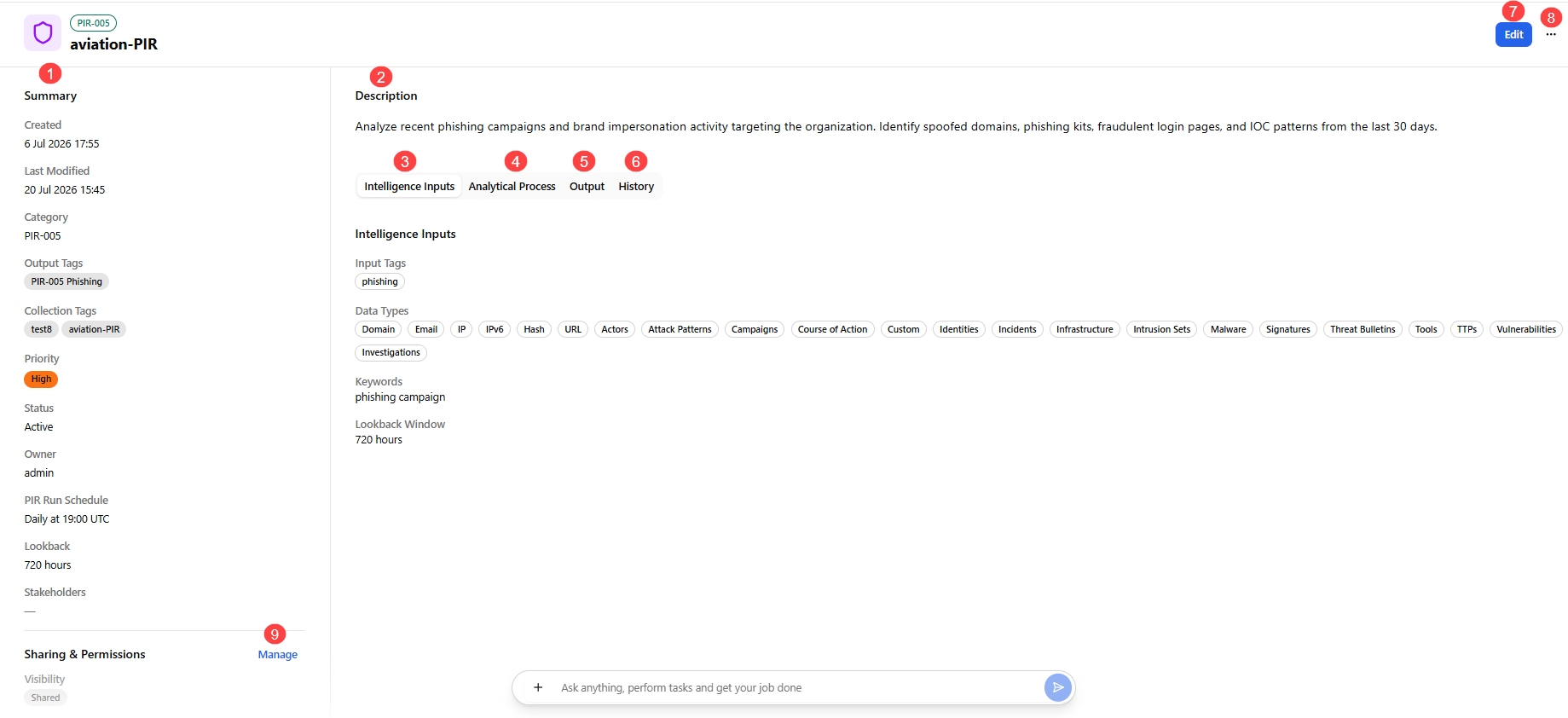
 Summary: Every PIR summary includes the following details:
| Attribute | Description |
|---|---|
| Name |
Name of the PIR. |
| Created |
Timestamp of when the PIR was created. |
| Last Modified |
Timestamp of when the PIR was last modified. |
| Category |
Category of the PIR. |
| Output Tags |
Tags applied to the selected outputs generated by the PIR. |
| Priority |
Priority of the PIR: Critical, High, Medium, or Low. |
| Status |
Status of the PIR: Active or Paused. Active PIRs run on a configured schedule. Paused PIRs are inactive and won't run until made active again. |
| Owner |
User who owns the PIR. |
| PIR Run Schedule |
Frequency of PIR runs. |
| Lookback |
PIR lookback window. |
| Stakeholders |
Users who receive PIR updates. |
 Description: Description of the PIR.
 Intelligence Inputs: View the type of data analyzed in the PIR.
-
Input Tags: Displays all input tags used for filtering intelligence for this PIR.
-
Data Types: Displays all intelligence types used for analysis in the PIR.
-
Keywords: Displays all keywords used for filtering intelligence for the PIR.
-
Lookback Window: Displays how far back in the time the PIR looks before its run.
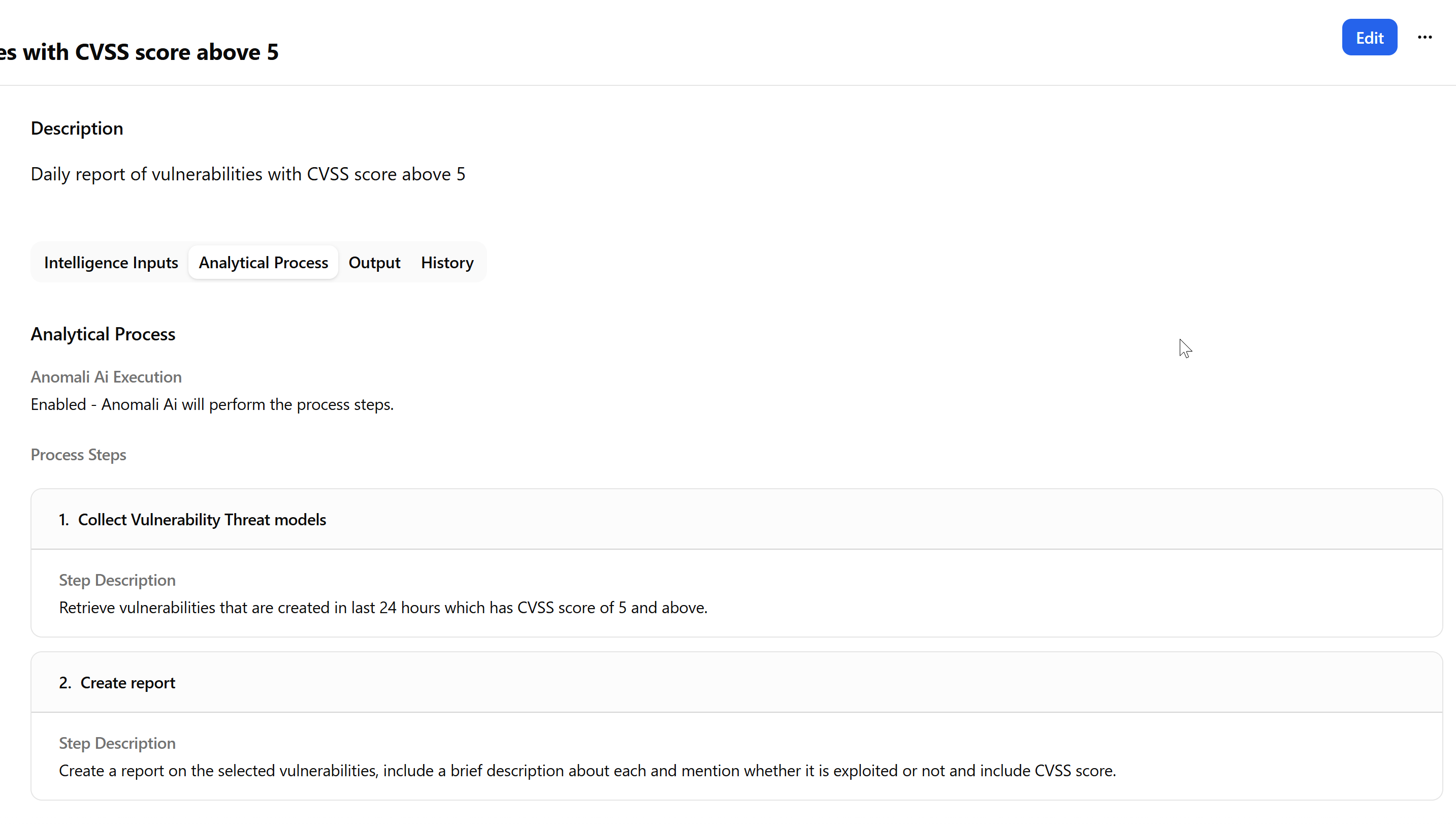
 Analytical Process: View the steps of the analytical process used for the PIR.
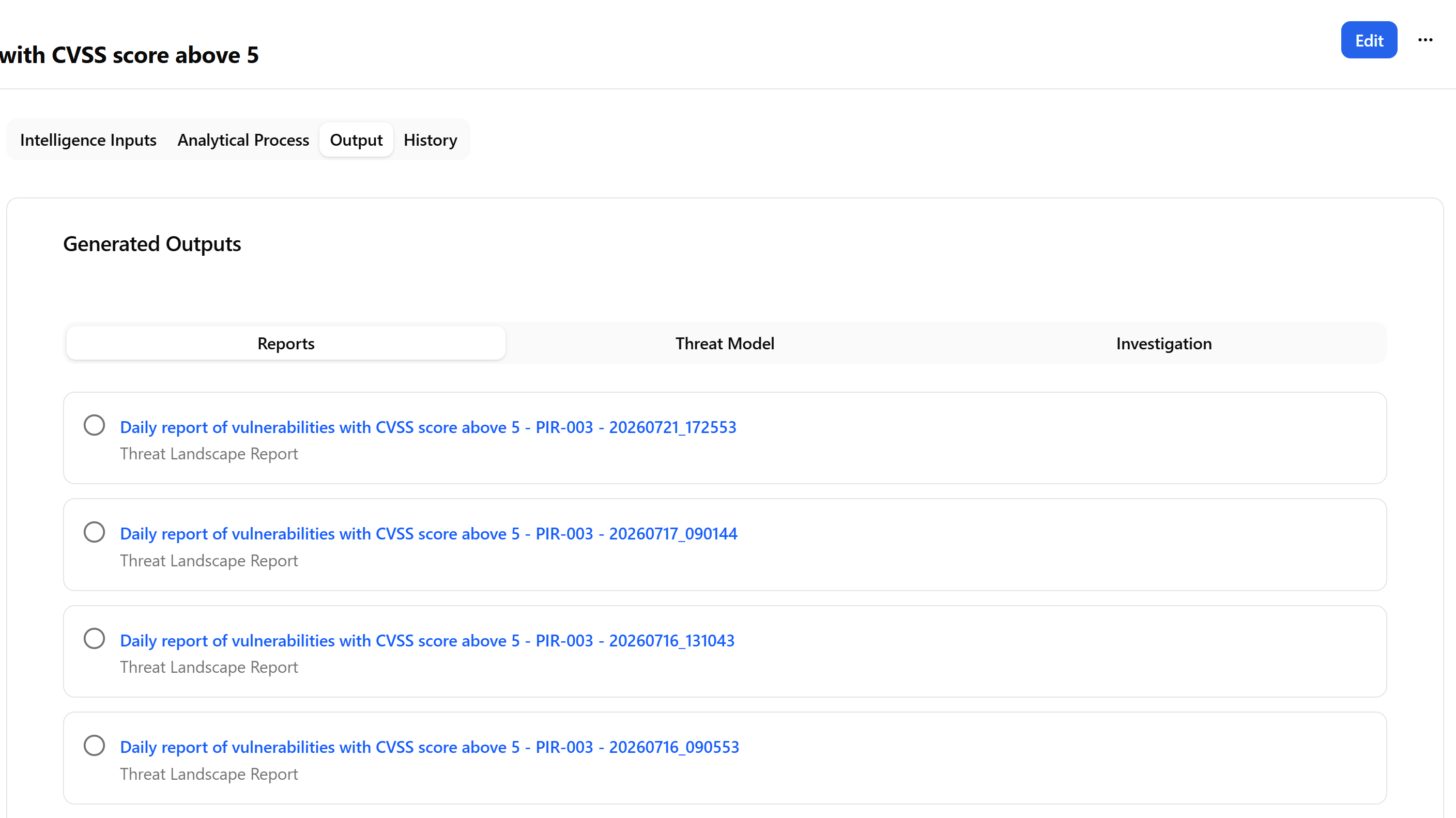
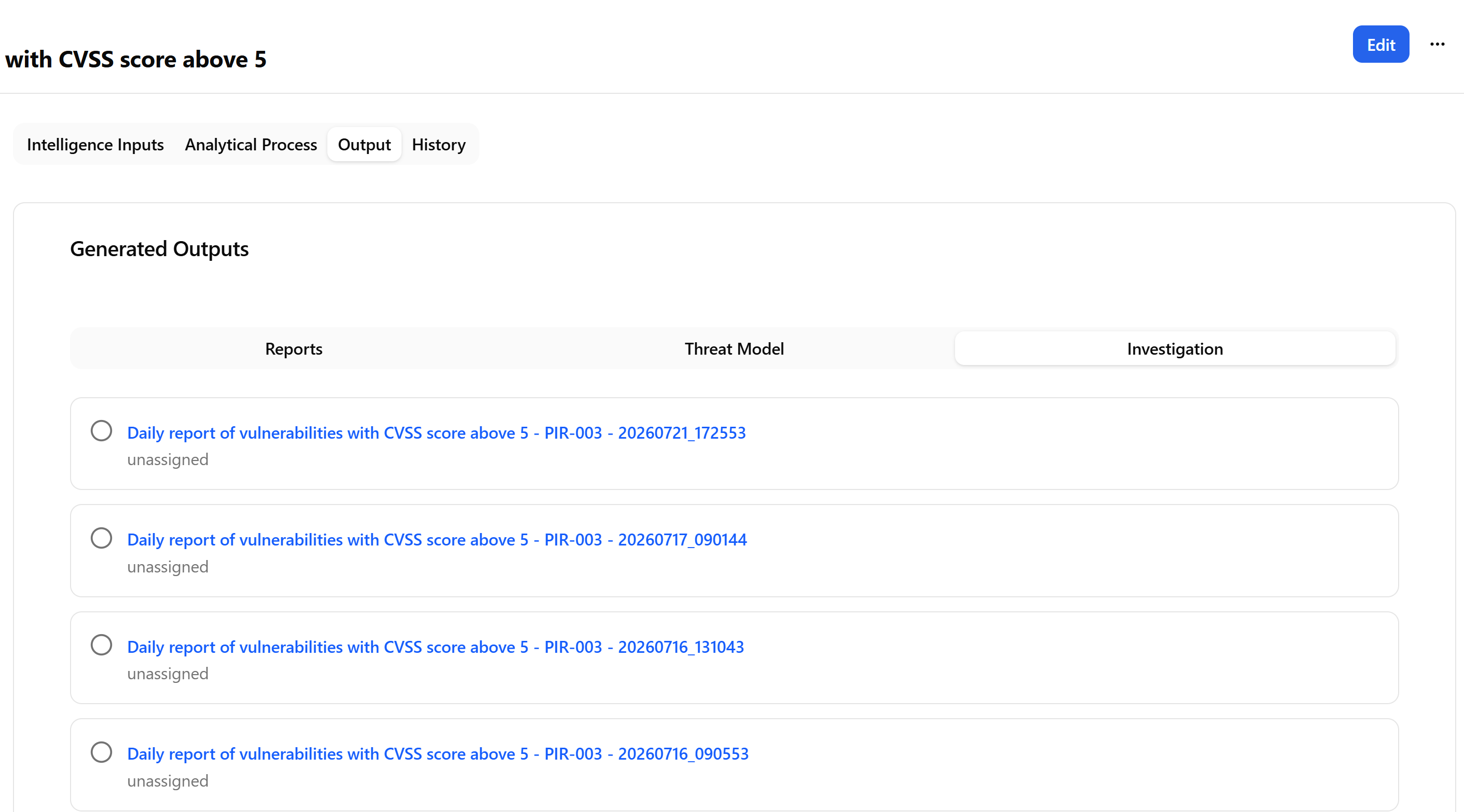
 Output: View the list of generated outputs and output settings for the PIR:
-
Reports: View the list of all reports generated for the PIR. Click a report to view report details. All generated reports can also be accessed on the Security Reporting page. See Accessing Organization Reports for details.
-
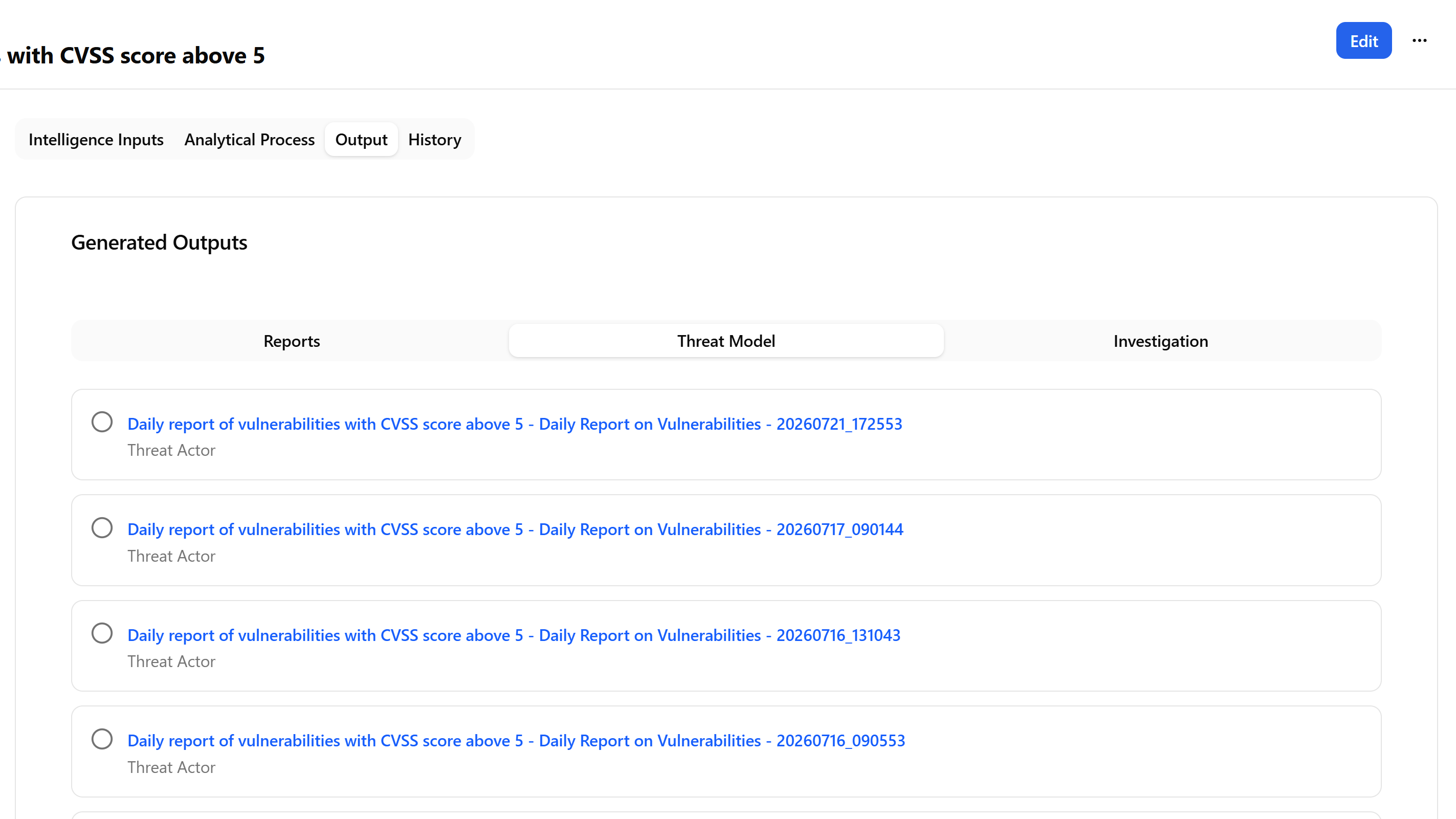
Threat Models: View the list of threat models created for the PIR. Click a threat model to view its details in ThreatStream.
-
Investigations: View the list of investigations started for the PIR. Click an investigation to view its details in ThreatStream.
 History: View a diagnostic log for every PIR run or export PIR logs in a CSV file.
The PIR logs can be filtered by their status:
-
Completed—the run executed from start to finish without errors and reached its expected end state. All steps in the process finished successfully, and all expected outputs were produced.
-
Failed—the run started but stopped before finishing because of an error.
-
Timed Out—the run started but didn't finish within the allotted time window, so the system killed it or gave up waiting.
-
In Progress—the run has started and is actively executing but hasn't reached a terminal state yet.
Each PIR run entry displays a summary banner with clickable counts of what that run collected, tagged, and generated. Each count links to the items from that run in ThreatStream.
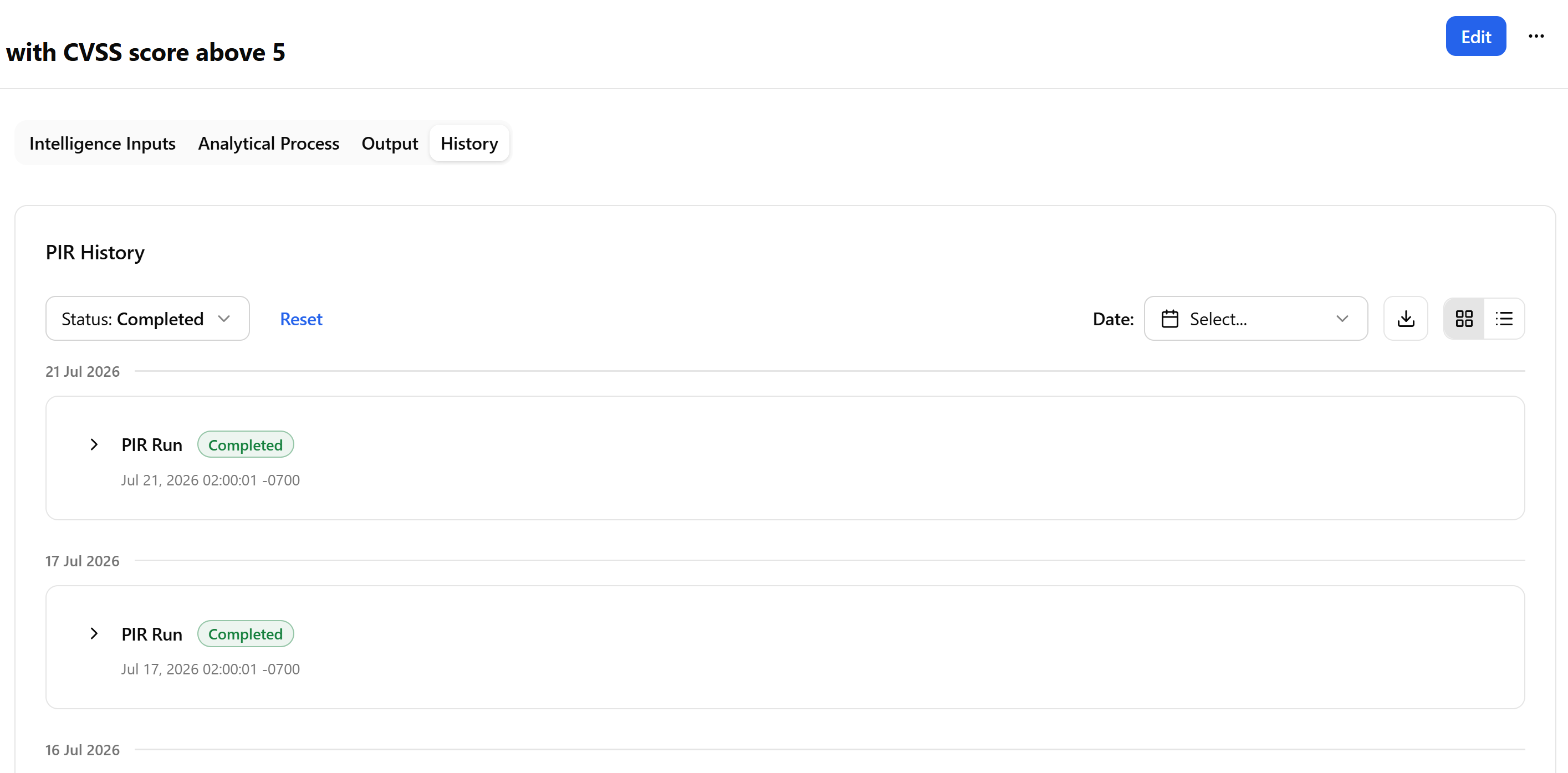
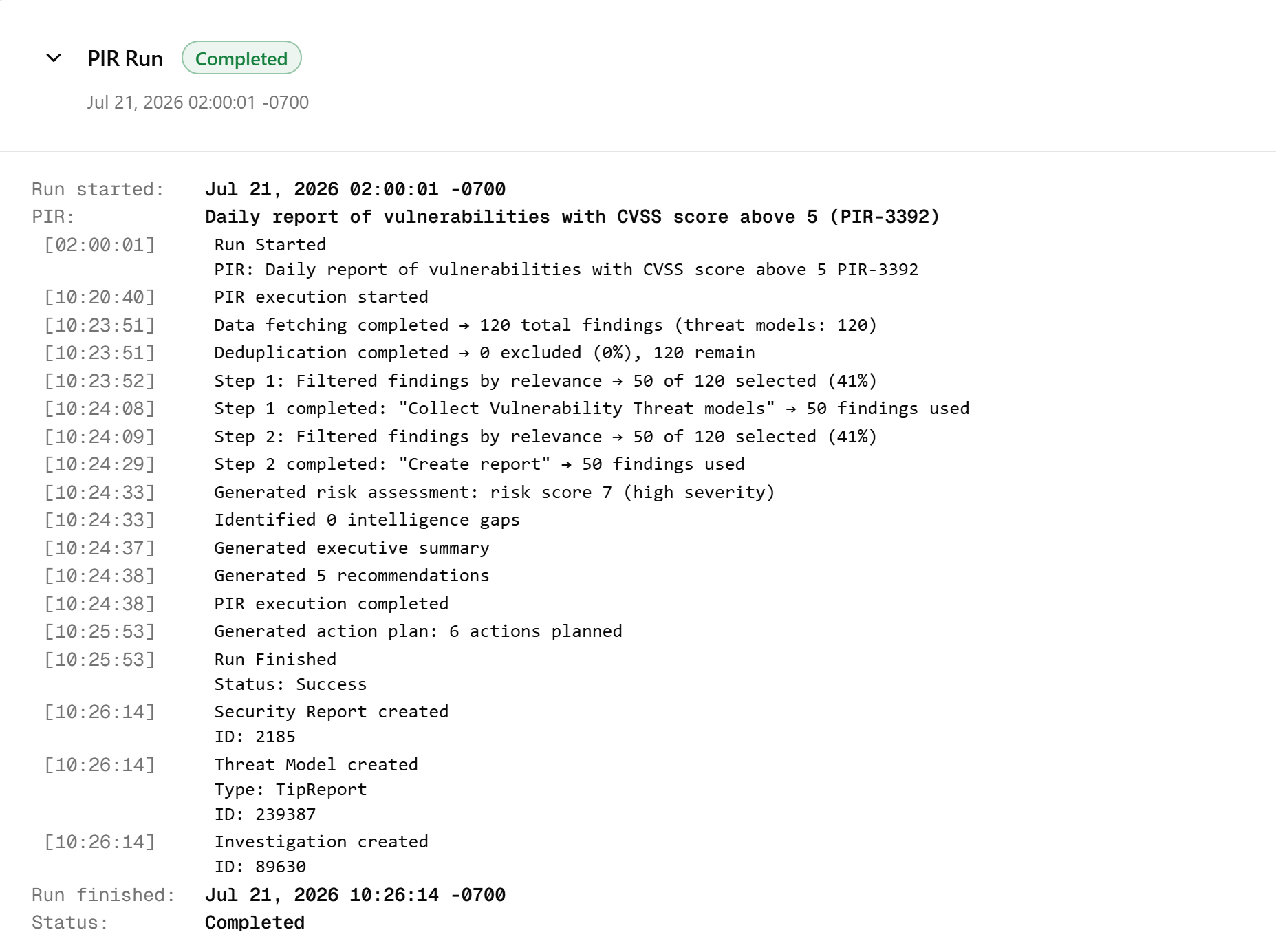
A PIR log provides visibility into what the PIR agent did, how long each step took, and whether outputs were delivered successfully. Retention for PIR trace logs is 6 months.
To view PIR log details, click the PIR log of your interest:
To export PIR logs in CSV format, click the export icon ( ). The file downloading process starts immediately.
 Edit: Click Edit to modify any section of the PIR. To update the analytical process step and output options, switch to the corresponding tabs.
Click Update when done.
 More actions menu (...):
-
Run Now: Run a PIR on demand. See Running PIRs on Demand for details.
-
Manage Access: Configure access to the PIR. See Managing Access to PIRs for details.
-
Share: Copy the link to the PIR to clipboard. See Sharing a PIR From the PIR Details Page for details.
-
Delete: Remove the PIR from the list of PIRs in your organization. See Deleting PIRs From PIR Details Pages for details.
 Sharing & Permissions: See Managing Access to PIRs for details on managing PIR permissions.