Managing PIRs
You can apply the following actions to PIRs created within your organization:
Editing PIRs
To edit PIRs, you must have the required permissions. For details, refer to PIR Actions and Their Required Permissions.
To edit a PIR:
-
Navigate to ThreatStream Next Gen > Priority Intelligence Requirements.
-
On the Priority Intelligence Requirements page, click the PIR you want to edit.
-
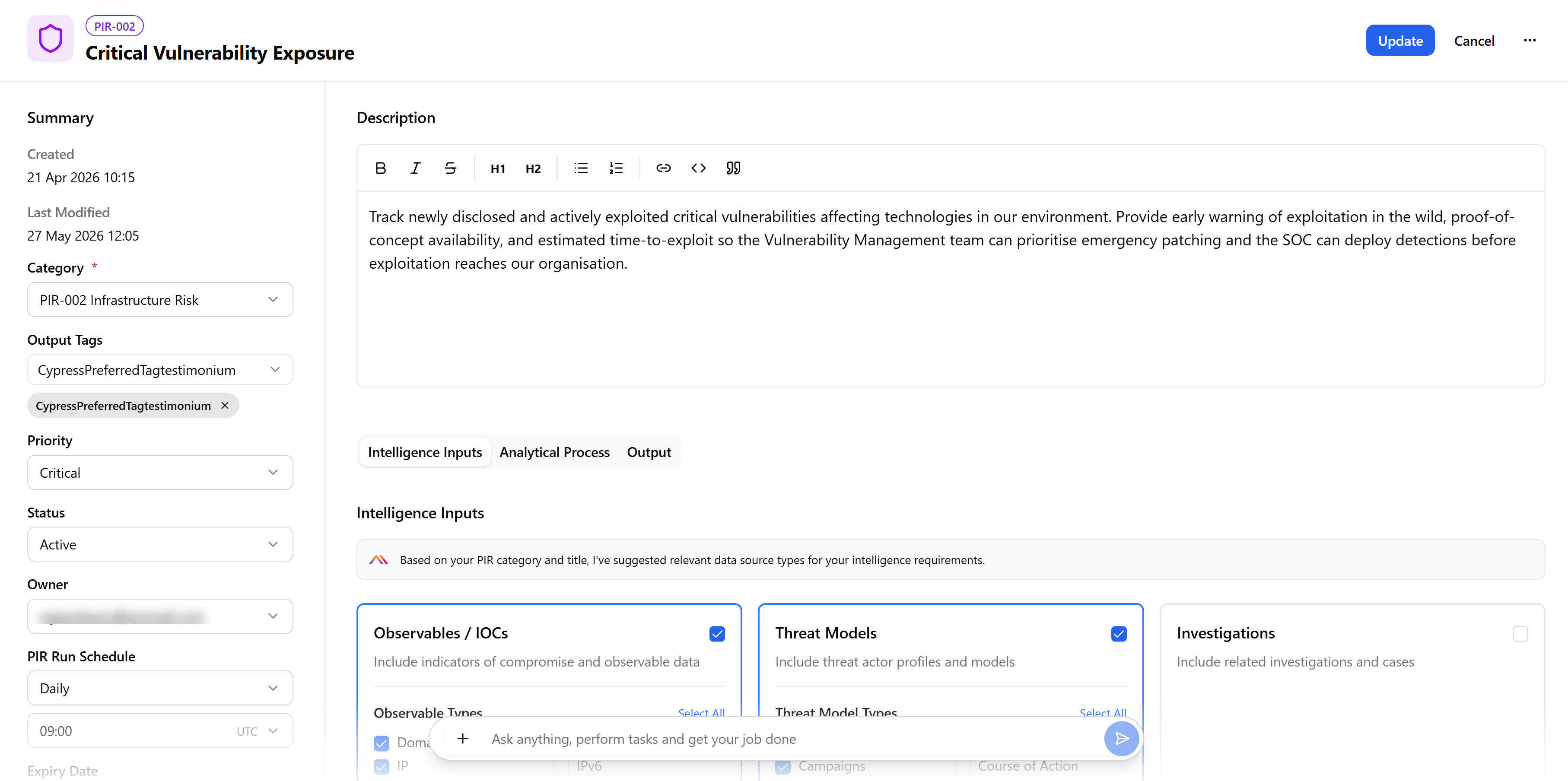
On the PIR details page, click Edit. The PIR opens in the editing mode.
(Click the image to enlarge it.)
-
Make the necessary changes. You can edit all summary fields, PIR Description, PIR tags and keywords, Lookback Window, Intelligence Inputs, Analytical Process, and Output options.
-
Click Update when done.
The PIR is updated.
Running PIRs on Demand
When there’s an immediate or emerging threat that can’t wait for the next scheduled run, such as an active incident or newly discovered indicators, you can run a PIR on demand. To manually run a PIR, you must have the required permissions. For details, refer to PIR Actions and Their Required Permissions.
You cannot run on demand:
Manual PIRs
Paused Anomali AI PIRs
Already scheduled AI PIRs
To run a PIR on demand:
-
Navigate to ThreatStream Next Gen > Priority Intelligence Requirements.
-
On the Priority Intelligence Requirements page, click the PIR you want to run on demand.
-
On the PIR details page, click the more options menu (...) and click Run now.
The following message appears:
The execution is scheduled. Please check back in a few minutes for the results.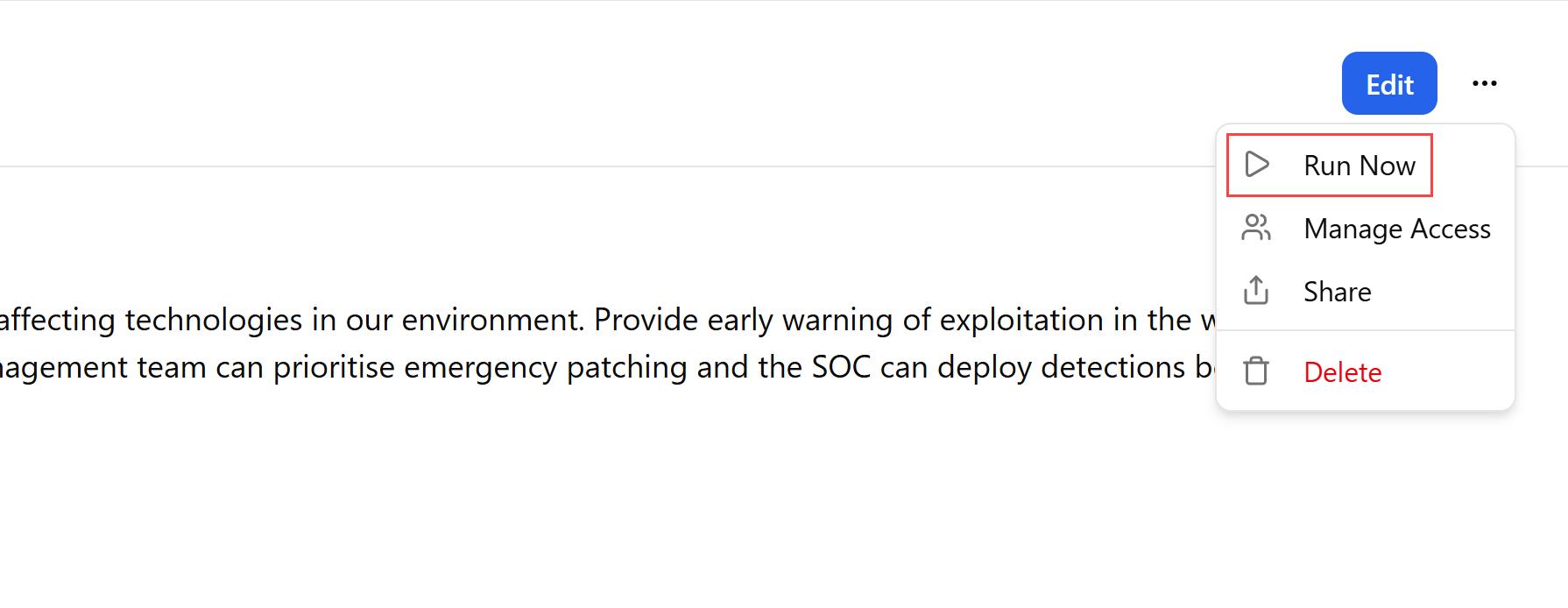
Sharing PIRs
You can share a link to a PIR with other users of your organization using one of the following ways:
Note: Private PIRs cannot be shared.
Sharing a PIR From the Priority Intelligence Requirements Page
To share a PIR from the Priority Intelligence Requirements page:
-
Navigate to ThreatStream Next Gen > Priority Intelligence Requirements.
-
Select the PIR you want to share.
-
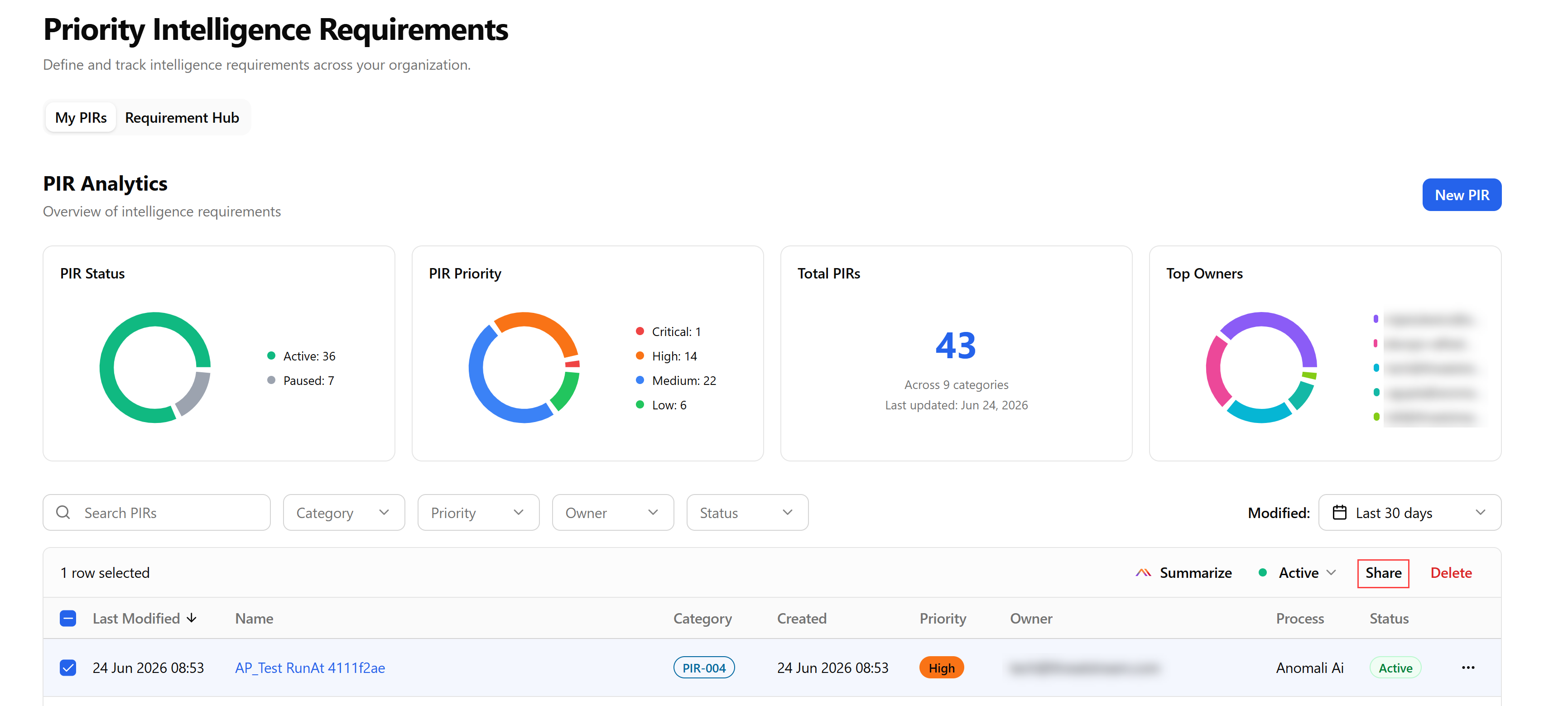
Click Share.
The link to the PIR is copied to the clipboard.
(Click the image to enlarge it.)
Sharing a PIR From the PIR Details Page
To share a PIR from the PIR details page:
-
Navigate to ThreatStream Next Gen > Priority Intelligence Requirements.
-
Click the PIR you want to share.
-
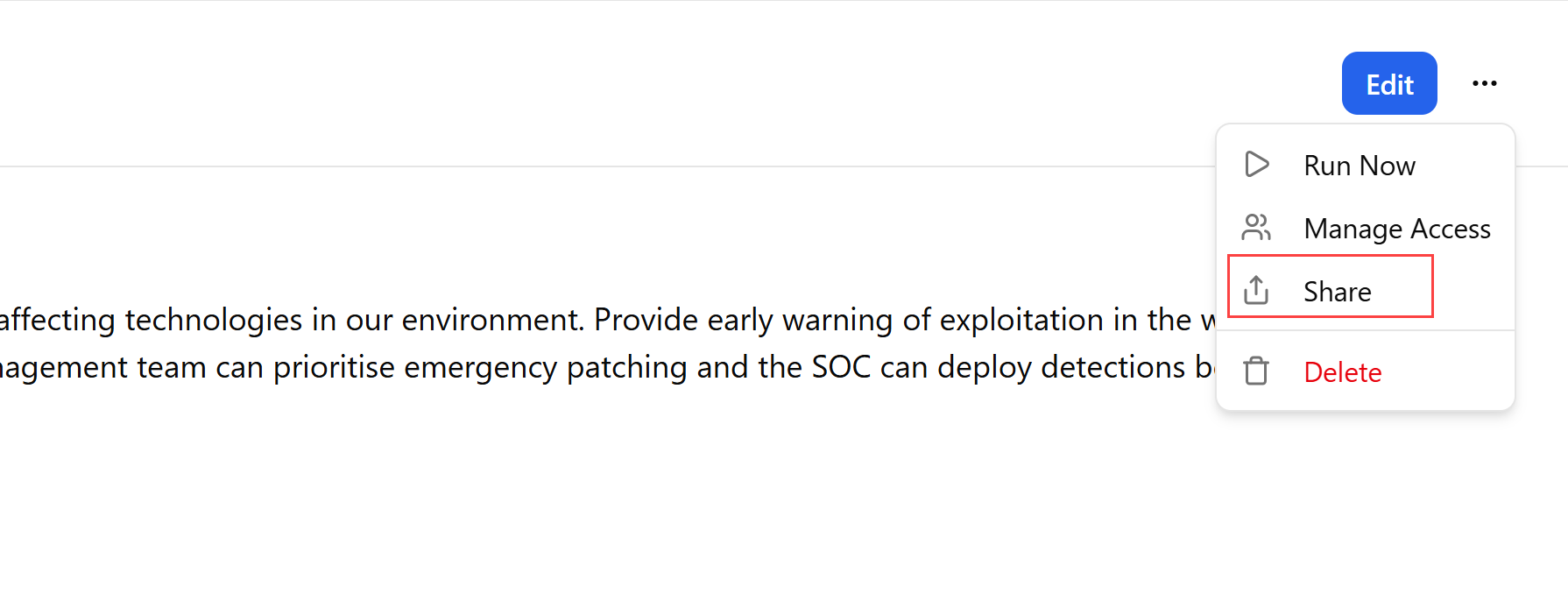
On the PIR details page, click the more options menu (...) and click Share. The link to the PIR is copied to the clipboard.
Summarizing PIRs
Use the Anomali AI-based Summarize feature to get a quick summary of any PIR in your organization. A PIR summary usually includes a clear definition of the intelligence focus and objective, explaining what is being monitored and why it matters (for example, tracking vulnerabilities above a certain severity to inform stakeholders). It also outlines how data is collected and analyzed, including sources, filters, and reporting methods.
In addition, it highlights any coverage gaps or limitations in the current setup, along with potential overlaps if multiple PIRs exist. Finally, it provides actionable insights by identifying priority areas for improvement. For example, expanding coverage, refining data sources, or increasing analytical depth.
To summarize a PIR:
-
Navigate to ThreatStream Next Gen > Priority Intelligence Requirements.
-
On the Priority Intelligence Requirements page, select the PIR you want to summarize.
-
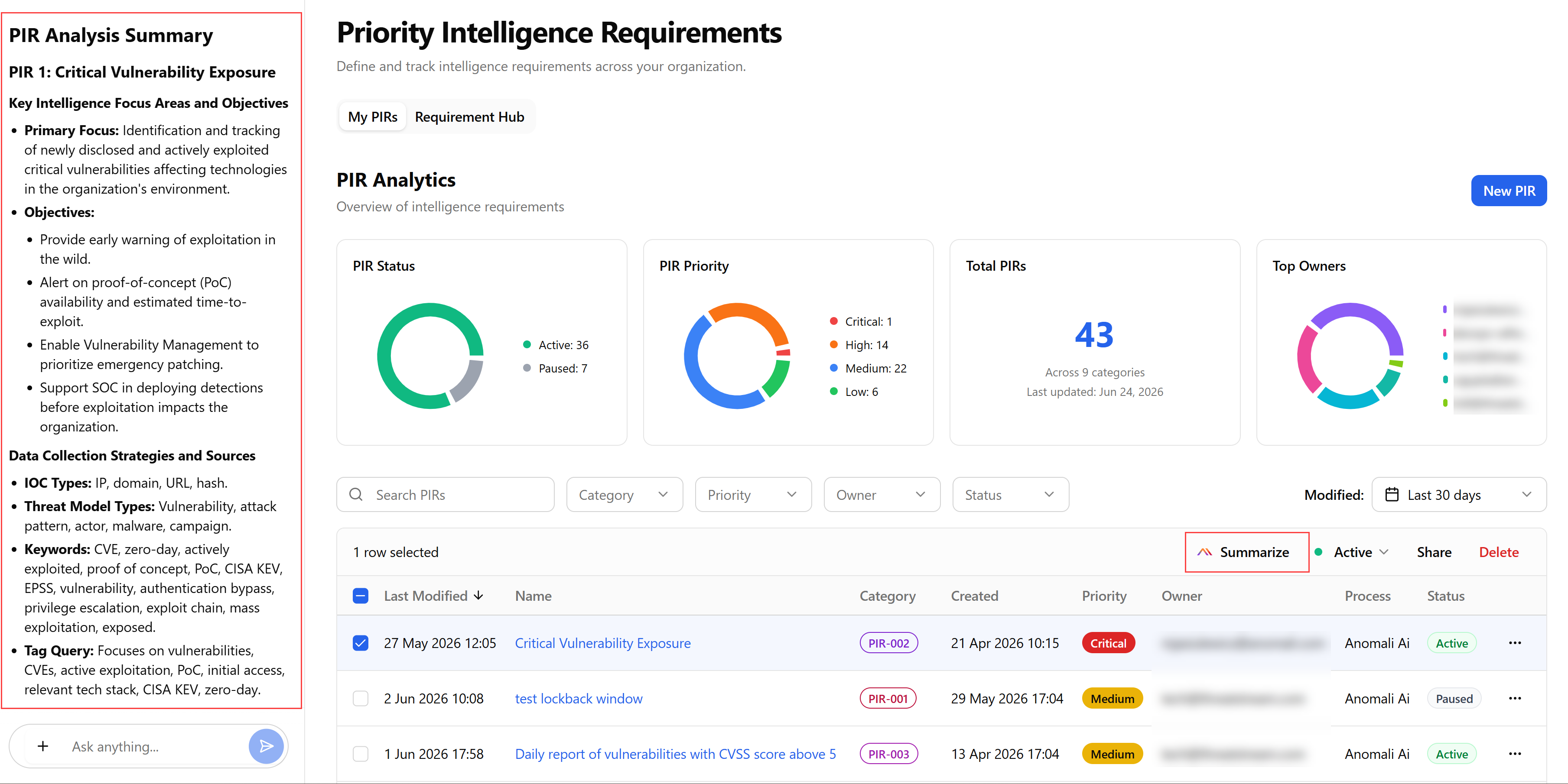
Click Summarize.
Anomali AI starts generating a PIR summary on the left side of the screen.
(Click the image to enlarge it.)
Updating a PIR Status
You can update a PIR status in one of the following ways:
To update a PIR status, you must have the required permissions. For details, refer to PIR Actions and Their Required Permissions.
Updating a PIR Status From the Priority Intelligence Requirements page
To update a PIR status from the Priority Intelligence Requirements page:
-
Navigate to ThreatStream Next Gen > Priority Intelligence Requirements.
-
On the Priority Intelligence Requirements page, select the PIR whose status you want to update.
-
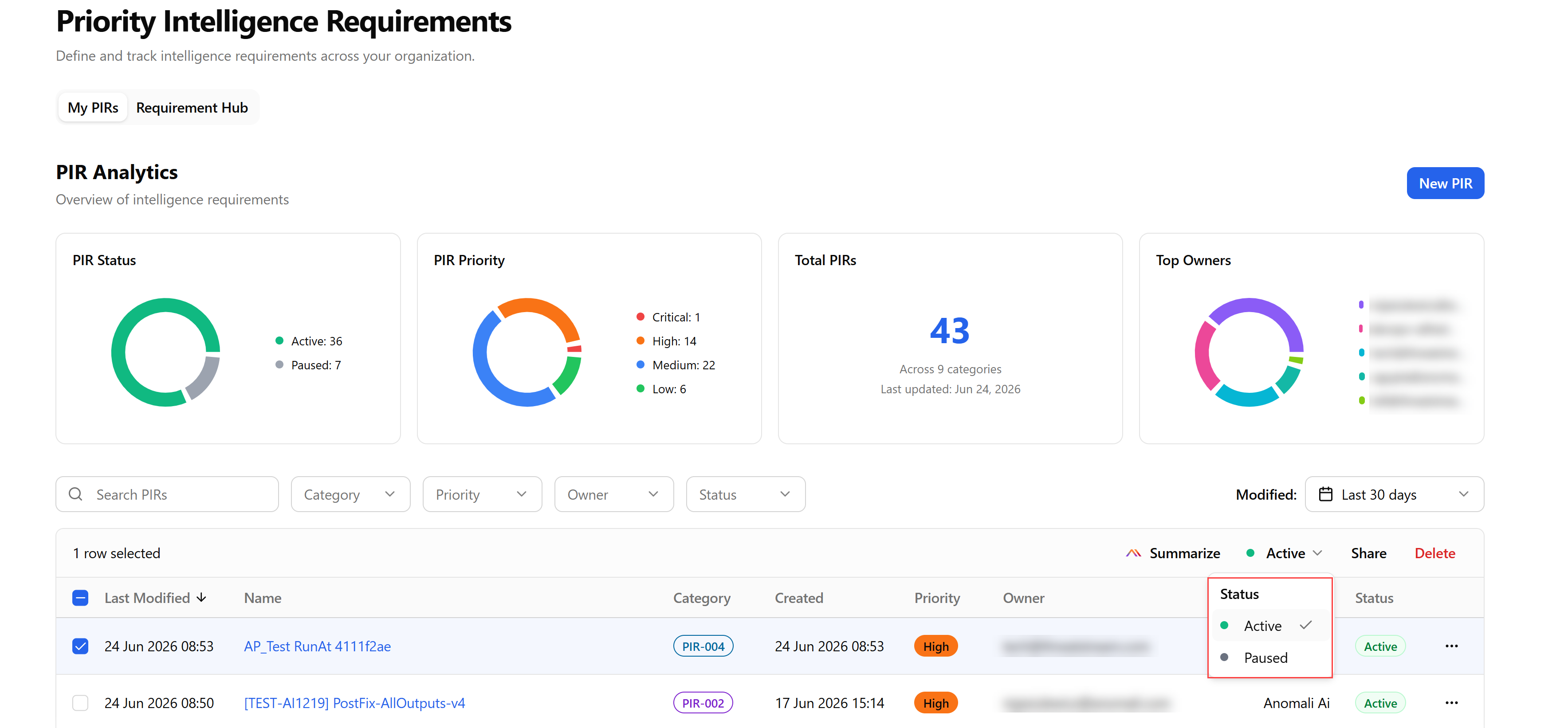
Click Status and select Active or Paused.
-
(Click the image to enlarge it.)
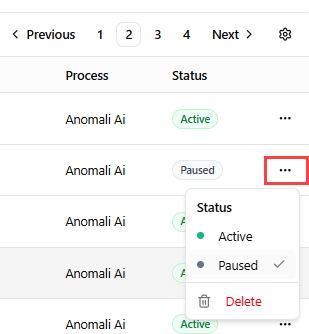
Alternatively, click the more options menu (...) and change the PIR status by clicking Active or Paused there.
-
Updating a PIR Status From the PIR Details Page
A PIR status can also be updated on the PIR details page in the editing mode.
To update a PIR status from the PIR details page:
-
Navigate to ThreatStream Next Gen > Priority Intelligence Requirements.
-
Click the PIR whose status you want to update.
-
On the PIR details page, click Edit.
-
In the Summary section, change the PIR status.

-
Click Update.
The PIR status has changed.
Deleting PIRs
Organization Administrators and PIR owners can delete PIRs in one of the following ways:
Deleting PIRs From the Priority Intelligence Requirements Page
-
Navigate to ThreatStream Next Gen > Priority Intelligence Requirements.
-
Select one or multiple PIRs that you want to delete.
-
Click Delete.
The selected PIRs are removed from the list of PIRs of your organization.
-
(Click the image to enlarge it.)
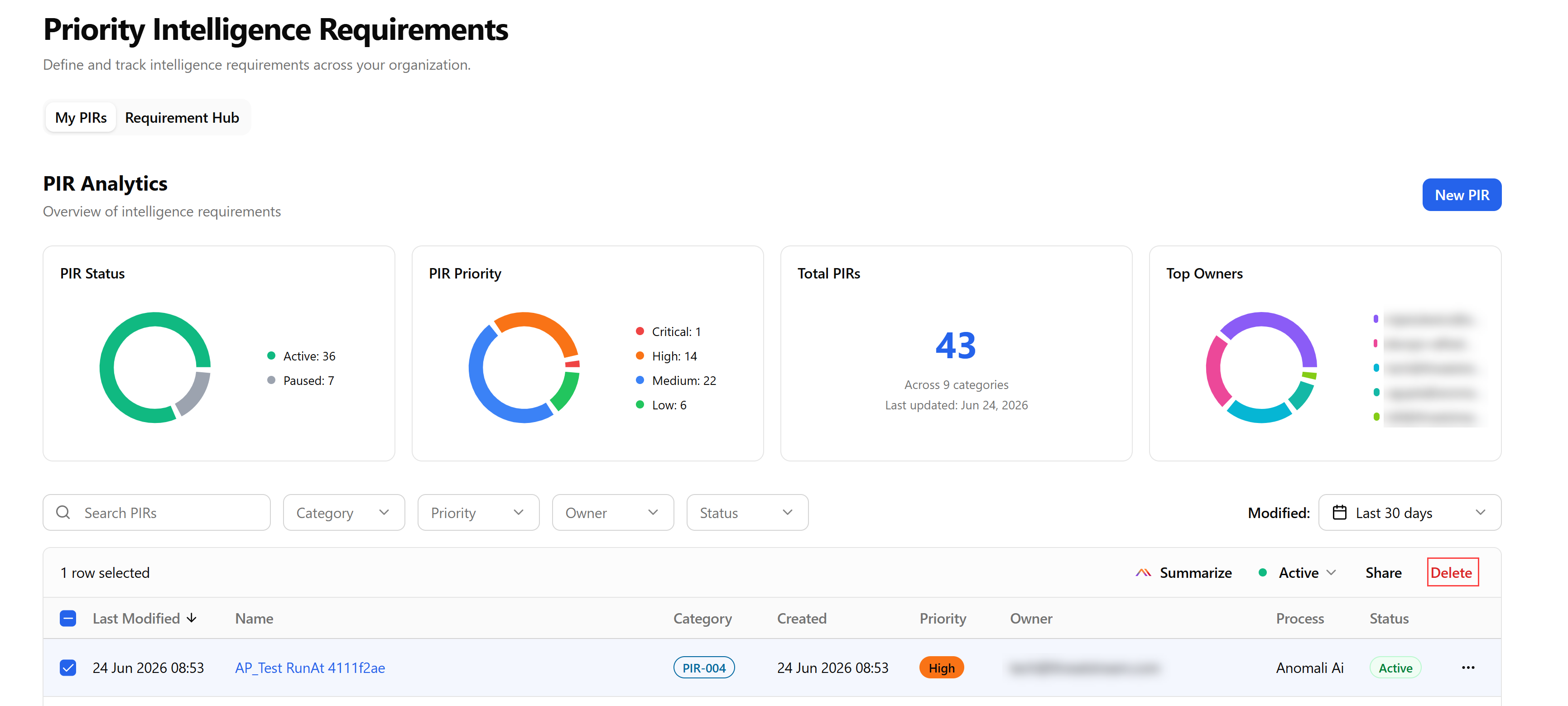
Alternatively, to delete a single PIR, click the more options menu (...) of the PIR you want to delete and click Delete.
The PIR is removed from the list of PIRs of your organization.
-
Deleting PIRs From PIR Details Pages
To delete a PIR from the PIR details page:
-
Navigate to ThreatStream Next Gen > Priority Intelligence Requirements.
-
Click the PIR you want to delete.
-
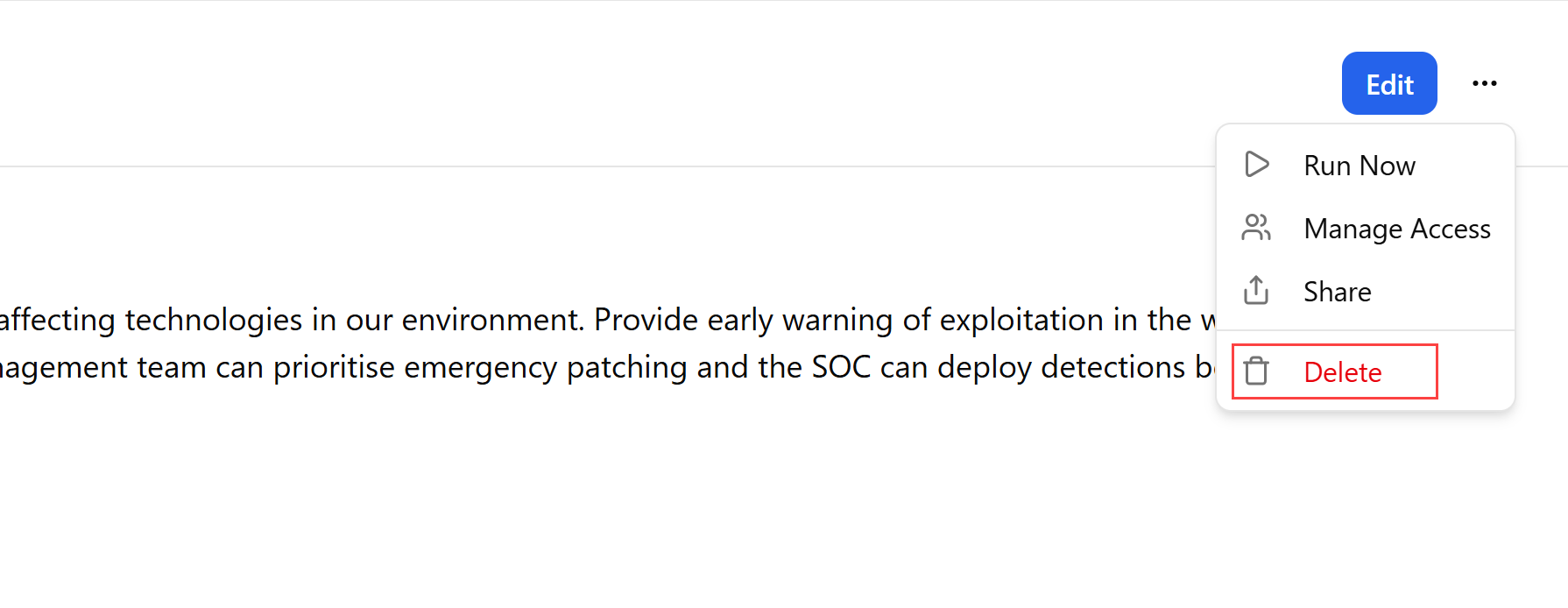
On the PIR details page, click the more options menu (...) and click Delete.