Managing Access to PIRs
Note: PIRs that users could access before the introduction of role-based access control (RBAC) for PIRs remain accessible after the feature is enabled. During migration, the existing Assignee value is mapped to the Owner field.
PIR access is governed by two independent permission layers that both must pass:
-
PIR Permissions determine what actions a user can perform on PIRs. For example, view, create, edit, delete, run, or pause/resume PIRs. PIR Permissions are assigned to user roles by an Organization Administrator. A user inherits the permissions of all roles assigned to them. For details on PIR permissions that can be assigned to roles, see Managing Roles.
When ThreatStream Next Gen is enabled for an organization, the following system roles are automatically assigned to users:
-
PIR Manager: Assigned to all non-Read-Only and Read-Only users in organization that have access to ThreatStream Next Gen.
-
PIR Viewer: Assigned to all Read-Only users in organizations that have access to ThreatStream Next Gen.
For details on the PIR Manager and PIR Manager roles, refer to Using System Roles.
Organization Administrators can modify roles and permissions at any time through Role Management. See Managing Roles for details.Roles of SSO users must be modified through the identity provider of their organization. See Enabling User Management with Third-Party Identity Providers for details.
-
-
Per-PIR access control level (ACL) determines which users can access a PIR and at what level. For details, see PIR Actions and Their Required Permissions and Managing Access to an Individual PIR.
PIR Actions and Their Required Permissions
The following table lists the available PIR actions and the required combination of permissions and ACL access levels for each action. Both requirements must be met; if either check fails, the action is denied. Users who do not have an ACL access level assigned to them cannot view the PIR.
| Action | Permission Required | ACL Access Level Required |
|---|---|---|
| Configure sharing |
N/A |
PIR Owner/Organization Administrator |
| Create a new PIR | Create PIR Configurations | N/A |
| Delete a PIR | Delete PIR Configurations | PIR Owner/Organization Administrator |
| Edit a PIR | Update PIR Configurations | PIR Owner/Write/Organization Administrator |
| Manually run a PIR | Run PIR Configurations | Read or Higher |
| Pause/resume a PIR | Pause/Resume PIR Configurations | PIR Owner/Write/Organization Administrator |
| Transfer ownership | N/A | PIR Owner/Organization Administrator |
| View a PIR and its outputs | View PIR Configurations | Read or Higher |
Managing Access to an Individual PIR
To manage access to a PIR:
-
Navigate to ThreatStream Next Gen > Priority Intelligence Requirements.
-
Click the PIR for which you want to configure access.
-
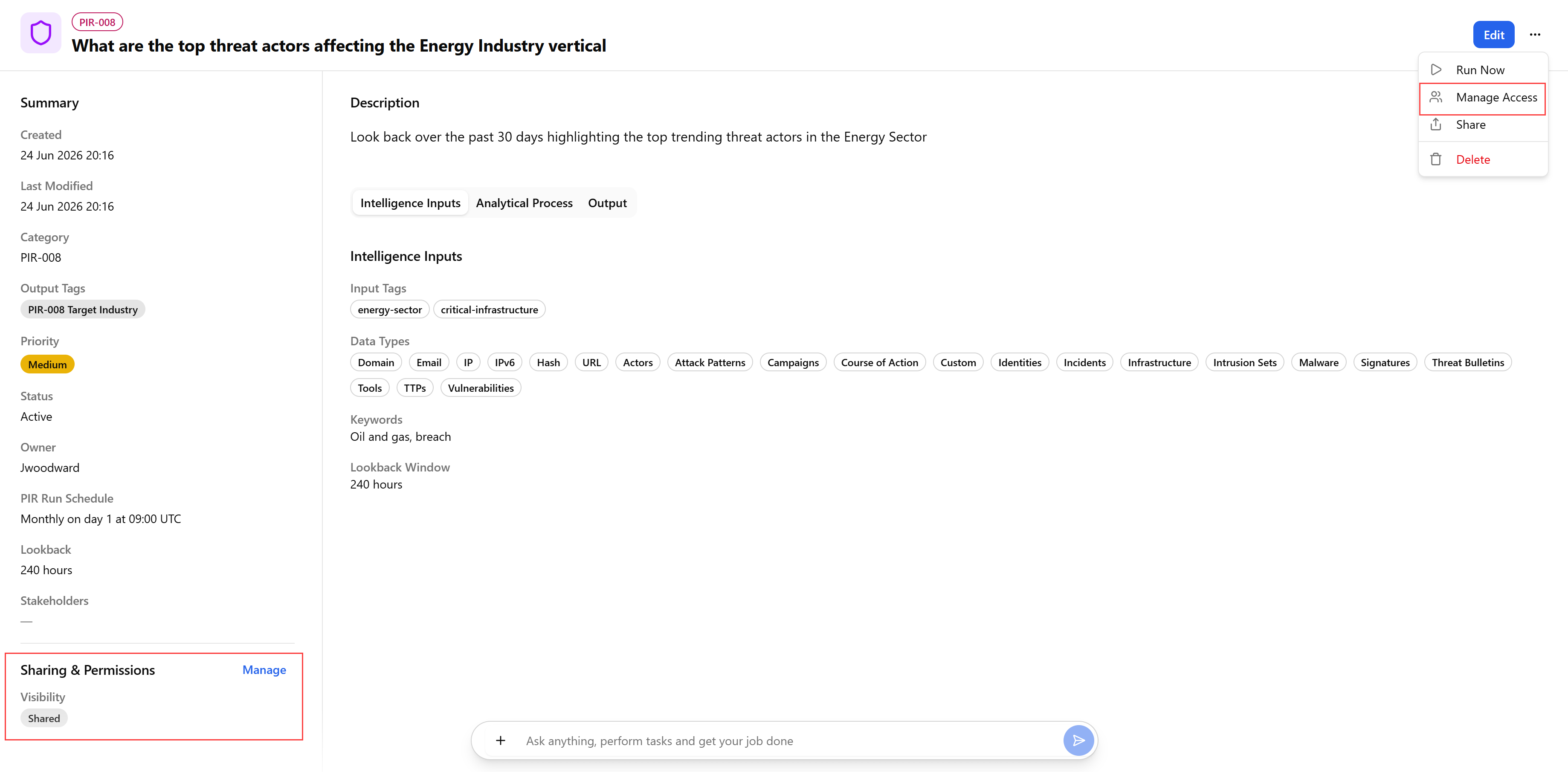
Click the more options menu (...) and select Manage Access. Alternatively, click Manage in the Sharing & Permissions section.
(Click the image to enlarge it.)
-
In the Sharing and Permissions dialog box, change the owner if required. Note that only the PIR owner or an Organization Administrator can transfer PIR ownership.
Note: When ownership of a PIR is transferred, the new owner can perform only the actions permitted by their assigned role. For example, a user with only the View PIR Configurations permission can view the PIR but cannot edit, run, pause, or perform other actions that require additional permissions, even as the PIR owner. Although PIR owners typically have at least the Create PIR Configurations permission, verify the recipient's permissions before transferring ownership.
-
In the Visibility section, click:
-
Private, if you want the PIR to be visible only to the owner.
-
Shared, if you want to share the PIR with other users of your organization. Select which roles can access the PIR and the level of access granted to each role.
For details on permissions and ACL levels, refer to PIR Actions and Their Required Permissions.
For details of user roles, refer to Managing Roles.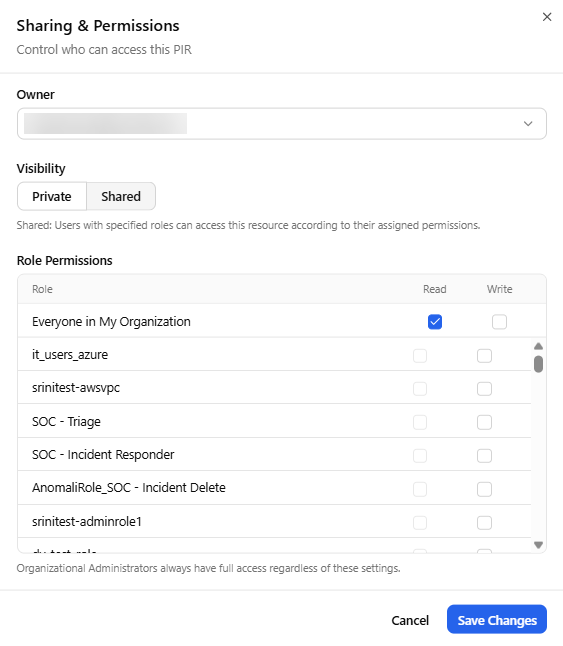
-
-
Click Save Changes.
Access to the PIR is updated.