Identities
The Identities page lists all identity entities that Anomali Agentic SOC Operations has consolidated from your connected identity providers. Each entry displays the identity risk score, source, group memberships, and status, giving your team a complete view of every monitored identity in your organization.
Accessing Identities
To access dentities:
-
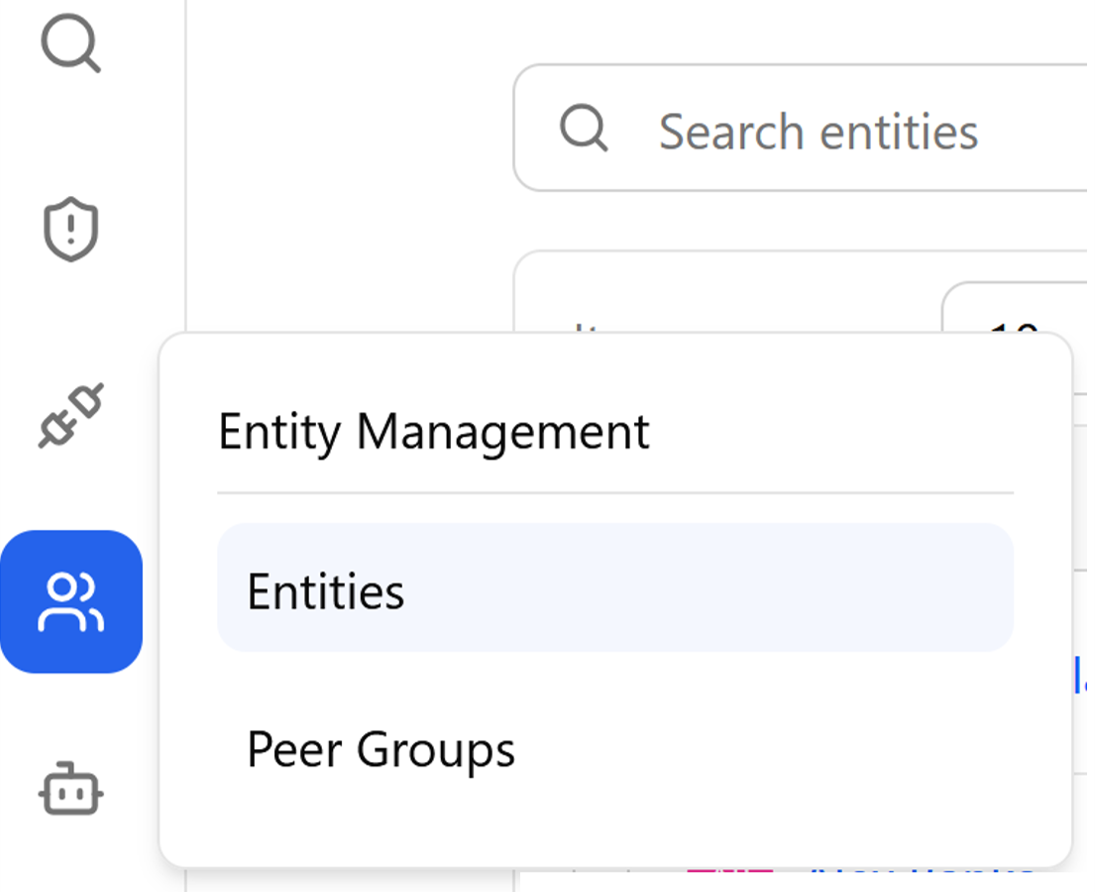
Navigate to ThreatStream Next Gen > Entity Management > Entities.
-
On the Entities page, click the Identities tab.
Understanding the Identities List
The Identities list displays all identity entities in your organization. Use the search field and filters to narrow results. Click an identity name to open its details.
(Click the image to enlarge it.)
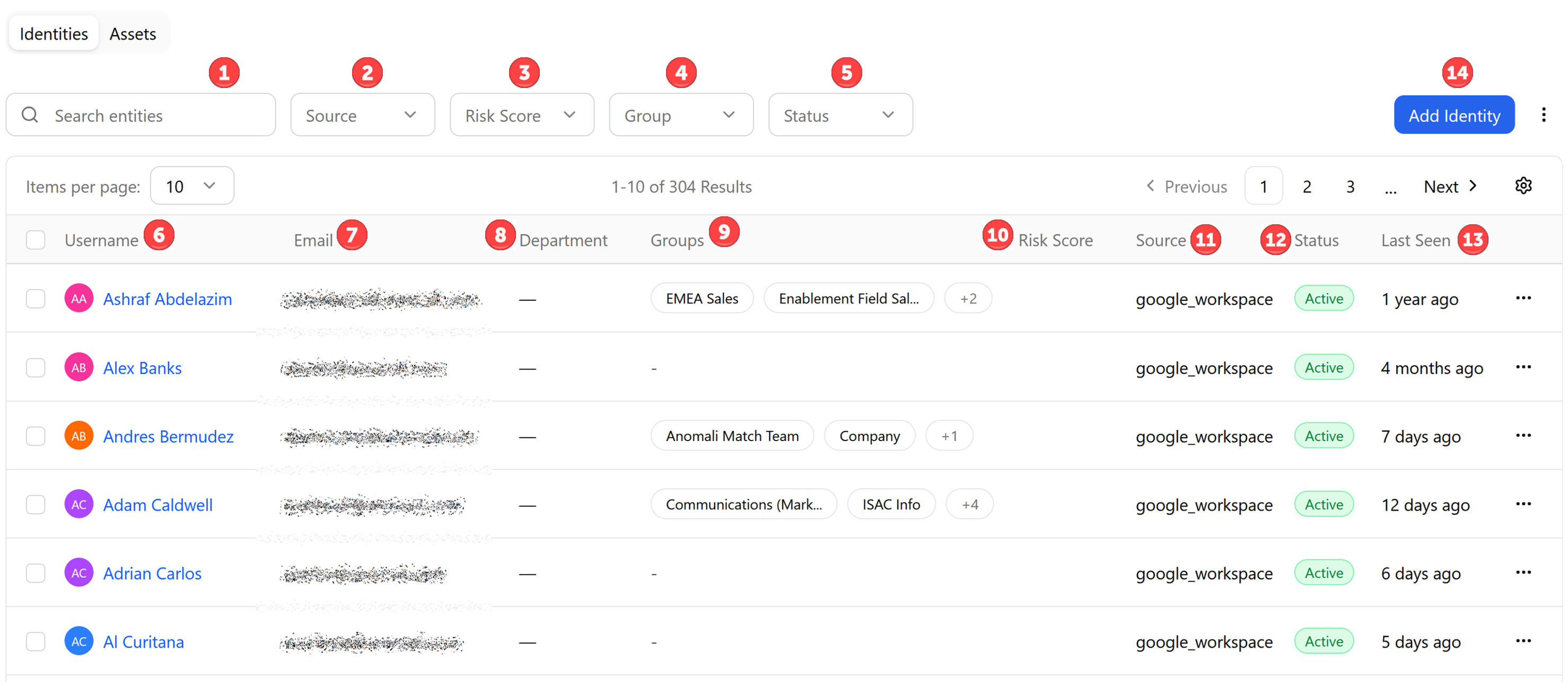
 Search Entities: Filter the identities list by name. Results update as you type.
 Source: Filter the list by the identity provider the identity was ingested from.
 Risk Score: Filter the list by risk score range.
 Group: Filter the list by peer group membership.
 Status: Filter the list by identity status. Possible values are Active and Inactive.
 Username: The display name of the identity. Click a username to open the Identity Details panel. See Viewing Identity Details.
 Email: The primary email address associated with the identity.
 Department: The organizational department the identity belongs to, as synced from the identity provider.
 Groups: The peer groups this identity belongs to. If the identity belongs to more than one group, additional groups are indicated with a count.
 Risk Score: The current risk score for the identity, calculated from detections in a rolling 24-hour window. See Entity Risk Scores.
 Source: The identity provider the record was ingested from, such as Google Workspace or Azure AD.
 Status: The current status of the identity record. Possible values are Active and Inactive.
 Last Seen: The time elapsed since the identity was last observed in a detection or activity event, and not considered for risk scoring. last_seen reflects when the connector last observed the entity (when the IDP or scanner reports the entity), and not when a detection fired against it.
 Add Identity: Opens the form to manually add a new identity. See Adding an Identity.
Click the View Settings gear icon ( ) in the pagination bar to customize the table. The View Settings panel lets you toggle column visibility, drag columns to reorder them, and reset the layout to defaults with Reset View. Use the Density toggle to switch between Default and Compact row height.
Understanding Identity Permissions
Users with the Manage Entities permission can change individual risk overrides, change group multipliers, add, edit, or remove entities, and add or remove entities from peer groups.
| Action | Permission Required |
|---|---|
| View the identities list and identity details | View Entities |
| Export identity data | |
| Add an identity manually or through CSV import | Manage Entities |
| Edit an identity record | |
| Merge identity records | |
| Set or change an entity risk override | |
| Add or remove identities from peer groups |
See Managing Roles for more information on how roles and permissions work.
Understanding Identity Details
The Identity Details panel gives you a complete view of a single monitored identity, including its current risk score on a 0–100 scale, active detections within the current 24-hour window, profile fields, aliases, and peer group memberships. Reviewing the Risk Score tab shows how peer group multipliers and any configured overrides contribute to the final score. See Viewing Identity Details.
Adding an Identity
Each identity record represents a single user or account monitored by Anomali Agentic SOC Operations. You can create identities either manually, one at a time, or import them in bulk at once through a CSV file. See Adding an Identity.
Managing Existing Identities
Use bulk actions to apply risk overrides, assign identities to peer groups, or export records for multiple selected identities at once. Each row also has an options menu that lets you view details, edit, or remove a single identity without a bulk selection. See Managing Identities.