Editing Signatures
Signature entities created by your organization users can always be edited.
To edit a Signature:
- Navigate to ThreatStream > Analyze > Threat Model.
- Click the name of the Signature you want to edit.
- Click Actions > Edit.
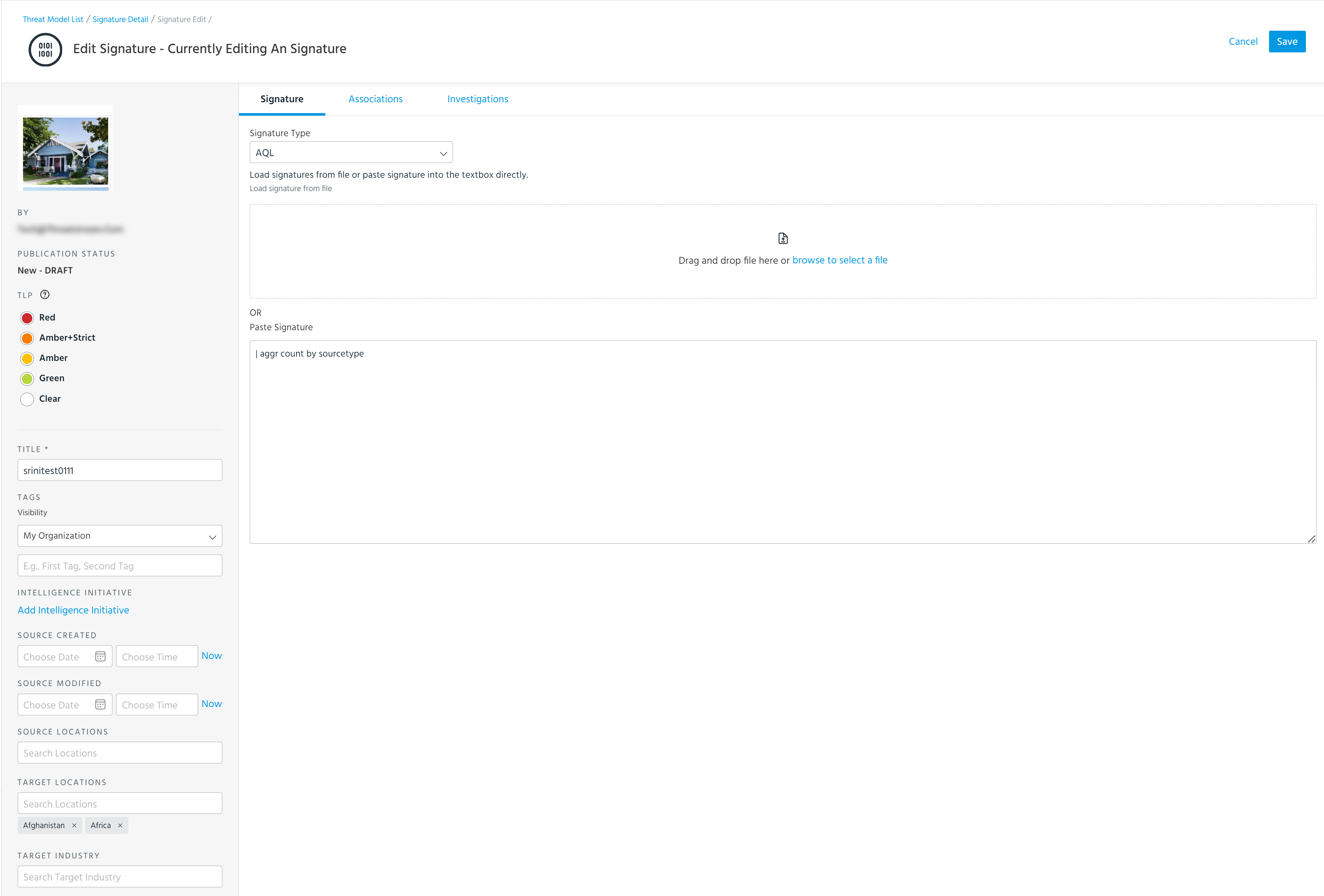
-
In edit view, make changes to any of the fields listed below.
Field Description TLP Select a TLP (Traffic Light Protocol) color to associate with the Signature.
The TLP color provides a mechanism to communicate to consumers of the information whether further dissemination of this information is allowed; if further dissemination is allowed, how freely can this information be distributed.
To learn more about TLP, search for "Traffic Light Protocol" in your favorite search engine.
Title Enter a meaningful name for the Signature.
Signature titles are associated with your organization. Therefore, you cannot create two Signatures with the same title within your organization. However, two Signatures with the same title can exist on ThreatStream as long as they belong to different organizations.
Note: Titles must be 255 characters or less.
Tags Enter a term that can be used to search this entity later using search. To add private tags that are only visible to your organization, assign them the My Organization visibility setting. Tags assigned the Anomali Community visibility setting are visible to any user with access to the entity. Since organizations can decide whether users outside of their organization can add public tags to their data, the Anomali Community visibility setting is not available in all cases.
Tagging is a quick and easy way to add metadata to threat intelligence. For example, you can add a tag to indicate the industry that the threat intelligence is associated with or a tag to indicate the Kill Chain phase stage.
As you type the first few characters of the tag, the 20 most used tags in your organization from the previous seven days are displayed. Enable the Preferred Tags Only toggle to display and search though only the list of preferred tags. Alternatively, enter * to display preferred tags.
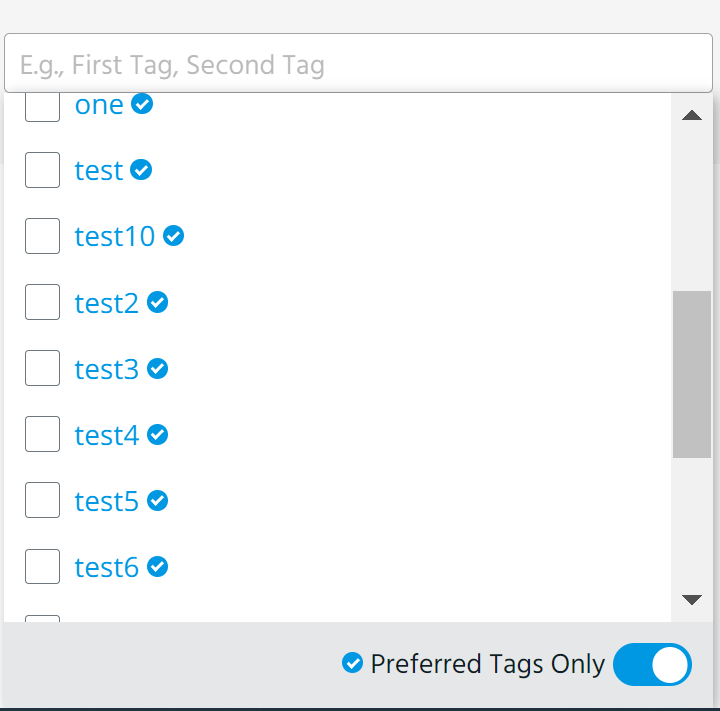
For entities owned by your organization, you can delete any public tag associated with the entity. For entities owned by other organizations, you can only delete tags added by your organization.
Note:
-
Signatures can contain up to 200 tags per organization. Tags added by other organizations do not count toward this limit.
-
Tags must be 2,000 characters or less.
-
You can remove any public tag added by other organizations to your Threat Model entities.
Intelligence Initiative Add intelligence initiatives associated with the Signature. Click Add Intelligence Initiative to add an intelligence initiative to the Signature. Source Created
Specify the date and time when the entity was created by its original source.
Click Now to use the current time.
Source Modified
Specify the date and time when the entity was last modified by its original source.
Click Now to use the current time.
Source Locations Select source countries, regions, or administrative areas (US States and Washington DC only) associated with the Signature. Locations available for selection are defined by STIX 2.1.
Note: Only organizations owning the Signature can add or delete source locations.Target Locations Select target countries, regions, or administrative areas (US States and Washington DC only) associated with the Signature. Locations available for selection are defined by STIX 2.1.
Note: Only organizations owning the Signature can add or delete target locations.Target Industry Select target industries associated with the Signature. Target industry options available for selection are defined by the STIX 2.1 Industry Sector vocabulary.
Note: Only organizations owning the Signature can add or delete target industries.Signature Signature Type Select one of the following Signature types:
Snort, YARA, CyBOX, OpenIOC, ClamAV, Suricata, Bro, Carbon Black Query, Custom, Splunk Query, Sigma, RSA NetWitness.Signature Enter the full text of the Signature.
Under Load Signature from file, add the Signature from a file. The maximum file size is 10 KB.
OR
Under Paste Signature, manually enter the Signature.
Note: Supported file types are YARA (.yar) , Snort/Suricata (.rules), Cybox/OpenIOC (.xml), Splunk/Carbon Black Query/Custom (.txt), Bro Intel (.bro), and ClamAV (.ign .ign2 .ftm .hdu .hdb .hsu .hsb .ndb .msu .msb .mdu .mdb .ndu .wdb .sfp .pdb .ldu .ldb .idb.fp .crb .cdb), Sigma (.yml .yaml)
Associations Observables Create associations with the Signature.
To create associations with this Signature:
- Click Add for the type of entity you want to associate.
-
Select the entities you want to add.
-
(Optional) On the Details tab, define an SRO for the association. See Managing STIX Relationship Objects (SROs) for more information.
- Click Create Association.
The associations have been created.
Threat Bulletins Actors Attack Patterns Campaigns Courses of Action Identities Incidents Infrastructure Intrusion Sets Malware Signatures Tools TTPs Vulnerabilities Sandbox Reports Investigations Investigations Investigations associated with the Signature. To remove the Signature from an investigation, click on the investigation of your interest and delete the Signature from the investigation page. See Managing Entities on the Table View for details. Note: Visibility is set when you publish entities. If you want to change the Visibility of a published entity, click Publish in the Actions menu and select a new Visibility. See Reviewing Threat Model Entities for Publication for more information.
-