Managing STIX Relationship Objects (SROs)
ThreatStream enables you to create STIX compliant relationship objects (SROs) that define relationships between entities in the Anomali Threat Model. From the ThreatStream user interface, you can define relationships by selecting a STIX v2.1 SRO or entering a custom SRO value, and then specifying a direction of for the relationship. The following is an example of an SRO:

For more information on SROs, see the STIX documentation.
Defining SROs Between Entities
You can use the steps in this section to define SROs from Threat Model entity details pages. See Adding New Threat Model Entitiesfor information on defining SROs during Threat Model entity creation. See Importing Observablesfor information on defining SROs during observable import.
To define SROs between entities:
-
Navigate to the details page of the Threat Model entity or observable of interest.
Note: Associations between Threat Model entities and observables cannot be created from observable details pages. Therefore, if you want to create an association between a Threat Model entity and an observable, navigate to the details page of the Threat Model entity.
- If creating an SRO from a Threat Model entity details page, click Edit in the Actions menu and then open the Associations tab. If you are adding an observable association, open the observables tab and click Add Association in the Actions menu. If adding a Threat Model entity association, open the Threat Models tab and click Add next to the Threat Model entity type of interest. If adding or editing an SRO for an existing association, select the association of interest and click Edit Association in the Actions menu.
OR
If creating an SRO from an observable details page, navigate to the observables tab in the Associations section of the page. Then click Add Association in the Actions menu. If adding or editing an SRO for an existing association, select the association of interest and click Edit Association in the Actions menu.
- On the Association tab, select the Threat Model entities or observables with which you want to create the association.
-
On the Details tab, select the SRO of interest under Type.
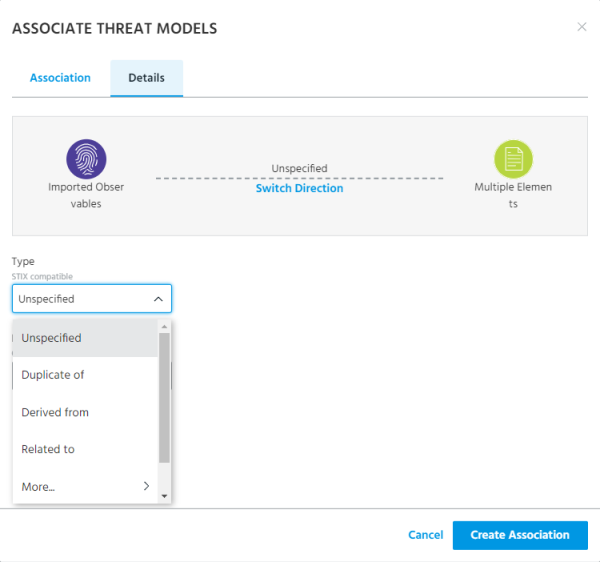
Hover over More... to view a full list of available SROs
To add a custom SRO, click Custom and enter the custom value under Custom Type.
- Click Switch Direction to select the desired SRO direction.
- (Optional) Add a Label to the SRO to provide additional contextual information for the association.
- Click Create Association.
The SRO has been defined.
Viewing SROs
You can view SROs on the Associations section of observable or Threat Model entity details pages. Associations that contain SRO definitions display values in the Direction and Type columns.
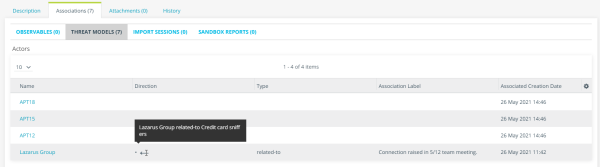
Note: Hover over the value in the Direction column to view the SRO definition.