Subscribing to Anomali Feeds, Enrichments, and Intelligence Channels
In this section:
The Alliance Preferred Partner (APP) Store is a marketplace where you can subscribe to feeds,
The APP Store also enables you to reference the list of open source feeds that are already part of your threat intelligence in ThreatStream.
Only Organization Administrators can manage access to premium intelligence feeds, enrichments, and intelligence channels. Read-only users can only browse the APP Store.
Below is an example of the APP Store page.
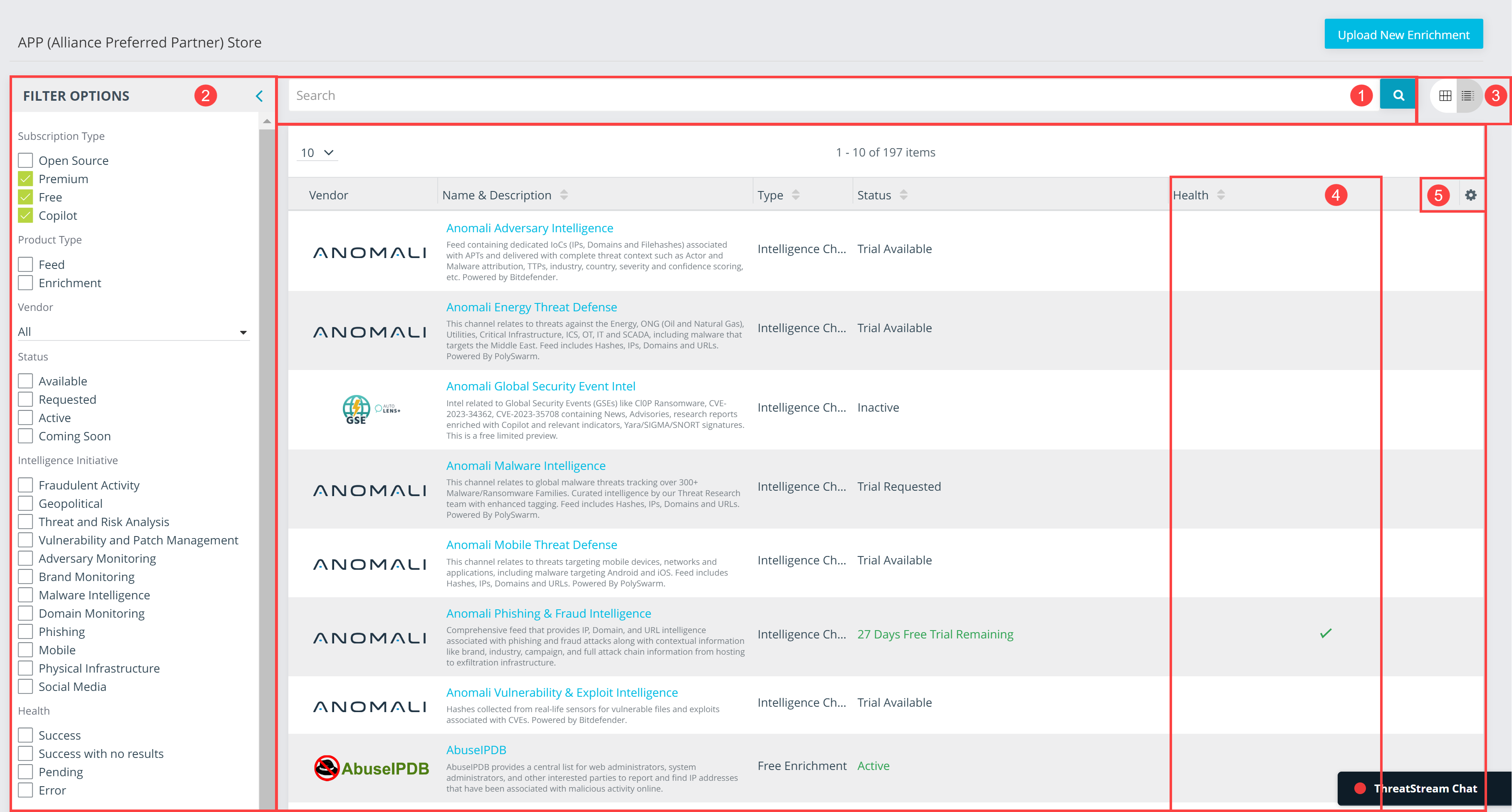
 Search: Search for products by name.
 Filter: Filter products based on the following parameters:
- Subscription Type: Open Source, Premium, Free, or Copilot. Note that If you are an active Auto Lens+ user, who has not upgraded to Anomali Copilot, the Auto Lens+ subscription type is displayed instead of Copilot.
APP Store offerings classified as Free include freemium feeds which can be activated at no additional charge. For more information on freemium offerings in ThreatStream, see Managing Free Feeds. - Product Type: Filter APP Store offerings by product type—Feed or Enrichment. For more information on activating feeds, see Managing Premium Feeds.
- Status: Filter APP Store offerings by activation status. You can preview feeds which will be available soon by using the Coming Soon filter.
- Intelligence Initiative: Filter APP Store offerings by their association with ThreatStream intelligence initiative types. For more information on intelligence initiatives, see Attributing Organizational Goals with Intelligence Initiatives.
- Health: Filter APP Store feeds by current health status. See Viewing and Monitoring Health Information of Active Feeds and Intelligence Channels for more information.
- Vendor: Filter feeds by vendor. The vendor filter also contains a full text search.
 View: Toggle the APP Store view between the list (
 ) and tile (
 ) views.
Below is the example of APP Store offerings displayed on the list view:
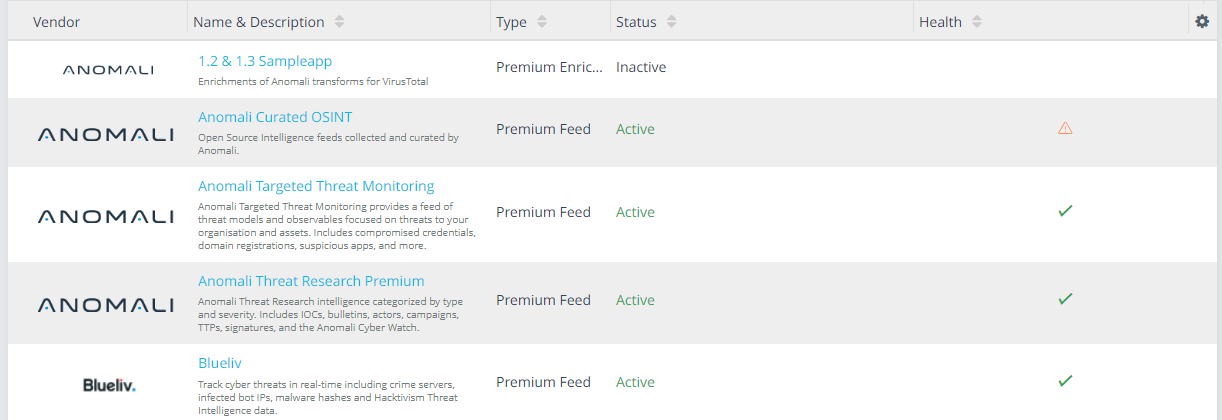
On the list view, you can click a product name listed in the Name & Description column to view more information or manage the status of the stream. You can also click on a Health icon of a product to view its synchronization history.
The following is an example of APP Store offerings displayed on the tile view:
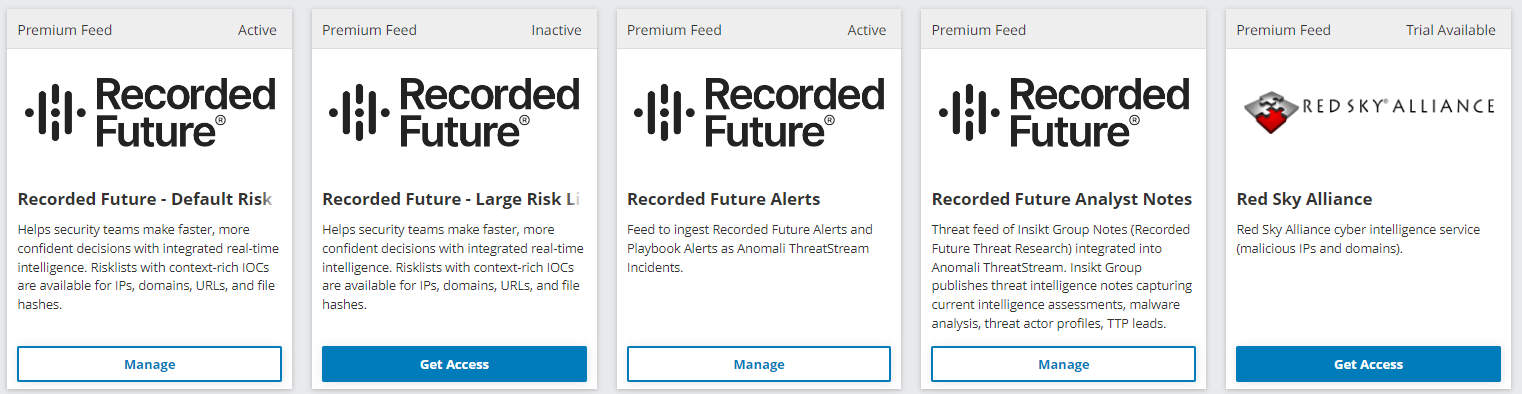
On the tile view, buttons are available based on available actions, such as Request Access, Request Trial, or Manage.
 Health: In the List view, you can view the current status of your feed sources in the APP Store.
-
 : The feed is synchronizing with ThreatStream as expected.
 -
 : The feed is not synchronizing with ThreatStream as expected. If the feed uses credentialed activation, verify that your credentials are up to date. See Credential Feed Activation for a list of credentialed feeds.
 -
 : The feed is active, but ThreatStream has not yet synchronized data from the feed.
To view the health details, click the name or the status icon of an activated feed. The resulting window displays the current state of all sources (Channels) in a feed. For details, see Viewing and Monitoring Health Information of Active Feeds and Intelligence Channels.

 : View the full list of columns available in list view, and toggle which columns are visible.