Viewing and Monitoring Health Information of Active Feeds and Intelligence Channels
ThreatStream allows you to view and monitor the current status of your active channels (feeds and intelligence channels) in the APP Store.
To view health information of a feed or intelligence channel:
-
Navigate to ThreatStream > APP Store > APP Store.
-
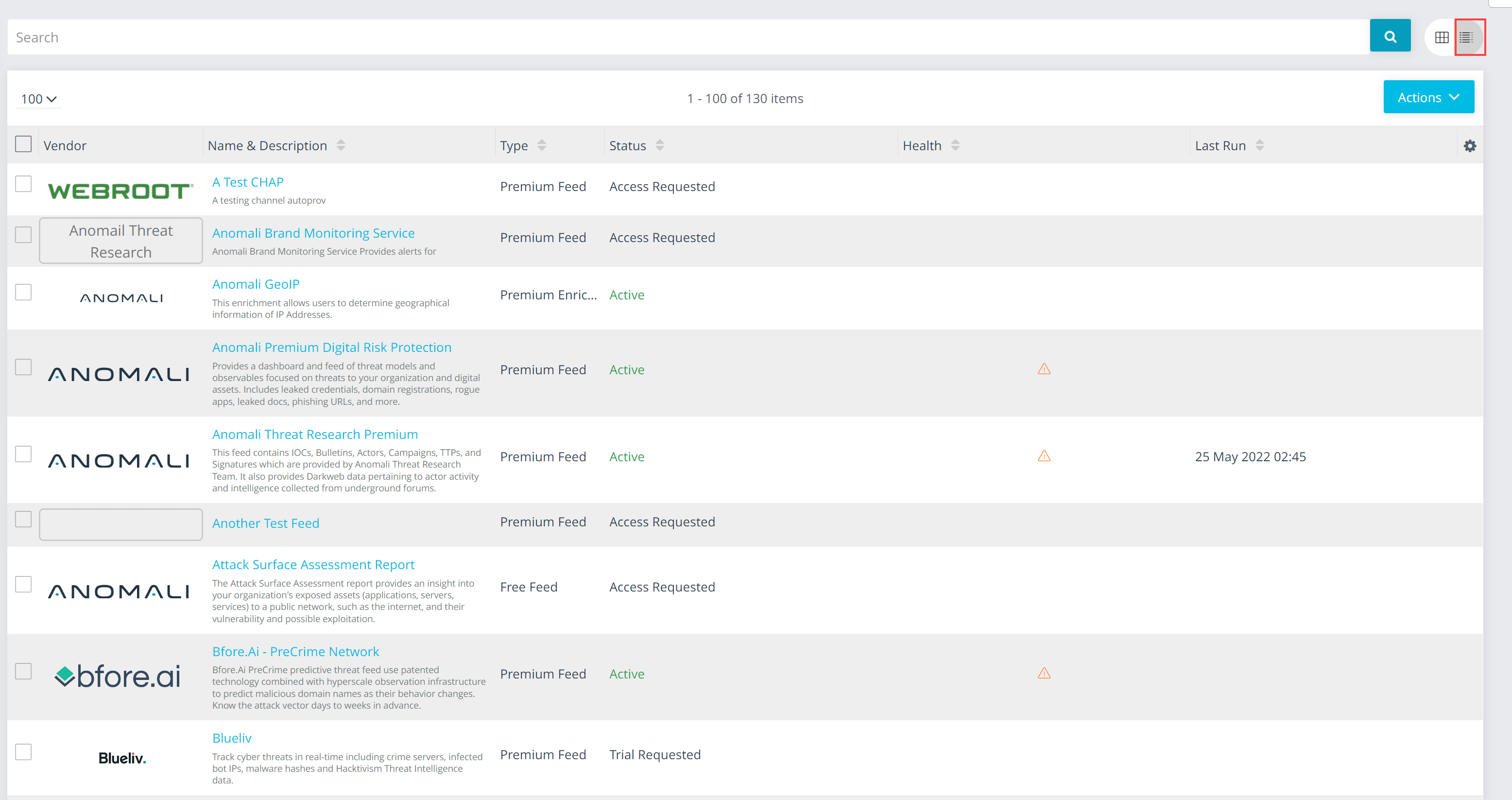
In the right corner above the Actions menu, click the list view.
-
Click the name or the status icon of an activated feed or intelligence channel. The window that opens displays the current state of all sources (channels) in a feed.
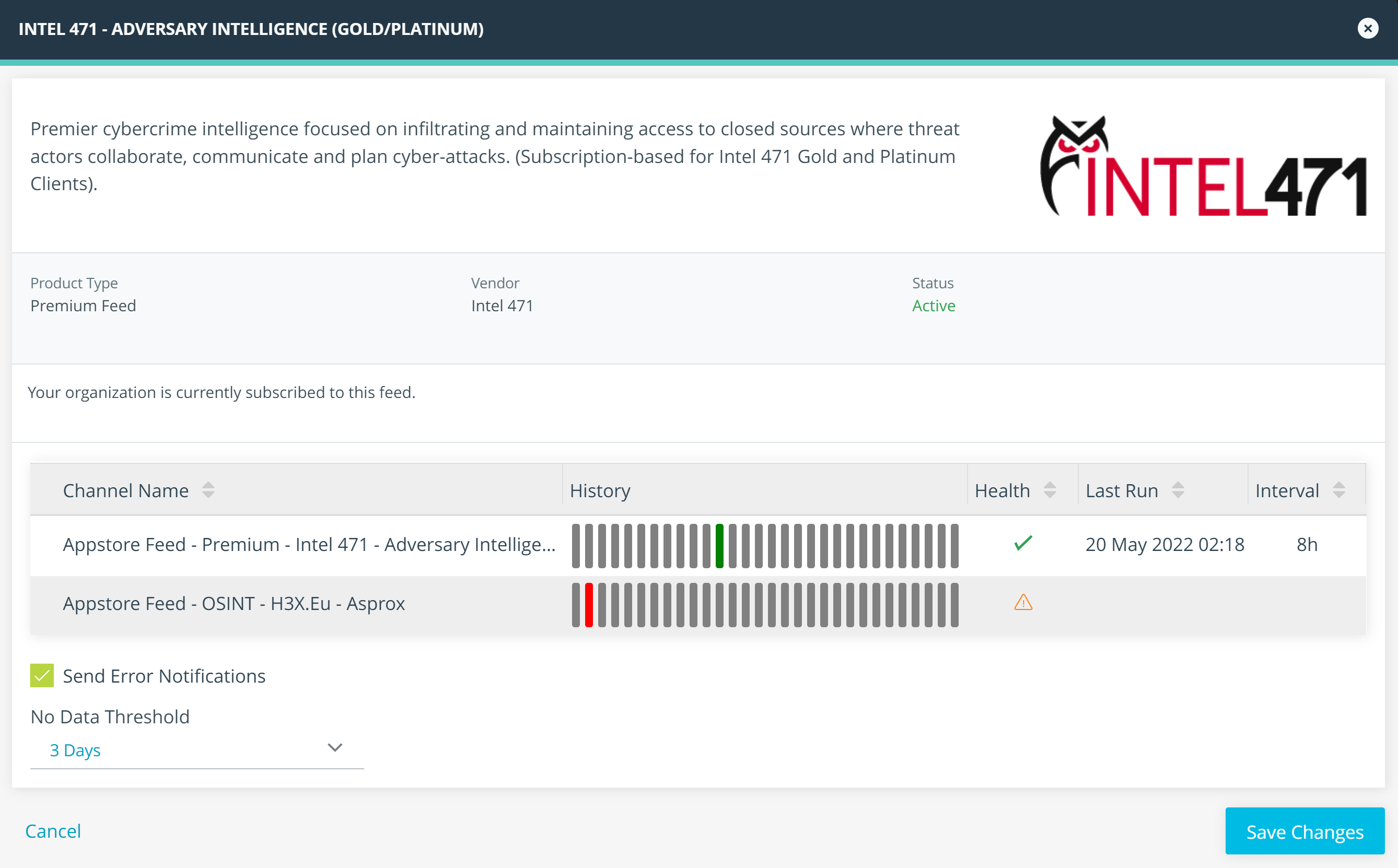
The History column shows the synchronization history of all sources from the last 30 days. The Last Run column shows the last time each source was synchronized. The Interval column shows approximately how often each source is synchronized. The Health column may show the following information:
-
 : The feed (channel) is synchronizing with ThreatStream as expected.
 -
 : The feed (channel) is not synchronizing with ThreatStream as expected. If the feed uses credentialed activation, verify that your credentials are up to date. See Credential Feed Activation for a list of credentialed feeds.
 -
 : The feed (channel) is active, but ThreatStream has not yet synchronized data from the source.
If the feed is credentialed, the feed health information is displayed on the Health tab of the resulting window, as shown in the following example.
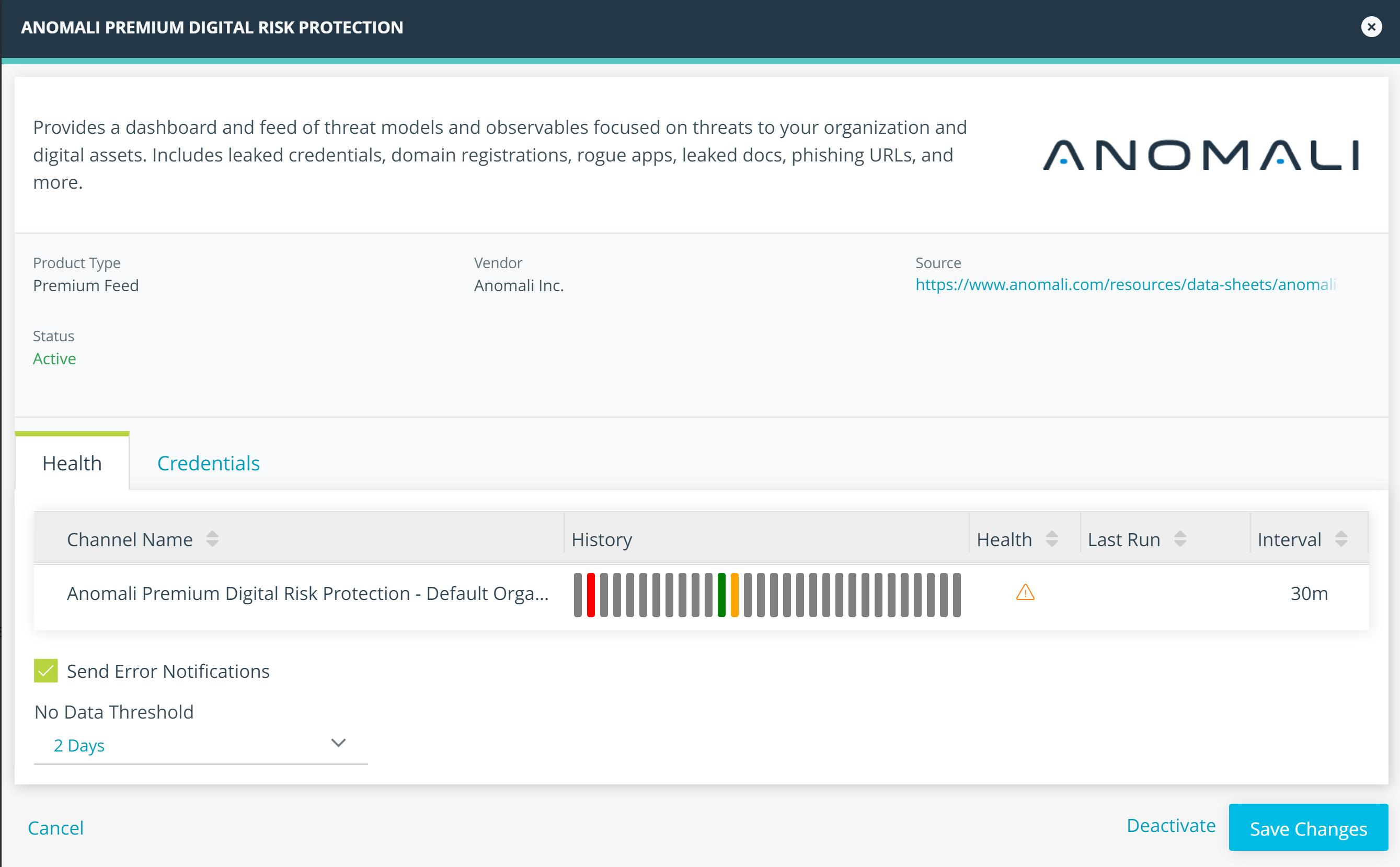
Depending on the number of successful synchronization requests per day, the health status of the channel on a particular date is listed as follows:
-
 : All synchronization requests were successful on a particular date.
 -
 : At least 1 but less than 20% synchronization requests returned errors on a particular date.
 -
 : At least 20% of synchronization requests returned errors on a particular date.
 -
 : There were no requests on a particular date.
You can hover over a date to view detailed information on channel synchronization.
- It is not unusual for some feeds to encounter temporary errors over the course of a 30-day period. These errors generally occur due to service availability from vendors and are resolved after a short period. Contact Anomali Customer Support if a channel consistently reports a high error count for more than 24 hours.
-
When a feed expires due to a validation failure, it is automatically deactivated and the system sends an email to Organization Administrators along with an in-app notification on the ThreatStream Notifications page. In-app notifications are retained for 30 days. After this period, the notification is no longer visible on the Notifications page. For more information on in-app notifications, see Receiving In-App Notifications From ThreatStream.
- The Interval column is only an estimate of how frequently each channel is synchronized. The actual frequency may vary depending on how many channels are being synchronized simultaneously.
Configuring No Data Notifications for Individual Feeds
Organization Administrators can configure when a no-data alert is triggered for active premium and free feeds, based on how many continuous hours a feed goes without new data. This helps you catch synchronization problems early and take action before they affect your threat intelligence coverage.
To configure no data notifications for an individual feed:
-
Navigate to ThreatStream > App Store > App Store.
-
Locate the feed for which you want to configure notifications.
-
Click Manage.
-
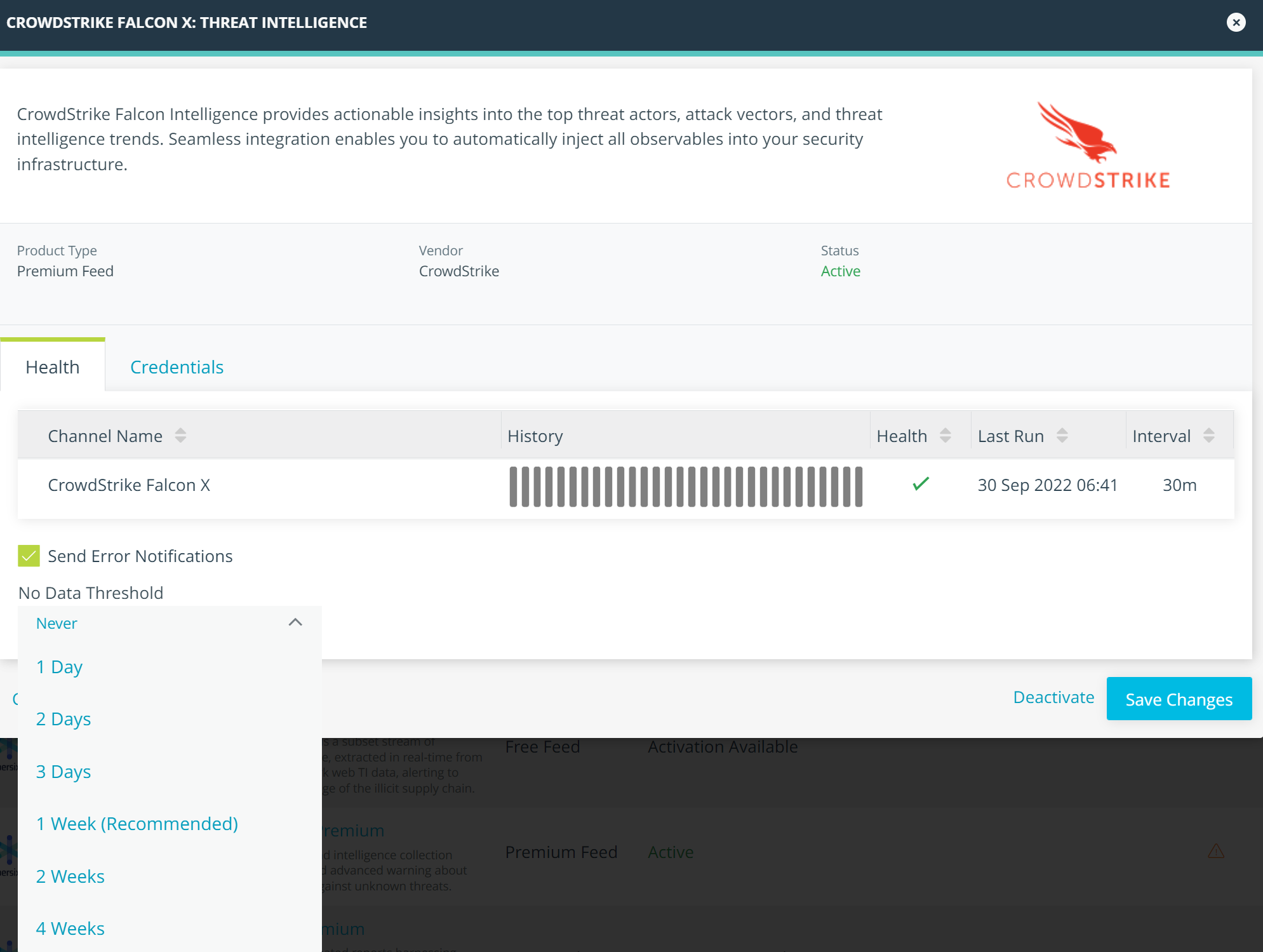
On the Health tab, select Error Notifications.
-
Select a No Data Threshold. The list of available values varies by feed type. You can either select the value recommended by Anomali, based on the feed's historical data ingestion frequency, or choose a value that better meets your organization's needs. By default, the threshold is set to Never, which disables no-data notifications for the feed.
-
Click Save Changes.
The system starts monitoring the data ingestion of the feed, and a notification is sent to subscribed Organization Administrators if the feed goes without receiving new data continuously for longer than the selected threshold.