Managing Premium Feeds
To start receiving intelligence from premium feeds, you need to activate them. Premium feeds in the APP Store require one of two activation methods:
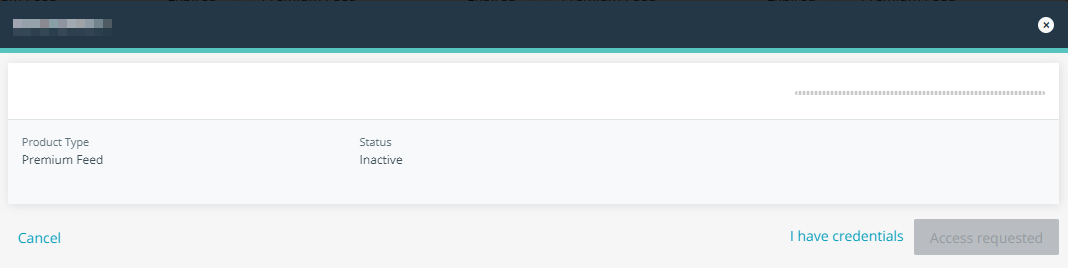
- Credential activation—provides access to a premium feed by entering credentials from the feed vendor. If you do not already have credentials, you can request them through the APP Store. Credential feeds do not become active until you enter your credentials in the APP Store.
-
Trial activation—provides access to a premium feed by requesting a free trial. You will be contacted by email with further information on feed activation and subscriptions.
If you want to stop receiving threat intelligence from a premium feed, you can deactivate it.
For the list of available premium feeds, refer to Available Premium Feeds.
To learn how to activate and deactivate premium feeds, refer to the following sections:
Credential Feed Activation
Credential feeds display the Inactive status in the top right corner of the APP Store tile. These feeds must be activated first.
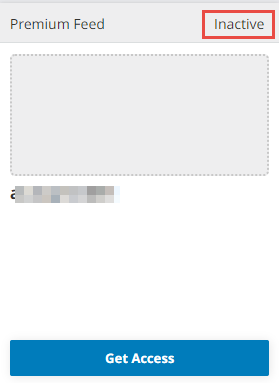
To activate a Credential premium feed:
- Navigate to ThreatStream > APP STORE > APP Store.
- Locate the Credential feed of interest, click Get Access.
-
If you do not have credentials, click Request Access on the resulting popup. Anomali will contact you through email with further information. Once you have your credentials, proceed to the next step. If you have credentials from the feed vendor, you can proceed to step 5.
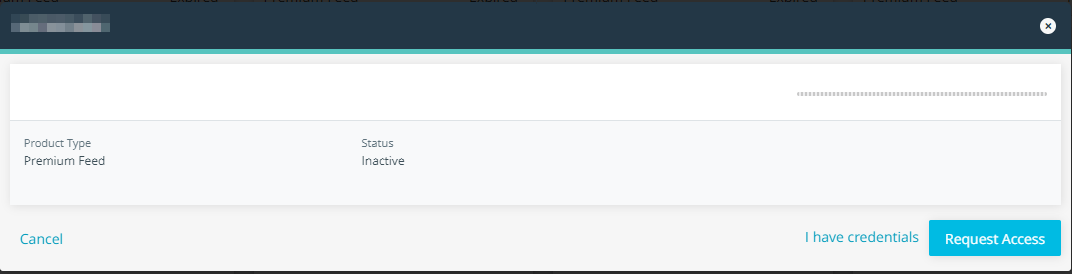
-
Locate the same feed of interest and click Manage.
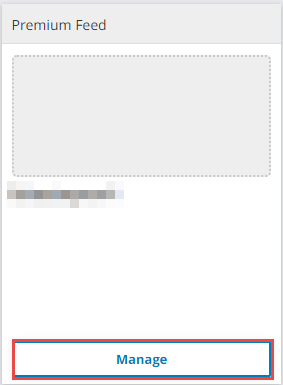
-
Enter your feed credentials.
Notes:When activating the Feedly for Threat Intelligence feed, enter your primary stream ID in the Feedly Stream ID field. Then, list any additional stream IDs in the Secondary Feedly Stream ID field, separating them with commas. The Feedly for Threat Intelligence feed creates a folder for each stream ID and assigns a corresponding tag name to the intelligence on ThreatStream.
See the example below.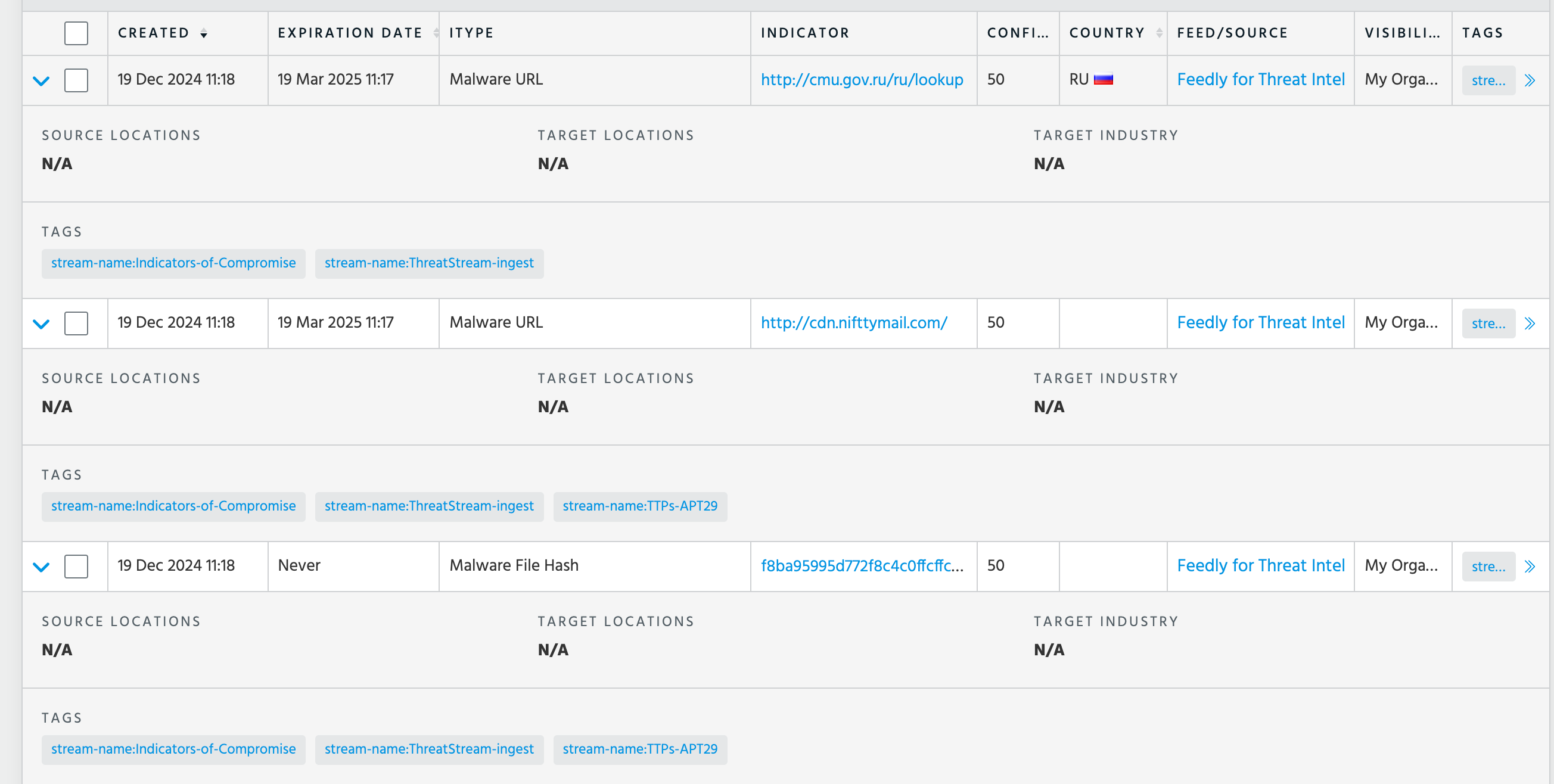
When activating the Google Threat Intelligence (GTI) feed, you need to enter your GTI user ID, API key, and daily request limit (optional). The daily request limit helps to control your API usage. Once the specified limit is reached, intelligence ingestion pauses automatically and resumes the following day. If no maximum request limit is specified, ingestion will continue without a daily cap.
-
Click Activate.
The feed is now active.
Trial Feed Activation
Feeds displaying Trial Available are currently available for activation on a trial or paid basis. After getting access, you will receive further subscription and activation information through email.
If you have not already done so, your organization can subscribe to the feed on a free trial basis. After monitoring its impact, you can decide whether or not to purchase the stream at the end of the trial period.
After activating a free trial, the number of days remaining in your trial is displayed on the APP Store user interface. Anomali Support will contact you via email when trials expire. You can then purchase feeds to continue receiving intelligence on a permanent basis.
To request activation:
- Navigate to ThreatStream > APP STORE > APP Store.
- Locate the required premium stream.
-
If you are using the tile view, click Get Access and accept the evaluation agreement.
If you are using the list view, click the name of the stream, accept the evaluation agreement, and click Request a Trial.
Anomali will contact you to complete the activation process.
Feed Deactivation
If you no longer want to use a premium feed, you can always deactivate it.
To deactivate a feed:
-
Navigate to ThreatStream > APP STORE > APP Store.
-
Locate the feed that you want to deactivate.
-
Click Manage.
-
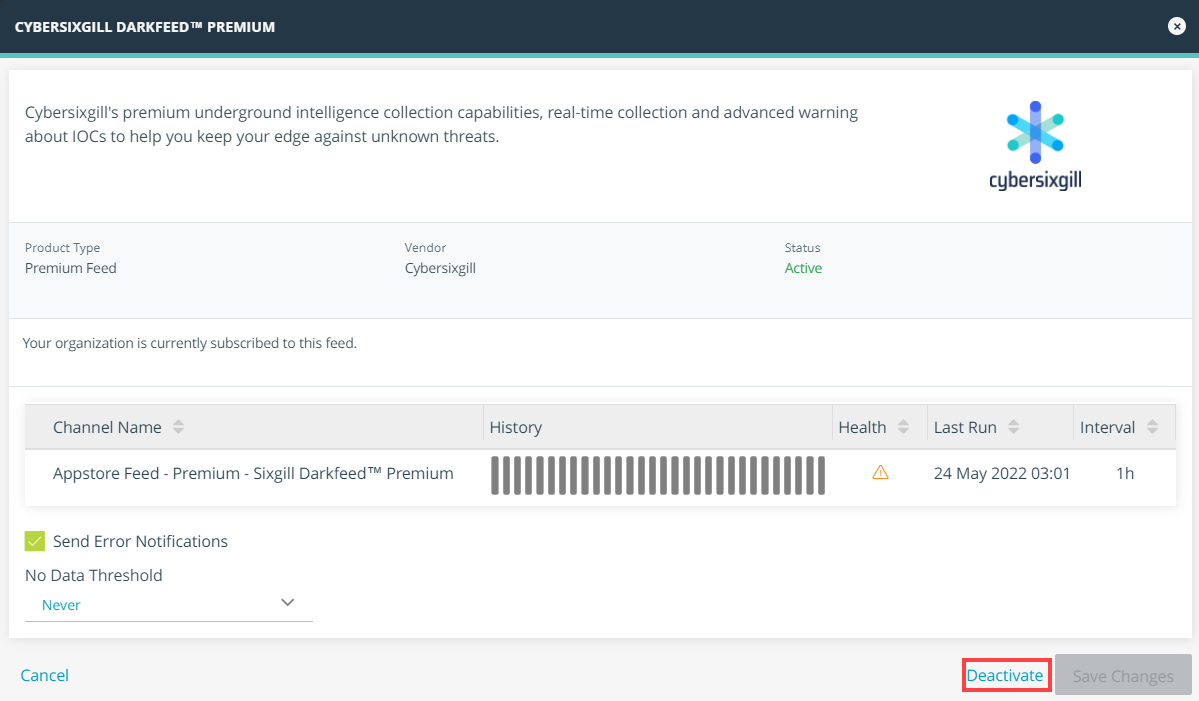
In the window that opens, click Deactivate.
-
Click Deactivate feed to confirm deactivation.

The feed is now deactivated. Your access to new and existing data from this feed will be revoked within 24 hours.