Managing Description Templates
ThreatStream allows you to manage description templates created for Threat Models and investigations within your organization. To learn how to create description templates, see Creating Description Templates From Threat Models and Creating Description Templates From Investigations.
Description templates can be edited and deleted from ThreatStream Settings or from a Threat Model or investigation.
Managing Description Templates From ThreatStream Settings
Managing Description Templates from Threat Models
Managing Description Templates from Investigations
Managing Description Templates From ThreatStream Settings
All saved description templates can be accessed and managed from ThreatStream Settings. To access description templates, navigate to  > Manage Templates.
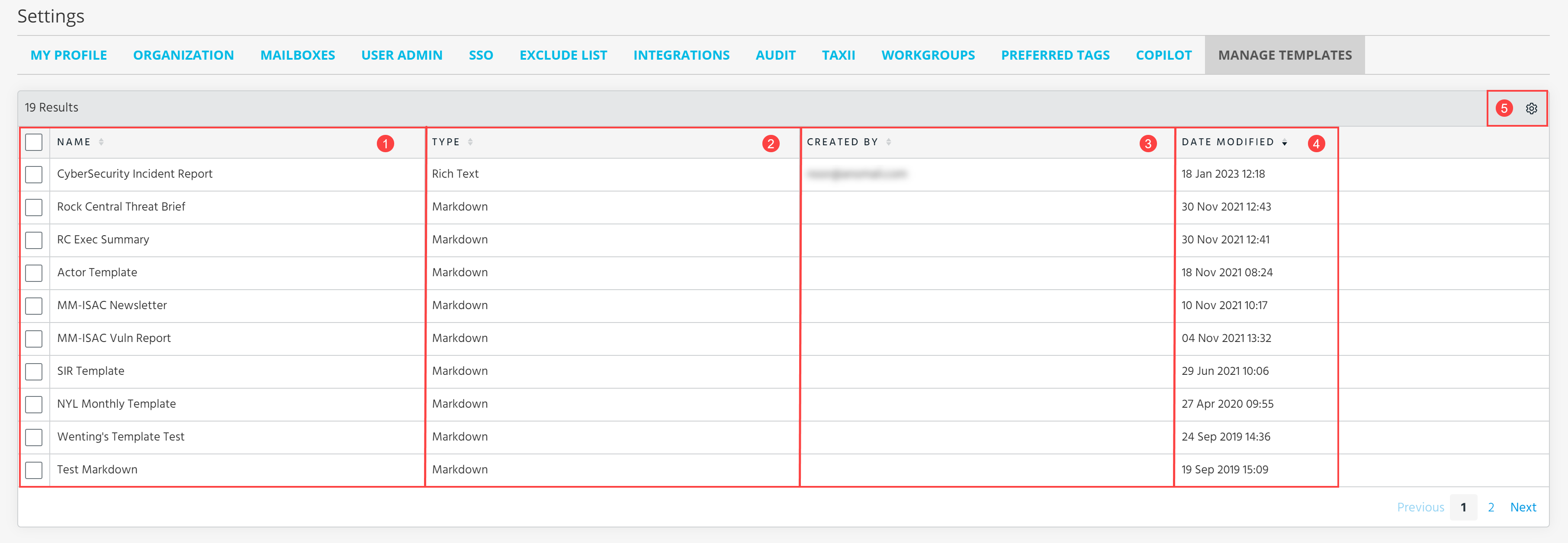
 Name of the description template.
 Type of the description template: Rich Text or Markdown.
 User who created the description template.
 Date when the description templates was modified.
 Table Settings: Select the columns to show on the dashboard. You can select from Name, Type, Created by, Date Modified, Default for. The Default for column is hidden by default. Additionally, select how many rows you want to be displayed per page.
To edit a description template:
-
In the bottom-left corner of the side navigation panel, click
> ThreatStream and then click Manage Templates. -
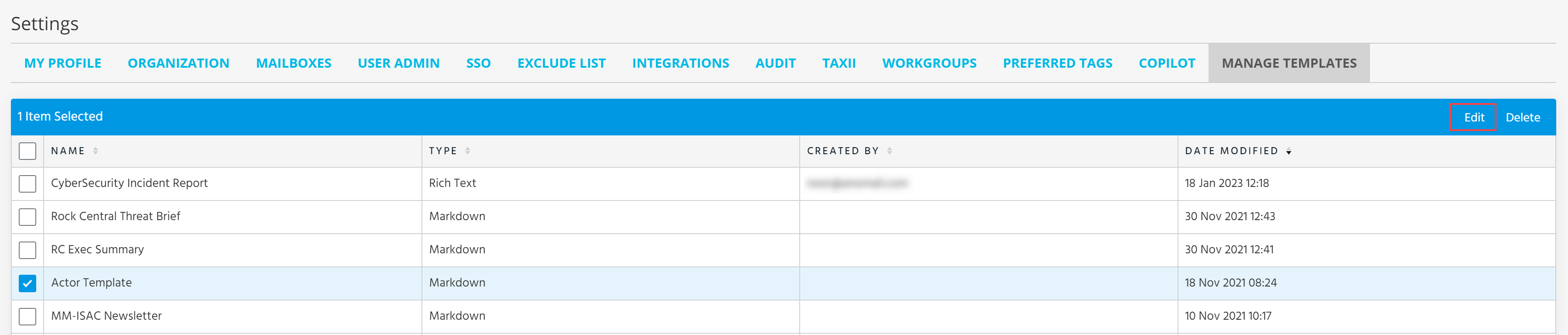
Select the template you want to edit and click Edit.
-
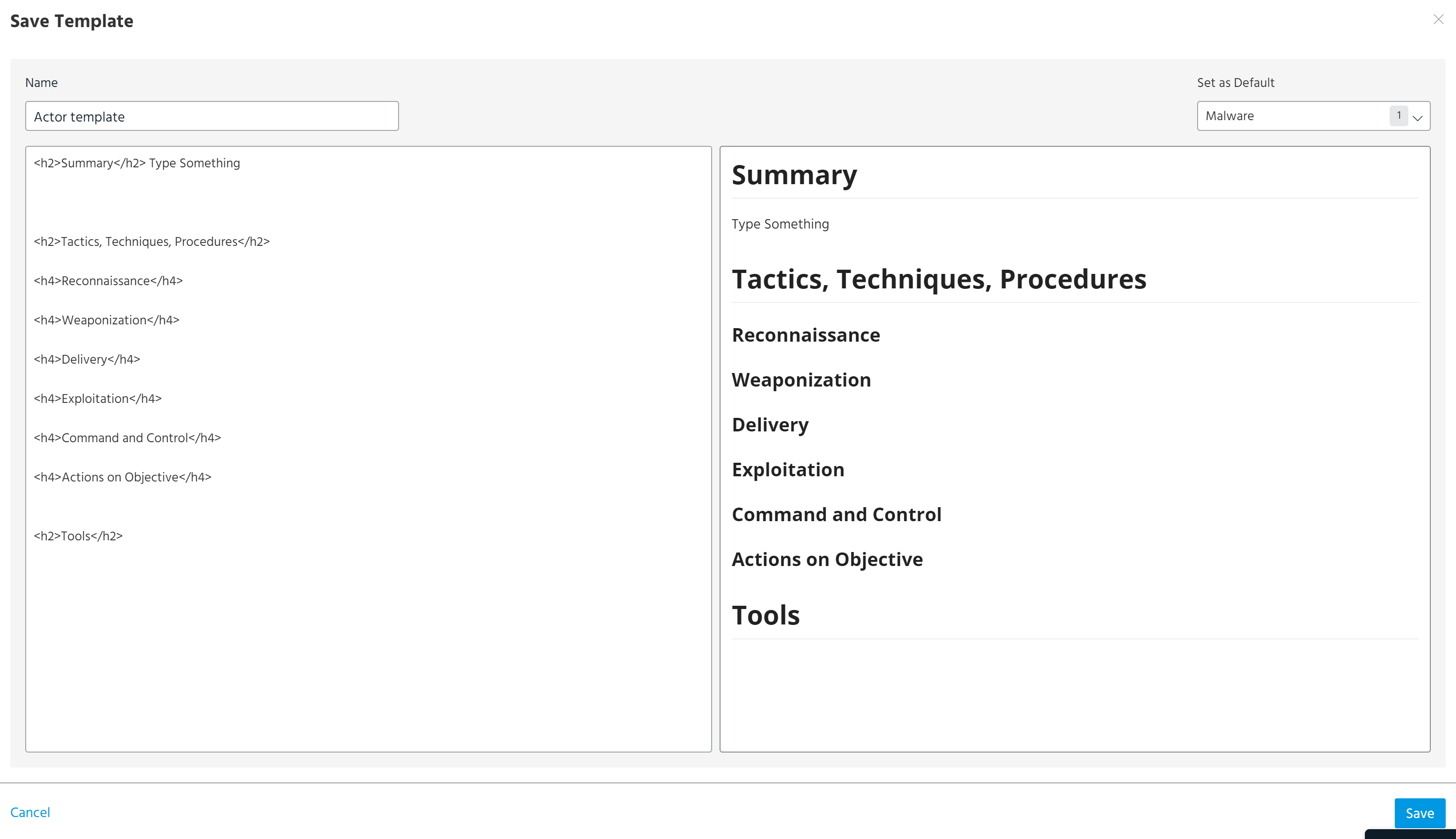
In the dialog box that opens, modify the name, threat model types for which you want to use this template, and description.
-
Click Save.
To delete a description template:
-
In the bottom-left corner of the side navigation panel, click
> ThreatStream and then click Manage Templates. -
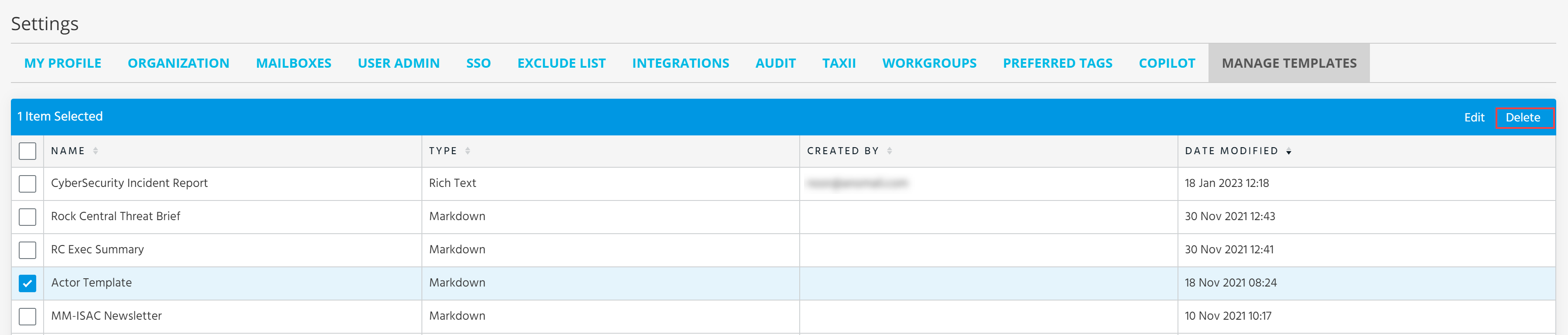
Select the template you want to delete and click Delete.
-
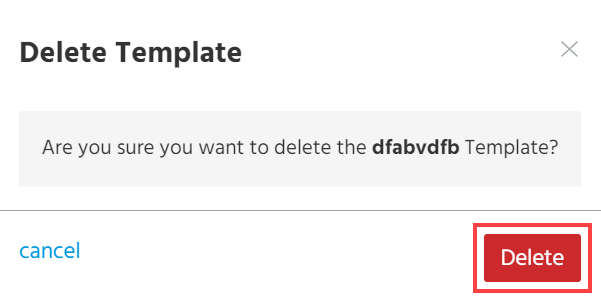
In the dialog box that opens, click Delete to confirm the deletion.
Managing Description Templates from Threat Models
You can manage saved description templates from Threat Models.
To edit a description template from a Threat Model:
-
Navigate to ThreatStream > Analyze > Threat Model.
-
Click a Threat Model and then click Actions.
-
Click Edit.
-
In the Description tab, select the description template type you want to edit: Rich Text or Markdown.
-
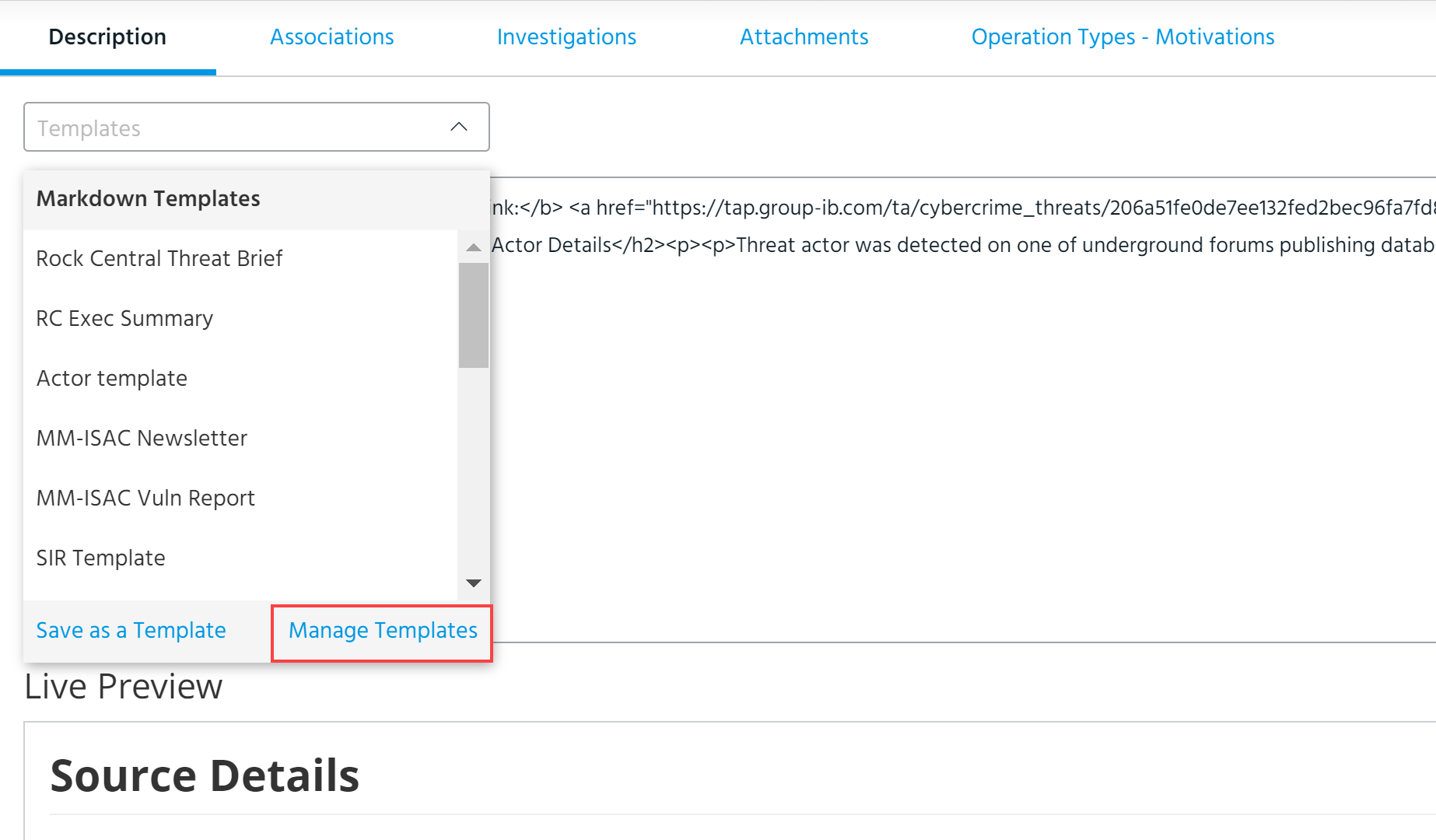
Navigate to Templates drop-down list and click Manage Templates.
-
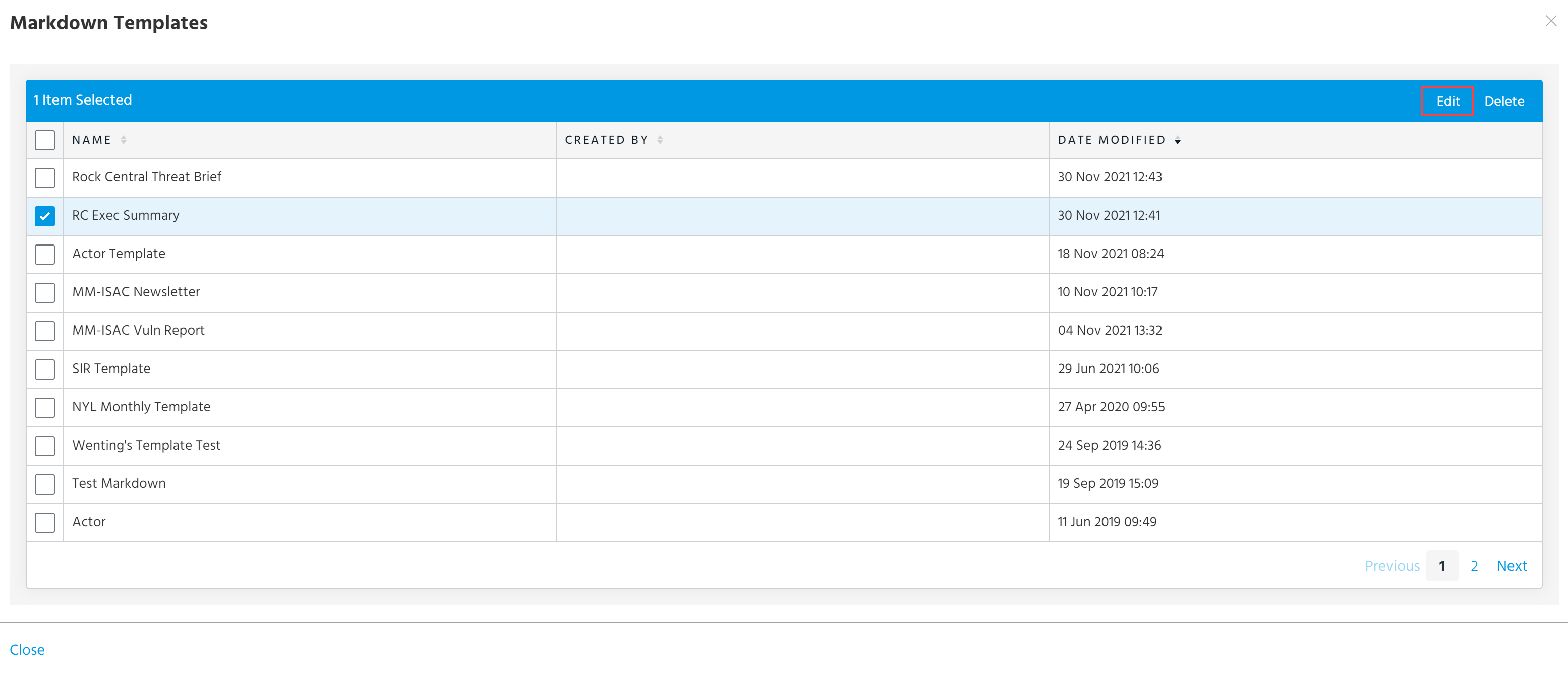
Select a template and click Edit.
-
In the dialog box that opens, modify the name, threat model types you want to use this template for, and description.
-
Click Save.
To delete a description template from a Threat Model:
-
Navigate to ThreatStream > Analyze > Threat Model.
-
Click a Threat Model entity and then click Actions.
-
Click Edit.
-
In the Description tab, select the description template type you want to delete: Rich Text or Markdown.
-
Navigate to the Templates drop-down list and click Manage Templates.
-
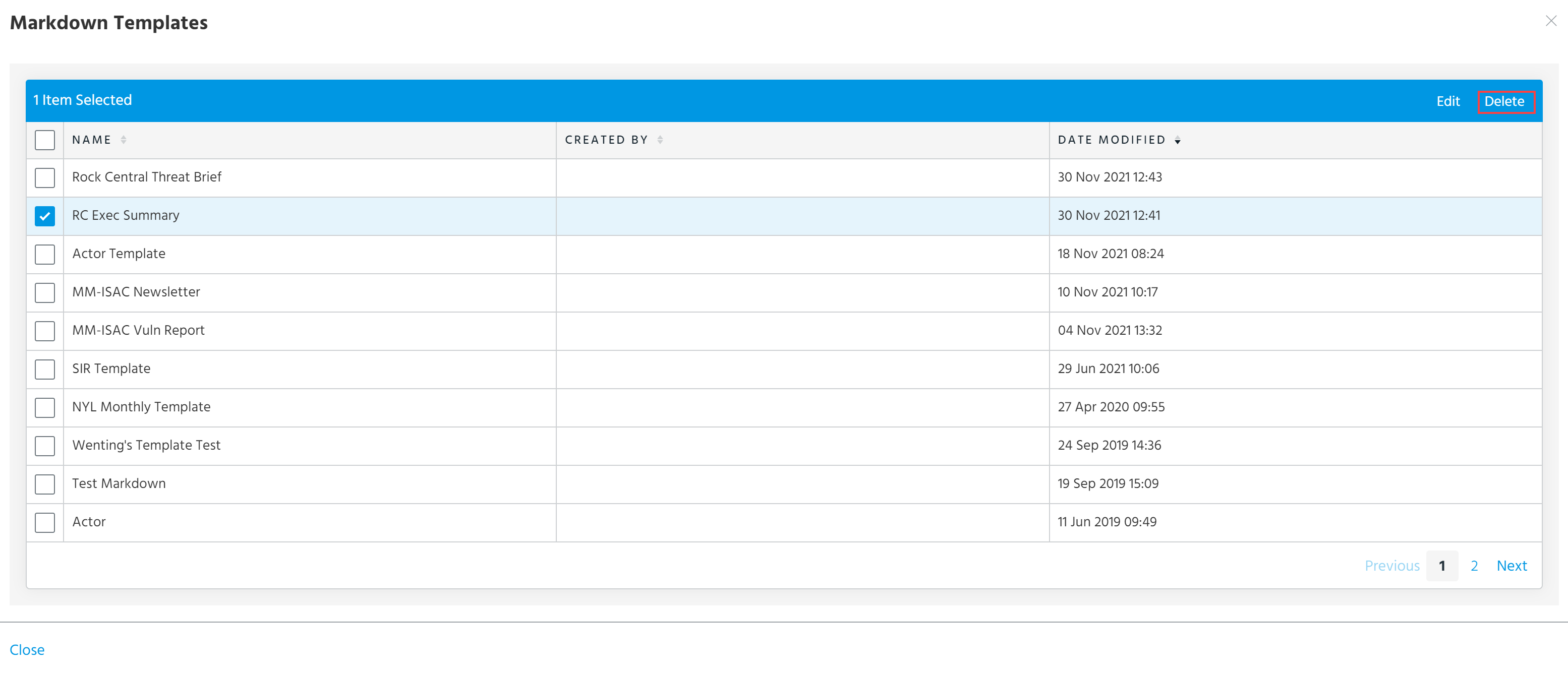
Select a template and click Delete.
-
In the dialog box that opens, click Delete.
Managing Description Templates from Investigations
Saved rich text description templates can also be managed from investigations.
To edit a description template from an investigation:
-
Navigate to ThreatStream > Research > Investigations.
-
Click the investigation that you want to edit.
-
On the Description tab, navigate to Templates drop-down list and click Manage Templates.
-
Select a template you want to edit and click Edit.
-
In the dialog box that opens, make the necessary changes and click Save.
To delete a description template from an investigation:
-
Navigate to ThreatStream > Research > Investigations.
-
Click the investigation that you want to delete.
-
On the Description tab, navigate to Templates drop-down list and click Manage Templates.
-
Select a template you want to delete and click Delete.
-
In the dialog box that opens, click Delete to confirm the deletion.