Managing MCP Credentials
You must be an Organization Administrator or have the API User role or the Use MCP permission to create MCP credentials. See Managing Roles for details.
You can create up to 10 sets of MCP credentials for your user account.
MCP credentials and OAuth API credentials are different in ThreatStream. OAuth API credentials authenticate access to ThreatStream REST API endpoints and cannot be used to authenticate to the ThreatStream MCP server. For more information on ThreatStream API OAuth credentials, refer to Managing OAuth 2.0 API Credentials .
The ThreatStream Model Context Protocol (MCP) server enables MCP-compatible AI applications, agents, and automation tools to access threat intelligence in ThreatStream. OAuth 2.0 provides a secure authentication method for connecting these clients without using a static API key.
Once connected, you can query threat intelligence, investigate observables, and perform supported ThreatStream actions directly from your AI application.
ThreatStream supports two OAuth authentication flows:
- Authorization Code with PKCE (with browser login): Use for interactive applications where a user authenticates through a browser, such as Claude Desktop or other interactive AI clients.
- Client Credentials (no browser login): Use for unattended or headless applications, such as custom agents, scripts, SOAR playbooks, and server-to-server integrations. Authentication is performed directly using the client ID and secret key without browser interaction.
Connecting an MCP client to ThreatStream MCP involves the following steps:
-
Creating a set of MCP credentials. See Creating MCP Credentials for details
-
Connecting an MCP client. See Connecting an MCP Client for details.
Creating MCP Credentials
You can create up to 10 sets of credentials for connecting MCP clients.
To create a set of MCP credentials:
- Navigate to Profile > Account Settings.
- Under Account Settings, click MCP credentials.
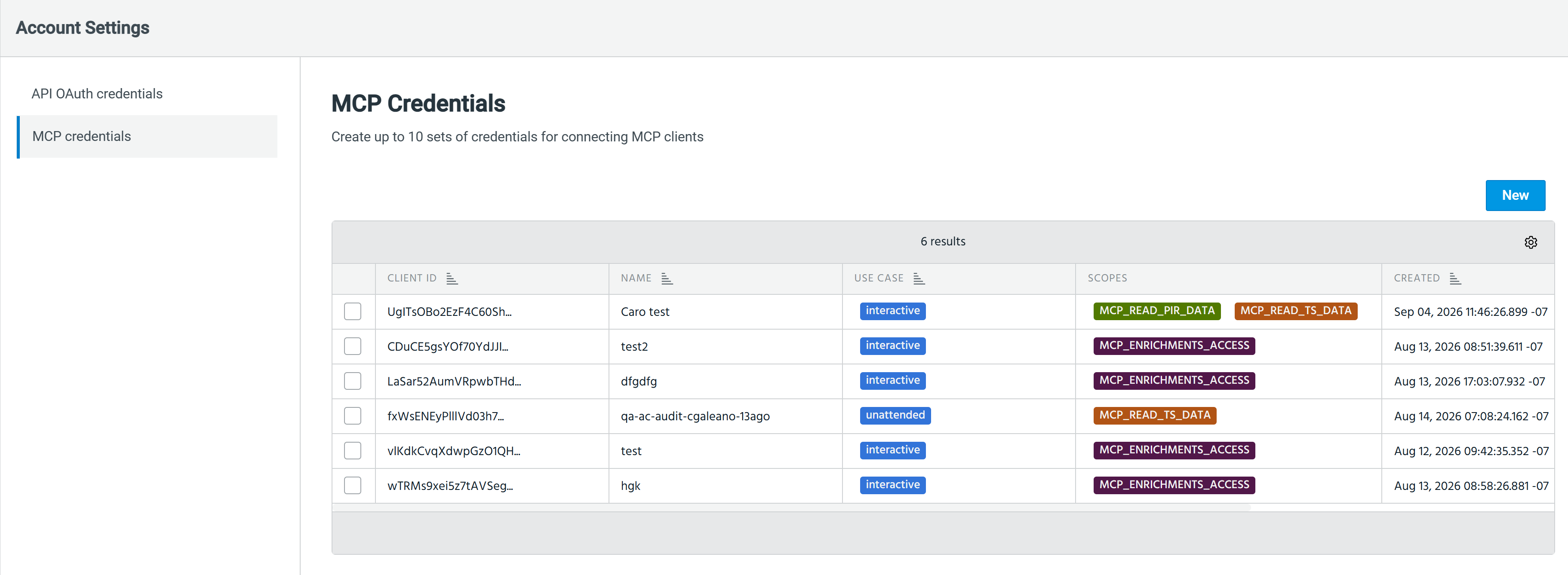
- Click New.
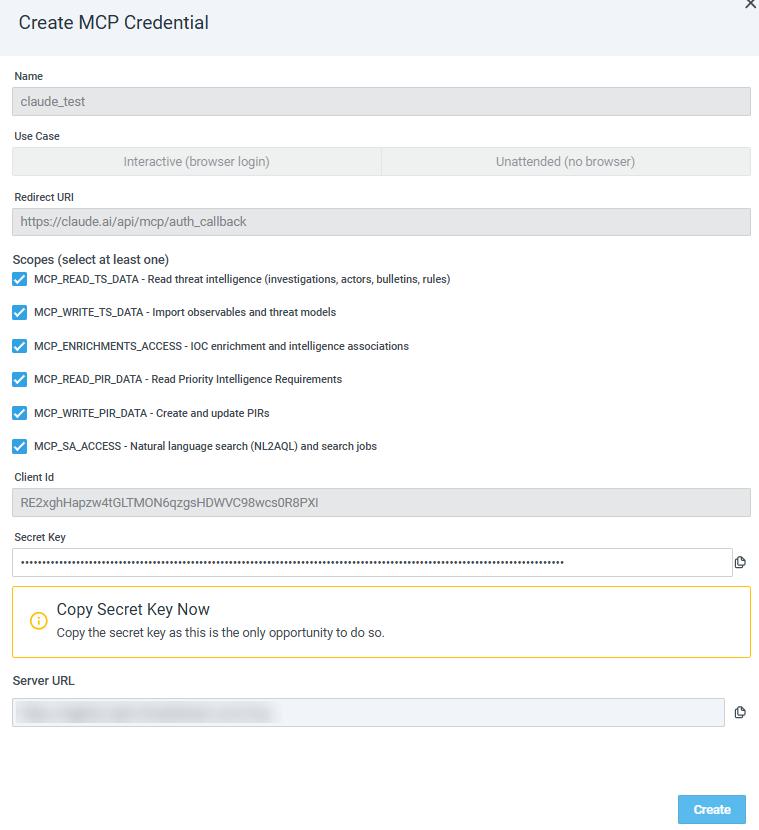
- Enter a name for the set of credentials.
- Select the appropriate use case:
- Interactive (browser login)—for applications that authenticate through a browser.
- Unattended (no browser)—for scripts, agents, and other headless automation.
Note that the use case selected for the client cannot be changed after you create the credentials.
- If you selected Interactive/browser, enter the client's redirect URI.
- Select the OAuth scopes for the client. You can select any scope when creating a set of credentials, regardless of your ThreatStream user permissions. However, if you select a scope that is not covered by your permissions, MCP tool calls that require that scope will fail when the MCP client attempts to run them. Therefore, Anomali recommends selecting only the scopes that correspond to your ThreatStream permissions.
Scopes selected for the client cannot be updated after the credential creation.Scope Description MCP_READ_TS_DATARead ThreatStream threat intelligence data such as investigations, Actors, Threat Bulletins, and Rules. MCP_WRITE_TS_DATAImport observables and threat models. MCP_ENRICHMENTS_ACCESSAccess observable enrichment and intelligence associations. MCP_READ_PIR_DATANote: This scope is applicable only to organizations that use ThreatStream Next Gen.Read PIRs. MCP_WRITE_PIR_DATANote: This scope is applicable only to organizations that use ThreatStream Next Gen.Create and update PIRs. MCP_SA_ACCESSNote: This scope is applicable only to organizations that use Security Analytics.Access Search Analyst tools for natural language queries and search jobs.
- Click Create.
ThreatStream displays the Client ID, Secret Key, and MCP Server URL after the set of credentials is created. The Secret Key is displayed only once and cannot be retrieved later. Copy it and store it in a secure location.
Managing MCP Credentials
After creating a set of credentials, you can view all your MCP credentials, edit their names, or delete them. Scopes and use case are fixed when a credential is created. To change them, delete the credential and create a new one.
Editing MCP Credentials
To edit the name of set of MCP credentials:
- Navigate to Profile > Account Settings.
- Under Account Settings, click MCP credentials.
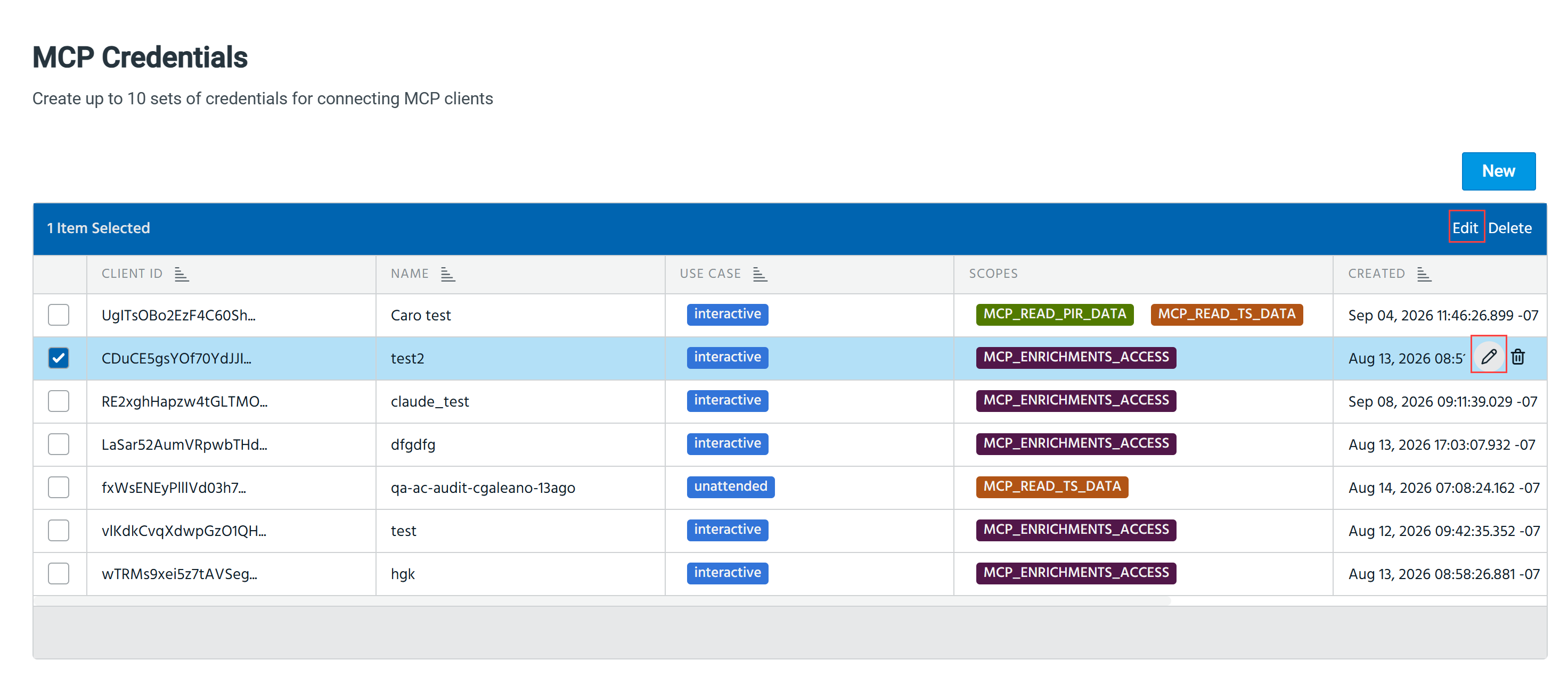
- Select the client ID whose name you want to edit.
- Click Edit. Alternatively, hover over the client ID and click the Edit icon (
 ).
). 
- In the Edit MCP Credential dialog box, change the name and click Save.
The name of the selected Client ID is updated.
Deleting MCP Credentials
To delete a set of MCP credentials:
- Navigate to Profile > Account Settings.
- Under Account Settings, click MCP credentials.
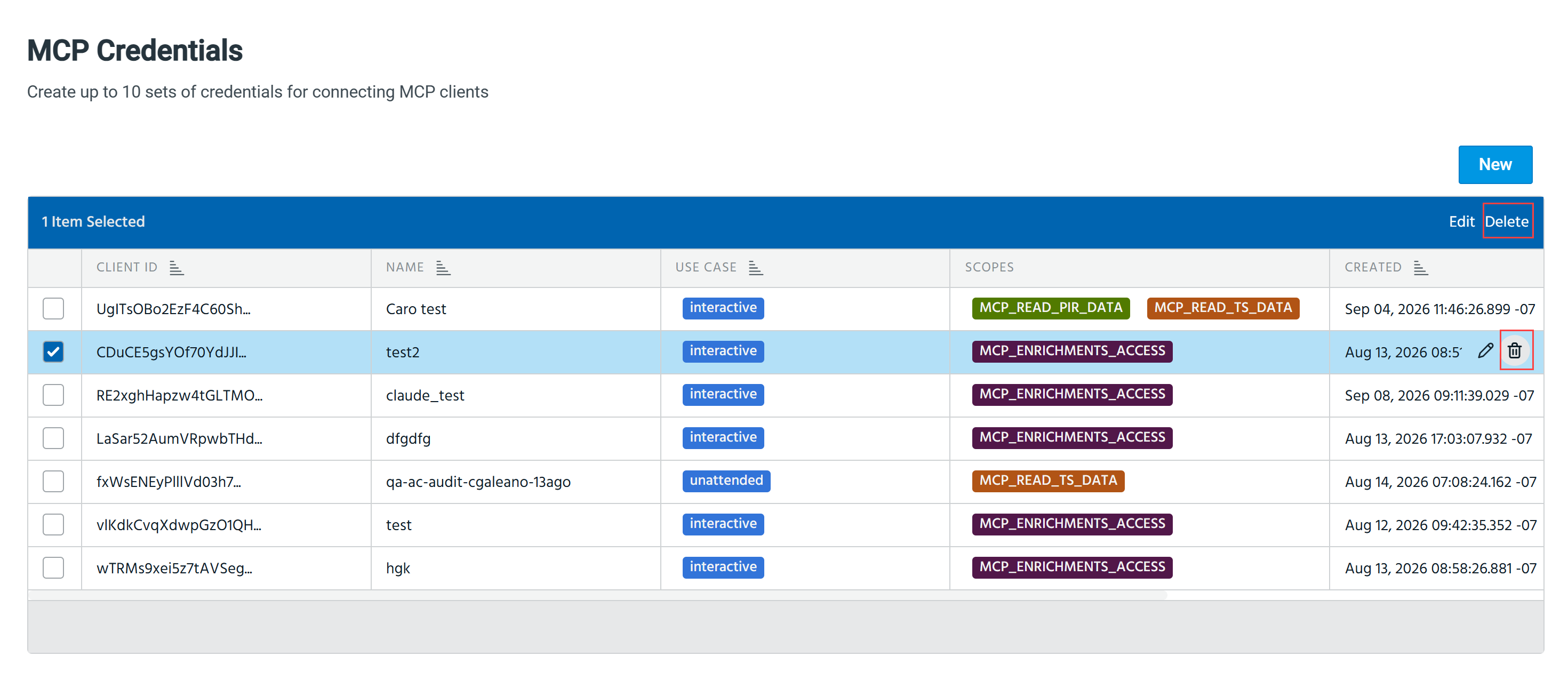
- Select the client ID that you want to delete.
- Click Delete. Alternatively, hover over the client ID and click the Delete icon (
 ).
). 
- In the confirmation pop-up message, click Delete.
The selected MCP credentials are deleted. All active sessions with these MCP credentials are immediately terminated.
Connecting an MCP Client
Claude Desktop is the tested and validated client for this connection method. For details, see Connecting Claude to the ThreatStream MCP Server Using OAuth Credentials.
For other MCP clients, refer to the OAuth documentation for that client and use a set of MCP credentials you created for it.
Auditing ThreatStream MCP User Activity
ThreatStream tracks MCP-related user activity through three audit event categories:
-
mcp_auth(authentication events) -
mcp_credential(credential creation and deletion) -
mcp_scope_violation(attempts to access resources beyond granted scopes)
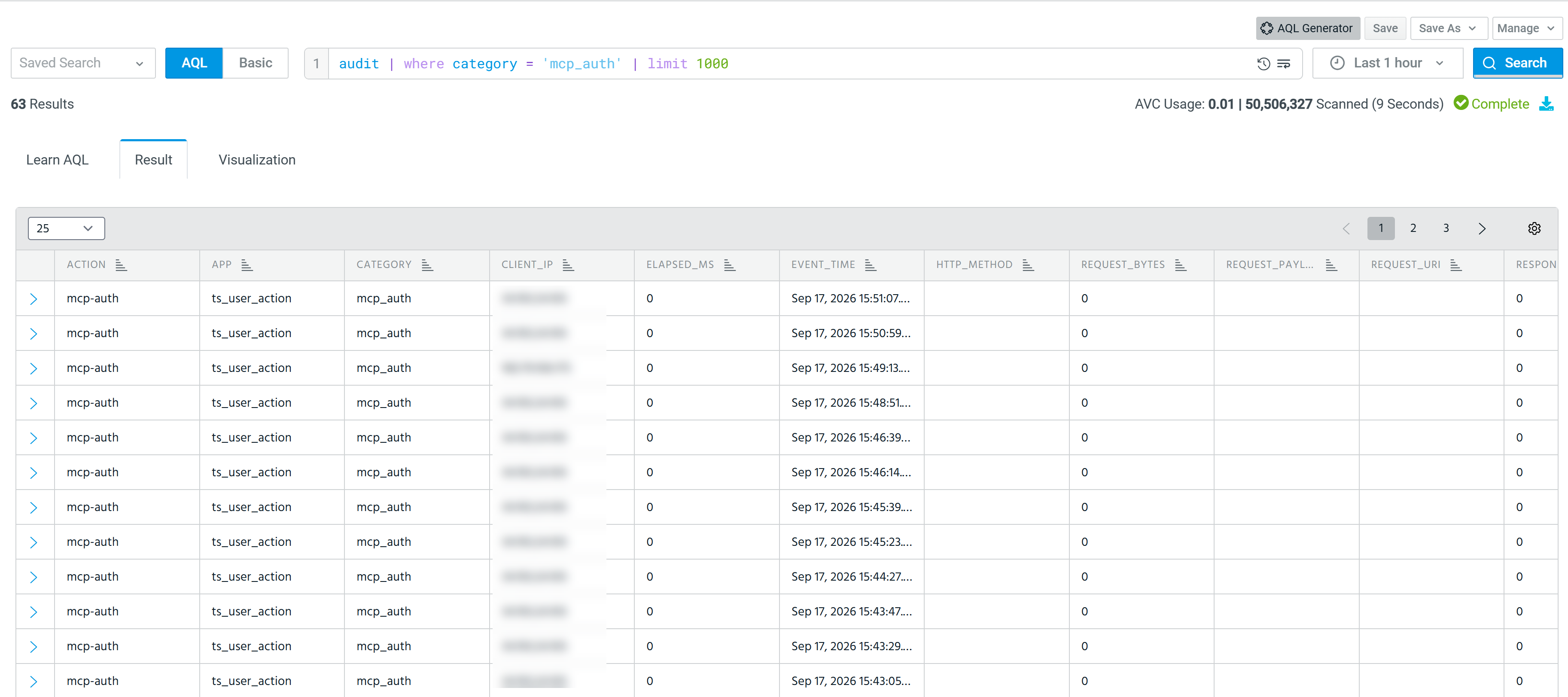
To view details for any event—such as user, client IP, scopes, or tool name—click the arrow on the left side of the row to expand it.
You can filter these events without needing to know AQL. In Basic mode, select the audit dataset and add a WHERE clause for category = "mcp_auth"
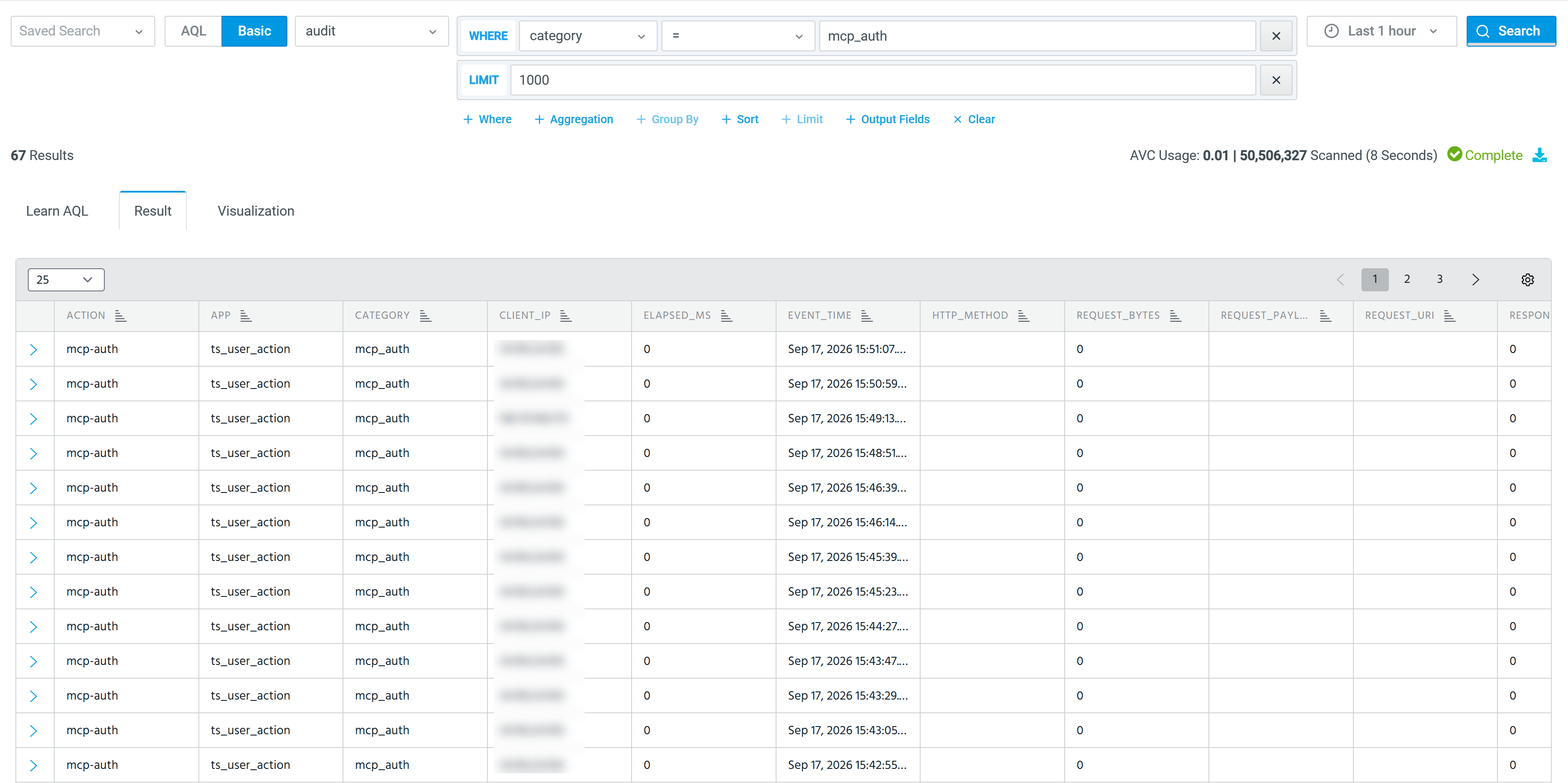
Alternatively, if you prefer AQL, use:
audit | where category in ('mcp_credential', 'mcp_scope_violation', 'mcp_auth')
For more information on monitoring ThreatStream user actions, see Audit Lookup Table (ThreatStream) .