Monitor Link Health
The Link Summary page displays health indicators for Universal Link and Splunk Link instances. The Link Details page displays health indicators for the log sources configured for the Link.
Note: Cloud Link instances are monitored by Anomali. If desired, you can confirm logs are being ingested by issuing a search similar to the following natural language query in AQL search:
-- latest crowdstrike logs
See Getting Started with AQL Search in the AQL Search Help Center to learn about AQL search.
Link Summary Page
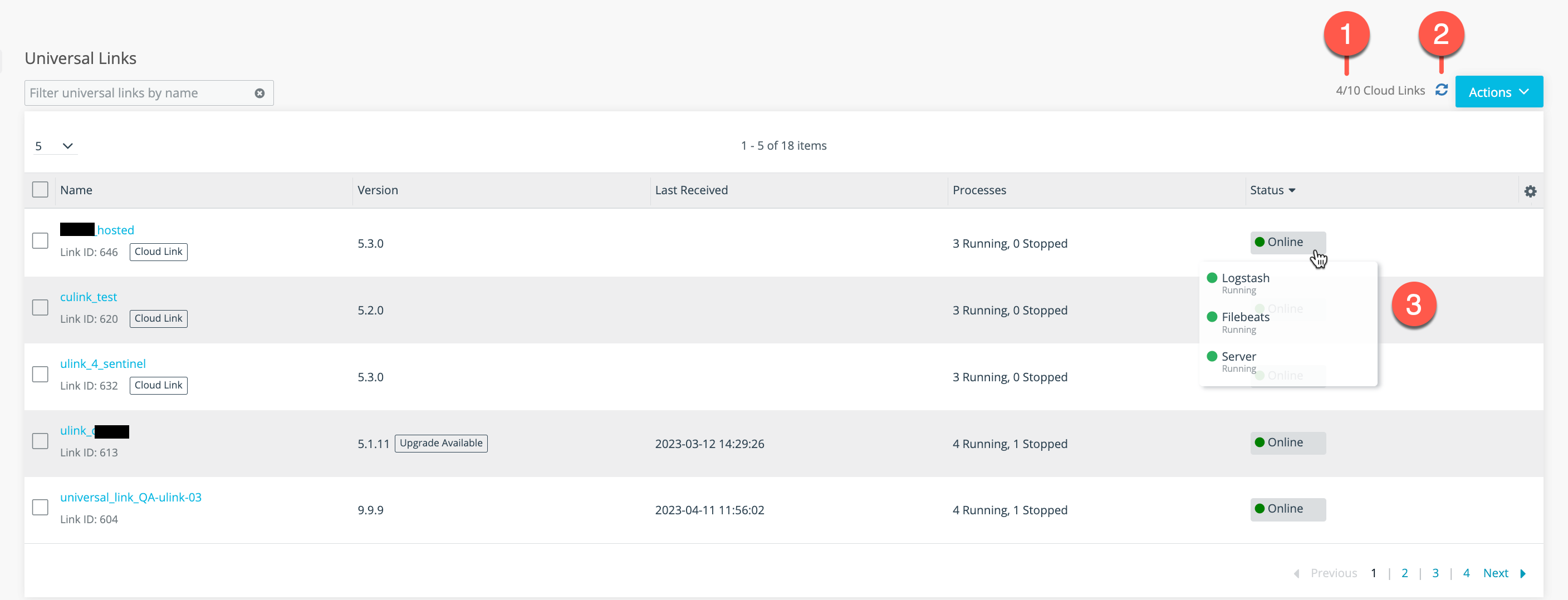
The Link Summary page shows version information, a timestamp for the last data received, process status, and online status. The following figure shows the Link Summary page for a Universal Link instance.

|
Refresh: Click the Refresh icon ( ) to send health status queries again. ) to send health status queries again. |

|
Process status: Mouse over the Status icon to display process status details. Restart the Link if a process is stopped when it is expected to be running. See Restart a Universal Link. |
Link Details Page
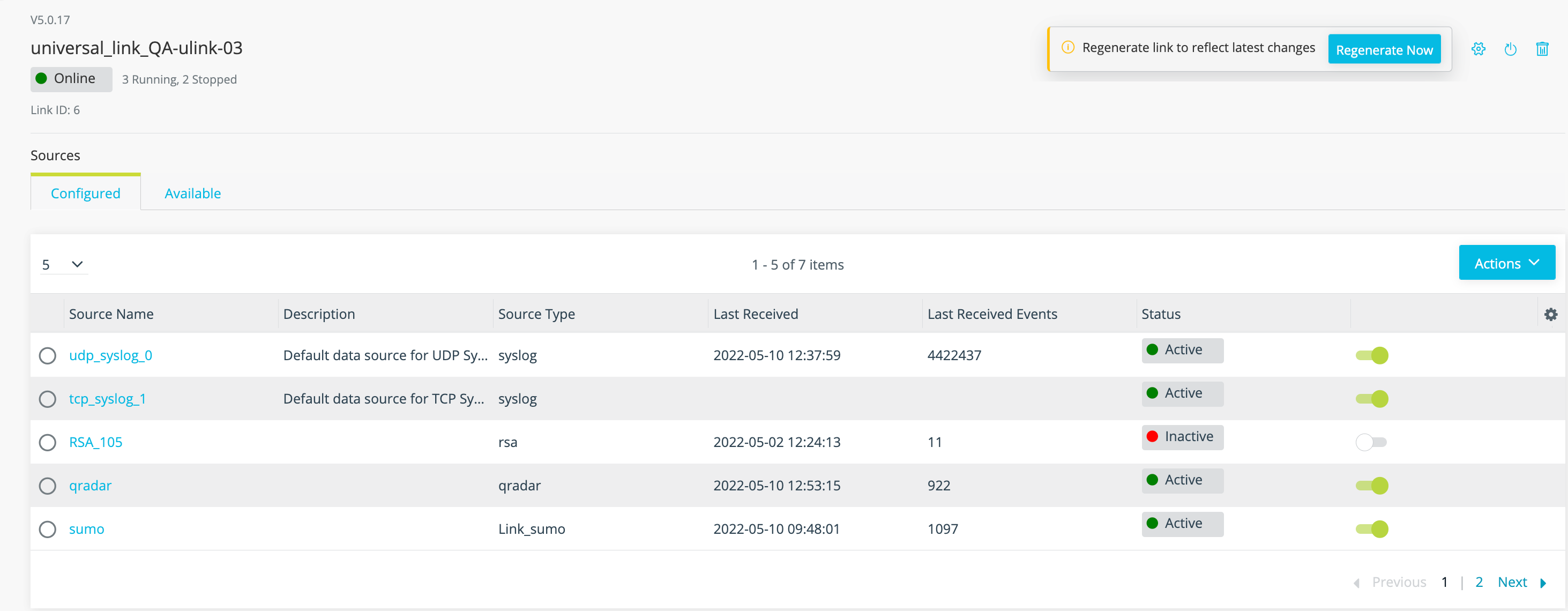
The Link Details page shows status information for configured log sources, including timestamp for the last data received, the number of events in the last batch of data, and whether the configuration is active.
To display the Link Details page, from the Link summary page, click the hyperlink in the Name column to display the Link details page for the Link you want to review. The following figure shows the Link Details page for a Universal Link instance.
Restart a Universal Link

|
In the Link tools panel, click the Restart icon. |
Copy a Link ID

|
Hover over the Link ID text on the Link summary or Link details page and click the Copy icon. |