Managing Asset CSV File Imports
You can import comma-separated value (CSV) files that contain asset data.
About CSV File Imports
Use the CSV file template files that are provided to ensure the asset data model can be imported and parsed appropriately. The asset data maintained for your IT organization may be suited to one or more of the template types.
IP Address Mapping
The IP Address Mapping option requires you to fill out a single template (template_ip_to_hostname.csv). This option is recommended when you have a list of IP addresses mapped to hostnames or IP address ranges (in CIDR format) mapped to group names.
The uploaded file must:
-
Have the
.csvfile extension.If you are saving the file using MS Excel, make sure you select a Save option that saves the contents to a comma-separated or comma-delimited file.
-
Contain the following headers, in lowercase:
ip, hostname, department, location, criticalityFields shown in bold must contain values. All others can be blank. The headers must be in lowercase. Values for these fields can be in any case.
-
Separate fields with a comma.
The following example shows the format of the CSV list in template_ip_to_hostname.csv:
ip,hostname,department,location,criticality,os,vulnerabilities,scanner
The following example shows example values for template_ip_to_hostname.csv:
192.168.10.25,mars.prod.acme.com,engineering,NYC,high, Linux-Ubuntu-18, CVE-2018-10561|CVE-2020-0822, test_scanner
192.168.50.0/24,sales servers,Sales,Washington D.C.,critical, Linux-Ubuntu-18, CVE-2014-2483, test_scanner
MAC address mapping
The MAC address mapping option requires you to fill out two CSV templates (template_mac_to_hostname.csv and template_ip_to_mac.csv). This option is useful in environments where MAC address to hostname information does not change on a regular basis, however, IP address to MAC address is dynamic and short lived. For example, if DHCP is used to allocate IP addresses to assets in your network, MAC address to hostname information will not change as frequently as the IP address to MAC address information.
Once uploaded, the two files are merged to establish an IP address to hostname relationship (since mac is a common field in both files).
The uploaded file must:
-
Have the
.csvfile extensionIf you are saving the file using MS Excel, make sure you select a Save option that saves the contents in a comma-separated or comma-delimited file.
-
Contain the following headers, in lowercase:
MAC address to hostname file:
mac, hostname, department, location, criticalityIP address to MAC address file:
ip, macFields shown in bold must contain values. All others can be blank. The headers must be in lowercase. Values for these fields can be in any case.
- Separate fields with a comma.
The following example shows the format of the CSV list in the template_mac_to_hostname.csv template:
mac,hostname,department,location,criticality
The following example shows example values for this template:
38:c9:86:4a:61:bc,rsmith.local,IT,SF,medium
c8:69:cd:af:25:ca,jdole.local,engineer,SF,low
The following example shows the format of the CSV list in the template_ip_to_hostname.csv template:
Format: ip,mac
The following example shows example values for this template:
192.168.20.5,38:c9:86:4a:61:bc
192.168.20.110,c8:69:cd:af:25:ca
Download CSV File Templates
Download the CSV template files and fill them out or use them as a reference to ensure your own CSV files conform with the expected format.
To download the CSV templates:
-
Click the Settings icon
 in the left navigation panel and select Security Analytics.
 -
Click Assets.
-
Click the CSV Imports tab.
-
Click Download CSV Template link.
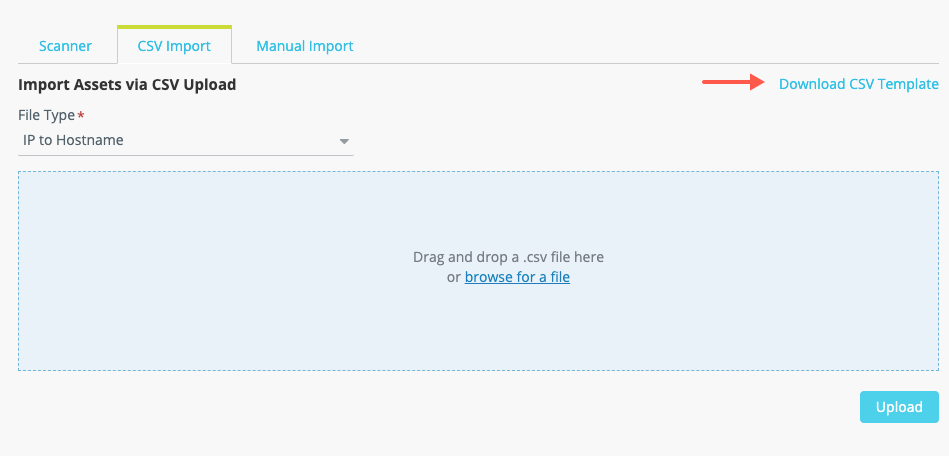
- Click the links to download the single IP Address Mapping template and/or the set of two MAC address mapping templates.
- Click OK to dismiss the dialog box.
Upload a CSV File
Upload the completed CSV files to enable enrichment with asset details. A new upload overwrites records for an asset that has the same IP address.
Note:
- The first time you upload the MAC address mapping templates, you must upload both files together: mac_to_hostname.csv and ip_to_mac.csv.
- Subsequent uploads can include only the file that has changed.
To upload a CSV file:
-
Click the Settings icon
in the left navigation panel and select Security Analytics. -
Click Assets.
-
Click the CSV Imports tab.
-
Select a template file type from the drop-down list.
-
Drag and drop your CSV file to the highlighted area or click the browse link to locate and select your file.
- Click Upload.