Managing AWS Asset Data Imports
Anomali Security Analytics supports scheduled asset data imports from AWS SQS or S3 locations.
About AWS Assert Data Imports
When you configure scheduled imports from AWS, you must specify the AWS SQS URL or S3 bucket details, as well as the AWS access key and secret key provisioned for this integration.
You can ingest the following file types:
-
JSON
-
CSV
-
tar.gz (containing JSON or CSV files)
When you set up your asset import, you set up mapping from your source fields to the following Security Analytics asset fields:
-
time
-
ip (required)
-
hostname
-
os
-
criticality
-
count
-
vulnerabilities
-
scanner
-
source
-
mac
-
netbios
-
fqdns
-
owner
-
tags (you can map multiple source fields to the Security Analytics tags field)
Collect Credentials to Use for the Connection from Anomali Security Analytics
Your AWS administrator (with admin role permissions) must create a dedicated AWS Identity and Access Management (IAM) account for the integration with Security Analytics. Security Analytics will use this account to connect to your resources (AWS S3 bucket or AWS SQS queue) to retrieve the asset data.
Typically, an organization grants resource access permissions through AWS administration groups as follows:
-
Sets up an administration group for the specific purpose of supporting the integration.
-
Associates a policy with the administration group.
-
Creates an IAM account and associates the account with the administration group.
The following example shows an IAM resource access policy configured to grant the permissions required for this integration.
{
	"Version": "2012-10-17",
	"Statement": [
		{
			"Sid": "resourcePermission",
			"Effect": "Allow",
			"Action": [
				"s3:GetObject",
				"s3:ListBucket",
				"s3:GetBucketLocation"
			],
			"Resource": [
				"arn:aws:s3:::<bucket-name>/*",
				"arn:aws:s3:::<bucket-name>"
			]
		},
		{
			"Sid": "VisualEditor0",
			"Effect": "Allow",
			"Action": [
				"sqs:ChangeMessageVisibility",
				"sqs:DeleteMessage",
				"sqs:GetQueueAttributes",
				"sqs:ReceiveMessage",
				"sqs:SendMessage"
			],
			"Resource": "<SQS-queue-ARN>"
		}
	]
}
Specify your resource IDs in place of the placeholders <bucket-name> and <SQS-queue-ARN> that are used in the example.
For details about IAM policies, refer to the AWS topic, “Creating IAM policies.”
The following table explains the required IAM resource access permissions.
| AWS S3 |
s3:GetObject Grants access to retrieve objects from S3 buckets. S3 files are related to the SQS event being processed. |
|
s3:ListBucket Grants access to list the content of an S3 bucket. S3 works through a polling mechanism by listing the bucket content every time and processing newer files. |
|
|
s3:GetBucketLocation Grants access to retrieve a bucket Region location, used to connect later by specifying the proper region. |
|
| AWS SQS QUeue |
s3:GetObject Grants access to retrieve objects from S3 buckets. S3 files are related to the SQS event being processed. |
|
sqs:DeleteMessage Grants access to remove a message from the queue. Given the distributed nature of SQS consumers, consumers must acknowledge receipt by deleting the message. |
|
|
sqs:ChangeMessageVisibility Grants access to modify the SQS message visibility timeout–a time window until the message is made available in the queue again if a consumer did not acknowledge receipt. |
|
|
sqs:GetQueueAttributes Grants access to read the SQS queue attributes. This is used to validate access for the given key pair. |
|
|
sqs:ReceiveMessage Grants access to reading messages from the SQS queue. |
Once the AWS IAM account is created, create and retrieve an Access Key needed to connect to the resources as described in the AWS topic, “Managing access keys for IAM users > Managing access keys (console).”
Copy the Access key ID and Secret access key values that will be needed when you create the Security Analytics asset scanner configuration.
Create a New Scanner Configuration
To import assets from AWS:
-
Click the Settings icon
 in the left navigation panel and select Security Analytics.
 -
Click Assets.
-
Click the Scanner tab.
-
Click Create New Scanner.
-
Select AWS.
-
Complete the configuration as described in the following table.
Setting Description Name A meaningful configuration name. Import Type: SQS SQS URL: Specify the SQS Queue URL from which Security Analytics will ingest asset data. Import Type: S3 S3 Bucket ARNs: Specify the s3 bucket location in ARN format:
arn:aws:s3:::bucket_name/key_nameS3 Bucket Prefix: Specify a comma-separated list of object prefixes. A prefix must include the trailing slash character. For example:
user_uploaded_assets/,test_prefixes/Access Key Specify the account provisioned for this integration. Secret Key Specify the secret key corresponding with the access key. -
Click Next.
-
Specify the schedule and the type of search as described in the following table.
Setting Description Sync Data Specify the schedule for the sync job:
-
Interval: Select every 1 day, 2 days, 7 days, 14 days, or 28 days.
-
Start time: Type the hour (0-23) and minute (0-59).
Note: The time you specify for asset scanner sync jobs is UTC time with no time zone offset. For example, if you specify the start time for the sync job to be 12:00, it runs at 12:00 UTC, which is 05:00 in Los Angeles and 13:00 in Belfast.
Scan events for the last Specify the time range for returning asset information from the AWS location in the following format:
n days
Sample Content Paste a sample from the source data that includes the CSV lines or JSON elements that are to be parsed by Security Analytics upon import. Parser Type Select the data format used in the source data: CSV or JSON. Delimiter For CSV data, select the column delimiter used in the source data: pipe, comma, semi-colon, or space. Sample contains header For CSV data, select this option if the first row of the sample is a header row. -
-
Click Next to display the mapping page.
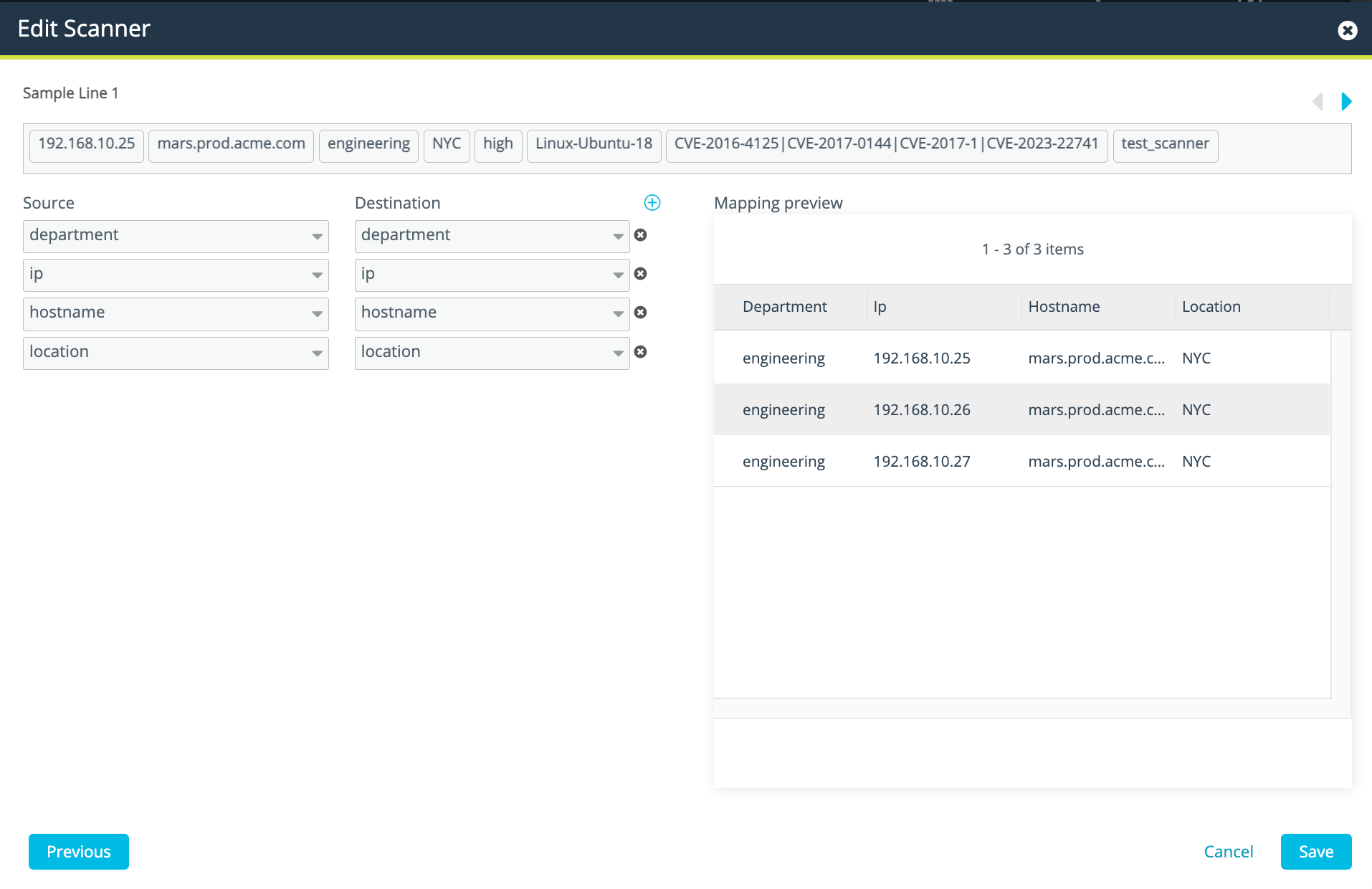
The top section shows the raw data from your log source. Use the Source and Destination drop down menus on the left to map the data to Security Analytics asset fields. The Mapping Preview on the right shows the resulting Security Analytics asset table.
Notes:
-
You must include the ip field in the mapping. IP address is the primary key used to uniquely identify an asset in the Security Analytics asset data store.
-
You can map multiple source fields to the Security Analytics tags field.
-
- Click Save.
| S3 |
When the import job runs at the scheduled time, Security Analytics imports files having a modified_timestamp value that falls within the number of days specified by the Scan events for the last setting. At the next scheduled time, Security Analytics imports files having a modified_timestamp value that falls within its collection window, so only files modified or created since the previous run are imported. |
| SQS | When the import job runs at the scheduled time, Security Analytics processes the messages in the SQS queue at that time. The messages are removed from the SQS queue once they are processed, so they are not available to be processed in the next run. |
Toggle Activation for a Scanner Configuration

|
In the Active column, click the checkbox to make the scanner configuration active or inactive. |
Modify a Scanner Configuration

|
In the Actions column, click the Edit icon to modify a scanner configuration. |
Clone a Scanner Configuration

|
In the Actions column, click the Clone icon to create an editable copy of a configuration. |
Delete a Scanner Configuration

|
In the Actions column, click the Delete icon to delete a scanner configuration. |
Preview a Scanner Configuration

|
In the Actions column, click the Preview icon to view the scanner configuration details and to see a detailed history of updates from the scanner. The history is a chronology of successful jobs and jobs that may have terminated due to an error. |