Microsoft Azure NSG Flow
Anomali Security Analytics can ingest Azure network security group (NSG) flow log data. The Azure NSG flow log source type is not a log source type that supports drilldown queries or scheduled backfill.
Network Topology and Requirements
The Azure NSG flow log integration involves cloud-to-cloud data flow. When new NSG flow log data is saved to the Azure storage account, the Azure Event Grid service and Azure Function event handler are used to notify Security Analytics that new logs are available for download.
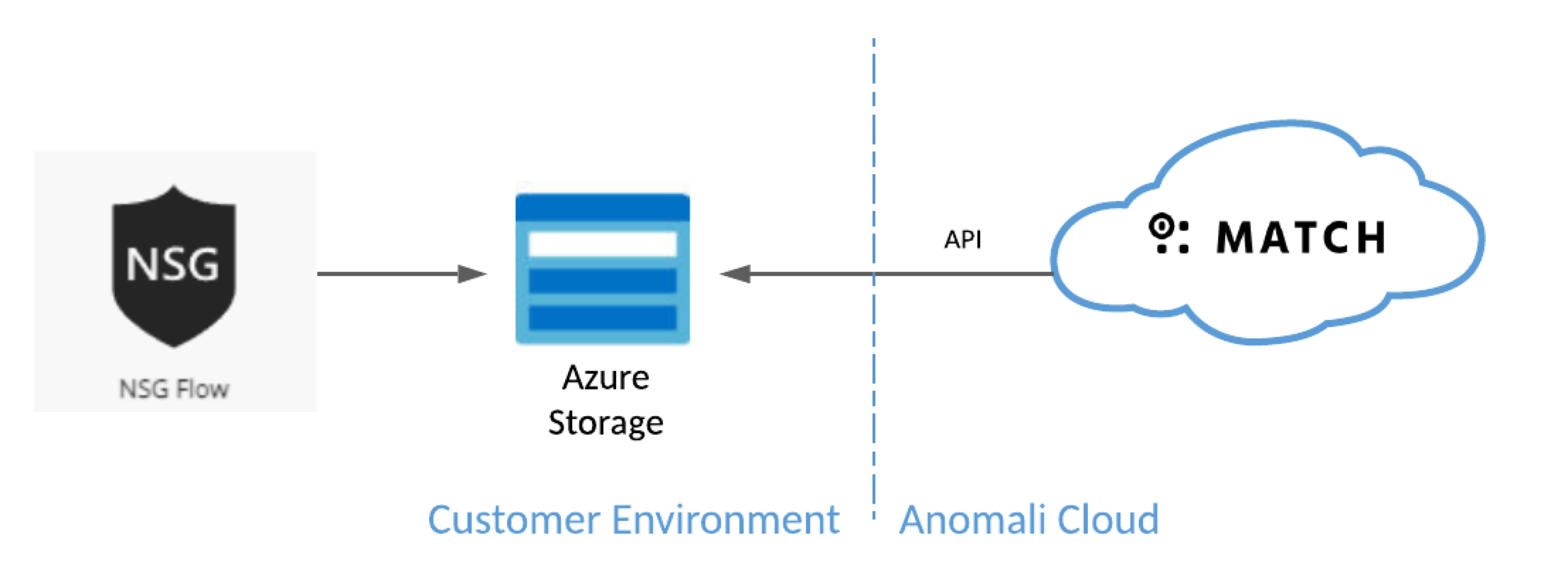
- Your network security rules must allow traffic from Security Analytics to the Azure location you specify in the log source configuration.
- Connections are initiated from Security Analytics to Azure Storage.
-
Security Analytics sends download requests to the Azure Storage location specified in your Security Analytics log source configuration.
-
Refer to Anomali Security Analytics IP Addresses, Ports, and URLs for Security Analytics network details that your network and security needs to know to allow communication from your enterprise resources to your Security Analytics deployment.
Before You Begin
| Azure |
|
| Security Analytics |
|
About Azure NSG Flow Logs
Azure NSG flow logs is an Azure Network Watcher feature that produces network flow data and sends it to an associated Azure Storage account.
Security Analytics collects and processes the following fields from NSG flow tuples:
-
Timestamp
-
Source IP
-
Destination IP
-
Source Port
-
Destination Port
-
Protocol
-
Traffic Flow
-
Traffic Decision
-
Bytes sent
Refer to the Microsoft topic, "Introduction to flow logging for network security groups," for detailed information.
Step 1: Set Up Azure Resources
Complete Microsoft Azure workflows for the following activities to set up your Azure environment.
-
Create an Azure function based on the Azure Event Grid trigger template. Refer to the Microsoft topic, "Create Azure Function," for details.
Under Code + Test, paste the following
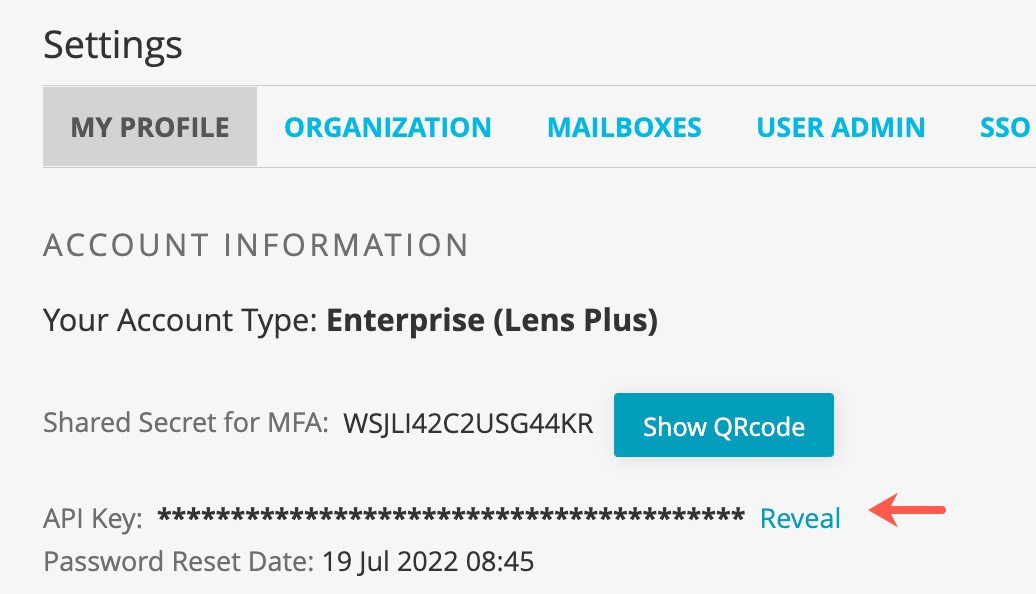
event_sender.jscode provided by Anomali for this integration. Replace<username>:<apikey>with the username and API key for the ThreatStream user account you have provisioned to be a service account for this integration (refer to Before You Begin).const https = require('https'); module.exports = async function (context, eventGridEvent) { const eventData = JSON.stringify(eventGridEvent); const options = { hostname: 'api.threatstream.com', port: 443, path: '/api/v1/xdr/cloud_logsource/azure_storage/event/', method: 'POST', headers: { 'Content-Type': 'application/json', 'Content-Length': eventData.length, 'Authorization: apikey <username>:<apikey>' } }; const req = https.request(options, (res) => { console.log('statusCode:', res.statusCode); console.log('headers:', res.headers); res.on('data', (d) => { process.stdout.write(d); }); }); req.on('error', (e) => { console.error(e); }); req.write(eventData); req.end(); }; -
Provision an Azure Storage account for this integration.
-
Create an Azure Storage account.
Refer to the Microsoft topic, "Create a storage account," for details.
-
After the Storage account has been created, add an Event Subscription to the Storage account configuration:
-
Go to Events and click + Event Subscription.
-
Select Event Grid Schema.
-
Under Filter to Event Types, select Blob Created.
-
Under Endpoint Type, select Azure Function.
-
For Endpoint, select the Azure function created for this integration in the previous step.
Refer to the Microsoft topic, "Subscribe to custom topic," for details.
-
-
Copy the Storage account name and Storage account access key to a safe place that you can access when you complete the Security Analytics log source configuration.
Refer to the Microsoft topic, "View account access keys," for details on how to locate and view the access key.
-
-
Set up NSG flow logging.
-
Enable Network Watcher.
-
Register Insights provider.
-
Enable NSG flow log. Set up NSG flow log to send the data to an Azure Storage account provisioned for the integration with Security Analytics.
Refer to the Microsoft topic, "Tutorial: Log network traffic to and from a virtual machine using the Azure portal," for details.
-
Step 2: Create the Security Analytics Log Source Configuration
In Security Analytics, you configure the connection information.
To add the log source:
-
Click the Settings icon
 in the left navigation panel and select Security Analytics.
 -
Click Links.
-
Click Cloud Log Sources in the left navigation menu.
-
Click the Available tab to display a list of cloud log sources.
-
Click the Azure NSG icon.
-
Complete the configuration as described in the following table.
Setting Description Source Name Type a name that facilitates Link management. Only ASCII characters are allowed. Azure Storage Account Name Type the provisioned storage account name. Refer to Step 1.
Azure Storage Account Access Key Paste the key for the provisioned account. Refer to Step 1.
-
Click Save.
Step 3: Activate the Security Analytics Log Source Configuration
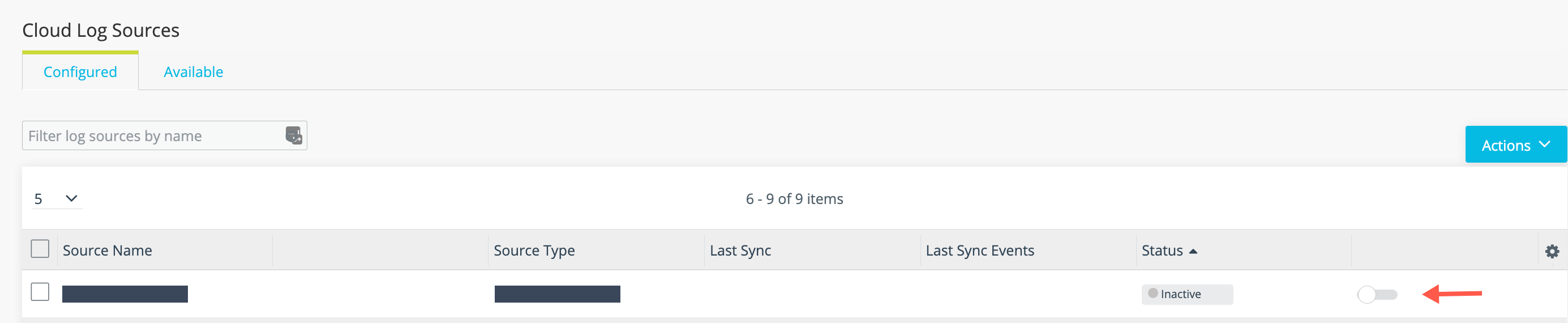
By default, a newly-added data source is not active.
To activate a log source:
-
Click the Settings icon
in the left navigation panel and select Security Analytics. -
Click Links.
-
Click Cloud Log Sources in the left navigation menu.
-
Toggle the activation switch shown in the following figure.
Step 4: Verify Logs Are Ingested into Security Analytics
You can expect logs to be transmitted to Security Analytics shortly after the log source has been activated.
To verify logs are ingested:
-
Click the Settings icon
in the left navigation panel and select Security Analytics. -
Click Links.
-
Click Cloud Log Sources in the left navigation menu.
-
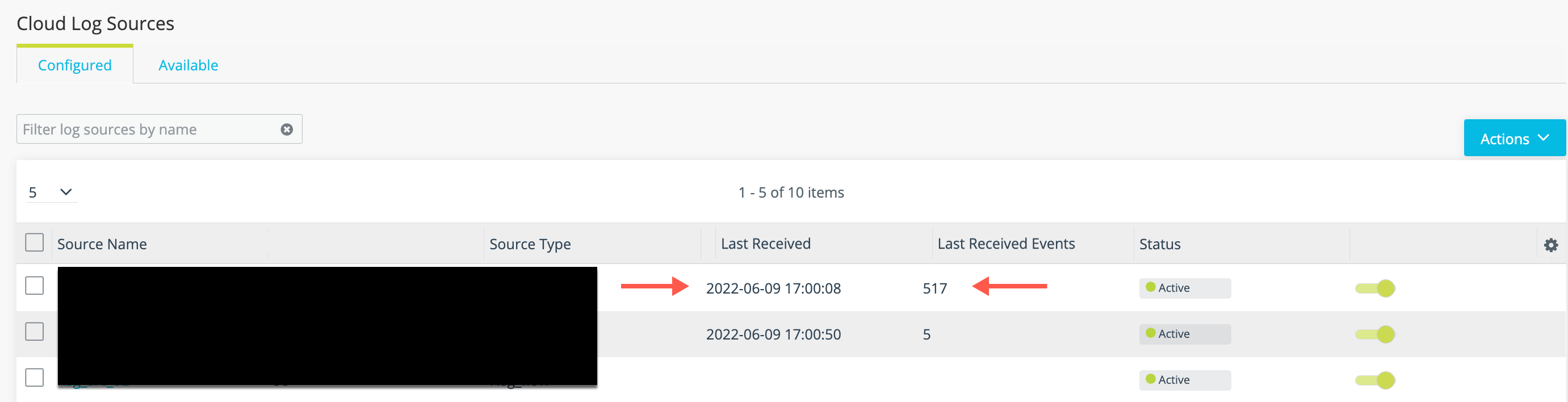
Review the timestamp for the last data received and the number of events in the last batch of data to confirm event logs are ingested as expected.