About the Timeline Visualization Type
Use the Timeline visualization type to visualize user and entity behavior in a timeline view, enabling you to quickly identify, investigate, or triage high-risk users and assets through an intuitive timeline interface.
(Click the image to enlarge it.)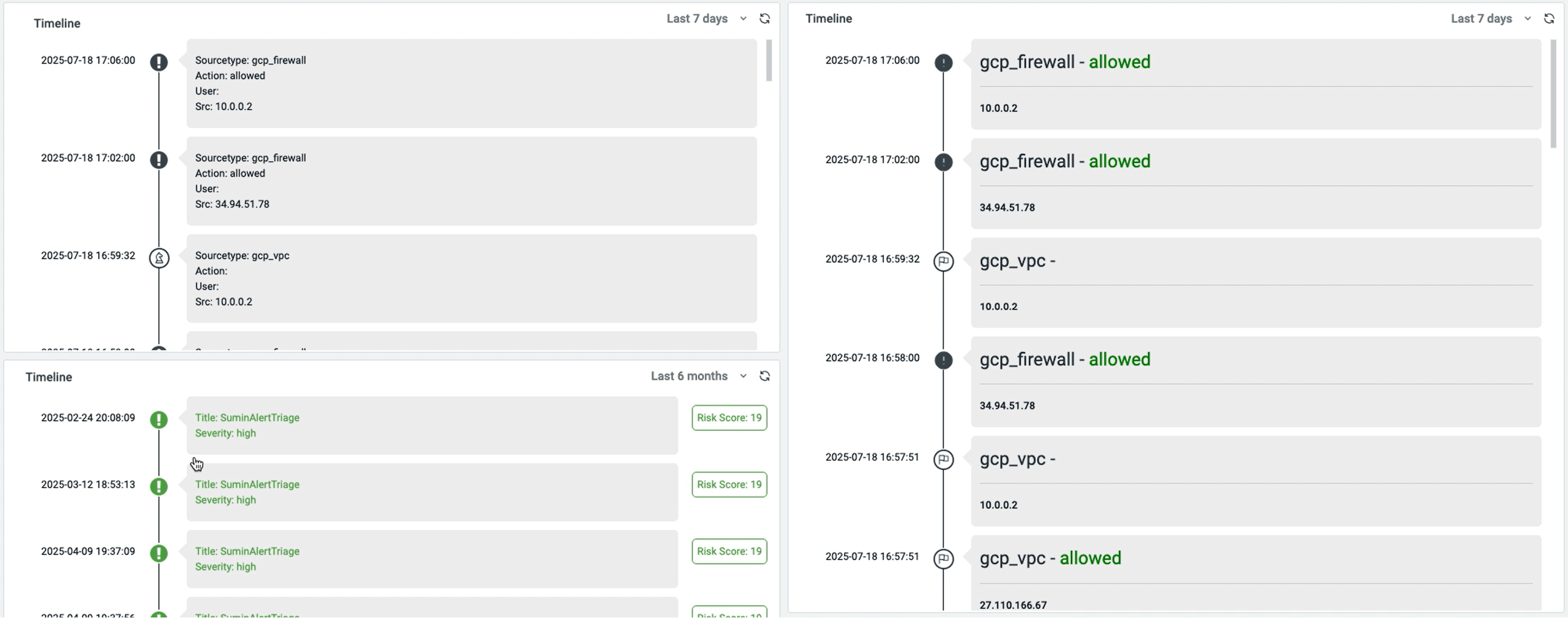
Use case
With the Timeline visualization, you can drill-down to detailed views, such as:
-
Asset timeline: With further drill-down to search, this timeline can capture assets most at risk based on data from IOC matches and triggered alerts.
-
User timeline: With further drill-down to search, this timeline can highlight users with the highest risk scores, based on both IOC matches and alert activity.
-
Alert timeline (Top alerts triggered): With drill-down to alert triage and then to search, this timeline lets you pivot from high-level summaries to specific alert details and related search queries.
Panel Options
Use the options in the Panel tab to customize the options described in the following table.
| Setting | Description | |
|---|---|---|
| Settings | Panel title | Titles appear at the top of a panel. |
| Description | Descriptions appear as tooltips. Markdown and links are supported. | |
| Transparent | Display panel without a background. | |
| Show Description | Display or hide the description. | |
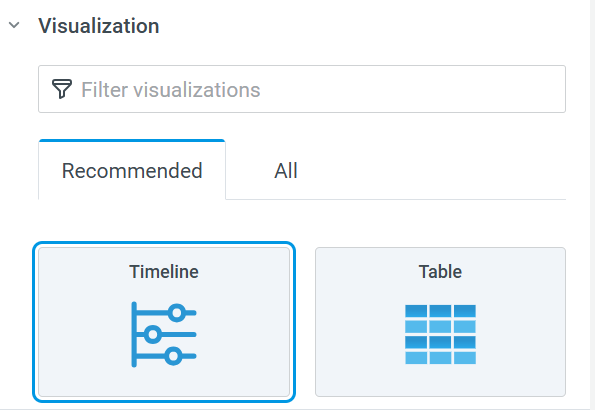
| Visualization | Timeline |
Select the Timeline widget to create timelines.
|
| Fields | Date and Time |
Map date to any date and time field in the search result. |
| Field for Icon Mapping | Select a field whose values are mapped to a predefined list of icons. Click Add Icon Map to add an icon map. | |
| Message |
Add a timeline message that supports variables. Use the dollar-sign ($) to invoke system variables that change dynamically based on AQL data or user-defined inputs. See Support for Variables for more information. |
|
| Score | Map score to any numeric field within the search result. |
Field Options
Use the options in the Fields tab to customize the options described in the following table.
| Setting | Description | |
|---|---|---|
| Thresholds | Add threshold | Configure mapping of thresholds to colors. |
| Thresholds mode |
|
|
| Data links | Add link |
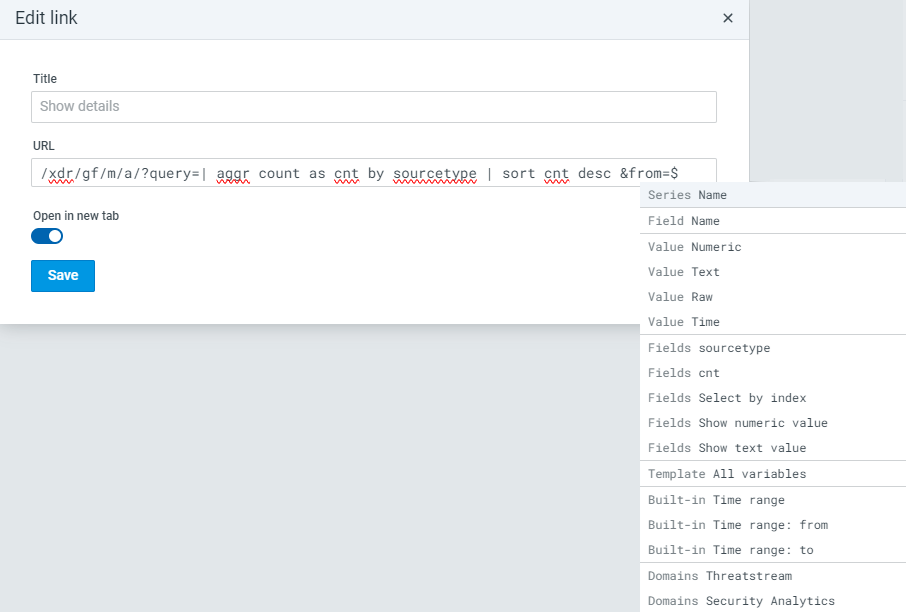
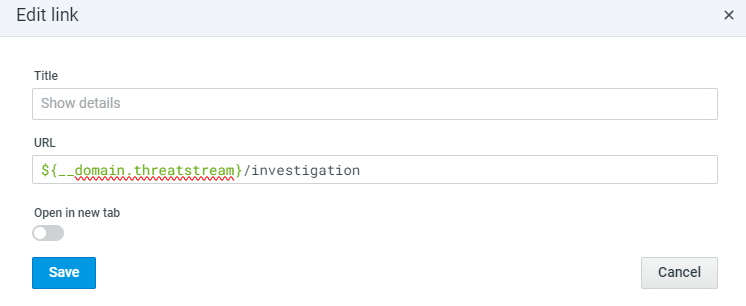
Click +Add link and complete settings for link behavior when a user clicks data fields in the visualization. You can use the following URL types and configure them to pass variables:
To use a relative URL, specify
To use a URL in ThreatStream or Security Analytics domains, do the following:
|
Advanced Options
Use the options in the Advanced tab to override the settings configured in the Fields tab for particular fields. For example, you can override the automatic color palette selected for a particular field to a preferred single color.
You have the following options to select field settings to be overridden:
-
Fields with name: Set properties for a specific field.
-
Fields with name matching regex: Set properties for fields with names matching a regex.
-
Fields with type: Set properties for fields with a specific type (numeric, string, Boolean).
-
Fields returned by query: Set properties for fields from a specific query.
Once you add this visualization type to your dashboard, you can also manage your dashboard panels.
See Manage dashboard panels to learn more about how you can edit panel settings to modify the visualization and apply advanced transformations, share panels with permitted users in your organization, or even view the panel JSON model, and so on.
Support for Variables
The Timeline widget also supports dynamic variables on Anomali Match Dashboards. You can define and use both system-defined and custom variables in the Message text field, enabling the display of dynamic, context-sensitive information (for example, usernames, dates, alert counts) that is automatically updated based on AQL data or user-defined inputs.
How to use variables
Variables can be inserted as a message using double curly braces:
${enter_your_variable_name}
When the widget is rendered, these placeholders are replaced with their corresponding values.
Adding a variable
See Adding Dashboard Variables to understand how you can add and configure variables.
Dynamic Usage of Variables
After Adding a variable on a dashboard, you can dynamically display their context-specific values as follows:
-
Click Edit on the dashboard.
-
Hover your mouse to the right of the Panel title and click the expander. Doing so displays the panel management menu.
-
Click Edit.
-
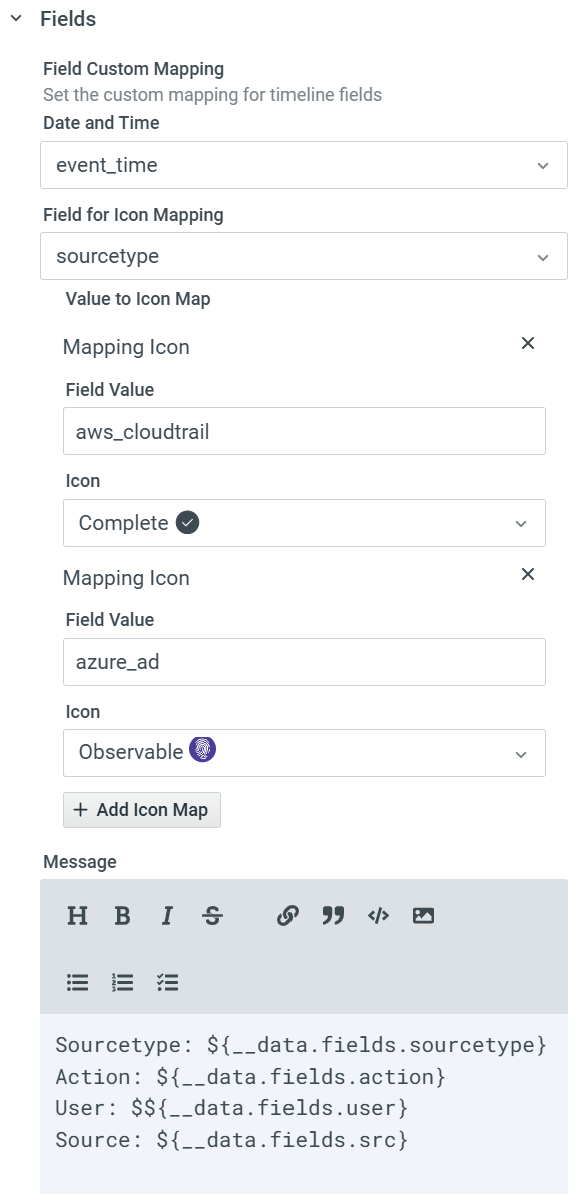
In the Message editor, enter the dollar-sign ($). This sign displays all the system and custom variables that you can use to dynamically display context-specific information. In the example below, we add variables for sourcetype, action, user, and source IP address.
-
Click Save.
Once you complete these steps, the variable you added will be dynamically populated with its value(s), based on AQL data or user-defined inputs.
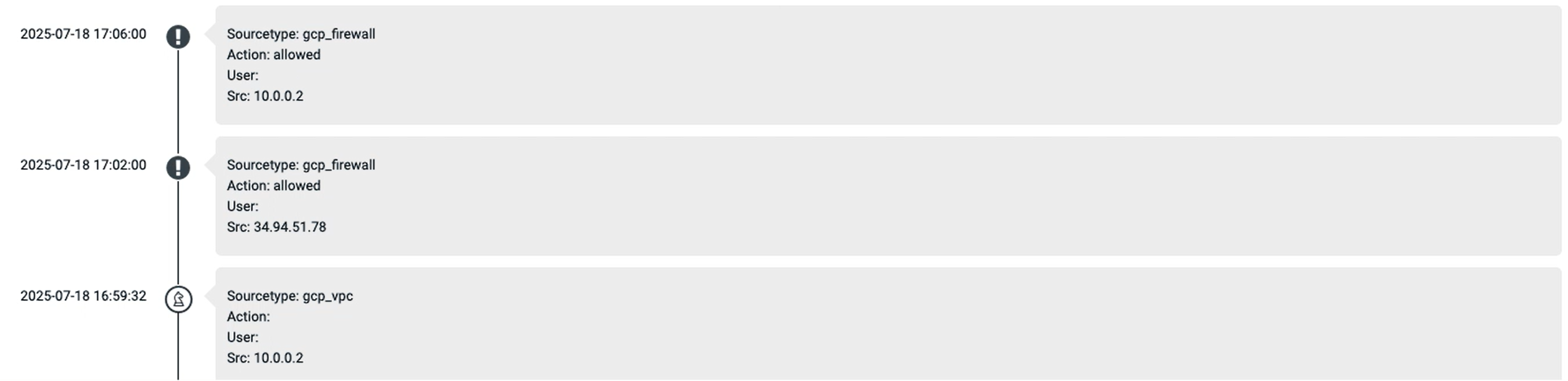
Note: For fast and optimized performance, Anomali recommends that the timeline widget be used with up to 50 rows results with 5 columns.