About the Table Visualization Type
Use the Table visualization type to display the columns of the results table in table format.
AQL Expression Requirements
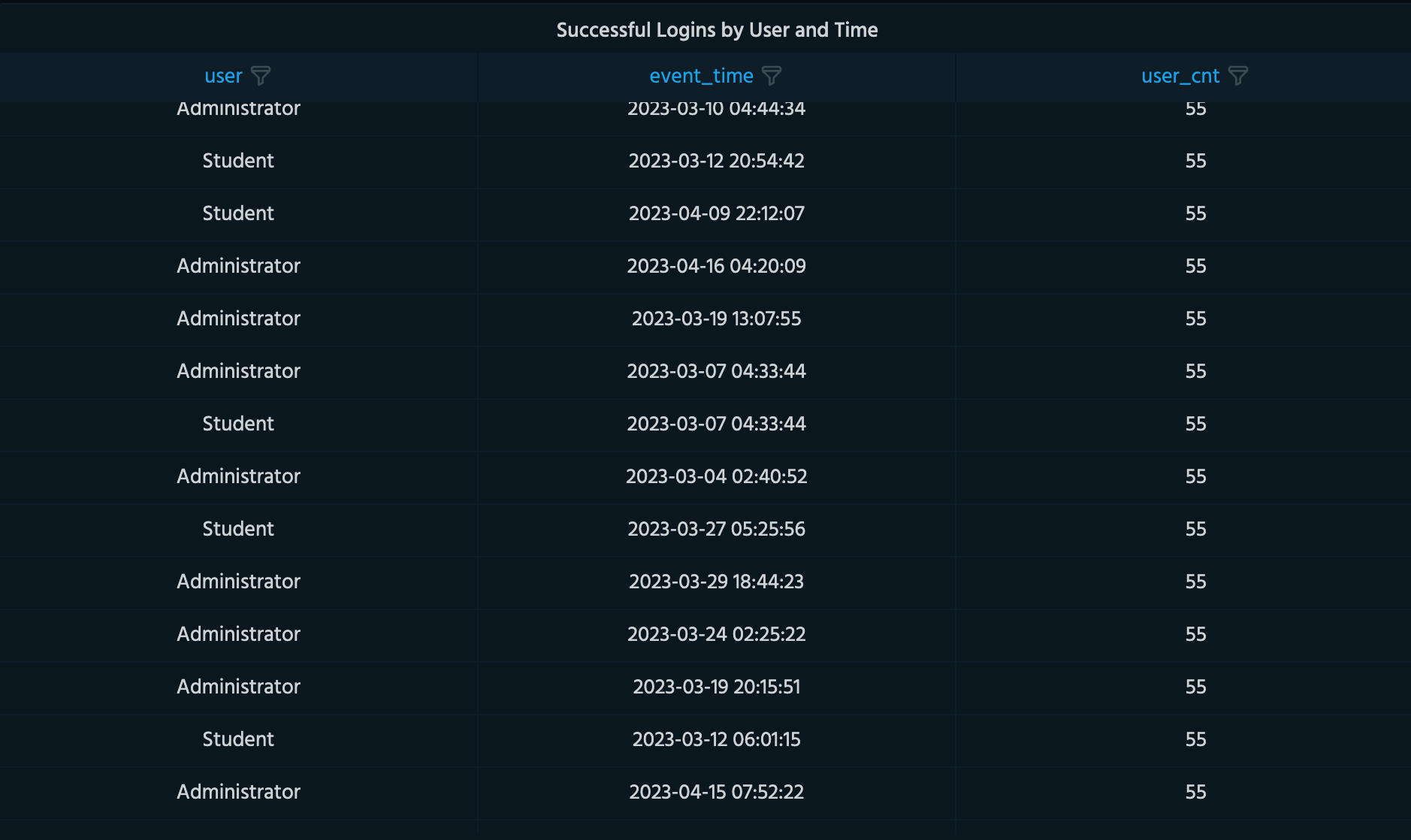
Use the fields operator to specify the table columns.
Note: Using addtotals=true in your timechart operator query appends a total row and total column to your results. The total row shows the aggregate count per group across the entire time range, and the total column shows the aggregate count across all groups per time bucket. This is useful for comparing entities and spotting volume trends, without needing a separate query. See timechart operator for more information.
Panel Options
Use the options in the Panel tab to customize the options described in the following table.
| Setting | Description | |
|---|---|---|
| Settings | Panel title | Titles appear at the top of a panel. |
| Description | Descriptions appear as tooltips. Markdown and links are supported. | |
| Transparent | Display panel without a background. | |
| Display | Show header |
Show table header or not. |
| Table Editing | Editable toggle | Toggle to allow editing the table. |
| Links | Add data link |
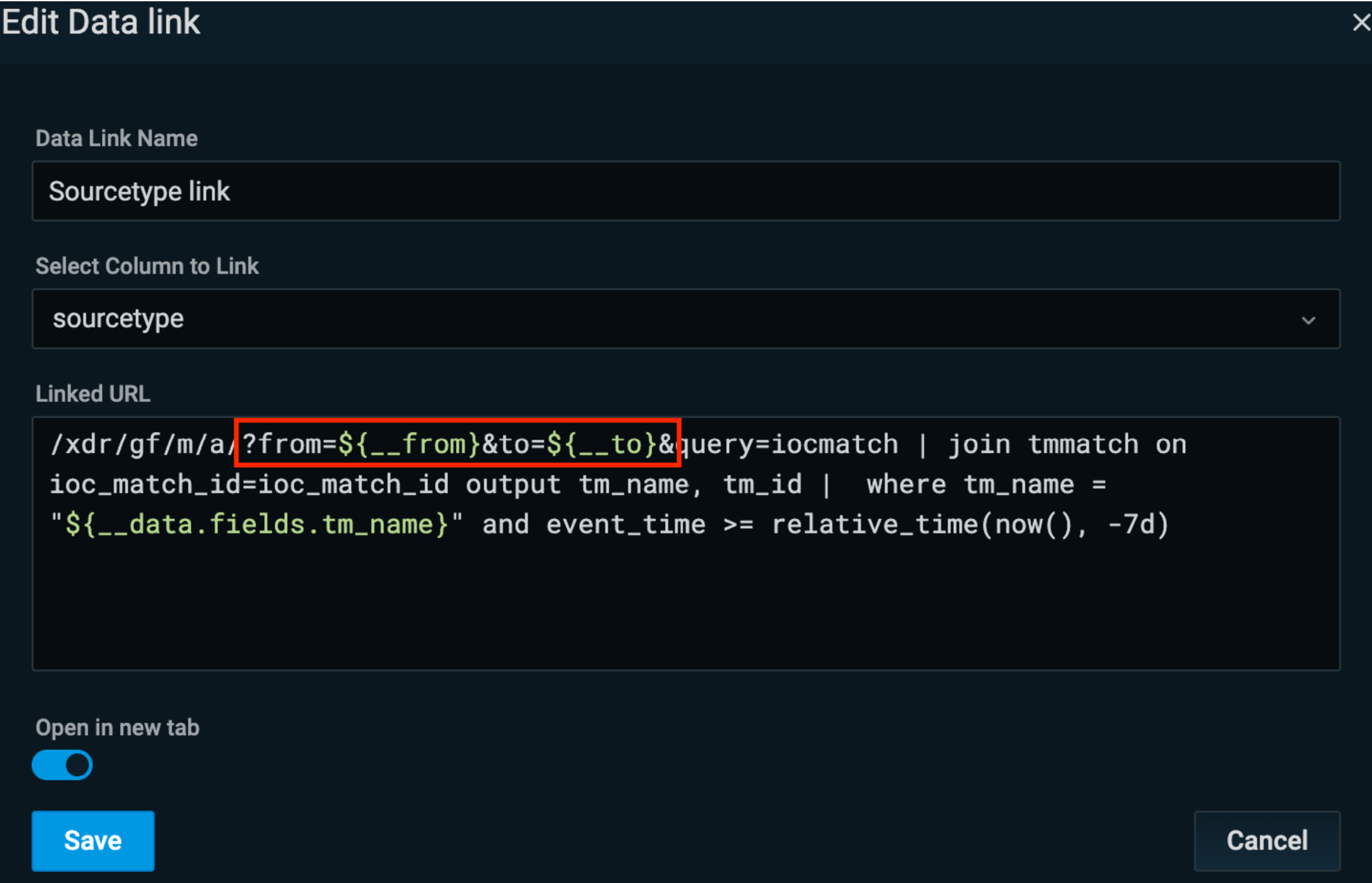
Enter the following data link details:-
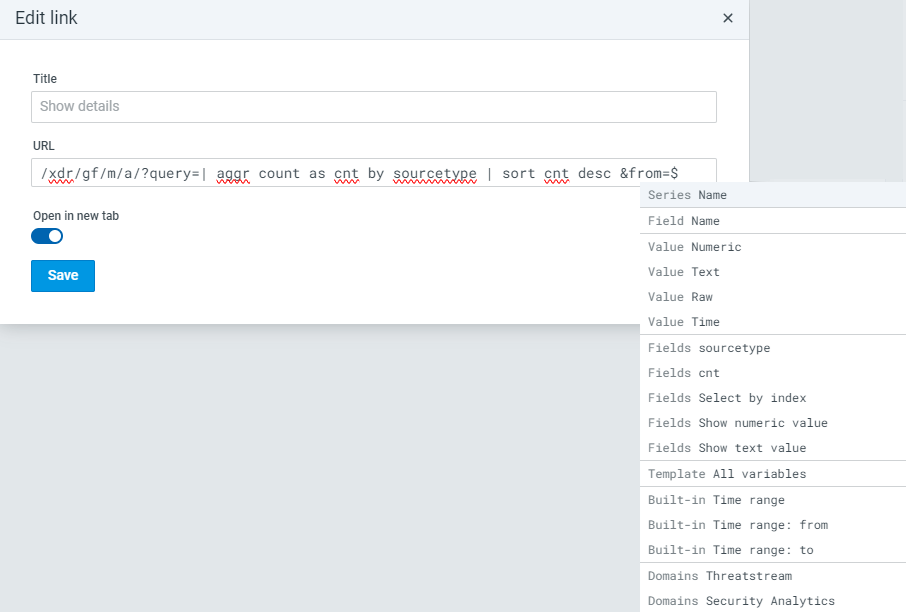
Note: By default, dashboard timestamps are not included when drilling down. To enable this, you need to configure the drilldown URL by adding the following prefix to the start of the drilldown link:
Here's an example query with the timestamp prefix from above:-
|
Field Options
Use the options in the Fields tab to customize the options described in the following table.
| Setting | Description | |
|---|---|---|
| Table options | Column width | By default, the width is calculated automatically based on the results data. If desired, specify a fixed width instead. |
| Column alignment |
|
|
| Cell display mode | Color text, background, show as gauge, etc. | |
| Column filter |
Enables/disables field filters in table. |
|
| Standard options | Unit | Select a unit. Applies to all fields except time. |
| Min |
Specify a minimum value (as percentile). Leave empty to calculate based on all values. |
|
| Max |
Specify a maximum value (as percentile). Leave empty to calculate based on all values. |
|
| Decimals | Number of decimal places in numeric values. | |
| Display name | Change the field or series name. | |
| No value | What to show when there is no value. | |
| Color scheme | Specify a single color or use the color palette. | |
| Thresholds | Add threshold |
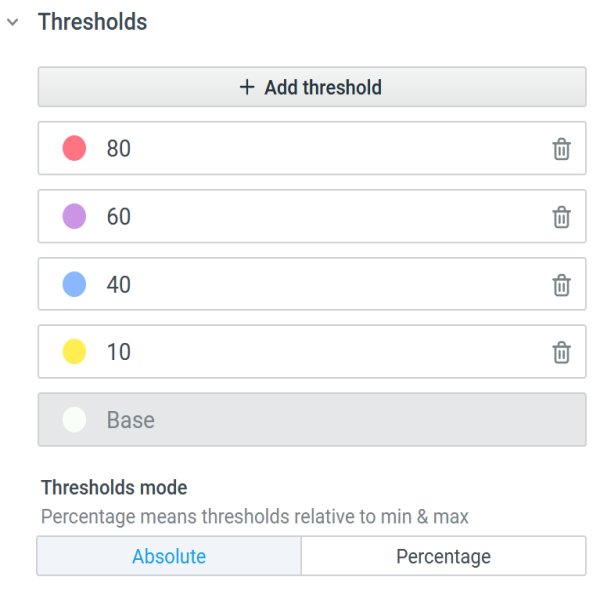
Configure mapping of thresholds to colors. For example, you can assign blue to threshold values between 40-60 and red to values 80 and higher. Click on the color dot to select different gradients of the same color.
|
| Thresholds mode |
|
|
| Value mappings | Add value mapping |
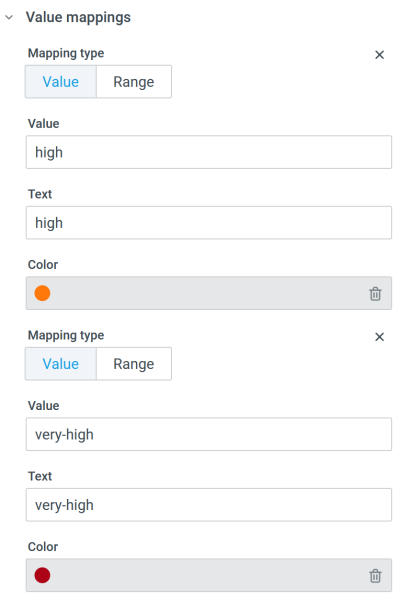
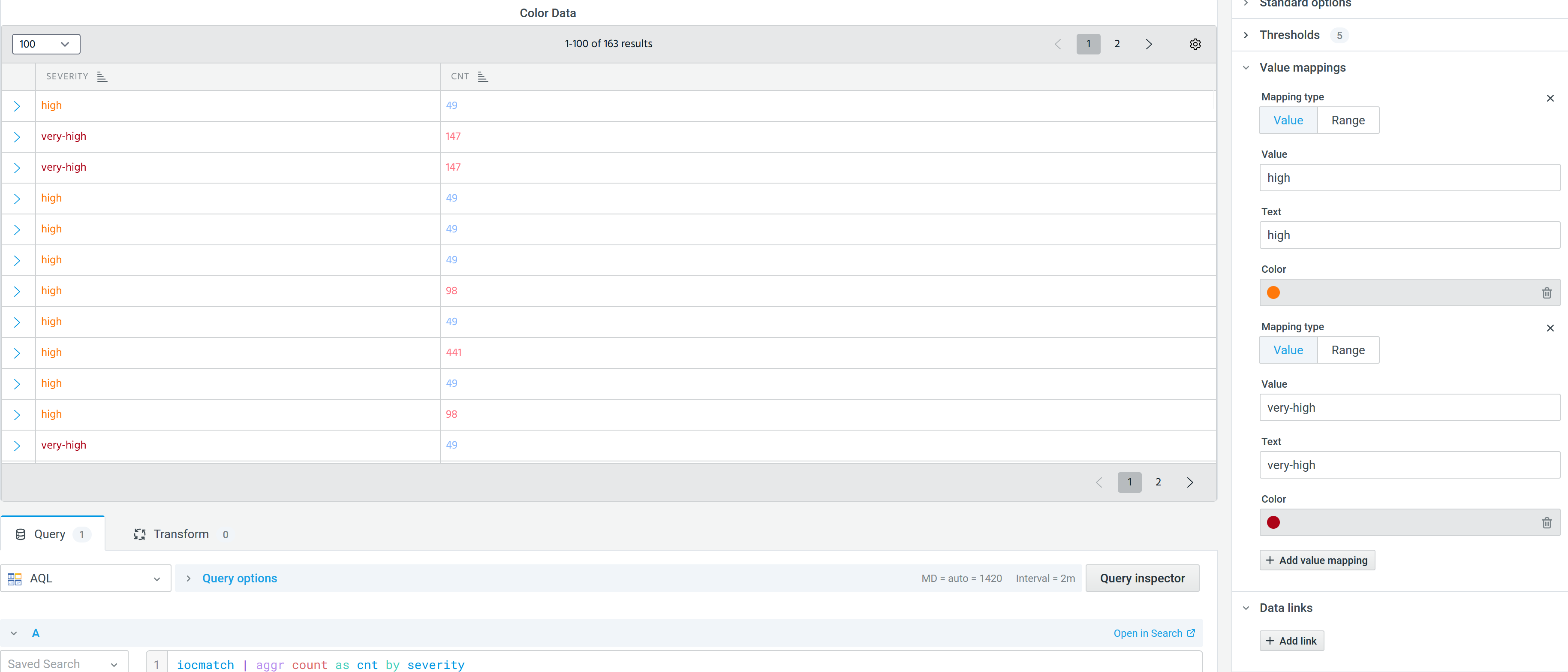
Click +Add value mapping to map a single value or range of values to a specified text string. For example, map data having the country code Additionally, for example, you can color-code your search results depending on the value and colors you assign to values. In the screenshot below, in the Value Mappings section, the severity of an iocmatch is color-coded to indicate high severity results in orange and very-high severity results in red.
These color-coded value mappings, along with the color-coded thresholds (see the Thresholds section) return the following results: (Click the image to enlarge it.) |
| Data links | Add link |
Click +Add link and complete settings for link behavior when a user clicks data fields in the visualization. You can use the following URL types and configure them to pass variables:
To use a relative URL, specify
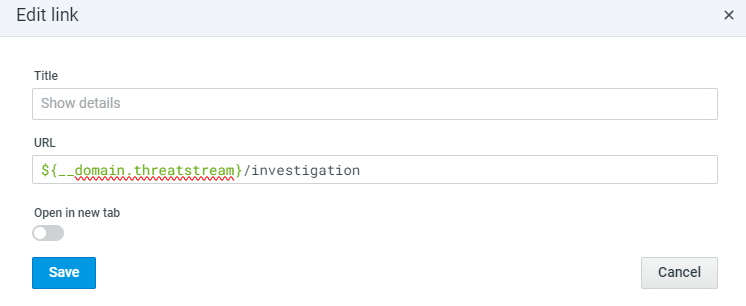
To use a URL in ThreatStream or Security Analytics domains, do the following:
|
Advanced Options
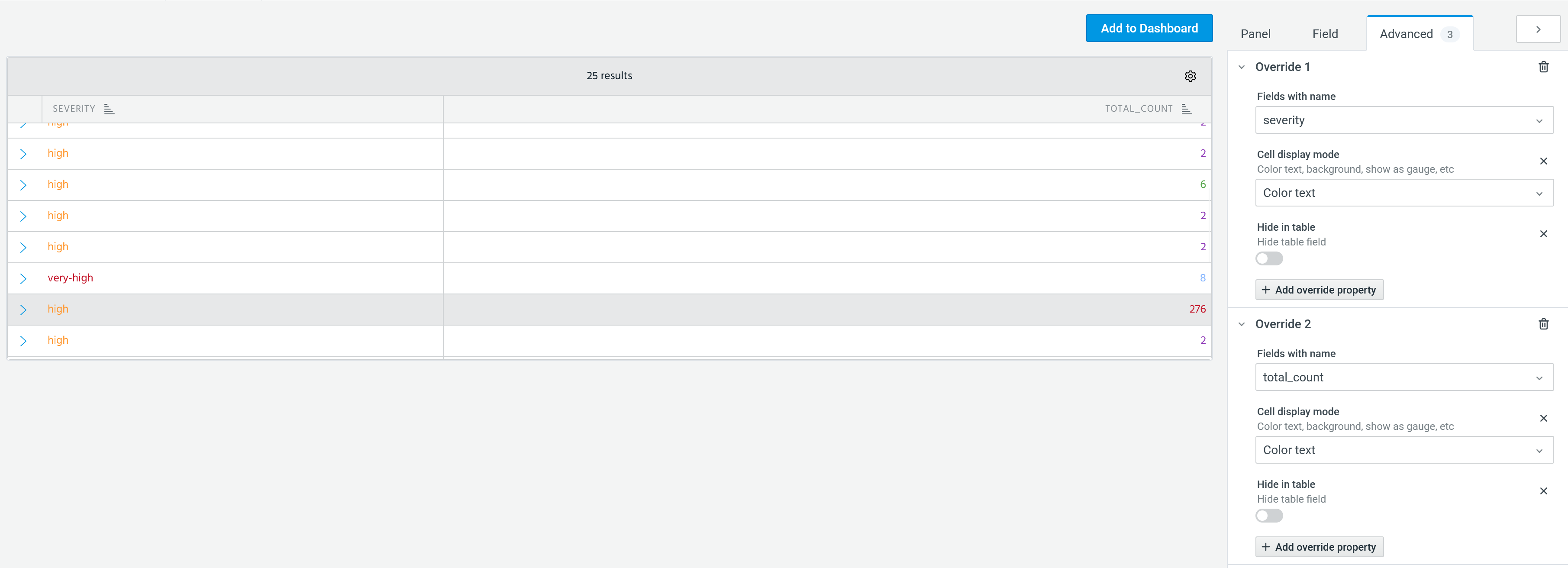
Use the options in the Advanced tab to override the settings configured in the Fields tab for particular fields. For example, you can override the automatic color palette selected for a particular field to a preferred single color.
You have the following options to select field settings to be overridden:
-
Fields with name: Set properties for a specific field. For example, if you want to color-code different column values as per thresholds, you must add an override property. See Add override property for more information.
-
Fields with name matching regex: Set properties for fields with names matching a regex.
-
Fields with type: Set properties for fields with a specific type (numeric, string, Boolean).
-
Fields returned by query: Set properties for fields from a specific query.
Add override property
To add an override property:
-
Go to the Advanced tab.
-
Click Add an override for.
-
Select Fields with name and choose a column whose settings you would like to override.
-
Click Add override property and select a property. For example, to color-code different column values as per thresholds, select Cell display mode > Color text.
Once you configure these settings, your table will have color-coded threshold-based table entries, as follows: