About the MITRE ATT&CK Heatmap Visualization Type
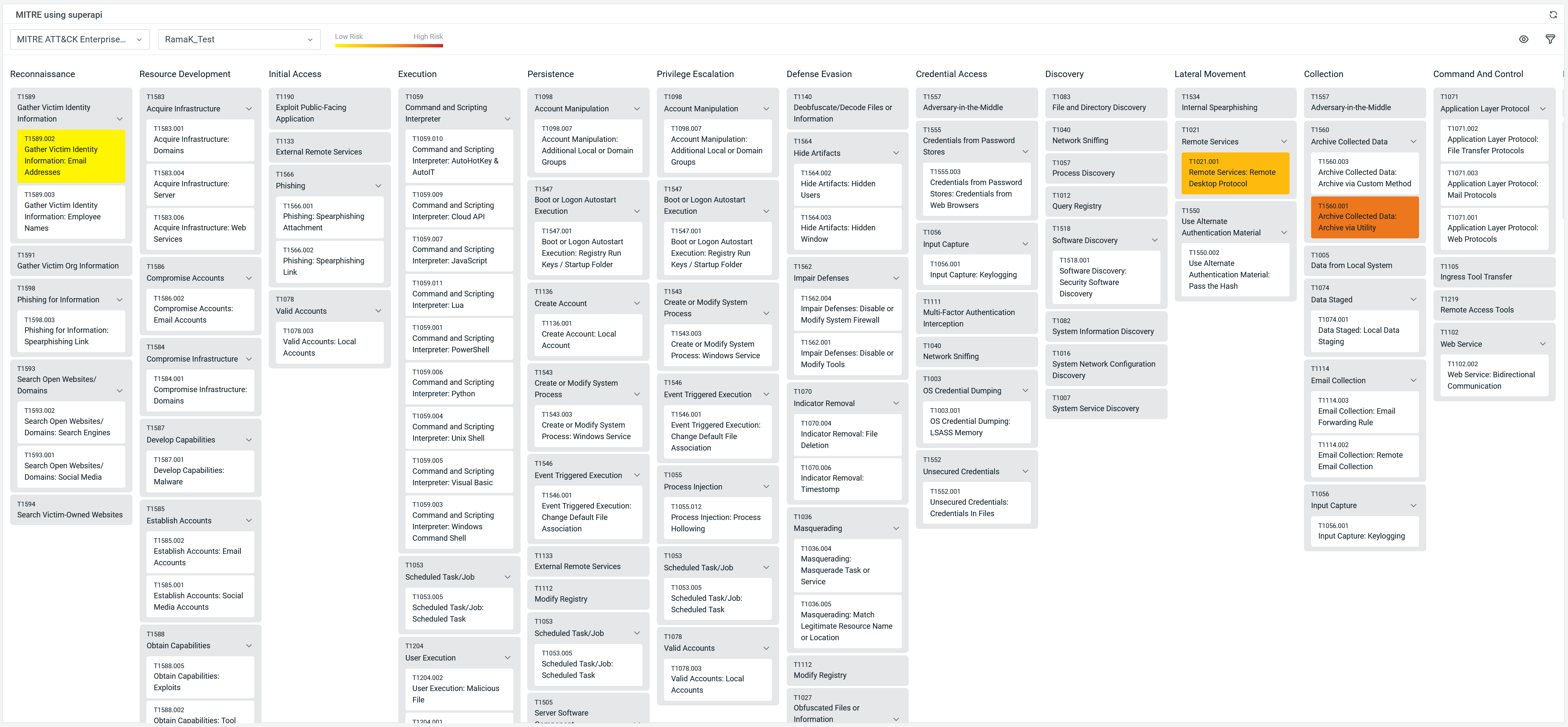
Use the MITRE ATT&CK Heatmap visualization to view adversarial behaviors in your organization mapped to the MITRE ATT&CK matrix based on ThreatStream threat models.
The visualization helps you capture different tactics, techniques, procedures (TTPs), including sub-techniques, from your Anomali Query Language (AQL) search results and uses ThreatStream to display your MITRE ATT&CK Profiles in your organization.
This visualization also supports three complementary MITRE view types:
-
Security Controls to visualize control coverage and gaps
-
Threat Model to focus on techniques tied to your modeled threats
-
Frequency to highlight the techniques most frequently observed in your AQL results.
See MITRE View Type for more information.
(Click the image to enlarge it.)
AQL Expression Requirements
You can use AQL queries to create a MITRE ATT&CK heatmap and view them on the Visualization tab of the Search results page.
For example, the following AQL query uses the superapi operator and the ThreatStream actor endpoint to fetch up to 1000 attack patterns for the actor 123456 and display their ID, name, and MITRE attribution status.
example_test_table
| superapi endpoint='/api/v1/actor/123456/attackpattern/?limit=1000&offset=0' output_types='string' method=GET
| calc objects=json_extract(response_data, 'objects', ARRAY)
| mvexpand objects
| calc name=json_extract(objects_expanded, 'name')
| calc id=json_extract(objects_expanded, 'id')
| calc is_mitre=json_extract(objects_expanded,  'is_mitre')
| fields id, is_mitre, name
In the following example, the Frequency MITRE view type aggregates MITRE technique frequency counts from threat intelligence reports based on MITRE technique ID and report count.
threat_models
| where tm_type = "tipreport"
| where feed_id = 6634 or feed_id = 382 or feed_id = 3404 or feed_id = 6853
| mvexpand tags
| where tags_expanded startswith "GIR:"
| lookup intel_GIR_lookup on tags_expanded=gir_code output description as gir_description
| lookup gir_to_mitre_lookup on tags_expanded=gir_code output mitre_tactic as mitre_tactic1 , mitre_technique_id, mitre_technique_name
| where mitre_technique_id != ""
| aggr dc(id) as report_count by mitre_technique_id
| sort report_count desc
Panel Options
The Panel tab lets you customize the following visualization options:
| Setting | Fields | Description |
|---|---|---|
| Settings | Panel title | Titles appear at the top of a panel. |
| Description | Descriptions appear as tooltips. Markdown and links are supported. | |
| Transparent | Display panel without a background. | |
| Show Description |
Display the panel description. |
|
| Visualization | All visualizations |
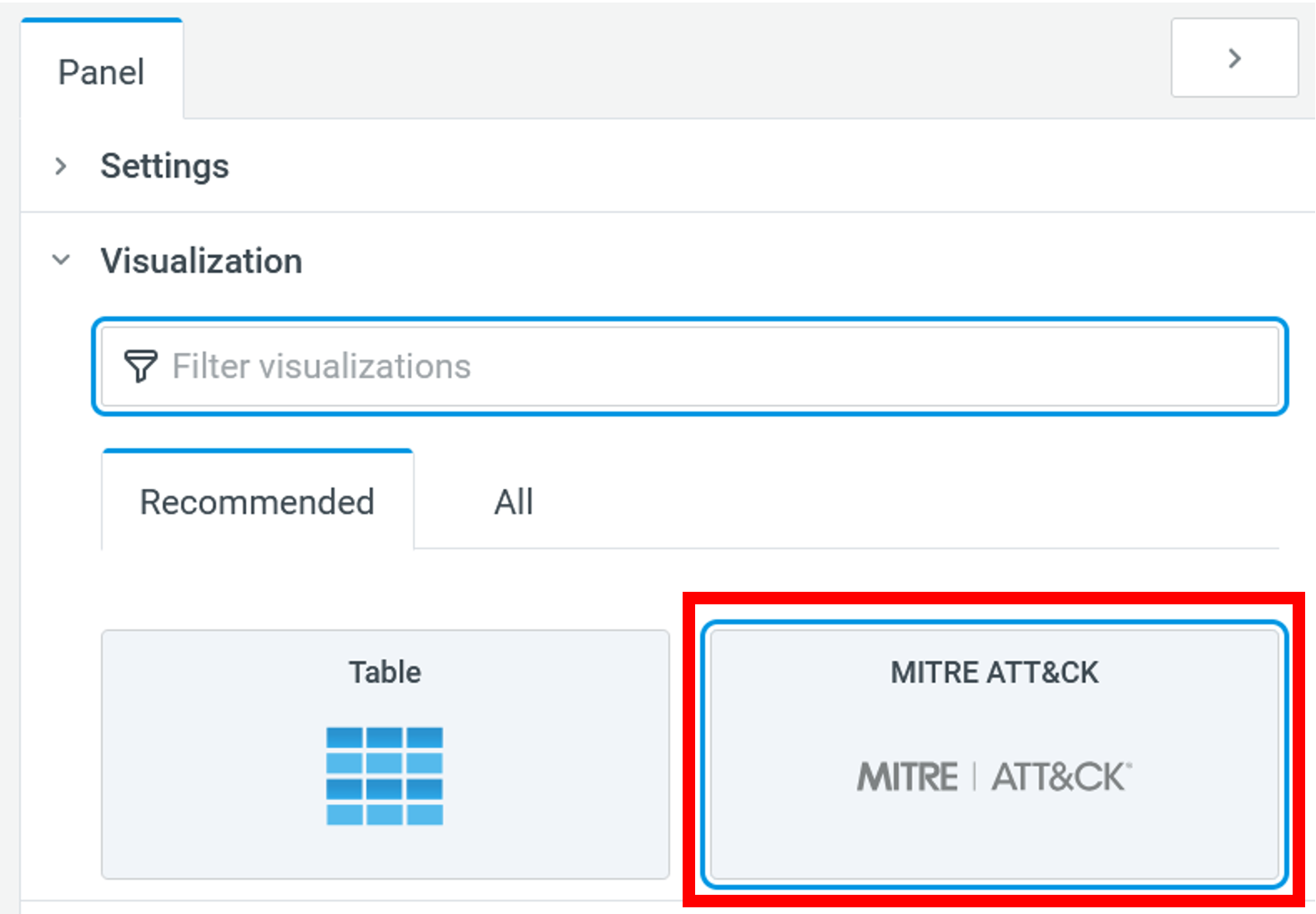
Select the MITRE ATT&CK visualization from the list of visualizations.
|
| Display | MITRE View Type |
Select the MITRE view type. Possible values are:
See MITRE View Type for more information. |
MITRE View Type
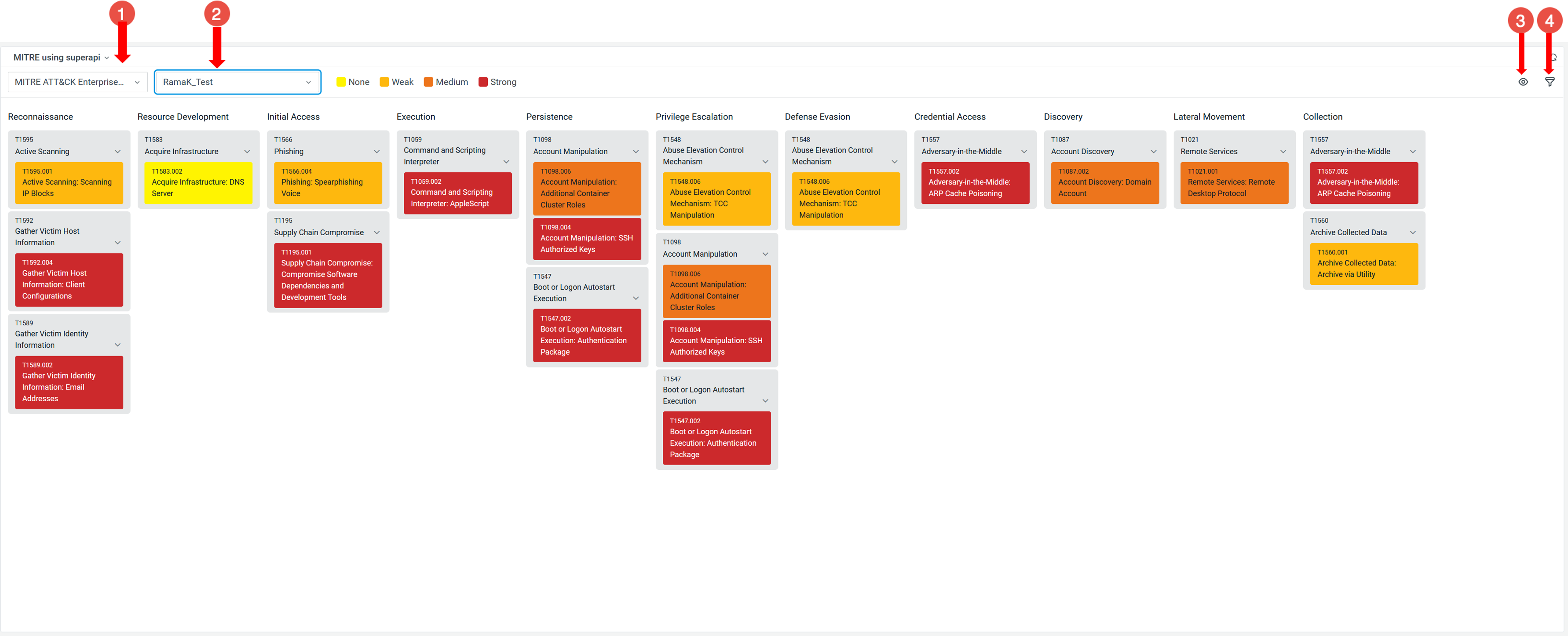
The following settings are common to the Security Controls, Threat Model, and Frequency MITRE View Types.

|
Current MITRE ATT&CK framework Type and Version: Shows the default MITRE ATT&CK framework version used by your organization. See Specifying a MITRE ATT&CK Security Coverage Framework Version for more information on setting a specific version. Depending on the MITRE ATT&CK version, you can select one of the following MITRE ATT&CK framework types:
See the ThreatStream Using the MITRE ATT&CK Framework in Investigations and Using MITRE ATT&CK Frameworks in Threat Models guides for more information on MITRE investigations and threat models. |

|
Current MITRE ATT&CK Profile: Shows the MITRE ATT&CK profile selected to represent a security coverage. |

|
Show or Hide Sub-techniques: If your organization has configured an applicable MITRE version, click the eye icon ( Note: Sub-techniques are visible in the matrix for MITRE ATT&CK Enterprise Version 7.2 and later. |

|
Filter: Filter techniques by Platform and Entities. Note: Filters are applicable only to MITRE ATT&CK Version 6.2. Filter techniques are deprecated in MITRE ATT&CK Version 7.2 and later. |
 ) to show or hide sub-techniques corresponding to a technique.
Security Controls
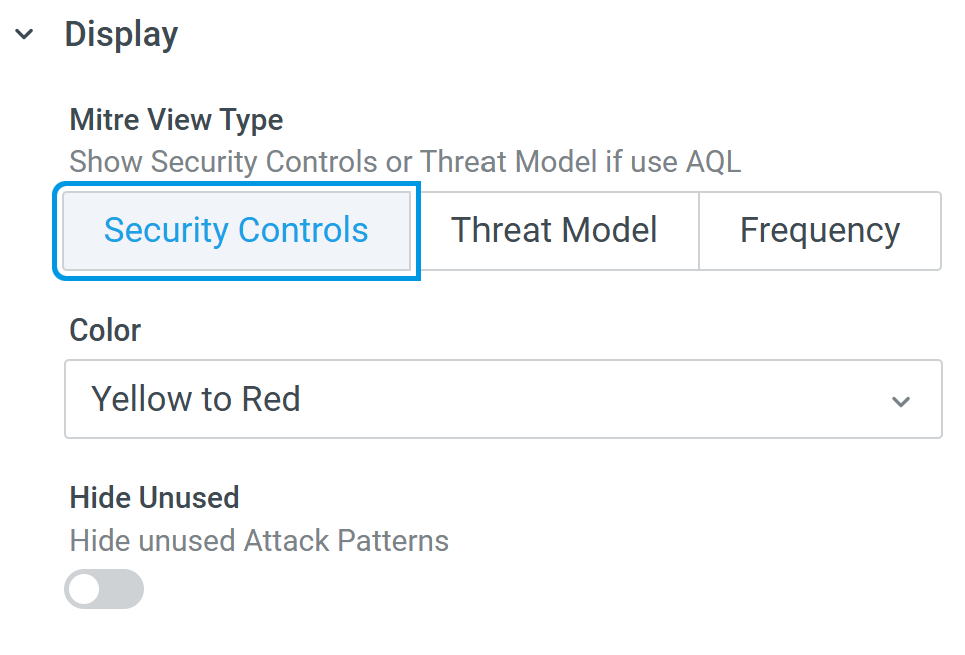
Configure the following Panel settings for the Security Controls MITRE view type:
-
In the Panel tab, click Edit and select the color gradient from the Color list. This setting defines the color gradient for the MITRE profile security coverage matrix.
-
In the example screenshot above, the gradient ranges from Yellow to Red.
-
-
Hide Unused Attack Patterns: Toggle the Hide Unused switch to display only those TTPs for which you have configured a security coverage level.
Threat Model
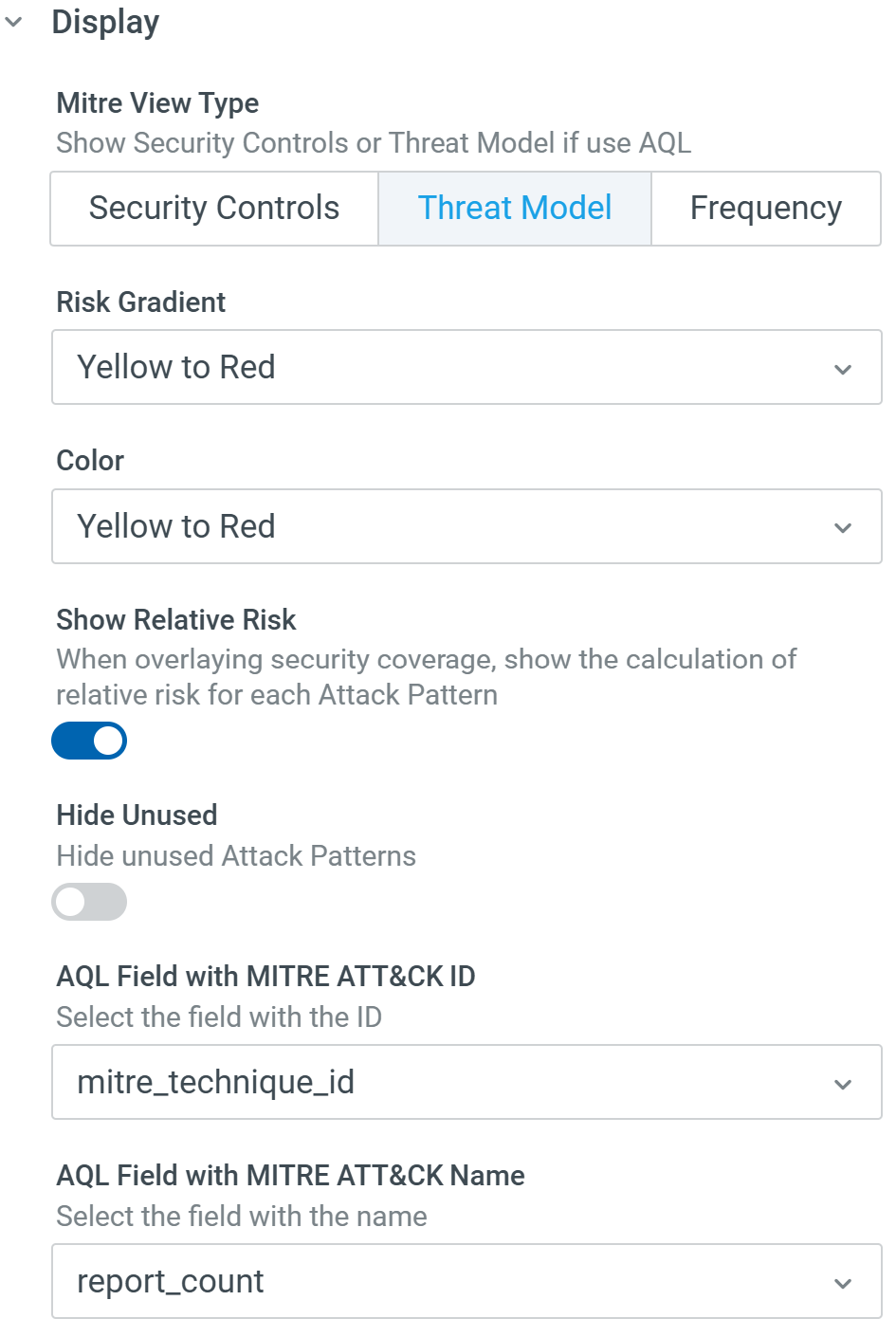
Configure the following Panel settings for the Threat Model MITRE view type:
-
In the Panel tab, click Edit and select the color gradient of the profile risk from the Risk Gradient list. This becomes the color gradient for your MITRE profile security coverage matrix.
-
In the example screenshot below, the risk gradient ranges from Low Risk (Yellow) to High Risk (Red).

-
You can also enable the Show Relative Risk switch to show the calculations of relative risk for each attack pattern.
-
-
-
Hide Unused Attack Patterns: Enable the Hide Unused switch to display only those TTPs for which you have configured a security coverage level.
-
AQL Field with MITRE ATT&CK ID: Select the field with the ID (from your AQL query) as the MITRE ATT&CK ID.
-
AQL Field with MITRE ATT&CK Name: Select the field with the name (from your AQL query) as the MITRE ATT&CK name.
Frequency
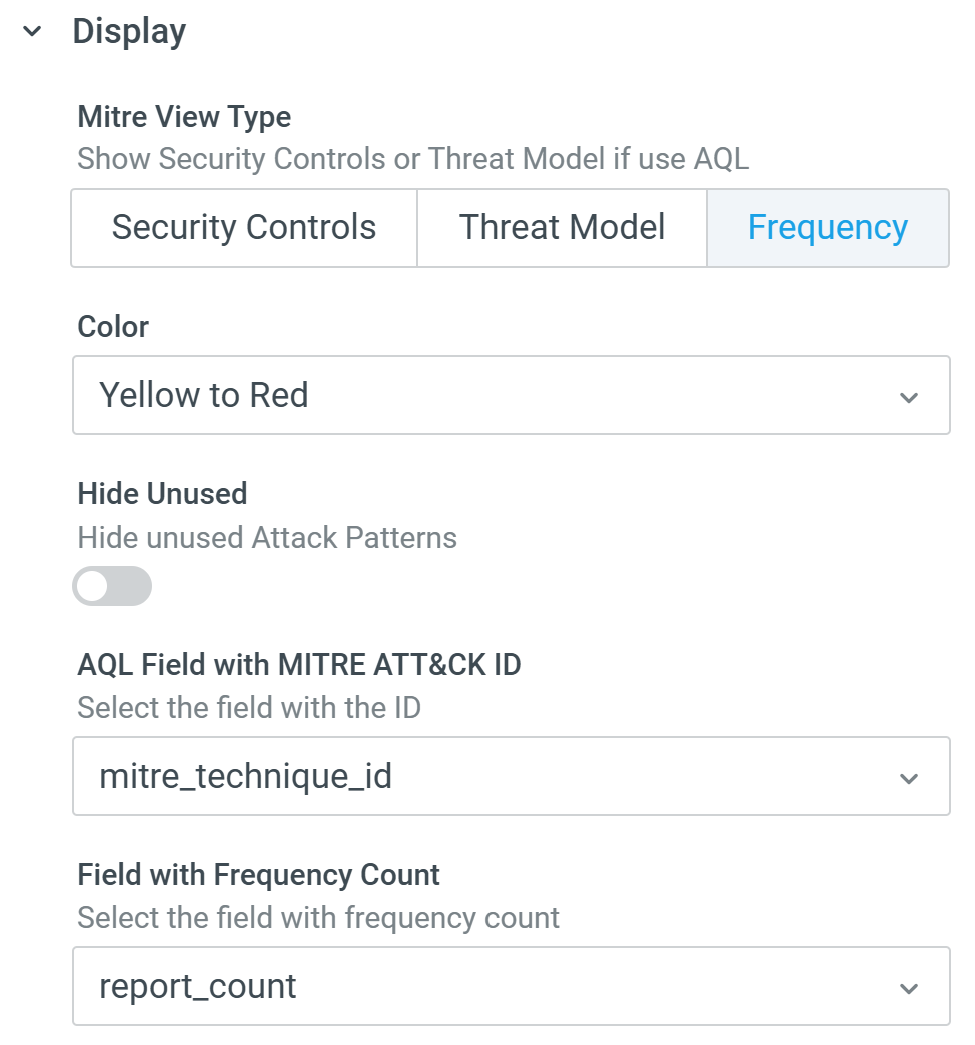
Configure the following Panel settings for the Frequency MITRE view type:
-
Color
Select the color gradient that represents the intensity of activity for each MITRE ATT&CK technique. This gradient is applied to the matrix based on the frequency count returned by your AQL query.
For example, a Yellow to Red gradient displays less frequent techniques in lighter colors and more frequent techniques in darker colors.
-
Hide Unused Attack Patterns
Toggle the Hide Unused switch to display only those TTPs for which your AQL query returns at least one occurrence. Techniques that do not appear in the AQL results are hidden from the matrix.
-
AQL Field with MITRE ATT&CK ID
Select the field in your AQL results that contains the MITRE ATT&CK technique or sub-technique ID (for example,
mitre_technique_id).This field is used to map each row in your AQL result set to a specific technique on the MITRE ATT&CK matrix.
-
Field with Frequency Count
Select the numeric field in your AQL results that contains the frequency or count value (for example,
report_count).The heatmap uses this value to color each technique cell. The color gradient automatically scales between the minimum non-zero value and the maximum frequency value in the results. This way, the minimum value maps to the lightest end of the gradient, the maximum value maps to the darkest end, and any value in between is colored proportionally between this range, all without any manual computation.
Adding a Heatmap to a Dashboard
You can add a MITRE ATT&CK Heatmap panel to a dashboard from either the Visualization tab or directly from a dashboard.
To add the panel from the Visualization tab:
-
Click Add to Dashboard.
-
In the Add Panel to Dashboard dialog box:
-
To add the panel to a new dashboard, enter a dashboard name and a panel name.
-
To add the panel to an existing dashboard, click Existing, select the desired dashboard, and enter a panel name.
-
-
Click Save to add the panel to the dashboard.
To add the panel from a dashboard:
-
Navigate to Dashboard > Library.
-
Select the dashboard to which you want to add the panel.
-
Click Edit.
-
Click
 > Add an empty panel.
 -
On the Edit Panel page, in the Panel tab, select the MITRE ATT&CK Heatmap visualization.
-
Click Save to add the heatmap to the panel.
-
Click Save on the dashboard to save the newly created MITRE ATT&CK Heatmap in the dashboard.