About the MITRE ATT&CK Flow Visualization Type
Use the MITRE ATT&CK Flow visualization type to create a dashboard panel that displays an attack flow. This visualization generates an attack flow from your AQL search results or an imported JSON or Excel file. You can then export the attack flow from the dashboard in JSON format.
AQL Expression Requirements
The MITRE Attack Flow visualization type is used to display attack flows from your Attack Flow Library on ThreatStream. See Attack Flow Library for details.
To create an attack flow on the Visualization tab of Search results, run an AQL query in Search using the superapi operator and the attack flow endpoint in the following format:
anomali_api_proxy | superapi
endpoint = "/api/v1/attackflow/<attack_flow_id>"
method = get
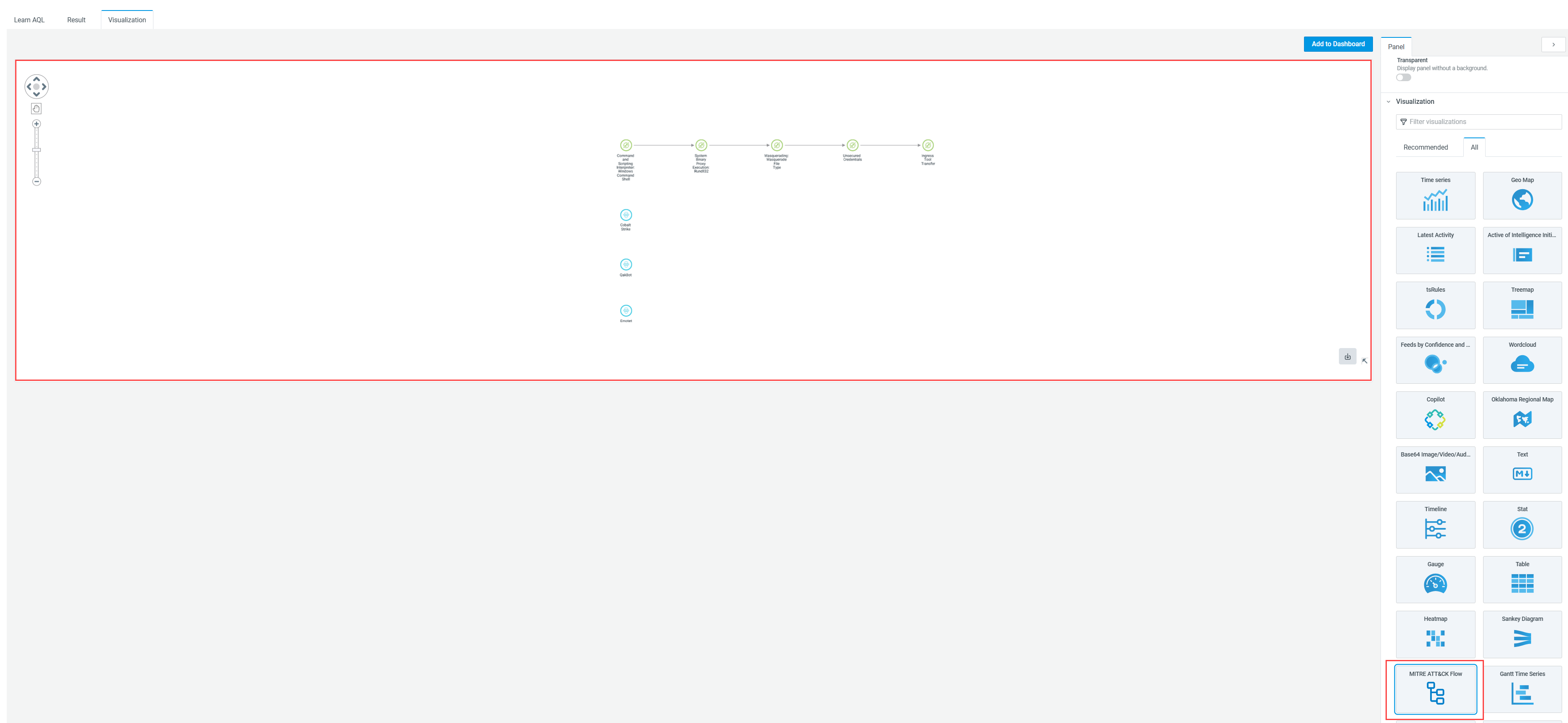
Below is an example of an attack flow generated with the help of the MITRE Attack Flow visualization type.
(Click the image to enlarge it)
Panel Options
Use settings in the Panel tab to customize the options described in the following table:
| Setting | Description | |
|---|---|---|
| Settings | Panel title | Titles appear at the top of a panel. |
| Description | Descriptions appear as tooltips. Markdown and links are supported. | |
| Transparent | Display panel without a background. |
Adding a MITRE ATTACK Flow Panel to a Dashboard
You can add a MITRE ATT&CK Flow panel to a dashboard from the Visualization tab or directly from a dashboard.
To add a MITRE ATT&CK Flow panel to a dashboard from the Visualization tab:
-
On the Visualization tab, click Add to Dashboard.
-
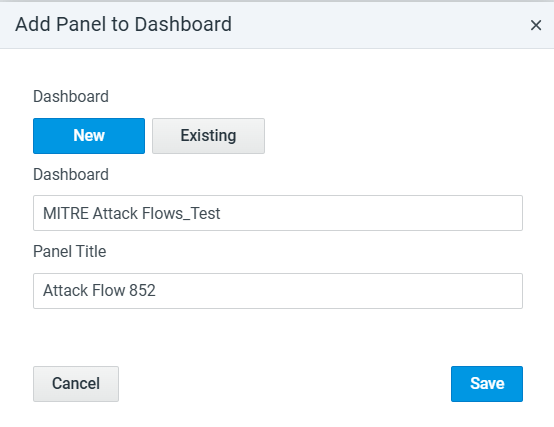
In the Add Panel to Dashboard dialog box that opens:
-
To add the panel to a new dashboard, enter a dashboard name and a panel name.
-
To add the panel to an existing dashboard, click Existing, select the dashboard to which you want to add the panel, and enter a panel name.
-
-
Click Save.
The panel is added to the dashboard.
To add a MITRE ATT&CK Flow panel from a dashboard:
-
Navigate to Dashboard > Library.
-
Select the dashboard to which you want to add a MITRE ATT&CK Flow panel.
-
Click Edit.
-
Click Add an empty panel.
-
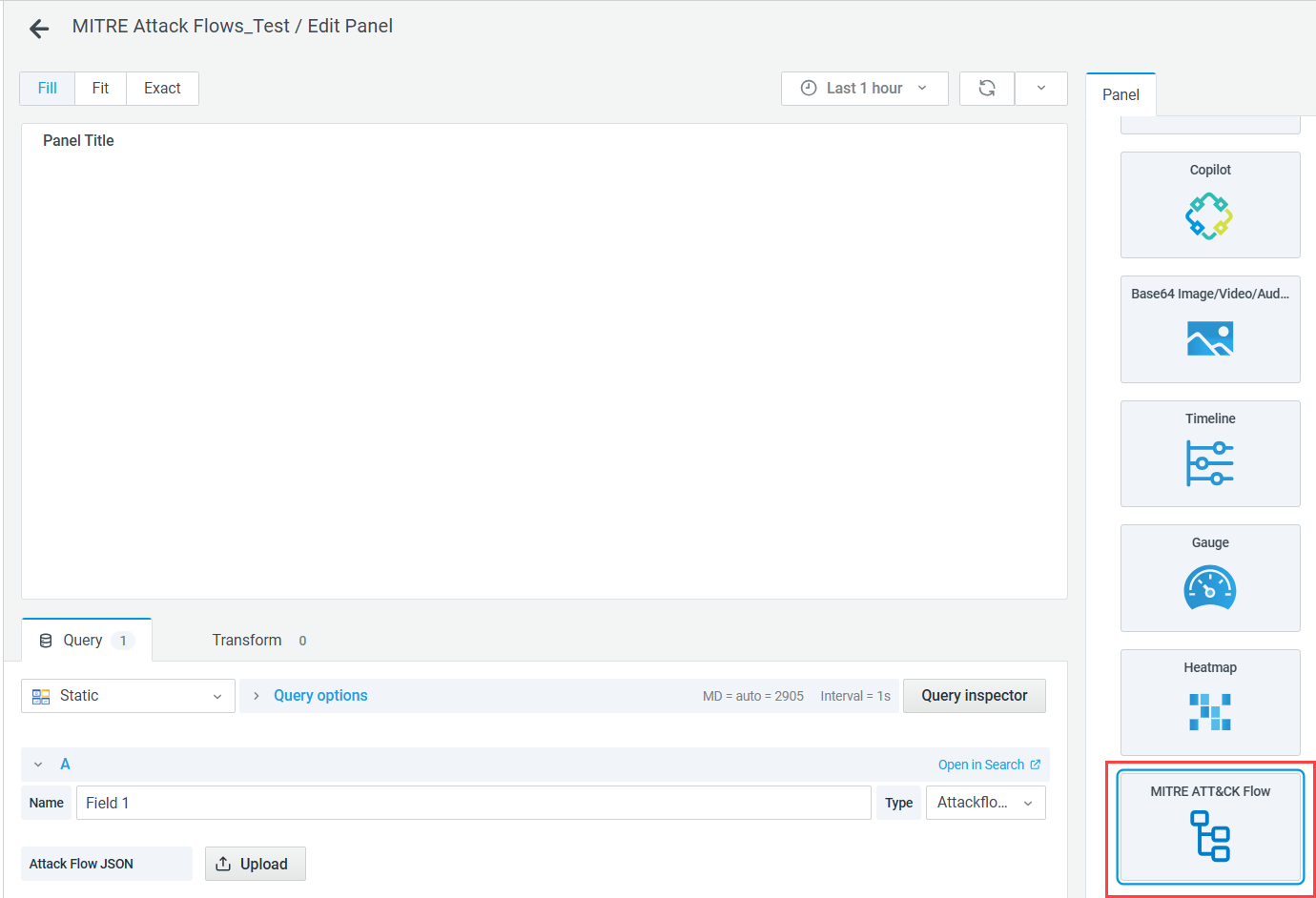
On the Edit Panel page, select the MITRE ATT&CK Flow visualization type.
-
Click Upload.
-
Drag & drop or select an attack flow file in JSON or Excel format.
Note: Only MITRE attack flows v2.0 can be imported as JSON files.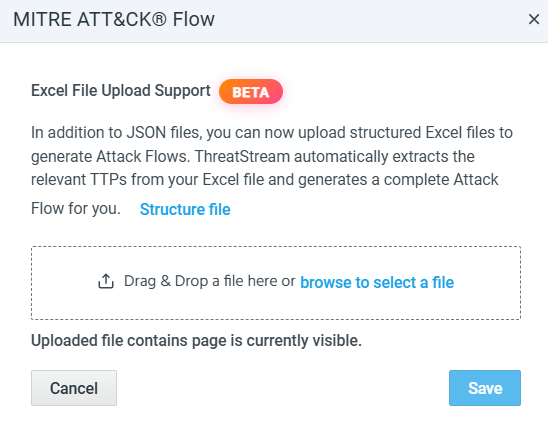
-
Click Save. The attack flow appears on the panel.
-
Click Save on the dashboard to save the newly created MITRE ATT&CK Flow panel.
Exporting Attack Flows
Attack flows displayed on the Visualization tab or dashboard panels can be exported in JSON format.
To export an attack flow, click the Export icon ( ) in the bottom right corner.