About the Geo Map Visualization Type
Use the Geo Map visualization type to show counts for a specified field displayed on an interactive global map.
(Click the image to enlarge it.)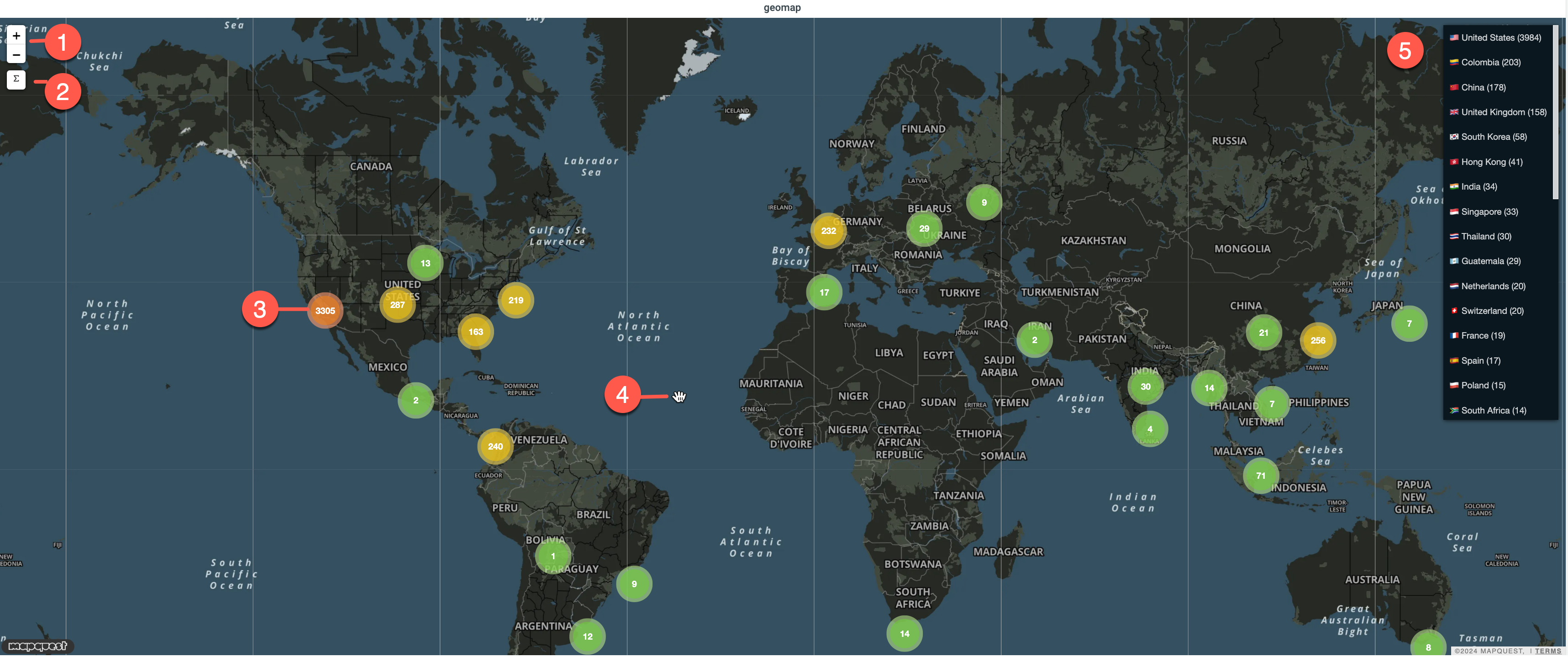

|
Zoom: Click + to zoom in and - to zoom out. The Geo Map adjusts the level of clustering based on the current zoom level and the visible area of the map. Zooming into a region separates clustered locations into more granular clusters. |

|
Count Bubble: The size and color of the bubble differ according to count:
The count is the total number of results in the cluster, which can span more than one location. |

|
Drag map: Click the map and use the hand ( ) pointer to drag the map as you like. The map automatically retrieves and renders the location clusters for the visible area. ) pointer to drag the map as you like. The map automatically retrieves and renders the location clusters for the visible area. |

|
Country list: Counts are shown for each country. Click an entry in the country list to open a search filtered by that country. When you click in the country list, the map also centers and zooms into the corresponding location. Some countries have multiple IP locations. This gesture zooms to one of them. |
Location clustering must be enabled for your organization. When it is enabled, the Geo Map processes your query as you zoom or drag the map, and returns location clusters for the area you are viewing. Contact your Anomali Customer Success Manager for assistance with enabling this clustering.
Queries that use the aggr, rare, or top operators do not use location clustering. These queries continue to plot one bubble per country.
When you run a query that contains the iplocation operator, Search automatically opens the Visualization tab and selects Geo Map. When you open a search from a dashboard Geo Map panel, the full dashboard query is carried over, so the result counts are preserved.
Note: Location clusters are identified by coordinates rather than by country name, because clustering resolves latitude and longitude pairs only.
Splitting by Categories
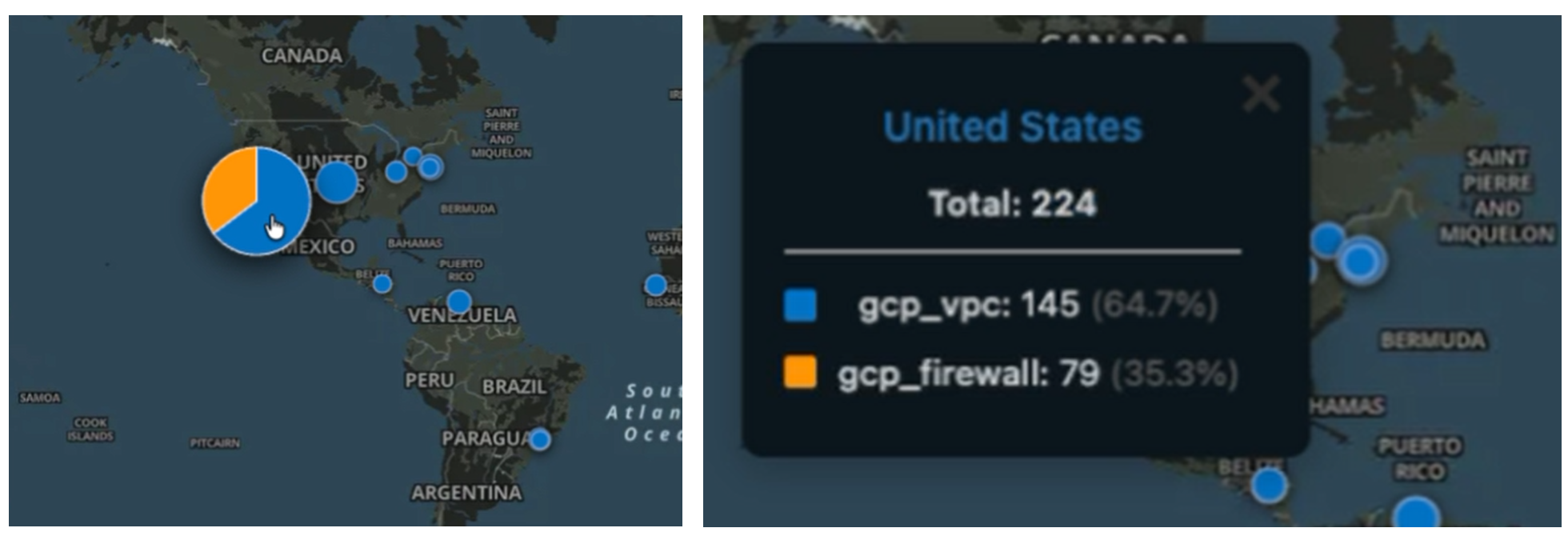
You can also split Geo Map bubbles by a categorical field. When you apply a split-by field, for example sourcetype, each country bubble becomes a pie chart that shows the relative contribution of each category to the total count at that location.
In the example above, the United States bubble is split by data source:
-
The blue slice represents
gcp_vpcevents and the orange slice representsgcp_firewallevents. -
When you click the bubble, a panel displays more information, showing the total count for the country along with the per‑category counts and percentages.
This categorical splitting helps analysts compare different event outcomes or data sources at a quick glance, without leaving the map. Instead of building and managing multiple separate widgets, for example, one map for successful logins and another for failed logins, analysts can see both in a single bubble, with the pie slices showing how much each category contributes in each country.
Note: When you apply a split-by field, the Geo Map plots a maximum of 10,000 unique latitude and longitude coordinates. Coordinates beyond this limit are not plotted. This limit applies only to split-by fields. Maps without a split-by field have no coordinate limit.
AQL Expression Requirements
Geo Map requires specific data. The query must have the following elements to return the required data:
-
Use the
iplocationoperator, which returns fields related to IP location. -
Retain the
latandlonfield names in the query output. If you rename these fields, for example tolat_sumandlon_sum, the map does not render.
Beyond these requirements, the way you shape the query determines how the map plots your results.
Country Bubble Maps
To plot one bubble for each country, aggregate results by the location related fields country, lat, and lon. The following is an example of a query that returns the required data:
| where src_ip != "" and not
(src_ip startswith "10."
    or src_ip startswith "172."
    or src_ip startswith "192" )
and action in ("allowed", "allow", "accept")
| iplocation src_ip
| aggr count as cnt by country, lat, lon
Clustered Maps
To plot location clusters that resolve as you zoom, return individual results rather than aggregated counts. Use iplocation with filtering operators such as where, and do not aggregate. The following is an example of a query that returns the required data:
| iplocation src_ip
| where country = 'Argentina'
Filtering non-routable private IP addresses, such as RFC 1918 ranges, remains a recommended practice for either type of map.
Note:
-
Clustered maps render results across all regions without requiring you to filter by country.
-
On a clustered map, a single bubble can represent results from more than one location, because nearby results are merged into a cluster. Zoom in to separate them.
-
Queries that span wide time ranges can be slow to render or can time out, regardless of clustering. Narrow the time range to keep Geo Map visualizations responsive.
Contact your Anomali Customer Success Manager if you have different requirements for Geo Map visualizations.
Panel Options
In Panel settings, you can customize the options described in the following table.
| Setting | Description | |
|---|---|---|
| Settings | Panel title | Titles appear at the top of a panel. |
| Description | Descriptions appear as tooltips. Markdown and links are supported. | |
| Transparent | Display panel without a background. |