About the Gantt Time Series Visualization Type
Use the Gantt Time Series visualization type to analyze data based on date information, that provides visibility into intelligence and events across specific timeframes, and visualize these insights as a Gantt chart. For example, you can map campaigns by actors alongside the campaign start and end dates.
(Click the image to enlarge it.)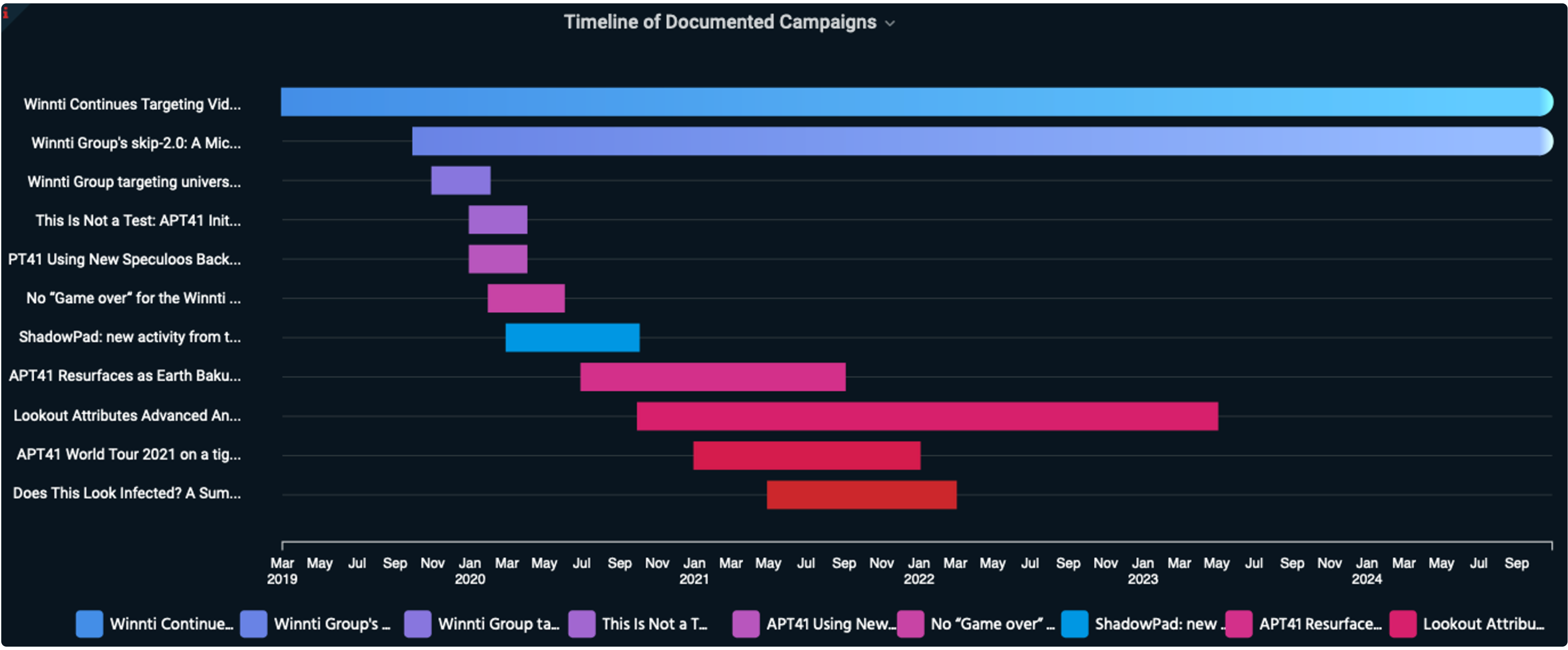
Use case
You can use the Gantt Time Series panels to analyze:
-
User activity
-
Event names
-
Traffic flow over time
-
File transfer events
AQL Expression Requirements
The Gantt Time Series visualization type can be used interactively to capture the timelines of multiple variables and expand them for sub-variable information, if any. The query must have the following elements to return the required data:
-
The start date of the chart that populates its x-axis, for example, the
campaign_start_date -
A field with names of the y-axis, such as,
campaign_names
The following query is an example of a valid query that returns the required data:
threat_models
| where tm_type = "campaign"
| fields name as campaign_name, created_ts as campaign_start_date, modified_ts as campaign_end_date
| aggr count by campaign_name, campaign_start_date, campaign_end_date
Panel Options
Use the options in the Panel tab to customize the options described in the following table.
| Setting | Description | |
|---|---|---|
| Settings | Panel title | Titles appear at the top of a panel. |
| Description | Descriptions appear as tooltips. Markdown and links are supported. | |
| Transparent | Display panel without a background. | |
| Display | Grouping by |
Optional. Variable by which you would like to group other variables that have shared attributes. |
| Label Names | Variable that populates the Y-axis of the Gantt chart. | |
| Fields Start time | Variable that acts as the X-axis timeline of the Gantt chart to plot the progress of other variables of interest. | |
| Fields End time | Variable that signifies the end of the X-axis timeline of the Gantt chart. |
Field Options
Use the options in the Fields tab to customize the options described in the following table.
| Setting | Description | |
|---|---|---|
| Standard options | Unit | Select a unit. Applies to all fields except time. |
| Min |
Specify a minimum value (as percentile). Leave empty to calculate based on all values. |
|
| Max |
Specify a maximum value (as percentile). Leave empty to calculate based on all values. |
|
| Decimals | Number of decimal places in numeric values. | |
| Display name | Change the field or series name. | |
| No value | What to show when there is no value. | |
| Color scheme | Specify a single color or use the color palette. | |
| Thresholds | Add threshold | Configure mapping of thresholds to colors. |
| Thresholds mode |
|
|
| Value mappings | Add value mapping | Click +Add value mapping to map a single value or range of values to a specified text string. For example, map data having the country code SG to the text Singapore. |
| Data links | Add link |
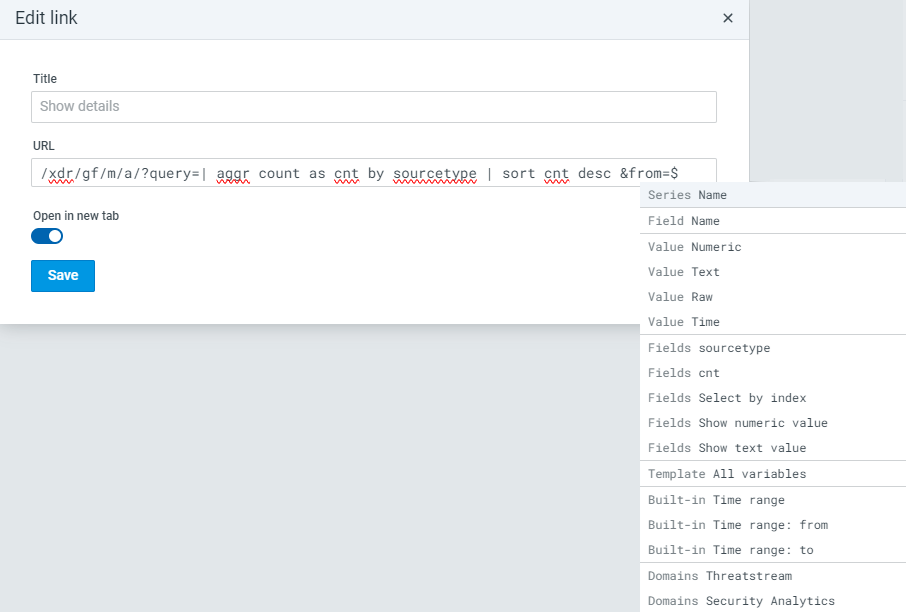
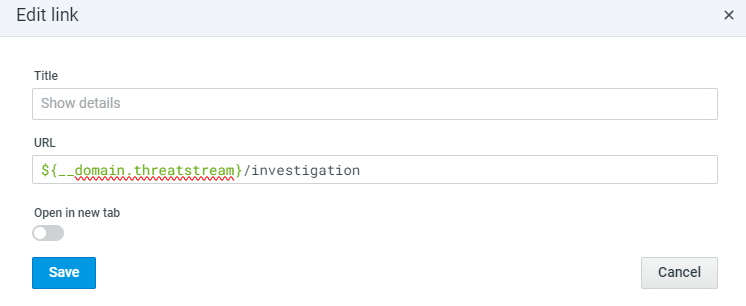
Click +Add link and complete settings for link behavior when a user clicks data fields in the visualization. You can use the following URL types and configure them to pass variables:
To use a relative URL, specify
To use a URL in ThreatStream or Security Analytics domains, do the following:
|
Advanced Options
Use the options in the Advanced tab to override the settings configured in the Fields tab for particular fields. For example, you can override the automatic color palette selected for a particular field to a preferred single color.
You have the following options to select field settings to be overridden:
-
Fields with name: Set properties for a specific field.
-
Fields with name matching regex: Set properties for fields with names matching a regex.
-
Fields with type: Set properties for fields with a specific type (numeric, string, Boolean).
-
Fields returned by query: Set properties for fields from a specific query.