About the Bubble Chart Visualization Type 
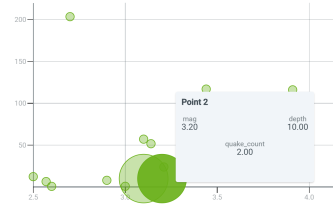
Use the Bubble Chart visualization type to represent three dimensions of data simultaneously, within a single chart. This capability is particularly valuable for identifying patterns, outliers, and relationships across complex datasets.
For example, bubble charts can be used to correlate multiple metrics, such as event frequency, severity, and affected assets, helping you gain actionable insights at a glance. In these charts, the bubble position represents two dimensions of the series data, while the bubble size represents the third dimension.
(Click the image to enlarge it.)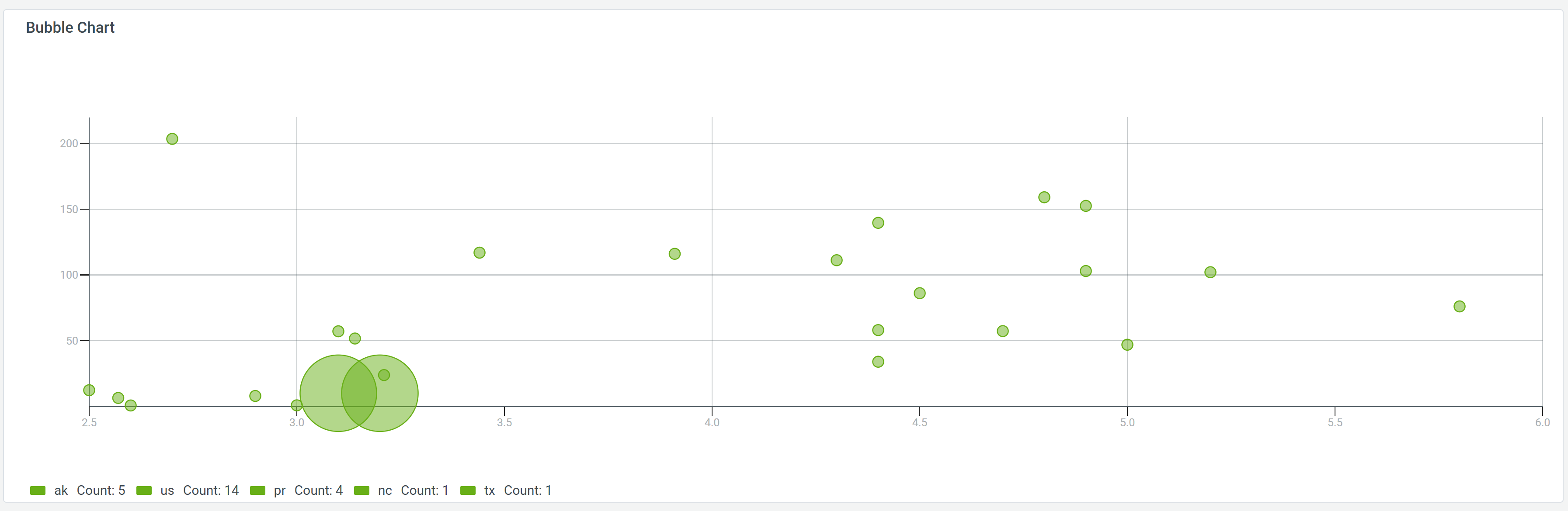
Use case
You can use bubble charts to:
-
Analyze security events by type, frequency, and severity. In this case, the X-axis can be the event type (phishing, malware, and so on), Y-axis can be the number of occurrences, and the bubble size indicates the event severity or impact score of each event type. Additionally, color coding could indicate the resolution status: resolved or unresolved.
-
Assess which assets (servers, endpoints, applications) are most at risk based on recent security findings. Here, the X-axis can represent asset categories or specific assets, Y-axis can represent the number of vulnerabilities or incidents detected, and the bubble size could reflect the criticality of the asset (for example, business importance or data sensitivity).
- Detect anomalous user behavior that may indicate insider threats or compromised accounts. In this, the X-axis can represent user accounts or departments, the Y-axis can represent the number of suspicious activities or policy violations, and the bubble size can indicate the cumulative risk score or the number of unique incident types per user.
Panel Options
Use the options in the Panel tab to customize the options described in the following table.
| Setting | Description | |
|---|---|---|
| Settings | Panel title | Titles appear at the top of a panel. |
| Description | Descriptions appear as tooltips. Markdown and links are supported. | |
| Transparent | Display panel without a background. | |
| Show Description | Display or hide the description. | |
| Visualization | Bar chart |
Select the Bar chart widget to create bar charts.
|
| Display |
X-axis Field |
Select the field to display as the horizontal axis of the chart. |
| Y-axis Field | Select the field to display as the vertical axis of the chart. | |
| Bubble Size Field | Select the field that determines the size of the bubble. Typically, this represents a relative quantitative measure of a certain entity, such as event severity, impact score, or number of vulnerabilities. | |
| Color Field |
Select the field by which the chart bubbles are colored. Typically, this color represents the relative magnitude of an entity, such as the resolved or unresolved status of an alert. |
|
| Min Bubble Size | The relative size of the smallest bubble in the chart. | |
| Max Bubble Size | The relative size of the largest bubble in the chart. | |
| Fill Opacity |
Select the transparency of the bubbles, with 0 for transparent bubbles and 100 for opaque colored bubbles. |
|
| Stroke Width | Select the thickness of the perimeter of the bubble. | |
| X Axis Label |
Select the label of the X-axis. |
|
| Y Axis Label |
Select the label of the Y-axis. |
|
| Show Tooltip |
Toggle to show or hide the chart tooltip when you hover your mouse.
|
|
| Legend mode |
Select whether to display the legend as a list, table, or to hide it completely. |
|
| Legend placement |
Select whether to place the legend at the bottom or right-hand side of the chart. |
|
| Legend calculations | Select a reducer function such as minimum value, maximum value, mean, number of distinct values, or first non-null value, and more. |