About Base64 Visualization Type
Use the Base64 visualization type to add images as well as audio, video, and PDF files to your dashboards.
Supported Formats
With the Base64 widget, you can add the following media formats:
-
Images: JPEG, GIF, PNG, HEIC
-
PDF files
-
Video: MP4, WEBM
-
Audio: MP3, OGG
Panel Options
| Setting | Description | |
|---|---|---|
| Settings | Panel title | Titles appear at the top of a panel. |
| Description | Descriptions appear as tooltips. Markdown and links are supported. | |
| Transparent | Display panel without a background. | |
| Display | No Results Message |
Provide the message that will appear if media files are not displayed. |
| Toolbar | Images and PDF only |
Specify whether to display a toolbar for images and PDFs:
|
| Select buttons to display on toolbar. Images only. |
If the Images and PDF only option is enabled, add buttons for working with images:
|
|
| Select zoom mode |
If you added the Zoom button for images, select the zoom mode:
|
|
| Width | Width |
Select the file width:
|
| Custom width (px) | If you selected the custom width, specify its value in pixels. | |
| Height | Height |
Select the file height:
|
| Custom width (px) | If you selected the custom height, specify its value in pixels. | |
| Image | Scale Algorithm |
Select the scaling algorithm:
|
| Video/Audio | Controls |
Specify whether audio and video controls should be displayed:
|
| Autoplay |
Specify whether audio and video should start automatically playing without the sound:
|
|
| Infinity play |
Specify whether audio and video should be played on the loop:
|
Configuring a Dashboard Panel for Base64 Visualization Type
-
Add an empty panel to your dashboard. For more information, see .
-
Click Base64 in the Panel tab.
-
Select Static in the Query tab, and then do the following:
-
Specify the name of the media file that will be displayed on the dashboard.
-
Select the file type from the Type list, and depending on the selected file type, specify the value:
-
String: Provide a Base64-encoded string representing the file.
-
File: Upload the media file from your PC.
-
Url: Specify the URL of the media file.
Note: When uploading the file, make sure that the file is safe and its content is relevant to the dashboard. During and after the upload, Anomali reserves the rights to remove the files that fail to meet security, relevancy, and other standards.
-
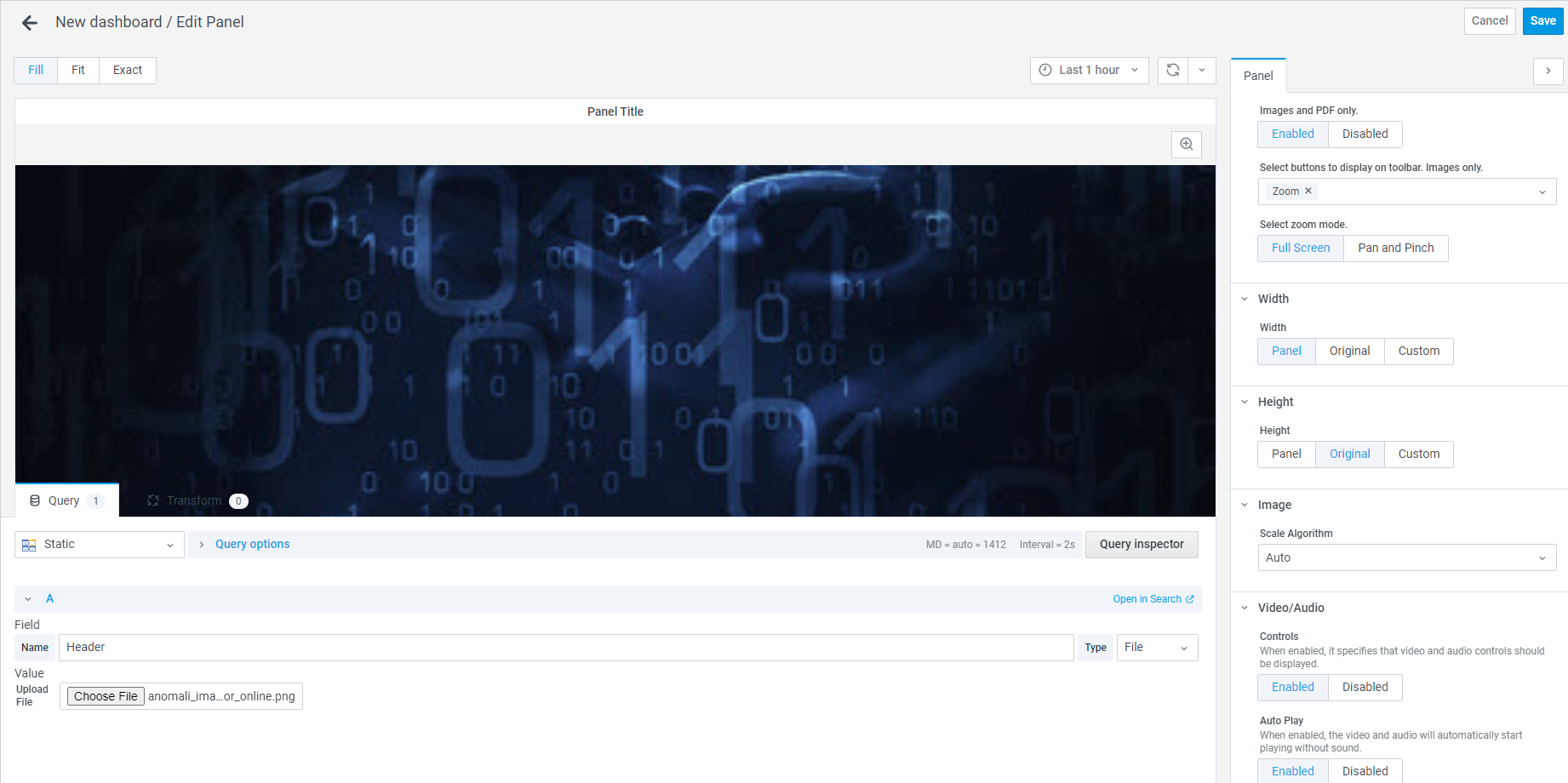
The file is displayed on the panel.
-
-
Customize the panel in the Panel tab as needed. For a complete list of panel settings, see Panel Options.
-
Save your changes.
A panel containing the media file is added to the dashboard.