Managing Dashboards (Classic UI)
You can perform the following actions with dashboards.
-
Rearrange panels and rows
-
Modify panels and rows of custom dashboards
-
Share dashboards
-
Clone dashboards
-
Export dashboards
Rearranging Rows and Panels
To move a row:
-
Click the expander icon
 to collapse the panels contained in the row.
 -
Click the handle at the right end of the row and drag row before or after other rows as desired.

To move a panel:
-
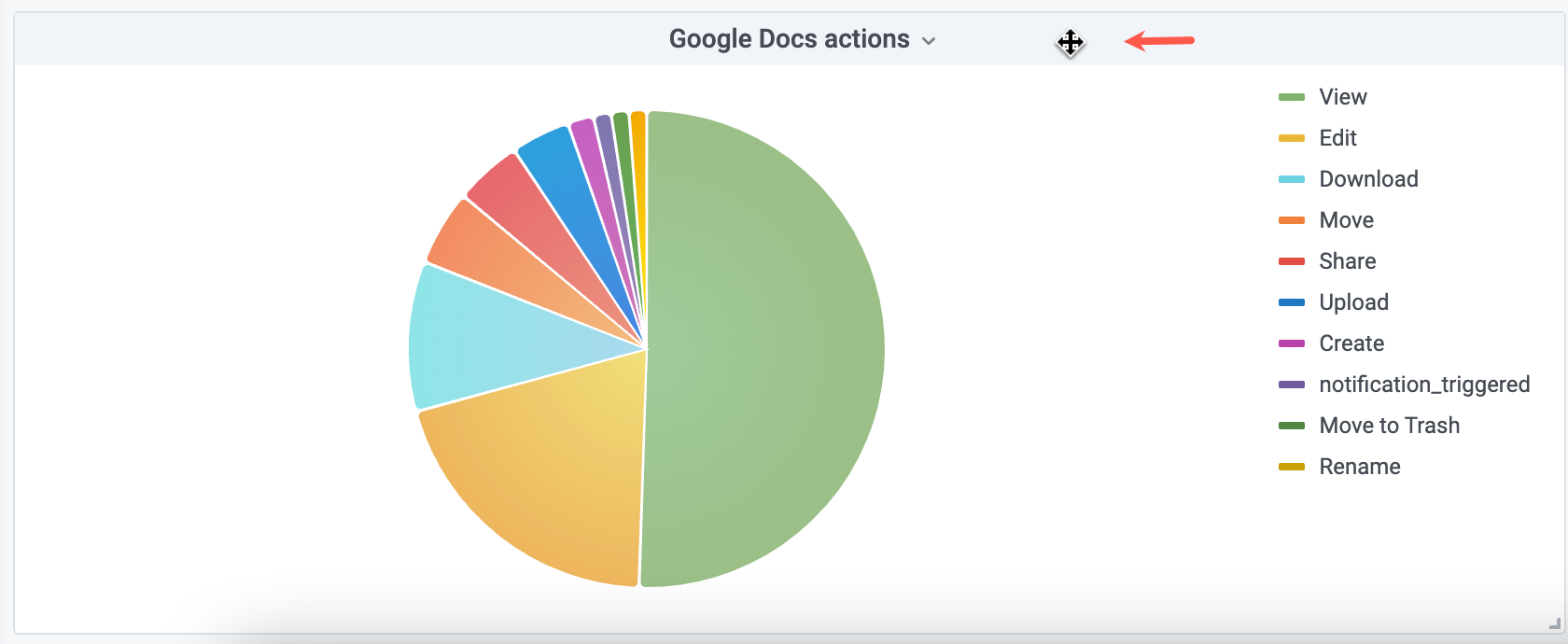
Click the panel, mouse over the panel title bar, and notice the cursor change from a pointer to a selector.
-
Click the panel title bar and drag the panel where you want it.
To resize a panel:
-
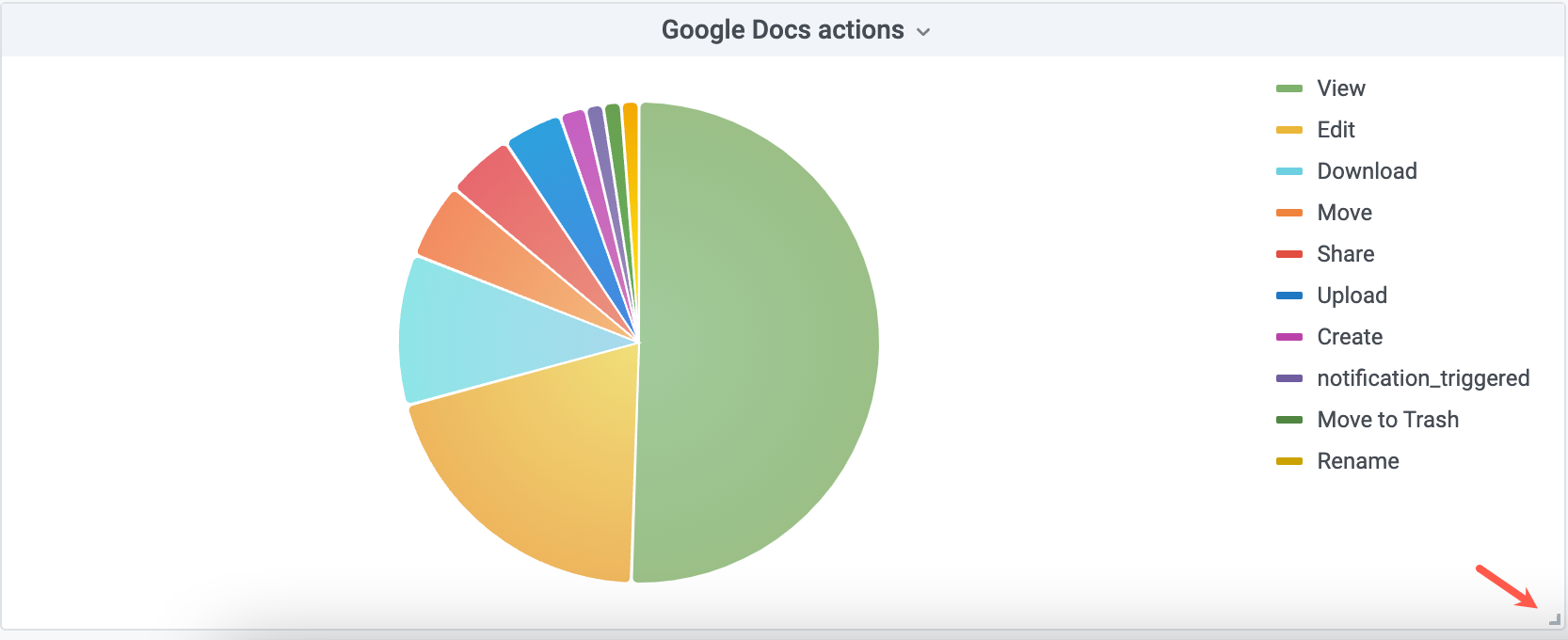
Click the panel and mouse over the bottom right corner to reveal the resize tool.
-
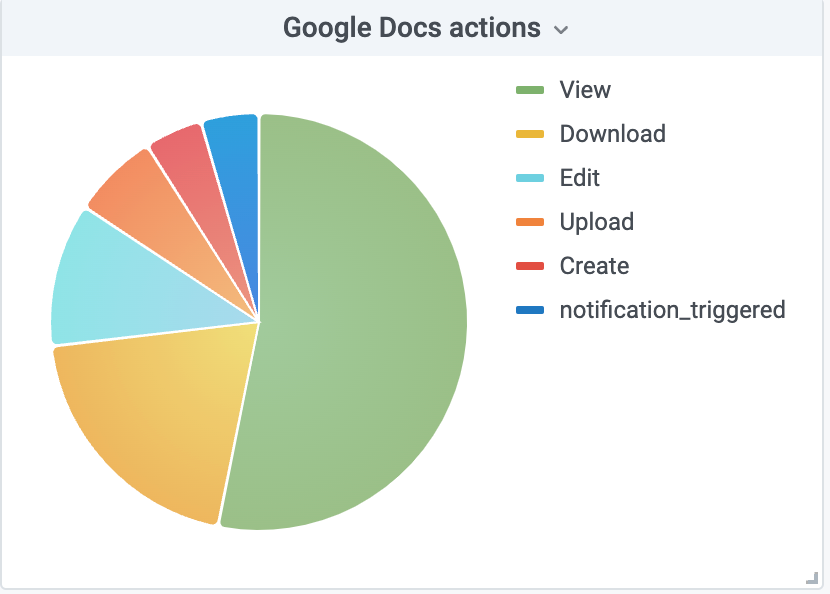
Drag the edge to resize it as you prefer.
Managing Dashboard Panels
Refer to Managing Dashboard Panels to learn about managing dashboard panels.
Sharing Dashboards
Create a URL link to a dashboard to share it with other users.
To share a dashboard:
-
Click the share icon (
 ) on the dashboard that you want to share.
 -
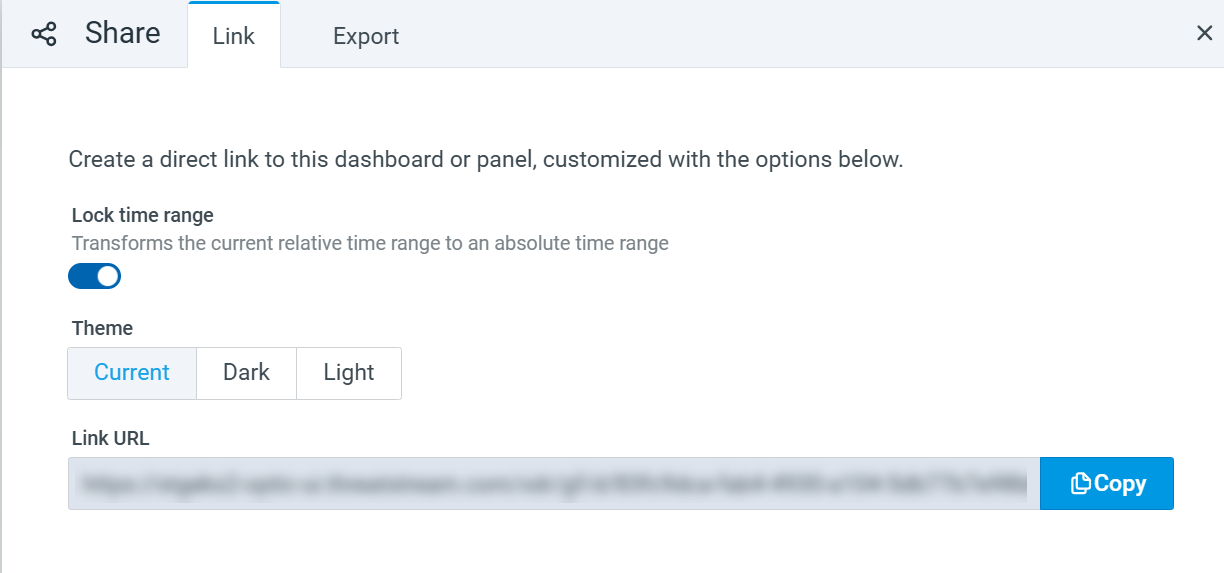
Configure the following parameters on the Link tab:
-
Lock time range: Convert a relative time range to an absolute time.
-
Theme: Dark or Light.
-
-
Click Copy to copy the dashboard URL.
Exporting Dashboards in JSON Format
JSON panel of dashboards can be copied and exported in a JSON file.
To export a dashboard in JSON format:
-
Click the share icon (
 ) on the dashboard that you want to export.
 -
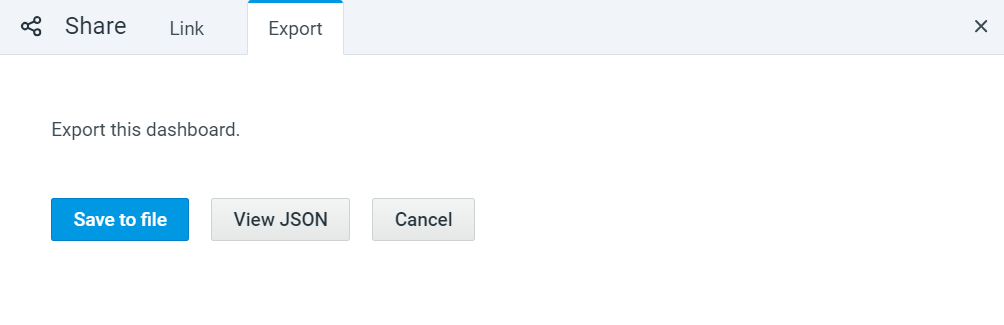
Click one of the following export options:
-
Save to file—to download the dashboard in a JSON file.
-
View JSON—to view the JSON panel of the dashboard and copy it to clipboard.
-
Cloning Dashboards
You can clone any dashboard available to you and then modify it according to your needs.
To clone a dashboard:
-
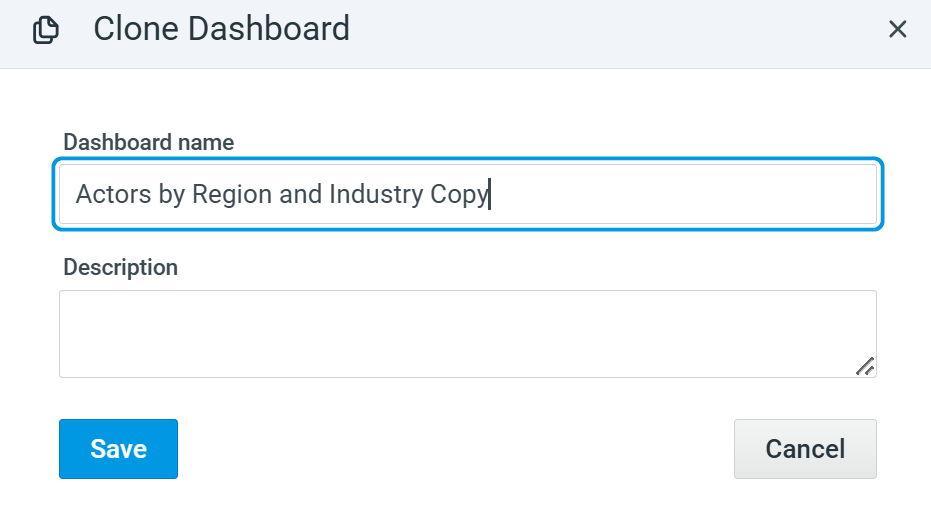
Click the Clone button on the dashboard you want to clone.
-
In the dialog box that opens, enter a name for the cloned dashboard.
-
Optionally, provide a dashboard description.
-
Click Save.
The cloned dashboard is saved within the folder of the dashboard you cloned.
Exporting Dashboards in PDF Format
Every dashboard available within your organization can be exported in PDF format. The exported PDF file includes all dashboard panels displaying data from the selected time period.
To export a dashboard in PDF format, click the download button ( ) on the dashboard that you want to export.
The download process begins immediately.