Creating Dashboards (Classic UI) 
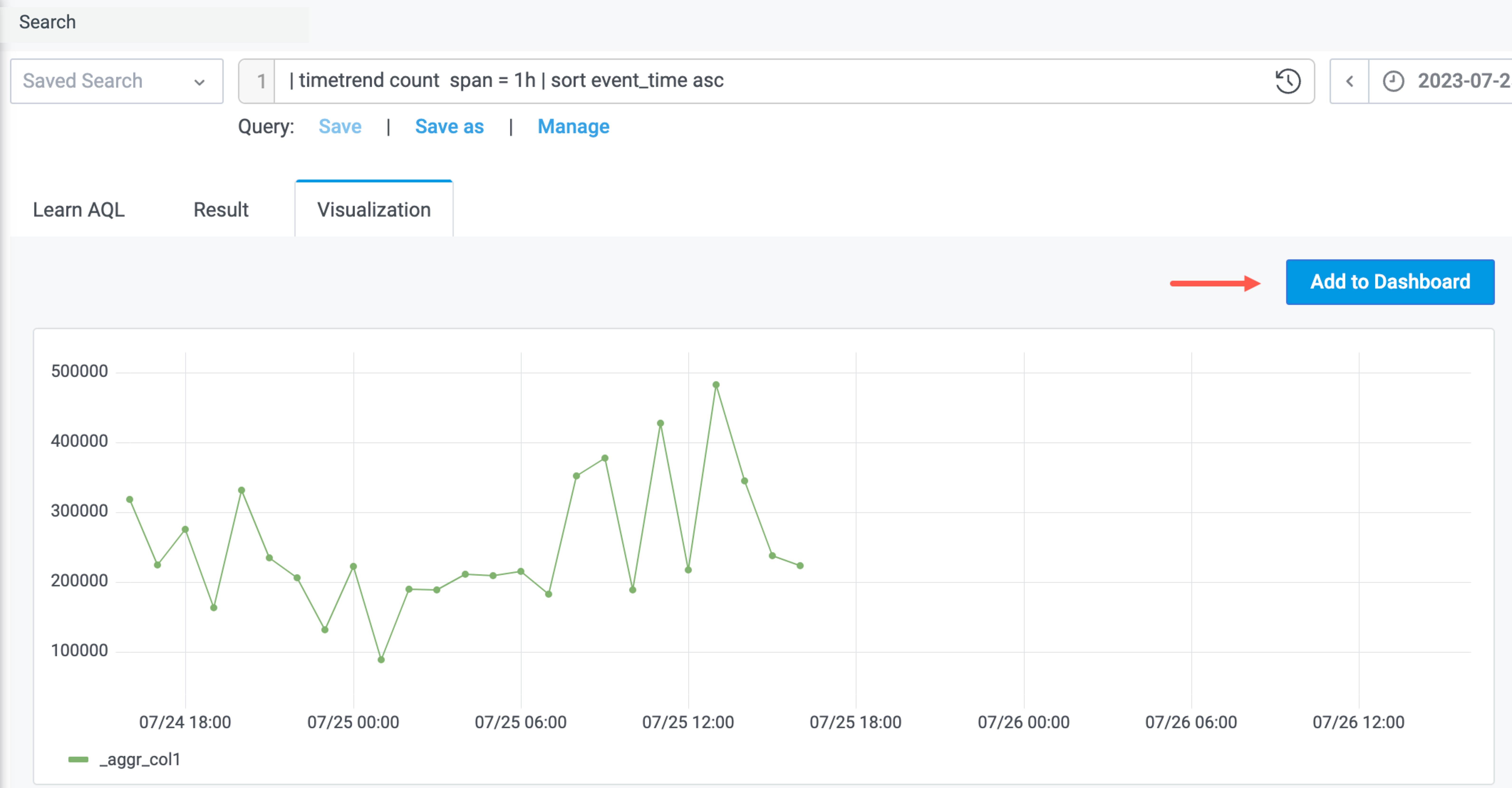
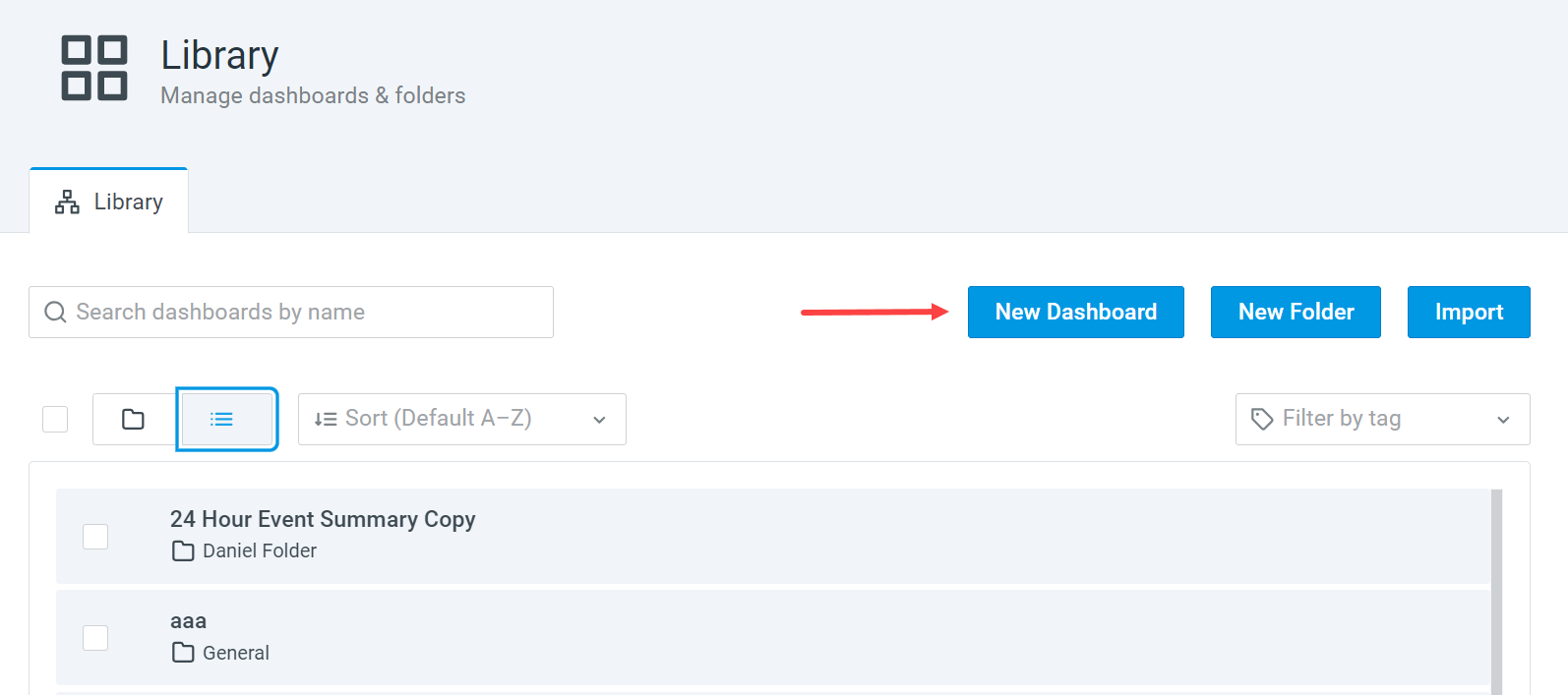
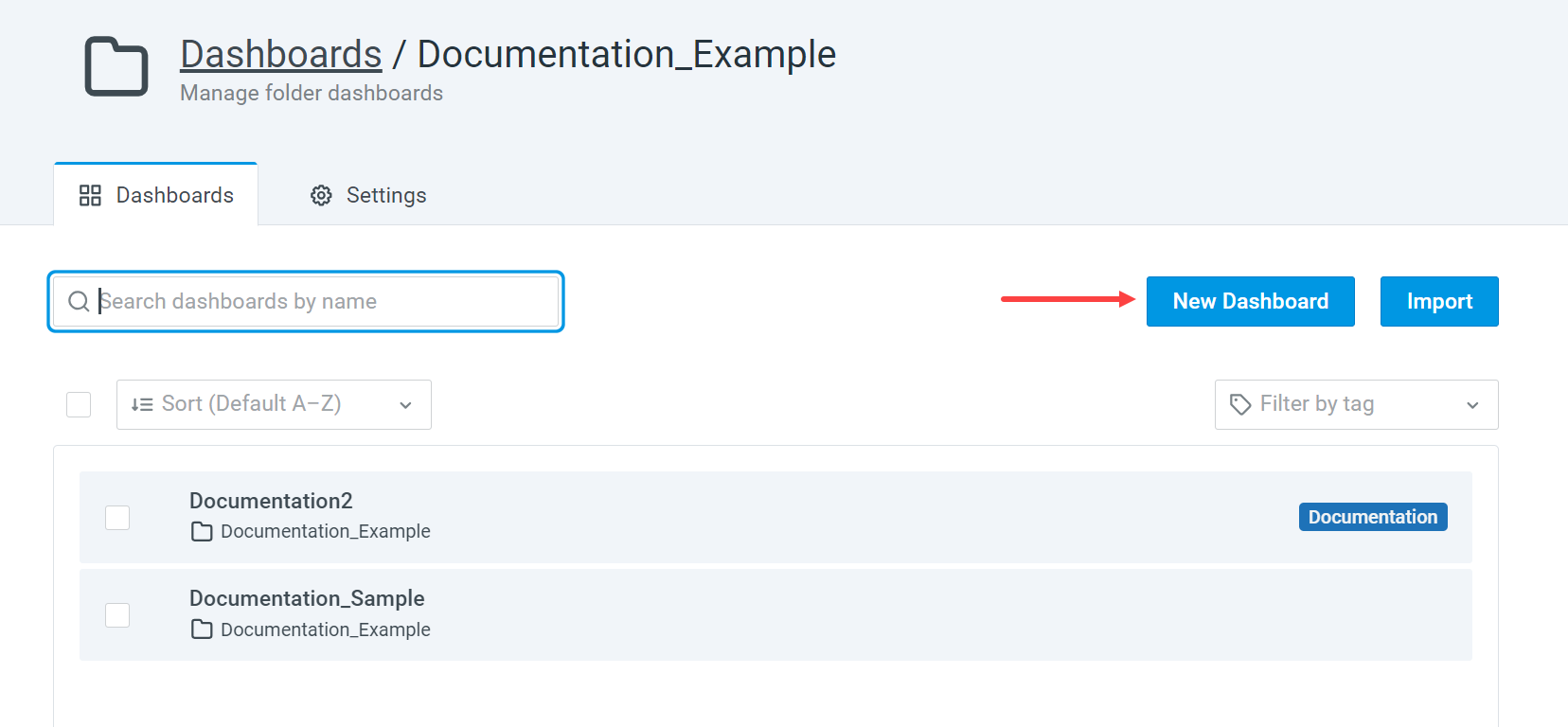
Custom dashboards are collections of panels that visualize AQL search results. You can initiate the creation of a new dashboard in the following ways:
|
From the Event Search Visualization tab |
|
|
From the Library |
|
|
From within a folder |
|
Importing a Dashboard
If you have a ready-made dashboard, you can import it to the dashboard library. The import process can be initiated from the Library page or a dashboard folder.
To import a dashboard from the Library page:
-
Go to Dashboard > Library.
-
Click Import.
-
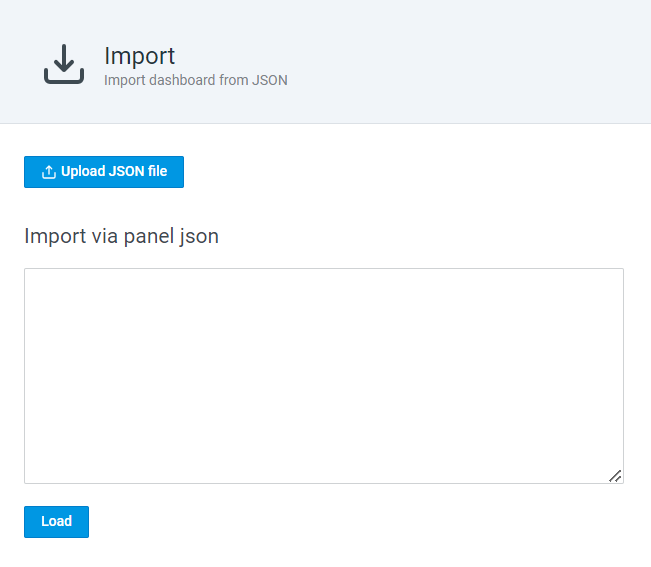
On the resulting page, click Upload JSON File and select the JSON file you want to upload. Alternatively, paste a JSON panel in the Import via panel json box.
-
Enter a dashboard name and select a folder for the dashboard.
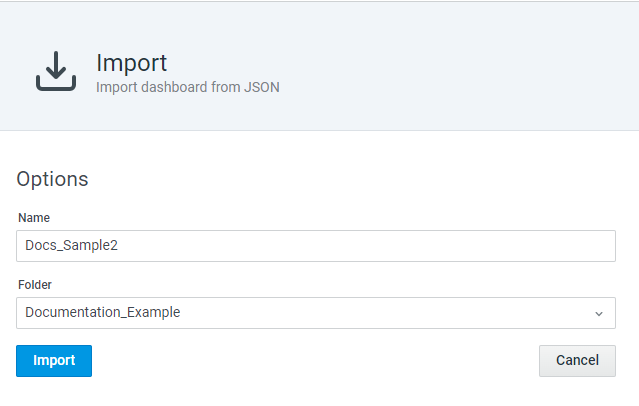
-
Click Import.
The imported dashboard is added to the Library.
To import a dashboard from within a folder:
-
Go to Dashboard > Library.
-
Select a folder to which you want to add a dashboard.
-
Click Import.
-
On the resulting page, click Upload JSON File and select the JSON file you want to upload. Alternatively, paste a JSON panel in the Import via panel json box.
-
Enter a dashboard name and select a folder for the dashboard.
-
Click Import.
The imported dashboard is added to the Library.
Adding a Row to a Dashboard
You can add row separators to dashboards and give the row a title.
To add a row:
-
Click the Add panel icon(
 ) in the tool bar in the upper right corner of the dashboard you want to modify.
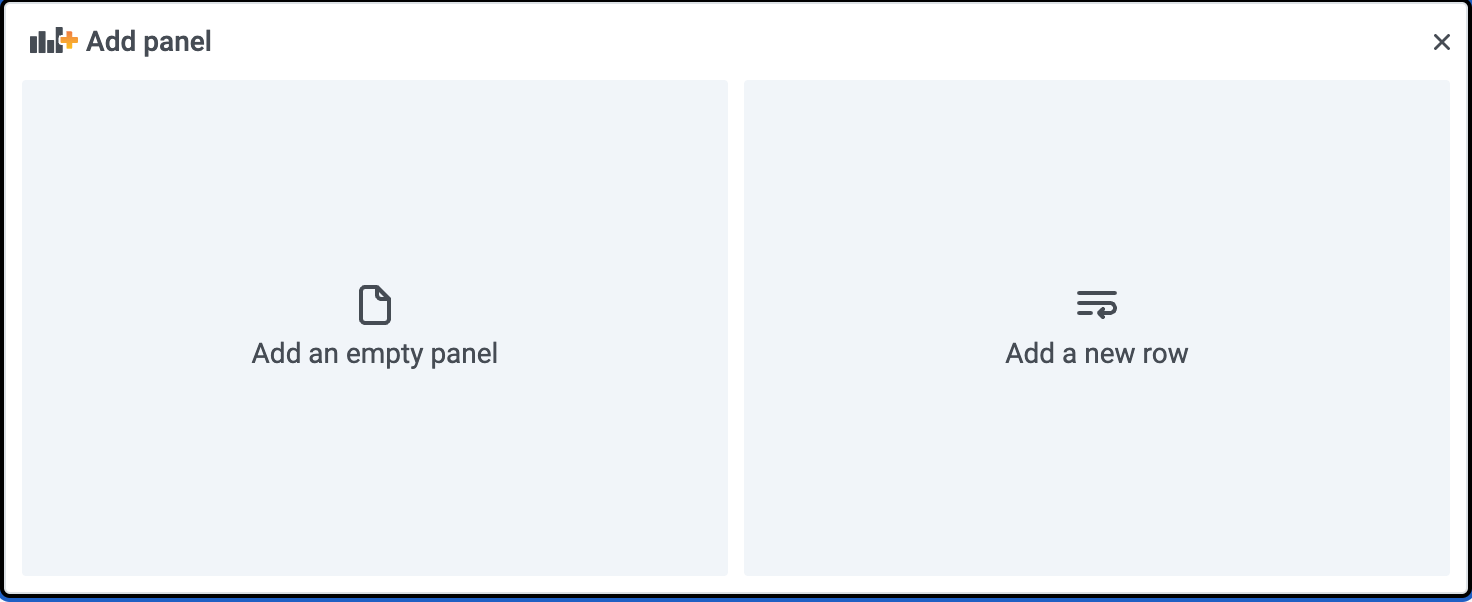
The tool adds a prompt to add a panel or a row.
-
Click Add a new row.
-
Mouse over the area to the right of the temporary title and click the settings icon to display the setting menu.

-
Give the row a title, disregard the Repeat for option, and save your changes.
Adding a Panel to a Dashboard
Note: Anomali allows you to add up to 30 panels to custom dashboards, including cloned dashboards. If you exceed this limit, the dashboard cannot be saved or imported.
Typically, you add a new panel to a dashboard from the Event Search results Visualization tab. See Getting Started with Search.
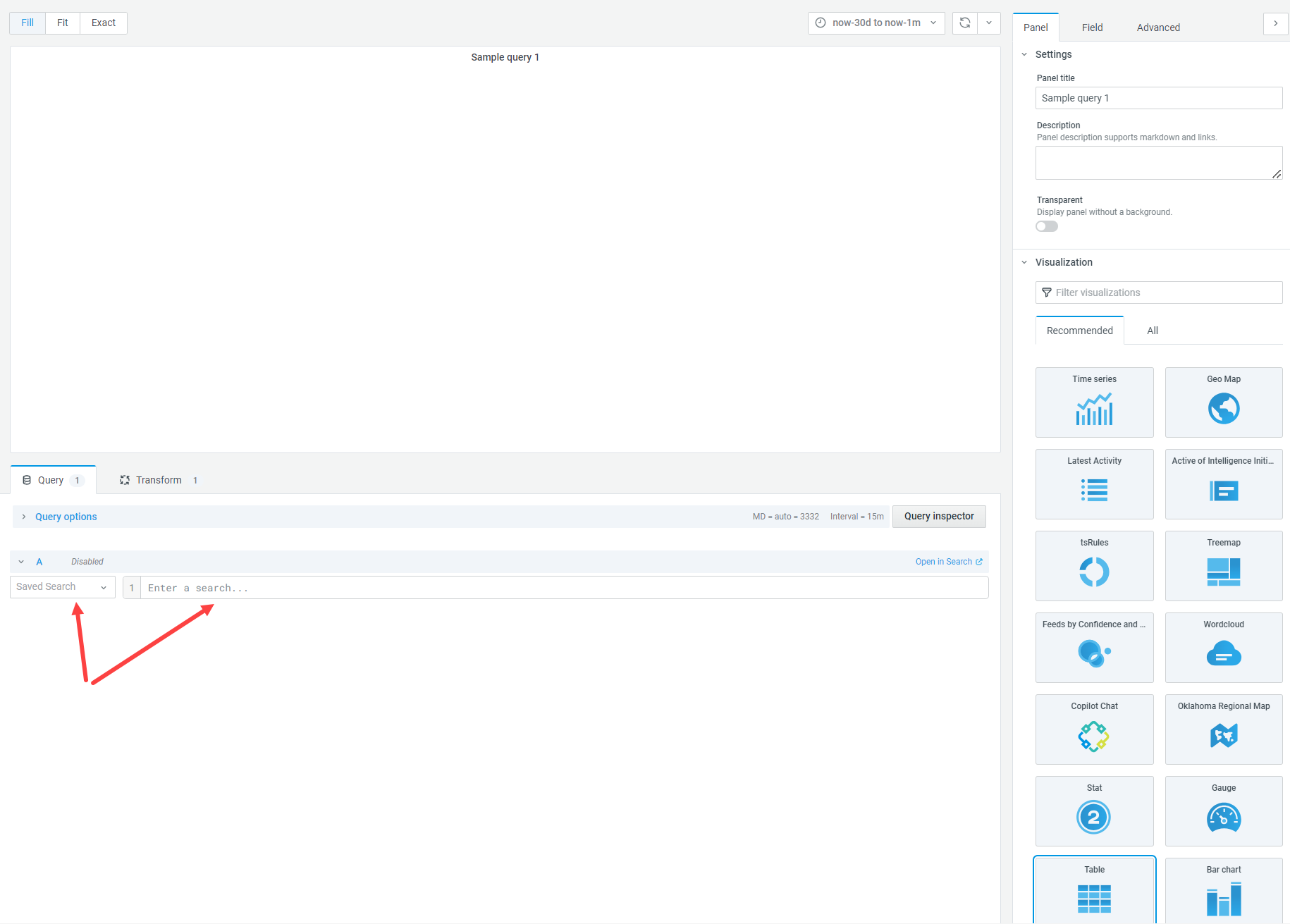
Within a dashboard, you can add an empty panel, and then use a saved search or build an AQL search and customize visualization and panel settings.
To add an empty panel:
-
Click the Add panel icon
in the tool bar in the upper right corner of the dashboard you want to modify.The tool adds a prompt to add a panel or a row.
-
Click Add an empty panel.
-
Start with a saved search or specifying a valid AQL query.
-
Customize panel settings and save your changes.
Adding a Tab to a Dashboard
You can add tabs to dashboards and give them titles.
To add a tab:
-
Click the Add panel icon(
) in the tool bar in the upper right corner of the dashboard you want to modify.The tool adds a prompt to add a panel or a row or a tab.
-
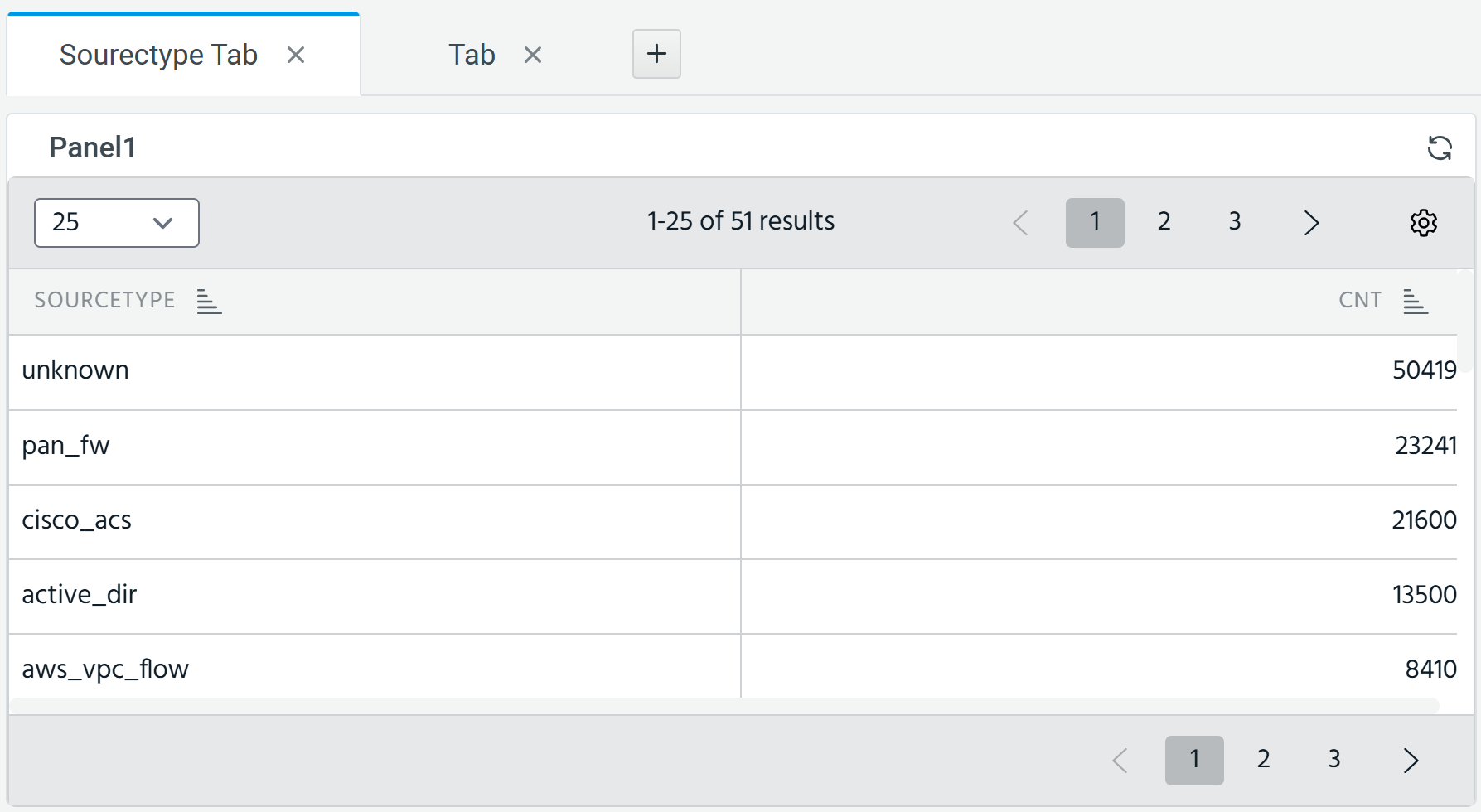
Click Add a new tab. This switches your view to a tab display, wherein you can add up to 5 tabs.
-
(Optional) Double-click the tab name to rename it.
-
To add a panel in this tab, complete all the steps in Adding a Panel to a Dashboard.
Note: Any panel you add will be added to the first tab.