Accessing Priority Intelligence Requirements
All Priority Intelligence Requirements (PIRs) created within your organization are listed on the Priority Intelligence Requirements page. On this page, you get a centralized view of all PIRs to which you have access, making it easy to track their status, priority, ownership, and category. From this page, you can also create new PIRs. You can quickly get started by selecting AI-recommended PIR presets in the Requirement Hub, tailored to your environment and workflows, or you can create your own through a simple guided process—defining what you want to track, setting a schedule, and assigning owners and stakeholders.
To access PIRs created within your organization, navigate to ThreatStream Next Gen > Priority Intelligence Requirements.
Below is an example of the Priority Intelligence Requirements page.
(Click the image to enlarge it.)
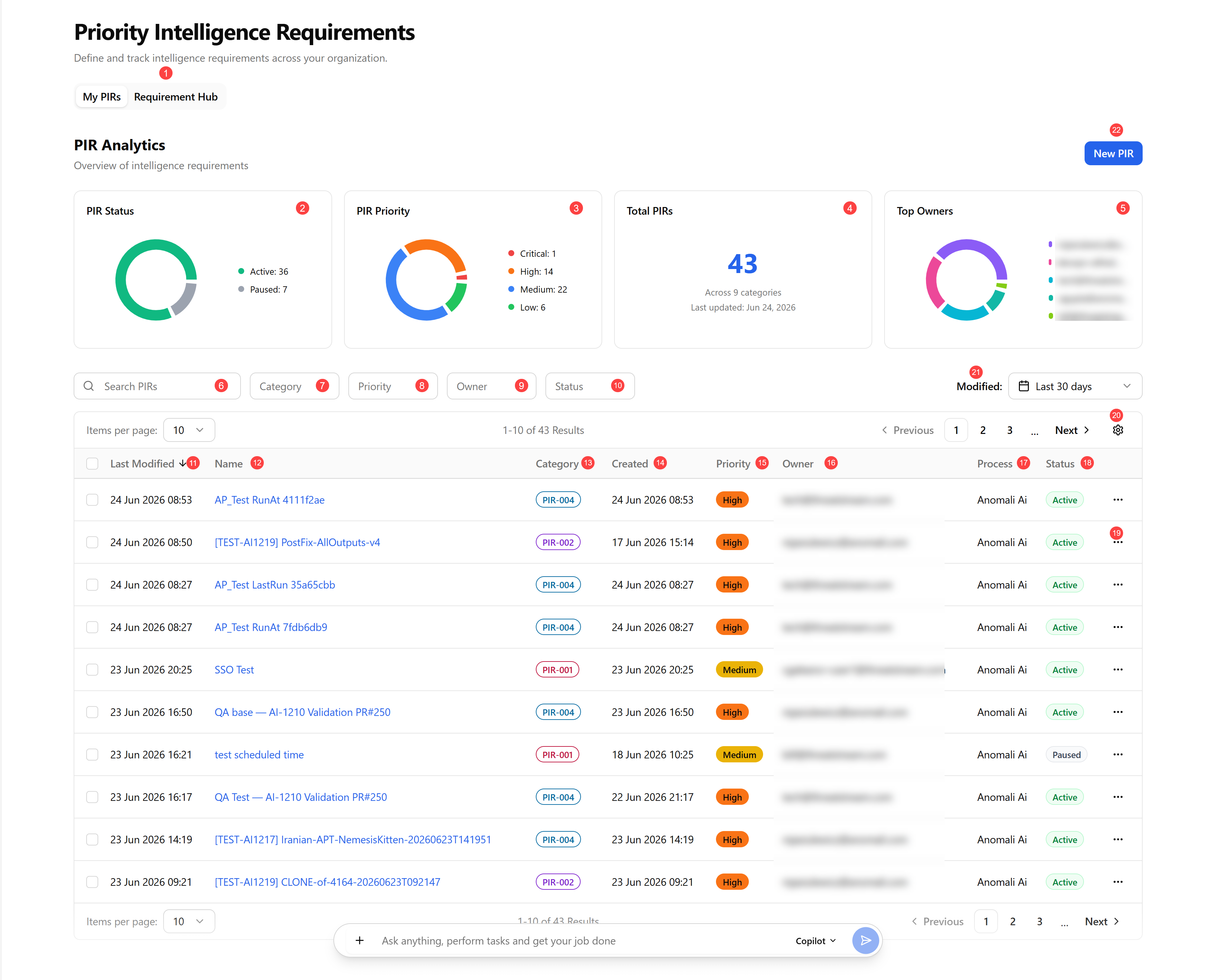
 Requirement Hub. Explore suggested intelligence requirements (examples) for your organization. Use keywords or Category and Use Case filters to search for PIR templates that may interest you.
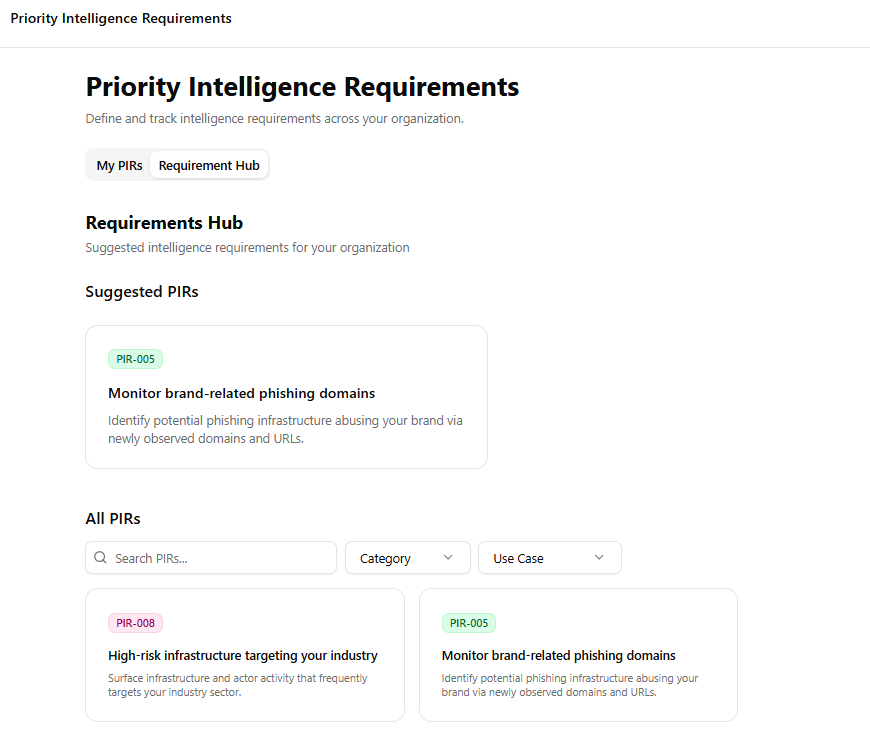
Click a suggested PIR to view its description, use cases, and what it can be useful for.
If you want to add it to your organization, click Add PIR. You are redirected to the Create New PIR workflow with the pre-populated fields.
Follow the steps described in Creating a PIR and make the necessary changes to finish creating the PIR.
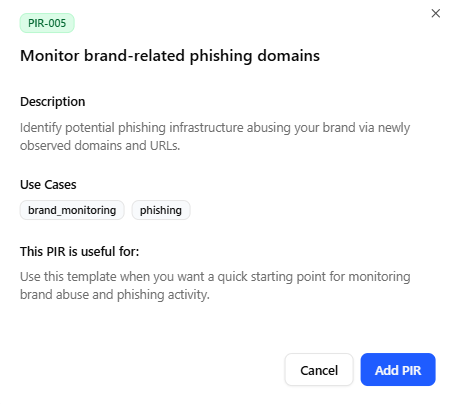
 PIR Status: Displays the distribution of PIRs by status, such as Active or Paused.
 PIR Priority: Displays the breakdown of PIRs by their priority level (Critical, High, Medium, or Low).
 Total PIRs: Displays the total number of PIRs across all categories and the timestamp of when the PIR data was last updated.
 Top Owners: Displays the users with the highest number of assigned PIRs.
 Search PIRs: Search PIRs by their names. The search is case-insensitive and updates incrementally.
 Category: Filter PIRs by one of the following categories: PIR-001 Domain Risk, PIR-002 Infrastructure Risk, PIR-003 Tech Stack Risk, PIR-004 Emerging Threats, PIR-005 Phishing, PIR-006 Supply Chain, PIR-007 Brand Monitoring, PIR-008 Target Industry, PIR-009 Target Location, and PIR-010 Source Location.
 Priority: Filter PIRs by their priority level—Critical, High, Medium, or Low.
 Owner: Filter PIRs by their owner.
 Status: Filter PIRs by their status.
 Last Modified: Timestamp of when the PIR was last modified.
 Name: Name of the PIR.
 Category: Category of the PIR.
 Created: Timestamp of when the PIR was created.
 Priority: Priority status of the PIR.
Possible values include Critical, High, Medium, and Low.
 Owner: User who owns the PIR.
 Process: The process type used for creating the PIR—Anomali AI or Manual. See AI-Generated vs. Manual PIR Process for more information.
 Status: Status of the PIR:
- Active—active PIR that runs on a specified schedule.
-
Paused—disabled PIR that cannot be executed.
 More options menu (...):
-
Status: Change the PIR status to Active or Paused.
-
Delete: Delete the PIR. See Deleting PIRs From the Priority Intelligence Requirements Page for details.
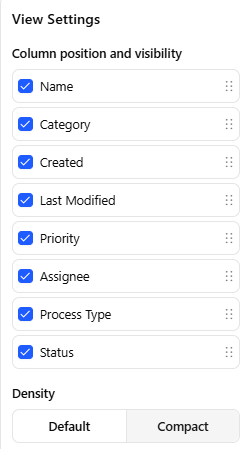
 View Settings: Select the columns and table density (default or compact) to be displayed. By clicking the drag handle icon (
 ), drag and drop columns to change their position in the table. To return the view back to its default settings, click Reset View.
 Modified: Select a time range to filter PIRs based on when they were last updated.
Possible values include: All time, last 24 hours, last 7 days, last 30 days, last 90 days, and this year.
By default, last 30 days is selected.
 New PIR. Create a new PIR. See Creating a PIR for details.