Google Cloud IAM
To sync Google Cloud service accounts and IAM users with the Anomali Agentic SOC Operations for identity management, you must first configure the Google Cloud IAM integration on the Integrations Marketplace page. For details on identity management within the Anomali Agentic SOC Operations, see Identities.
Before You Begin
Before configuring the Google Cloud IAM integration, complete the following setup in the Google Cloud platform.
-
Create a dedicated service account for Anomali to use for authentication. For details, see Create service accounts.
-
Grant the service account one of the following roles:
Role Purpose roles/iam.serviceAccountViewerList service accounts per project roles/resourcemanager.projectViewerList projects and read IAM policies roles/viewerList service accounts per project and list projects and read IAM policies Notes:-
The
roles/viewerrole is the broadest of the three and is sufficient on its own. If you prefer least privilege, grantroles/iam.serviceAccountViewerandroles/resourcemanager.projectViewertogether instead. -
For details on how to grant roles on service accounts, refer to Manage access to service accounts.
-
-
Generate a JSON key for the service account. For details, see Create and delete service account keys.
Configuring the Google Cloud IAM Integration
To configure the Google Cloud IAM integration:
-
Navigate to ThreatStream Next Gen > Integrations Marketplace > Entity Sources.
-
Click the three-dot vertical menu on the Google Cloud IAM tile and then click Configure.
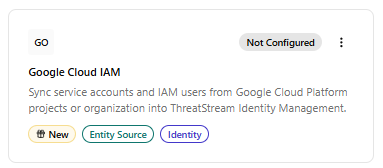
Alternatively, click the Google Cloud IAM tile and then click Connect.
-
On the Configure Google Cloud IAM page that opens, enter the following details:
Field Name Description Name Name the integration. Description (Optional) Description for the integration. Credentials Service Account Email Service account email address.
Private Key PEM-encoded private key from the JSON key file. Private Key ID Key ID from the JSON key file. Scope Select one of the following scopes:
-
Project IDs (sync specific projects)
-
Organization ID (sync entire GCP org)
Project IDs (Required when Project IDs is selected in the Scope field)
Google Cloud platform project IDs to sync. Add one project ID per line.Organization ID (Required when Organization ID is selected in the Scope field)
Google Cloud platform organization ID to automatically sync all Google Cloud projects.
Sync Configuration Batch Size Number of identity records written per database operation. Default: 500. Note: Anomali recommends keeping the default batch size value unless you experience memory issues. Large values reduce database round trips but consume more memory.Page Size Records fetched per paginated API request. Default: 100 Field Mapping Field mappings let you override which source attribute is used for each canonical identity field. This is useful when your directory uses non-standard attribute names or you want to prefer a specific field over the default. Display Name Source attribute to use as the user's display name. Email/Hostname Source attribute to use as the primary identity key. Status Source attribute that determines active/disabled state. Source ID Source attribute to use as the stable internal identity ID. Custom Field Mappings Custom field mappings.
To add a custom field mapping, click + Add Field, select a source field, and enter a field name to which you want to map the source field.
Sync Settings Sync Frequency Interval for incremental syncs. Default: Hourly. -
-
Click Create.
The Google Cloud IAM integration is activated. Confirm that the integration status shows Active and health shows Healthy.
On the integration details page, you can view the integration status, health, the date and time of the last synchronization with the source, the synchronization schedule, and the number of identities discovered in the configuration. On this page, you can also force sync, edit, deactivate, and delete the integration configuration. For details, see Managing Integrations.