Viewing Matched Detections
You can view details about all detections for an entity under a matched rule, along with related observables, audit history, and comments.
Note: Viewing detection details requires the View Detections permission. For details, see Managing Roles.
Accessing Detection Rule Matches
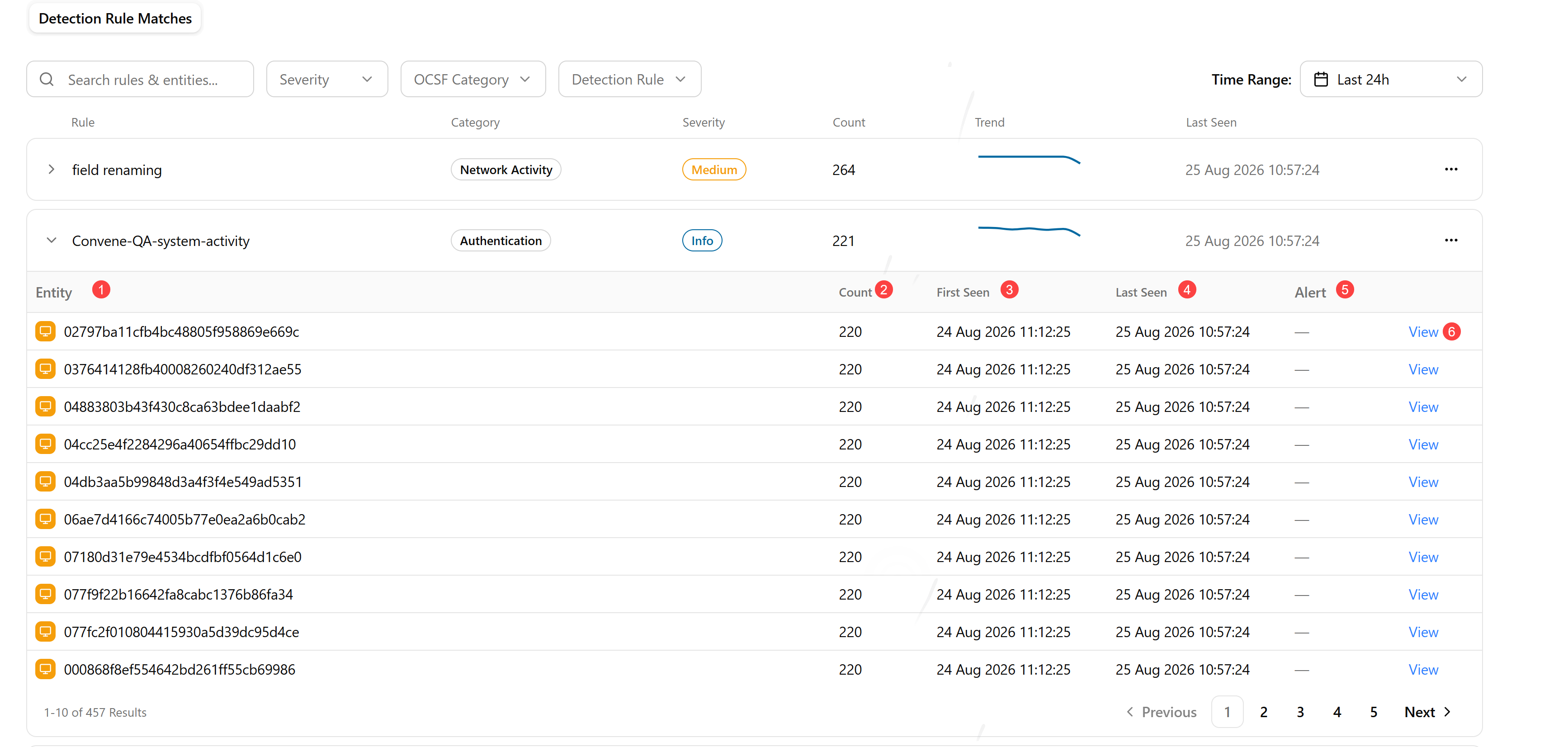
Click an arrow next to a rule to view the list of entities impacted.
Each entity row includes the following:
 Entity: Entity type icon and entity value, such as an IP address or hostname
 Count: Number of times this entity triggered the rule
 First Seen: Timestamp of the first detection for this entity under this rule
 Last Seen: Timestamp of the most recent detection for this entity
 Alert: Linked alert badge if this detection has been elevated to an alert
 View: Opens the Detection Details view for this entity
Entity rows paginate independently within the expanded group. The default is 10 results per page.
Viewing Detection Details
The Detection Details panel gives you a complete view of how a specific entity has been matched by a detection rule — covering detection history, extracted observables, a system audit trail, and a space for analyst collaboration. This panel lets you understand the full scope of a match and further investigate the detection before any subsequent action.
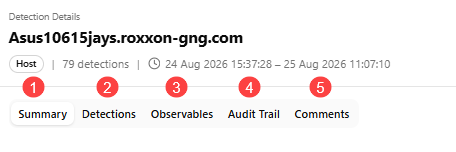
Summary Tab
The Summary tab gives you an at-a-glance overview of the detection rule, the entities involved, and whether any alert rules have been triggered by this detection.
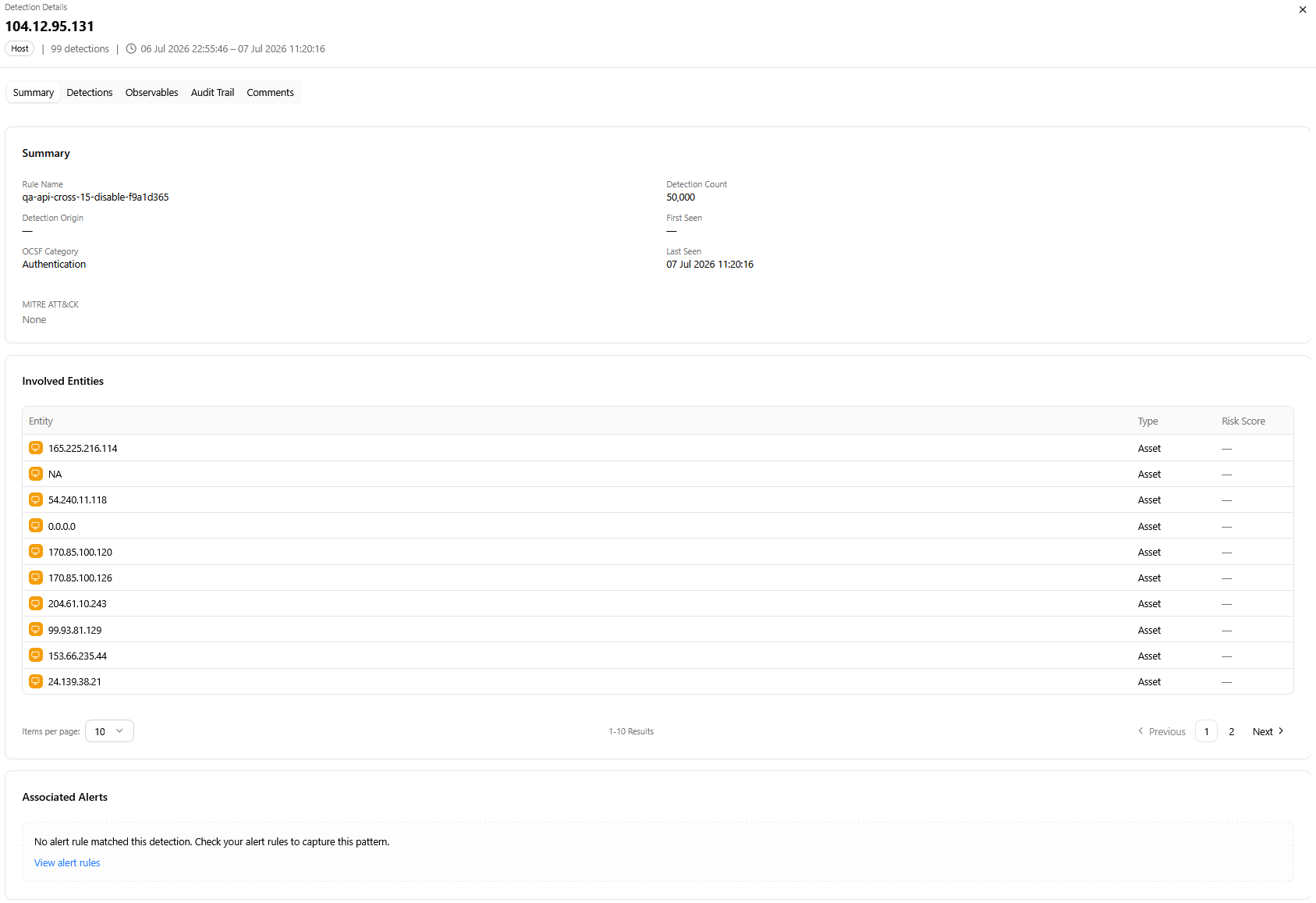
It contains three sections;
Summary — a metadata card that shows the following fields:
-
Rule Name: the name of the detection rule that matched this entity
-
Detection Origin: the origin type of the detection, being either AQL rule, IOC match, or DGA match
-
OCSF Category: the OCSF category assigned to the rule, such as Authentication or Network Activity
-
MITRE ATT&CK: MITRE technique mapped to the rule
-
Detection Count: total number of detection instances for this entity under this rule
-
First Seen: timestamp of the first detection
-
Last Seen: timestamp of the most recent detection
Involved Entities — a paginated table that lists all entities associated with this detection.
-
Entity: entity type icon and identifier value
-
Type: such as Asset
-
Risk Score: current risk score; shown as a dash when not yet calculated
Associated Alerts — lists any alerts that were generated from this detection. Click the View alert rules link to view the associated alert rules that trigger these alerts.
Detections Tab
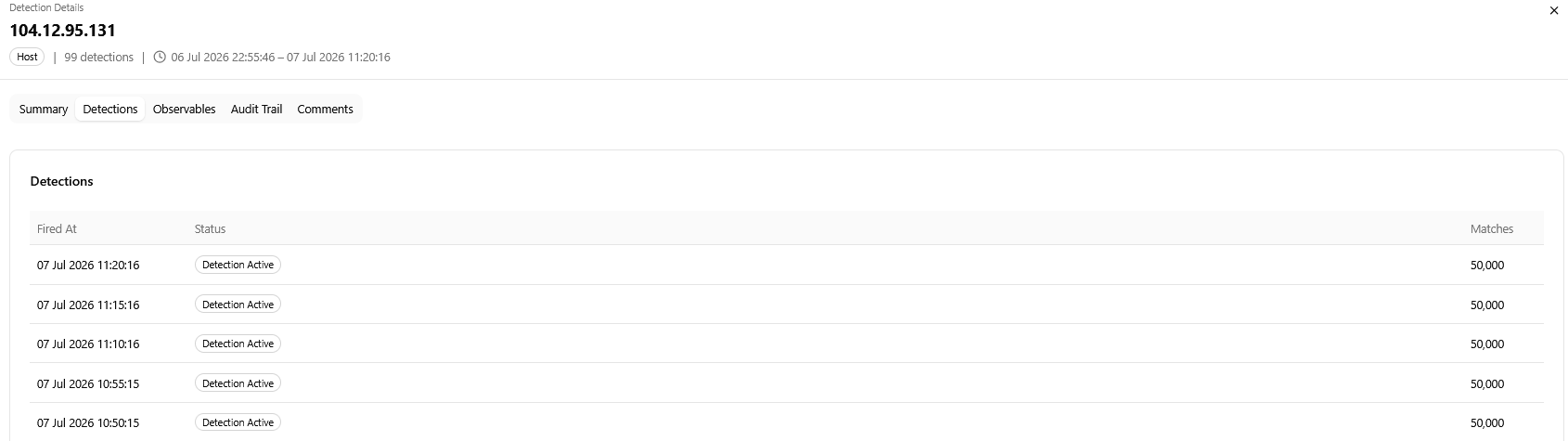
The Detections tab lists the individual detection instances for this entity under the matched rule.
The tab displays the exact timestamp when the detection ran, the current lifecycle status of the detection instance, and the number of log events matched by the rule in that detection run.
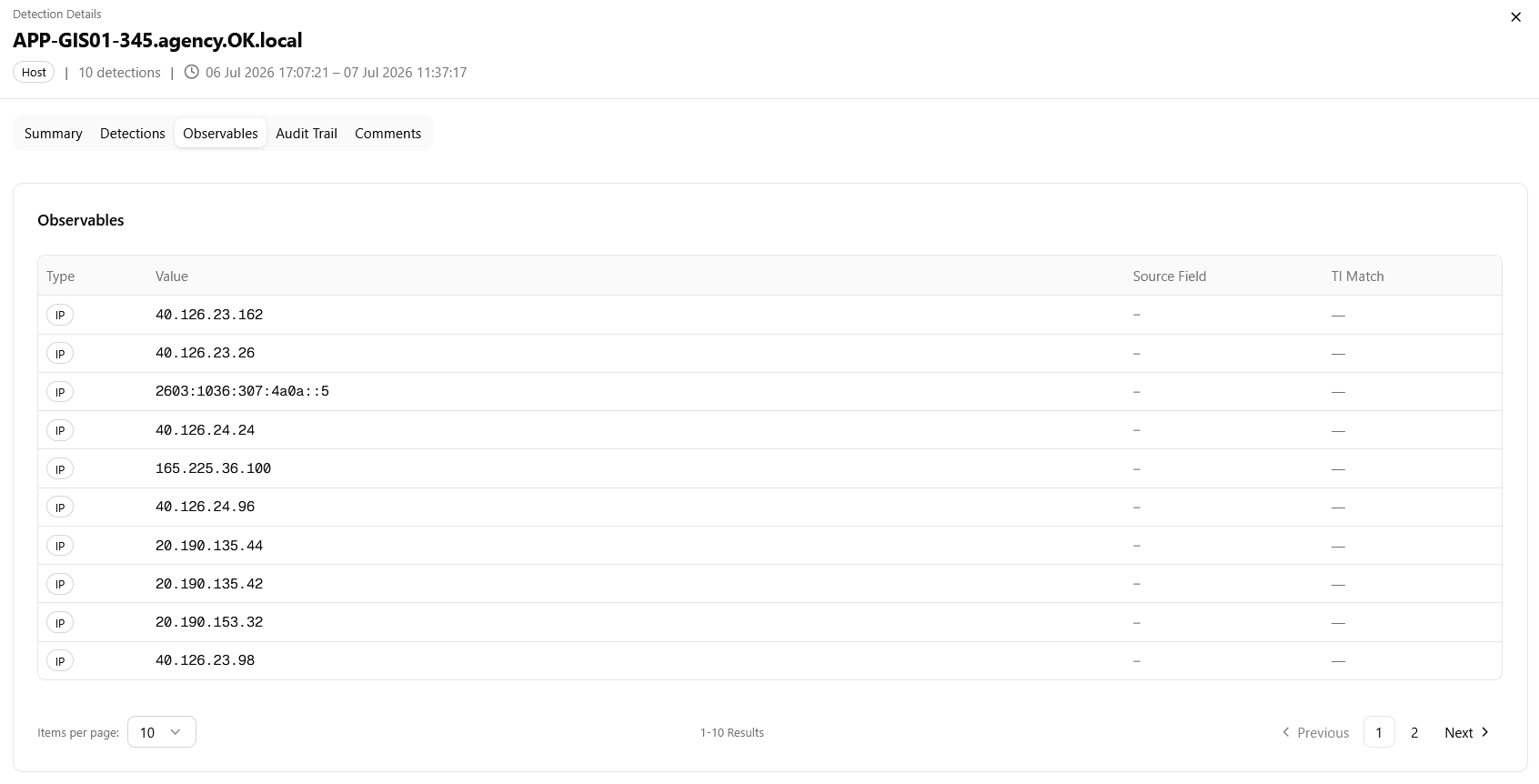
Observables Tab
The Observables tab lists observables extracted from the detection events for this entity, with specific details such as:
-
Type: observable type such as IP address
-
Value: the observable value such as an IP address
-
Source Field: the log field from which this observable was extracted
-
TI Match: indicates whether this observable matches a ThreatStream observable.
Audit Trail Tab
The Audit Trail tab is a chronological system log of all lifecycle events for this detection record.
,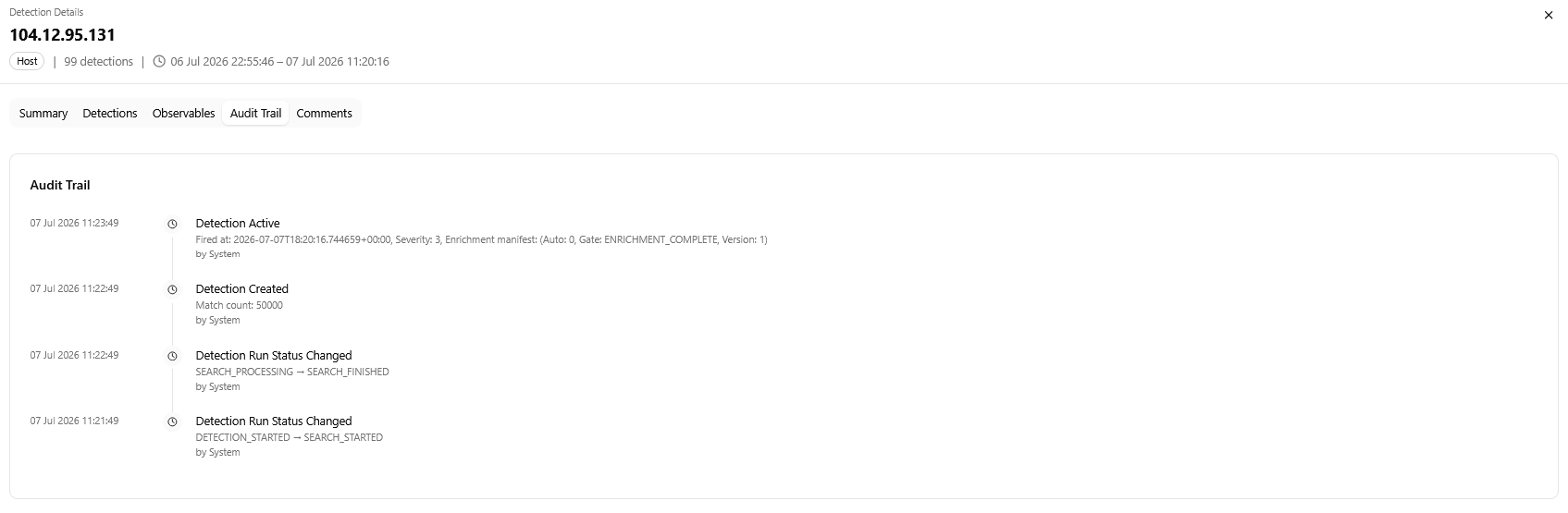
Entries are written by the system and are immutable.
Each entry shows a timestamp, an event name, supporting detail on the line below, and the author.
Audited event types include:
-
Detection Active — records the timestamp the detection was produced, severity level, and enrichment manifest details when a detection becomes active
-
Detection Created — records the match count when the detection record is first created
-
Detection Run Status Changed — records status transitions in the detection pipeline, such as
DETECTION_STARTED→SEARCH_STARTED→SEARCH_PROCESSING→SEARCH_FINISHED.
Comments Tab
The Comments tab allows analysts to add notes and context to the detection record. A rich-text composer appears at the top of the tab and includes a toolbar with standard text-formatting options.
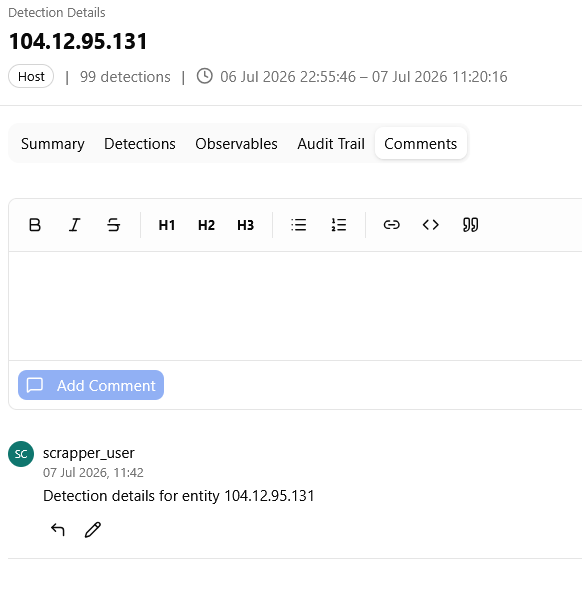
Click Add Comment to add a comment.
Each comment entry shows:
-
Author's name and timestamp
-
The actual comment
-
Per-comment action icons: Reply (
 ) available on all comments and Edit (
 ) available only on your own comments.