Managing Import Jobs Without Approve Intel Privileges
If you do not have Approve Intel privileges, you cannot approve import jobs. However, you can edit the import jobs you submit before they are approved. You can update any of the parameters set at the time of submission and add additional observables to the import job. Further, you can reject the import jobs you submit and send approval requests to users in your organization with Approve Intel privileges.
To edit imported jobs before approval:
- Navigate to ThreatStream > Manage > Imports.
-
Click the import job in the Ready To Review status that you want to edit.
The Import Job Details page displays the table with the observables extracted from the import job.
By default, the table displays the Observables, iType, Confidence, and Status columns. To see other columns such as type, Expiration Date, Country, Classification, Organization, Source Created, Source Modified, and Notes, click the Table Settings gear and select the columns you want to be displayed. Additionally, you can change the order of columns in the table by using the drag-and-drop functionality, specify the number of rows to be displayed per page, and enable/disable horizontal scrolling.
-
(Optional) In the Anonymize section, select User and Organization if you want to anonymize your user and organization information. Users outside of your organization with access to the observables will see "Analyst" in all the fields that would otherwise display on organization or user name.
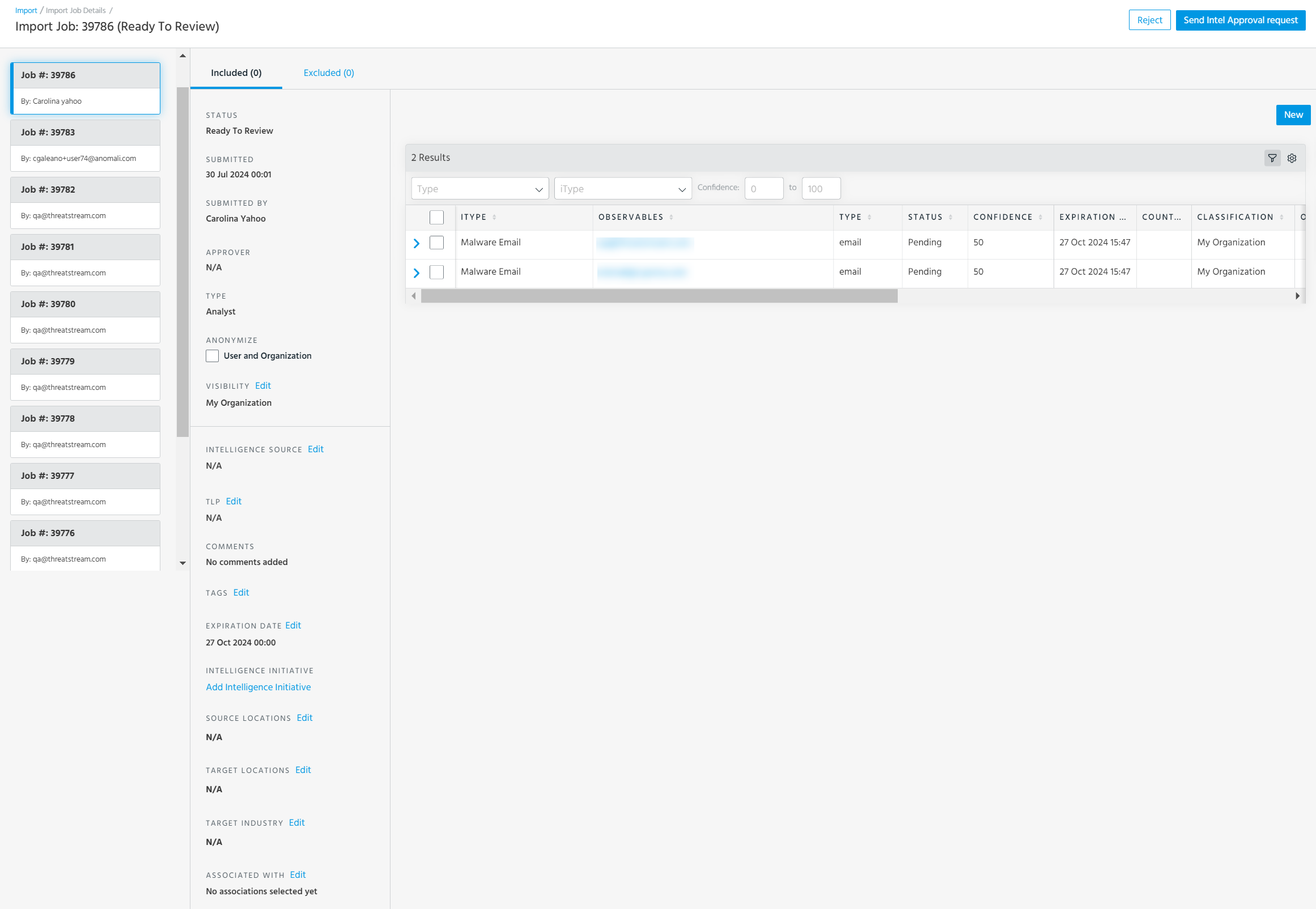
- (Optional) Click Edit next to each section you want to configure in the import job:
-
Visibility: Visibility assigned to tags that you want to associate with imported observables. Tags assigned the My Organization visibility setting are only visible to your organization. Tags assigned the Anomali Community visibility setting are visible to users of all organizations that have access to the observable. To add a tag, select a Visibility setting, enter the tag, and click the plus icon. Tags can contain spaces. Tags will be associated with each observable included in the import job.
-
Intelligence Source: Add a meaningful label about the source from which the observables were obtained.
-
TLP: Add the TLP color to associate with the job.
-
Tags: To add private tags that are only visible to your organization, assign them the My Organizationvisibility setting. Tags assigned the Anomali Communityvisibility setting are visible to any user with access to the observable. See Adding Private Tags to Observables for more information.
-
Expiration Date: Edit the expiration date for all observables included in the import session.
-
Intelligence Initiative: Click the Add Intelligence Initiative link to associate an intelligence initiative with the observable in the import job. For more information about intelligence initiatives, see Attributing Organizational Goals with Intelligence Initiatives.
- Source Locations: Add or remove source locations. ThreatStream supports 325 geographical locations (as defined by STIX 2.1) including 27 regions, 247 countries, 50 US States, and Washington DC.
-
Target Locations: Add or remove target locations. ThreatStream supports 325 geographical locations (as defined by STIX 2.1) including 27 regions, 247 countries, 50 US States, and Washington DC.
-
Target Industry: Add or remove target industries. Target industries available for selection are defined by the STIX 2.1 Industry Sector vocabulary.
-
Associated With: Associate the imported observables with Threat Model entities.
-
Review the observables listed as Included and make any necessary changes. You can filter the observables by Type, Indicator Type (iType), and Confidence. You can take the following actions on Included observables:
-
Reset: Clear the filter selections.
-
Edit: Edit the iType mapping, Expiration Date, or Confidence score assigned to the selected observables. Make the desired changes to the observable value and click Apply Changes. See Editing Observable Values Before Approval for more information.
-
Exclude: Exclude selected observables from approval.

-
 : Edit the value of an observable. For example, if you want to update an IP address or a domain name before importing. Make the desired changes and click Apply Changes.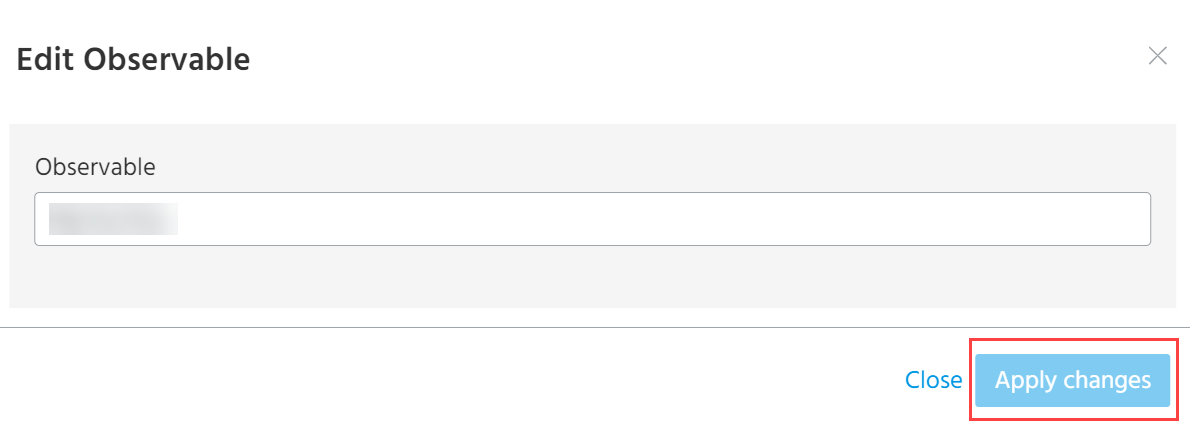
-
-
Review the observables listed as Excluded and make any necessary changes.
Note: Click the filter icon to filter excluded observables by Type of observable, Indicator Type, and Confidence.
You can take the following actions on Excluded observables:
-
Move to Included: Add observables excluded from the import job due to errors to the Included list. See Manually Adding Excluded Observables for more information.
- Remove Selected: Remove excluded observables from the import job. See Removing Excluded Observables for more information.
-
Force Apply Tags: When duplicate observables cannot be re-imported due visibility settings (see Visibility of Re-imported Observables) you can add tags from the import job to the existing active instances of the duplicate observables. See Applying Tags from Duplicate Observables for more information.
-
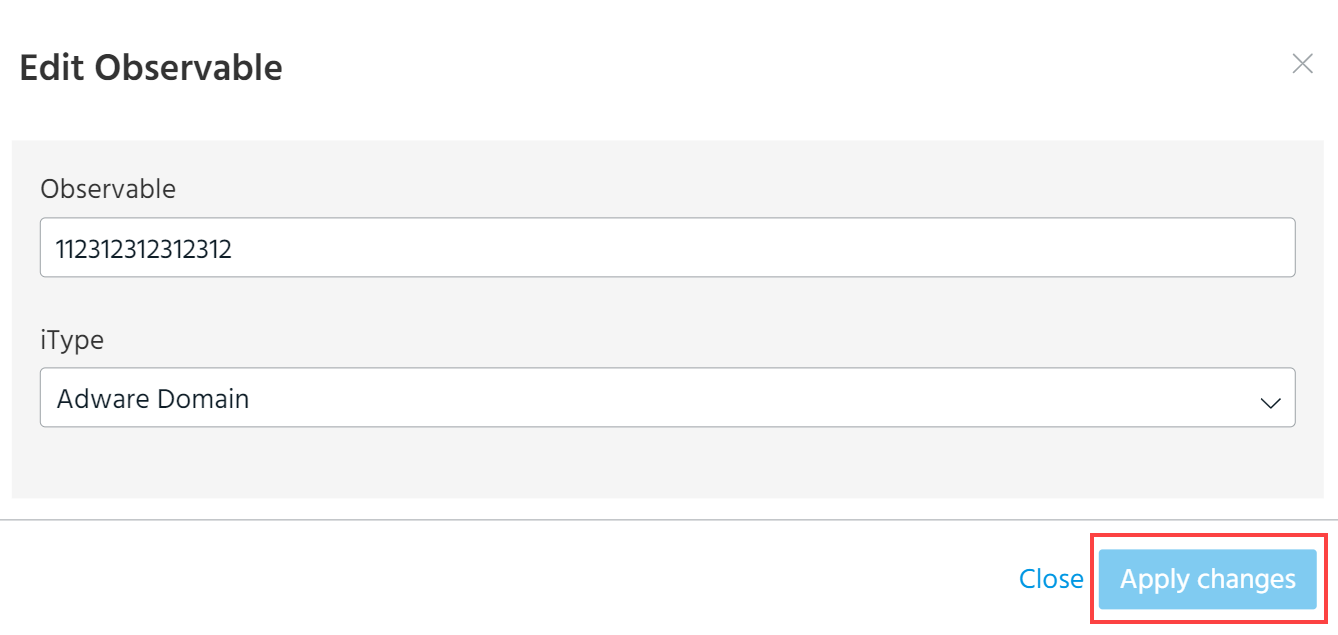
: Edit the values and indicator types of Excluded observables by clicking the edit icon corresponding to the observable you want to edit. Make the desired changes and click Apply Changes. See Editing Observable Values Before Approval for more information.
-
-
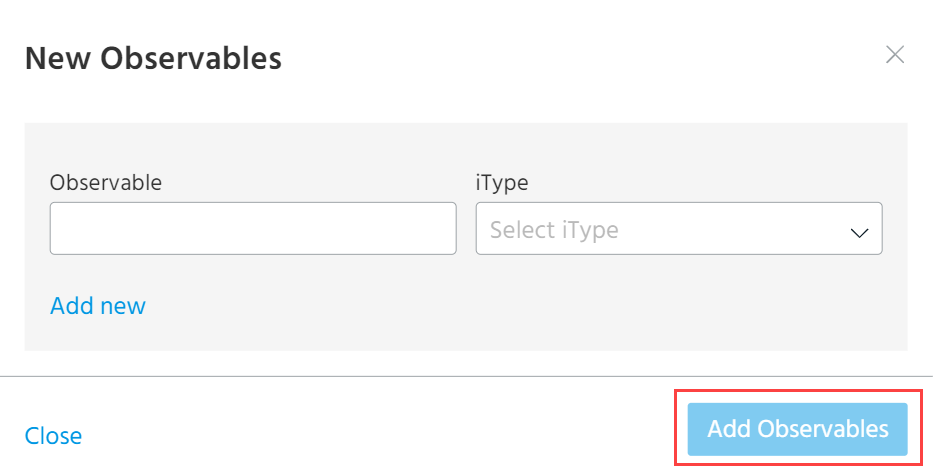
(Optional) Add additional observables to the import job by clicking New.

You can add up to 10 observables at once. You must select an indicator type (iType) for each value.
Click Add Observables. The new observables are scored by ThreatStream and added to the import job.
To reject an import job you submitted:
- Navigate to ThreatStream > Manage > Imports.
-
Click the import job that you want to reject.
Note: The job must be in the Ready To Review status. - Click Reject.

To send an approval request:
- Navigate to ThreatStream > Manage > Imports.
-
Click the import job that you want to approve.
Note: The job must be in the Ready To Review status. - Click Send Intel Approval Request.
