Managing Excluded Observables
Observables that were excluded from an import job due to errors are listed under the Excluded tab. Errors are displayed for each observable in the Reasons for exclusion column of the table. By default, the Reasons for exclusion column is hidden. To add it to the table of the excluded observables, click the Table Settings gear and select Reasons for exclusion.
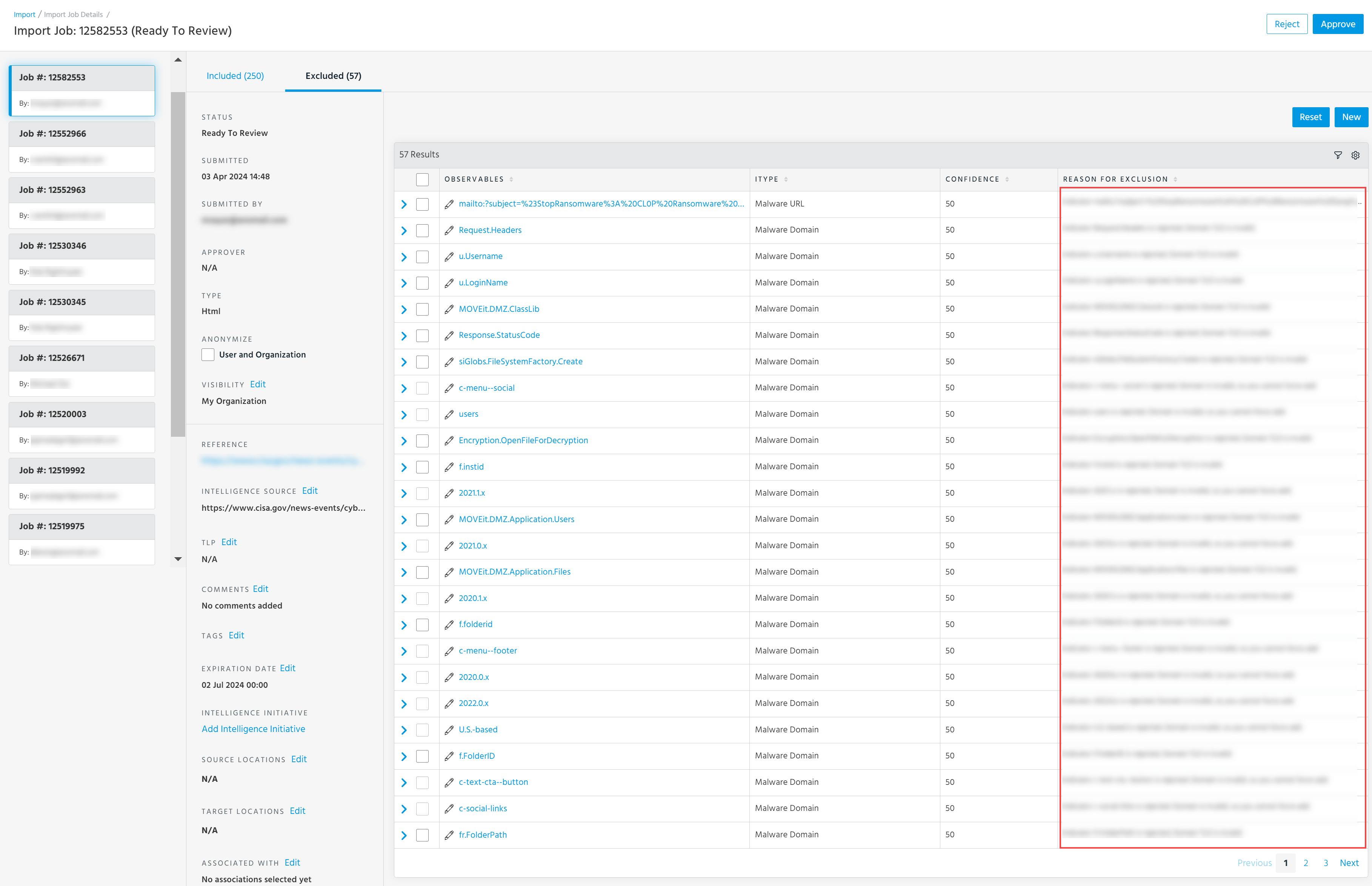
If observables were excluded due to typos, you can edit observable values and resubmit the import job. See Editing Observable Values Before Approval for more information. Observables that ThreatStream excluded from import jobs due to errors can be manually moved to the Included tab of the import job. See Manually Adding Excluded Observables for details.
Manually Adding Excluded Observables
Observables that ThreatStream excluded from import jobs due to errors can be manually moved to the Included tab of the import job. Observables that you move to the Included tab become active when the import job is approved.
Note: Observables with fatal errors cannot be moved to the Included tab.
To manually add excluded observables:
- Navigate to ThreatStream > Manage > Imports.
- Click the import job in Ready To Review status that contains the rejected observables.
- Click the Excluded tab to display excluded observables.
- To add the selected observables to the Included tab, click Move to included.
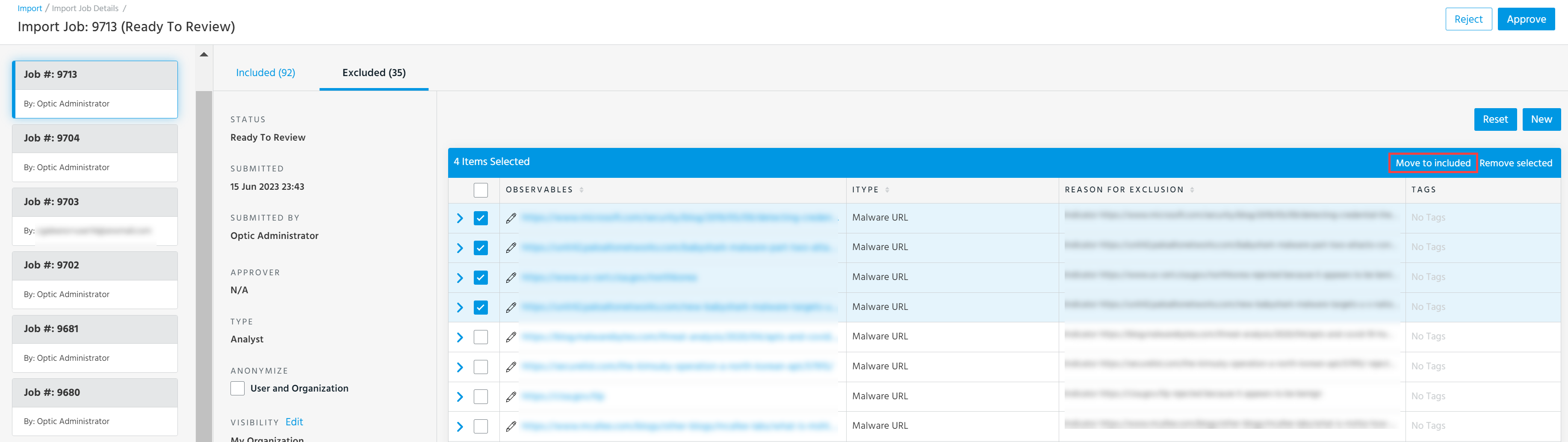
The observables are now listed on the Included tab and will be made active when the import job is approved.
Removing Excluded Observables
Rejected observables can also be removed from import jobs.
Note: Observables with fatal errors cannot be removed.
To remove excluded observables:
- Navigate to ThreatStream > Manage > Imports.
- Click the import job in the Ready To Review status that contains the rejected observables.
- Click the Excluded tab to display excluded observables.
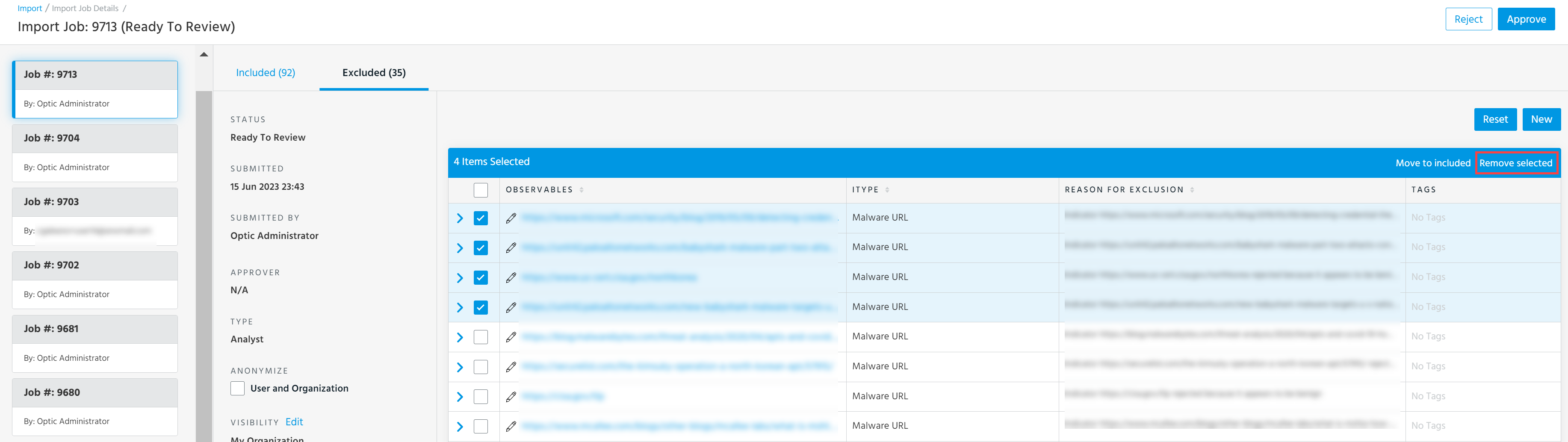
- To remove selected observables without fatal errors, click Remove selected.
Applying Tags from Duplicate Observables
If observables are excluded from import jobs because they already exist in ThreatStream and cannot be re-imported (see Re-importing Observable Values) they cannot be force-added to your threat intelligence. However, you can apply the tags from the import job to existing versions of rejected observables.
To apply tags from duplicate observables:
- Navigate to ThreatStream > Manage > Imports.
- Click the import job in the Ready To Review status that contains the observables excluded for being duplicates.
- Click Excluded to display excluded observables.
- Select the observables to whose existing versions you want to apply the import job tags.
- Select Force Apply Tags.
Note: For Force Apply Tags to appear as an available action, you must select duplicate observables only. The action will not be available if you select observables that were rejected for other reasons.