Managing Open Source Intelligence (OSINT) Feeds
ThreatStream leverages a number of open source intelligence feeds to feed your threat intelligence in ThreatStream. OSINT feeds are listed in the APP Store and display Open Source Feed in the upper left corner in each tile. OSINT feeds are not displayed by default on the APP Store. You must select the Open Source Subscription Type filter in order to view OSINT feeds.
Note: OSINT tiles are hidden on the ThreatStream OnPrem user interface. ThreatStream OnPrem must manage OSINT feeds from the ThreatStream Cloud user interface.
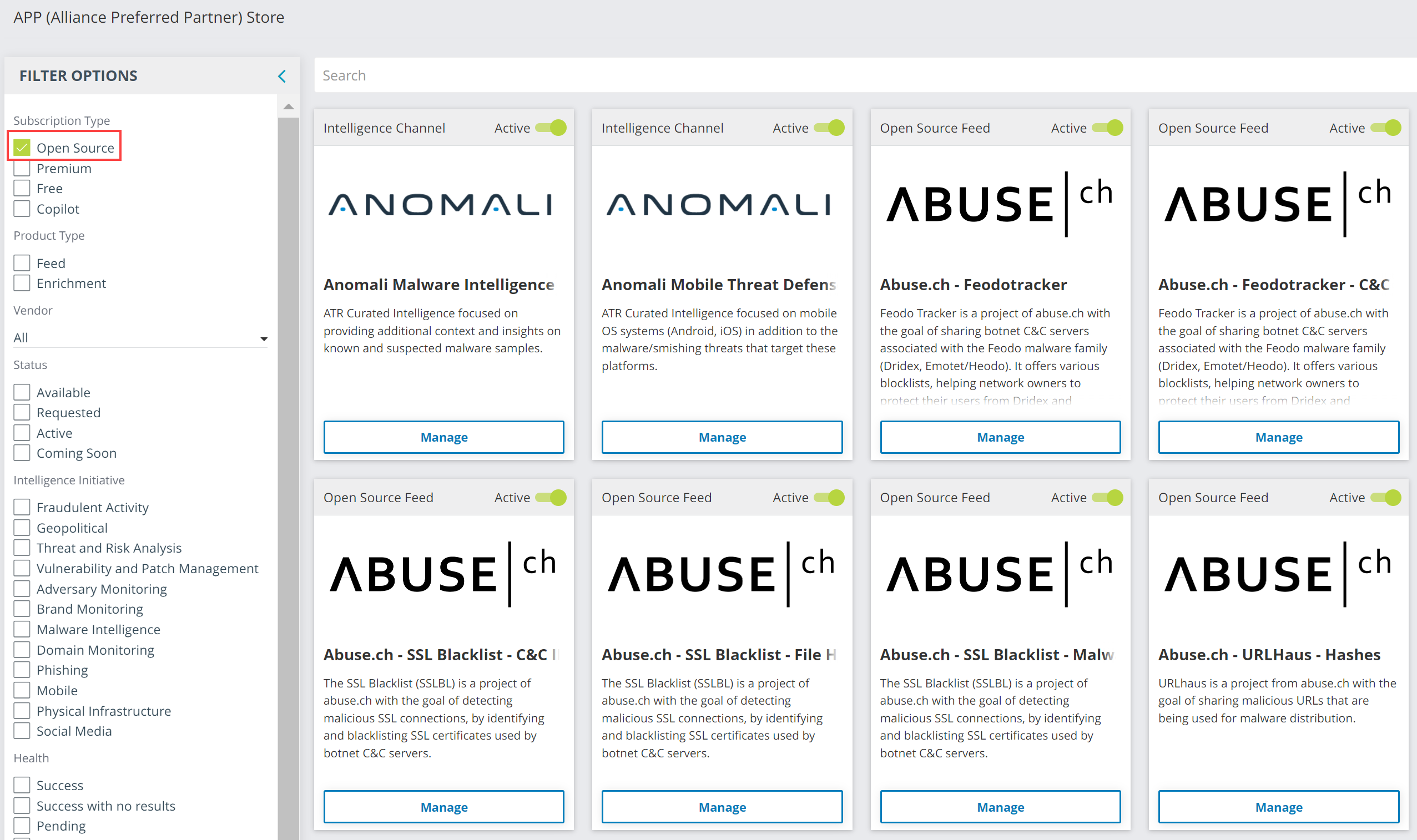
From the APP Store, you can browse, activate, and deactivate OSINT feeds contributing to your threat intelligence on ThreatStream.
Viewing OSINT Feeds in the APP Store
To browse OSINT feeds in the APP Store:
- Navigate to ThreatStream > APP Store > APP Store.
-
Select the Open Source Subscription Type filter.
All OSINT feeds available in ThreatStream are now listed in the APP Store. Select the Available Status filter to view OSINT feeds to which you are currently not subscribed.
You can use the Source Optimizer tool to compare open source streams and the data they provide you. See Comparing Feeds with Feed Optimizer for more information.
Tip: You can use the is_osint search filter in advanced observable searches to query OSINT observables. Simply include is_osint=true in your advanced search query. See Performing Advanced Observable Searches for more information.
Activating and Deactivating OSINT Feeds
By default, all OSINT feeds aggregated by ThreatStream are active for your organization. However, Org Admins can deactivate and reactivate OSINT feeds from the APP Store at any time. This granular level of control enables you to make strategic and intelligence informed decisions.
To deactivate OSINT feeds:
- Navigate to ThreatStream > APP Store > APP Store.
-
Select the Open Source Subscription Type filter.
- Locate the active OSINT feed you want to deactivate.
-
If you are using the tile view, click Manage and then click Deactivate.
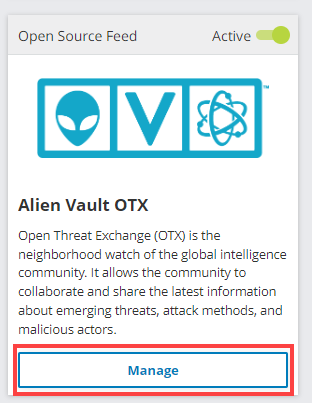
If you are using the list view, click the name of the feed and then click Deactivate.
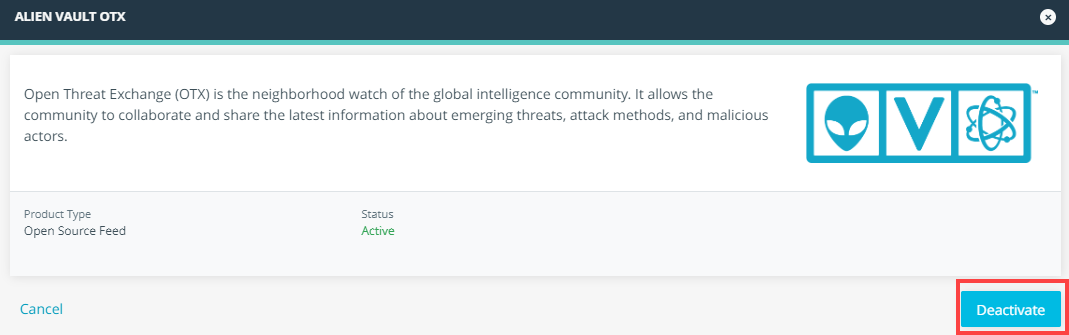
The status changes to Inactive.
Note: Feed data is not automatically removed from your downstream integrations when you deactivate a feed. If you want to remove feed data from downstream integrations, perform a full intelligence resynchronization (known as a Full Refresh) on ThreatStream Integrator.
To activate OSINT feeds:
- Navigate to ThreatStream > APP Store > APP Store.
-
Select the Open Source Subscription Type filter.
- Locate the active OSINT feed you want to activate.
-
If you are using the tile view, flip the switch to the right position.
If you are using the list view, click the name of the feed and then click Activate.
The status changes to Active.
Note: If you do not have Resync Integrators when joining a new Trusted Circle or Feed enabled on the Organization tab within ThreatStream settings, downstream integrations receive intelligence from the time of activation onwards only. If you want your downstream integrations to receive historical data from the feed, perform a full intelligence resynchronization (known as a Full Refresh) on ThreatStream Integrator. See Resync Integrators when joining a new Trusted Circle or Feed for more information.