Enriching Data with Splunk Sightings
The Splunk Sightings enrichment renders matched raw events from your Splunk Cloud instance on observable details pages, accessible by drilling down on an observable in ThreatStream. The enrichment communicates directly with your Splunk Cloud instance on a per observable basis. Each time you open the Splunk Sightings tab in the Enrichments section of an observable details page, the enrichment initiates a full text search for the observable value in your Splunk events. If results are returned, raw events are displayed on the Splunk tab.
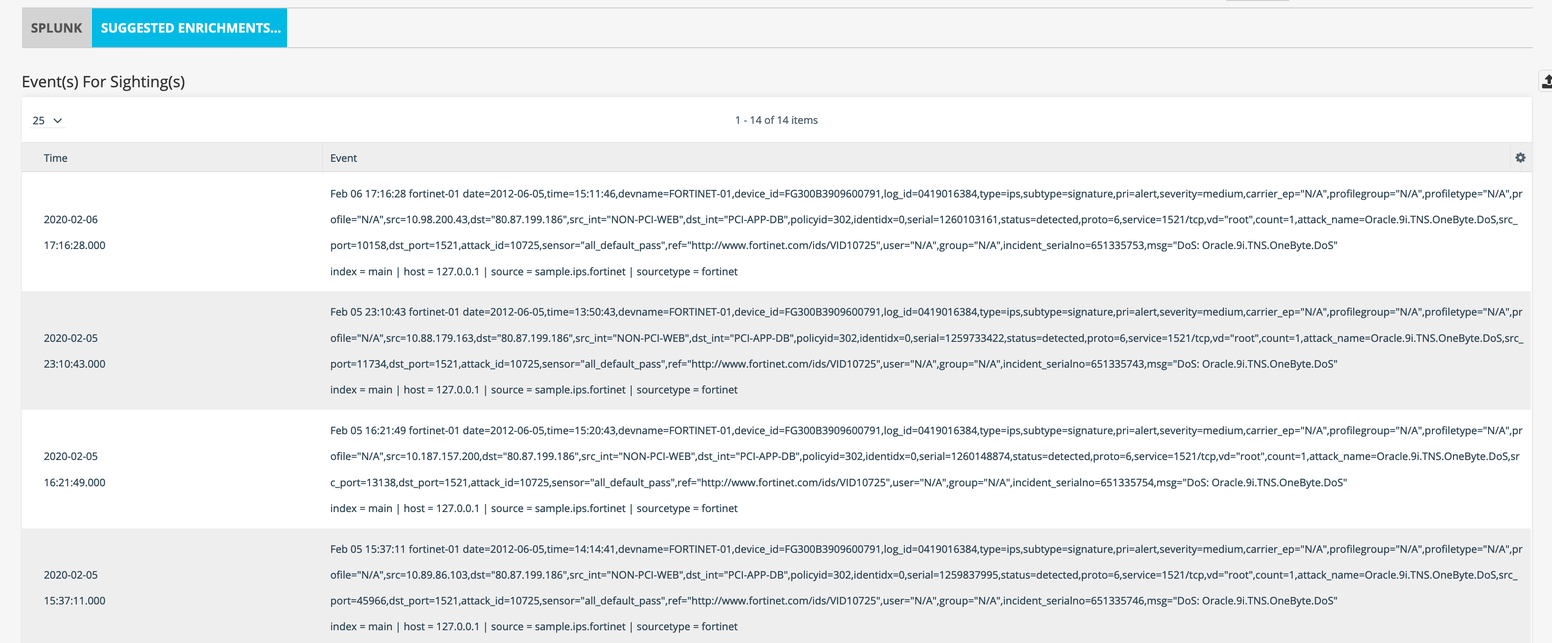
Configuration involves pointing the enrichment to your Splunk Cloud instance and specifying the event set you want to search for matches.
Understanding Differences Between Splunk Sightings and My Attacks Report
This section outlines the differences between My Attacks Report and the Splunk Sightings Enrichment.
My Attacks Report:
- Fetches select data fields from matched events on the Anomali ThreatStream Splunk App, such as attacker address and attack type.
-
Available for the Anomali ThreatStream Splunk App.
- Does not fetch raw data.
- Is generated on the Anomali ThreatStream Splunk App and routed to ThreatStream directly or through ThreatStream Integrator.
-
Populates the Sightings chart on observable details pages and the My Recent Attacks widget on the ThreatStream Overview Dashboard.
See My Attacks Report for more information.
Splunk Sightings Enrichment:
- Fetches matched events from Splunk Cloud instances.
- Executes full text searches of Splunk events for observable values only when the Splunk tab is opened on an observable details page.
- Fetches raw events rather than select fields.
- Pulls data directly to ThreatStream from Splunk Cloud and populates the Splunk tab in the Enrichments section of observable details pages.
-
Available for any Splunk instance running in Splunk Cloud.
To activate Splunk Sightings:
-
Navigate to ThreatStream > APP STORE > APP Store.
-
Locate the Splunk Sightings enrichment.
-
Click Get Access on the Splunk Sightings tile.
- On the wizard that opens, click I have credentials.
-
On the next wizard page that opens, click Credentials and enter the following information:
Field Description Host Domain name or IP address of your Splunk instance. Do not include protocols.
The Splunk Sightings enrichment only supports the HTTPS protocol.Port Port used by your Splunk instance.
Example: 8089
User Name User name associated with your Splunk account. Password Password used to login to your Splunk account. Index Splunk index from which you want to retrieve sightings. The default value is used if not specified.
Default: index=main
Example: index=index1 OR index=index2
Sourcetype Sourcetype for which you want to retrieve sightings. The default value is used if not specified.
Default: sourcetype=*
Example: sourcetype=fortinet OR sourcetype=websense
Limit Number of results returned per observable. The default value is used if not specified.
Default: 10
Days back Amount of historical data in days you want to retrieve. The default value is used if not specified.
Default: 1
Example: 7
- Click Activate.
The Splunk Sightings enrichment is now active.