Integrating with OpenDNS Umbrella
If your organization uses OpenDNS for DNS services, you can integrate a domain feed from ThreatStream to OpenDNS. The domain feed updates every four hours to ensure your OpenDNS uses the latest threat intelligence.
When integrated, the top 10,000 domains from ThreatStream populate a Custom Integration List set up on OpenDNS based on a search filter that you specify in ThreatStream.
There are two steps to setting up the integration:
- Generate an OpenDNS Customer Key.
- Activate the integration within ThreatStream.
To generate an OpenDNS Umbrella Customer Key:
- Login to OpenDNS.
-
Click Policies and navigate to Policy Components > Integrations.
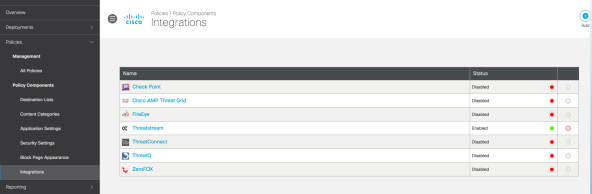
- Click Add.
- Enter a name for the integration. Example: ThreatStream Domains.
- Check Enable.
-
Copy the Customer Key from the URL. Customer Keys are located after
customerKey=in the URL.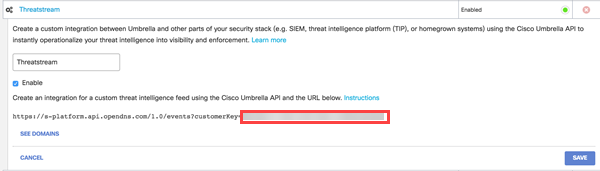 Make sure you only copy the Customer Key and not the entire URL.
 - Click Save.
To integrate ThreatStream with OpenDNS:
-
Log in to the ThreatStream portal.
-
In the bottom-left corner of the side navigation panel, click
 > ThreatStream and then click Integrations.
 - Click Activate in the OpenDNS Umbrella box.
-
Paste or enter your OpenDNS Customer Key.
Make sure you enter only the Customer Key and not the entire URL that contains the key. -
Enter a Filter Query.
For example:
(status="active") AND (type=domain) AND (confidence>=85) AND (modified_ts>=90d) AND (severity!=low) AND (severity!=medium)Note: As a best practice, test your filter on the Advanced Search screen. Note that only the top 10,000 domains returned for the filter will be sent to OpenDNS.
Regardless of the filter you enter, only domain observables with active status will be sent to OpenDNS. The filter you specify can be used to restrict the observables sent to OpenDNS to a more specific subset.
-
Click Save.
The status button for the service changes to Deactivate. The service is activated.
To verify that your OpenDNS integration is active:
- Login to OpenDNS.
- Click Configuration and navigate to System Settings > Integrations.
- Expand the ThreatStream integration.
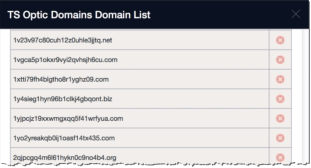
- Click See Domains.
-
Verify that the list of domains is populated.