Managing Lookup Tables
If you have questions about this change, contact Anomali Customer Support.
You can use the Manage > Lookup Table page to upload, view, append, update, export, or delete lookup tables used in Search.
Lookup Table Permissions
-
All users can upload lookup tables.
-
All users can use Search to query any lookup table.
-
Non-Org Admin users can append, update, and delete only lookup tables they own.
-
Org Admin users can append, update, and delete any lookup table.
About Lookup Tables
A lookup table is a CSV file that has enrichment data—for example, the commonly used MaxMind IP geolocation data. A lookup table can be any set of fields that you want to correlate with an event log field, enabling the lookup table data to enrich Search results.
From the Manage > Lookup Table page, you can perform the following actions:
-
Upload a lookup table
-
View a lookup table
-
Append to an existing lookup table
-
Update a lookup table
-
Export a lookup table
-
Delete a lookup table
You cannot activate a lookup table. Active and inactive statuses are reported on the Lookup Table tab of the Lookup Table page. An active status indicates that the table has been created and is ready to be used in AQL Search. An inactive status indicates that activation is not yet completed. If there is a problem with the table validation, the failed status is displayed. To know the reason the lookup table activation failed, click View Details next to the Failed status.
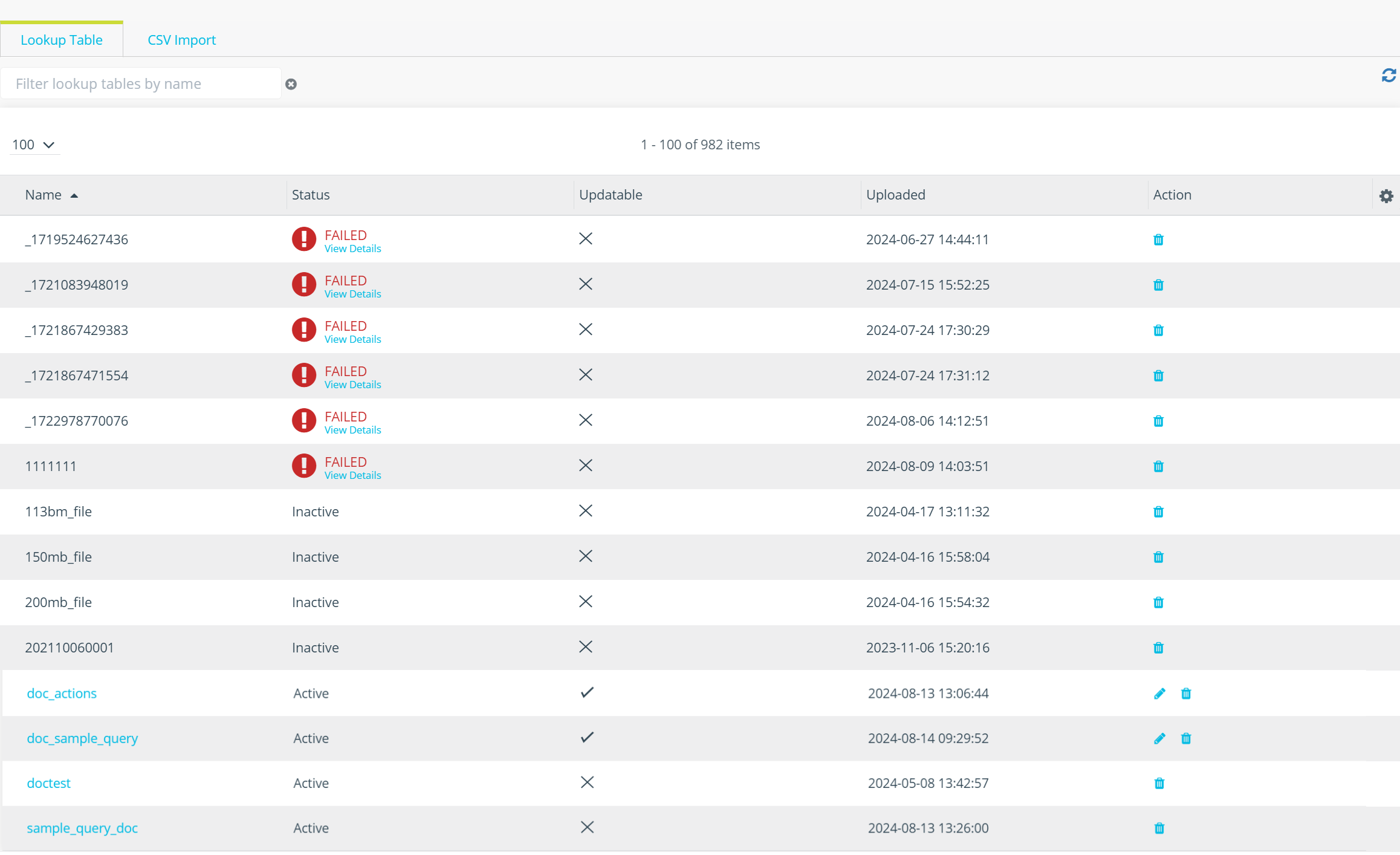
Upload a Lookup Table
You can add a lookup table to your AQL Search environment by uploading a comma-separated value (CSV) file. Additionally, you can add values to existing lookup tables.
CSV Import Guidelines
To successfully upload a lookup table, follow these file upload guidelines:
-
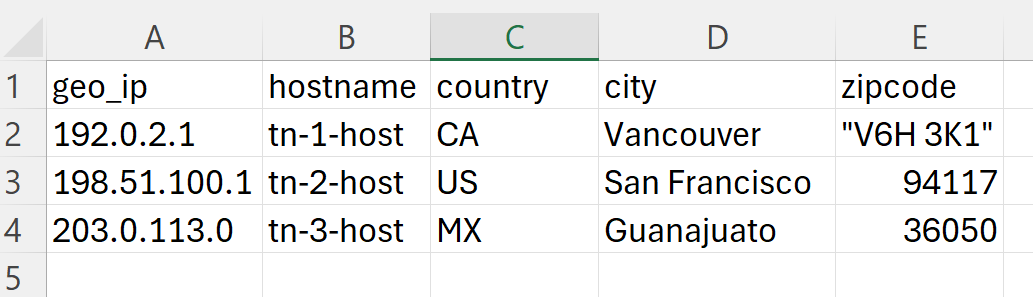
The upload file must have a heading row with the lookup table field names.
-
Avoid using the same field names as the eventlog schema.
-
In searches, field name is case sensitive, so use capitalization conventions that are easy for search users to follow. For example, all lowercase.
-
Enclose values that have spaces in straight quotation marks (").
-
File formats must be CSV, .gz, or .tar.
-
The upload file can be a maximum of 100 MB.
If your CSV file is larger than 100 MB, use the following guidelines to upload your data:
Compress the file to reduce its size.
Split the content into multiple smaller files. After that, upload the first file to create a lookup table and append the remaining files to this table. See Append to an Existing Lookup Table for more information.
The following is an example of a lookup table:
To upload a lookup table:
-
Create a CSV file that contains the required values, as described above.
-
Navigate to Manage > Lookup Table.
-
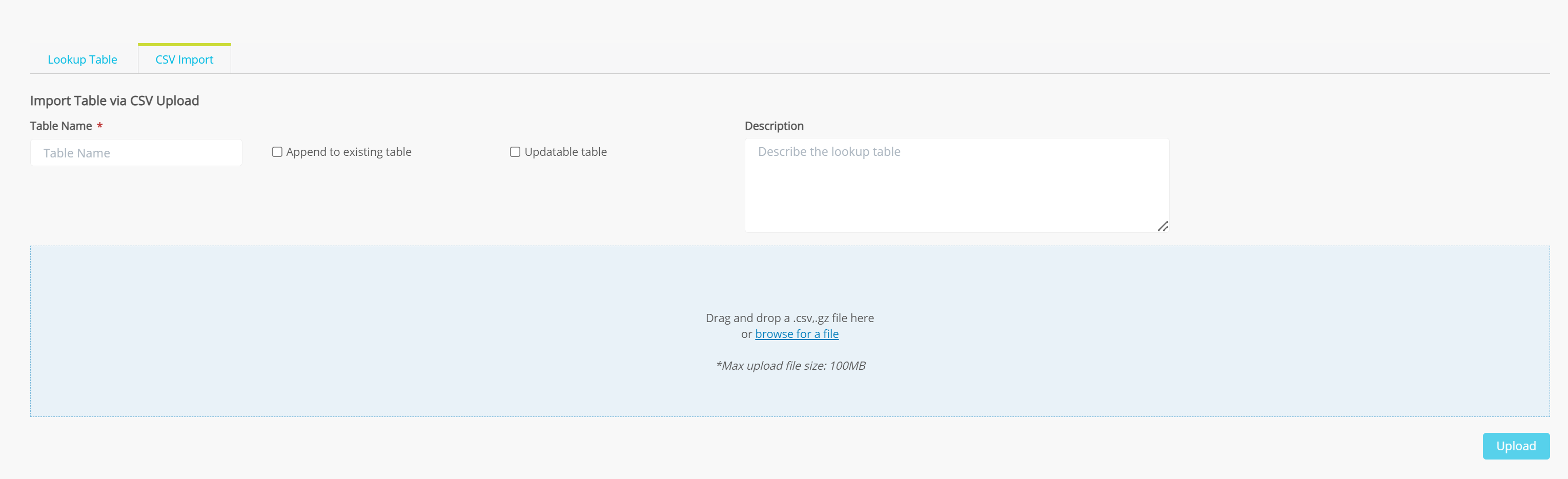
Click the CSV Import tab.
-
Specify a name in the Table Name box.
Note:-
This is the lookup table name that users can reference in AQL Search.
-
The name may contain only alphanumeric characters and underscores.
-
The name cannot begin with a number.
-
Do not name the table the same name as an event field or lookup table field.
-
-
(Optionally) Select Append to existing table if you want to add the rows to an existing lookup table. See Append to an Existing Lookup Table for details.
-
(Optionally) Select Updatable table if you want to be able to make updates to the table. See Update a Lookup Table for details.
Note: System tables and lookup tables created using theyieldtableoperator cannot be updated. -
(Optionally) Enter a description of the lookup table in the Description box.
-
Use the file controls to browse and select your CSV file.
- Click Upload.
The lookup table is added to the list of lookup tables on the Lookup Table tab.
Append to an Existing Lookup Table
 ) on the Lookup Table tab. Refer to Update a Lookup Table for details.
To append (add rows in bulk) to an existing lookup table:
-
Create a CSV file that contains the rows you want to add to an existing lookup table.
-
Navigate to Manage > Lookup Table.
-
Click the CSV Import tab.
-
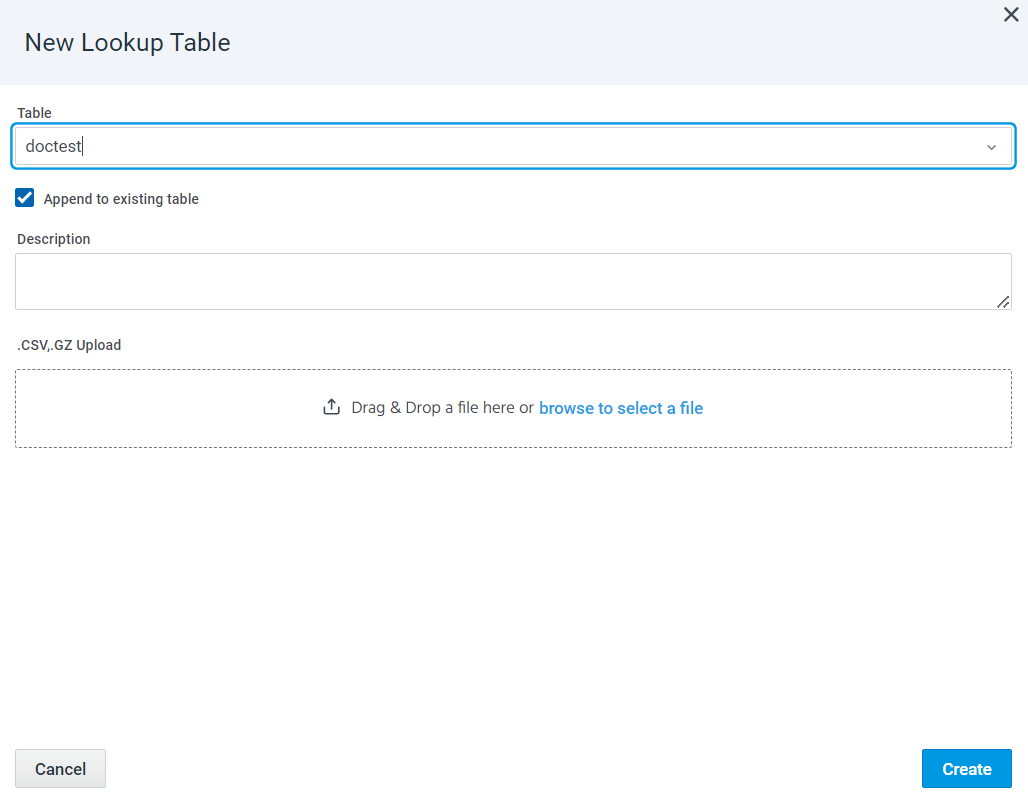
In the Table Name box, specify the name of the lookup table to which you want to add rows.
-
Click Append to existing table. Note that the rows you add must have the same number of columns as the lookup table to which you add the rows.
-
(Optionally) Enter a description of the lookup table in the Description box.
-
Use the file controls to browse and select your CSV file.
-
Click Upload.
The rows are added to the existing lookup table.
Update a Lookup Table
Updatable lookup tables can be modified. You can edit cell values, add rows, and delete rows.
To update a lookup table:
-
Navigate to Manage > Lookup Table.
-
Click the edit icon (
) corresponding with the lookup table you want to update. You are redirected to the table in the edit mode.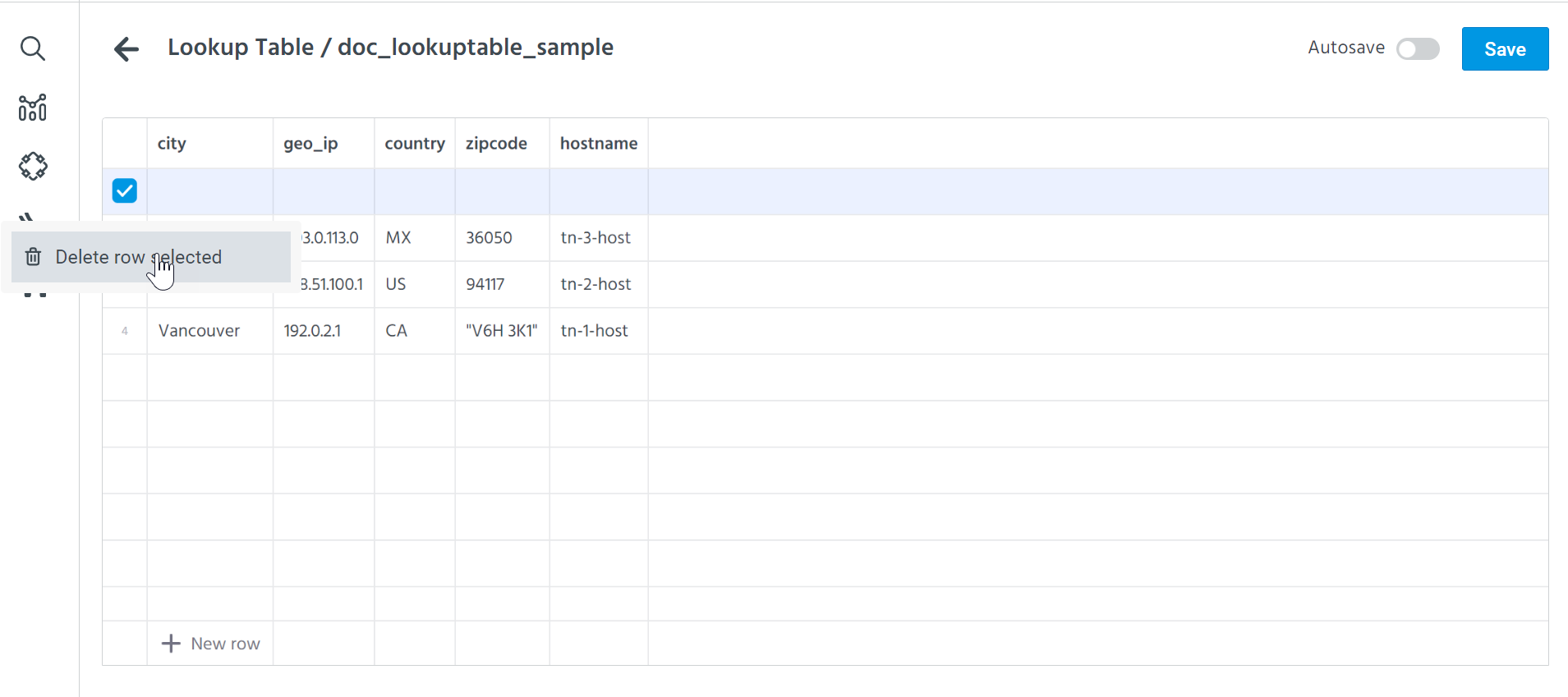
-
(Optionally) Enable Autosave to automatically save your updates. Updates are autosaved every minute.
-
Modify the lookup table:
-
To add a new row to the table, click + New row.
-
To delete a row, select the row you want to delete, right click on the selected row, and click Delete row selected.
To delete all rows, select the header row, right click on the rows, and click Delete rows 1-x. -
To edit a cell value, double click on a cell and edit its value. Values in the header row cannot be modified.
-
-
Click Save.
The lookup table is updated.
View a Lookup Table
To view a lookup table:
-
Navigate to Manage > Lookup Table.
-
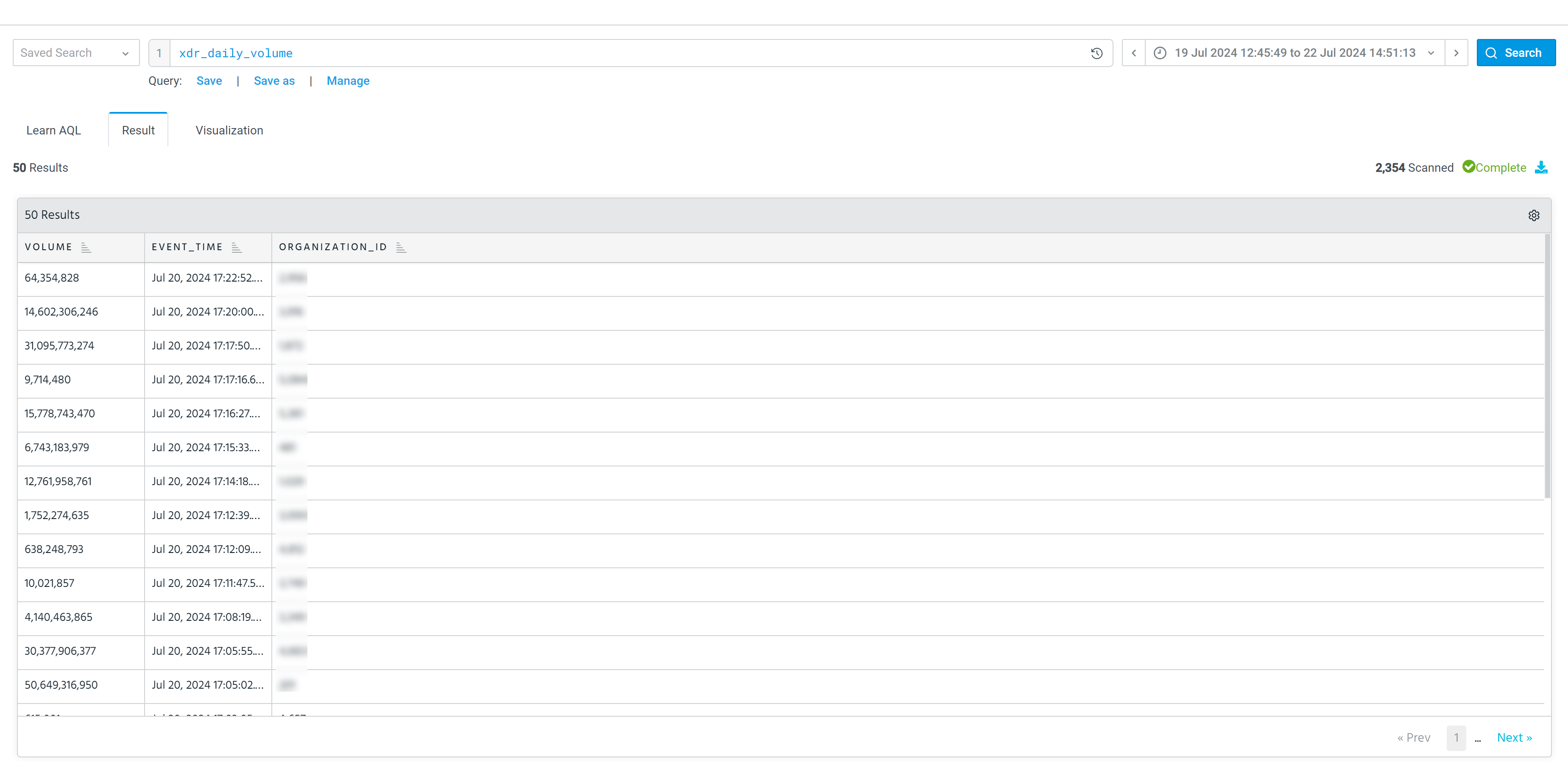
Click the active lookup table of interest.
You are redirected to the Result tab of the AQL Search page.
Export a Lookup Table
To export a lookup table:
-
Navigate to Manage > Lookup Table.
-
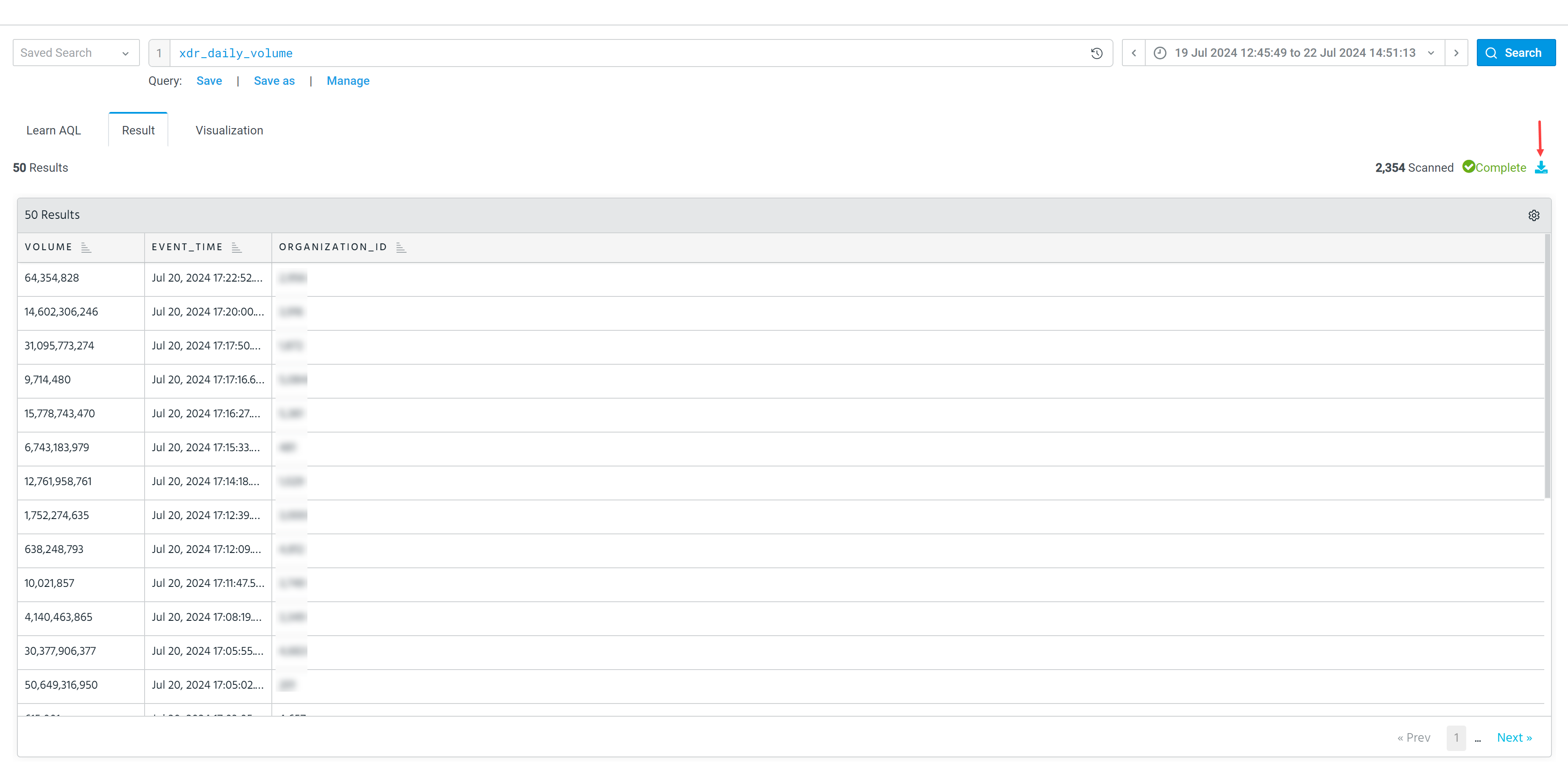
Click the active lookup table of interest. You are redirected to the Result tab of the AQL Search page.
-
Click the Export icon (
 ).
).
-
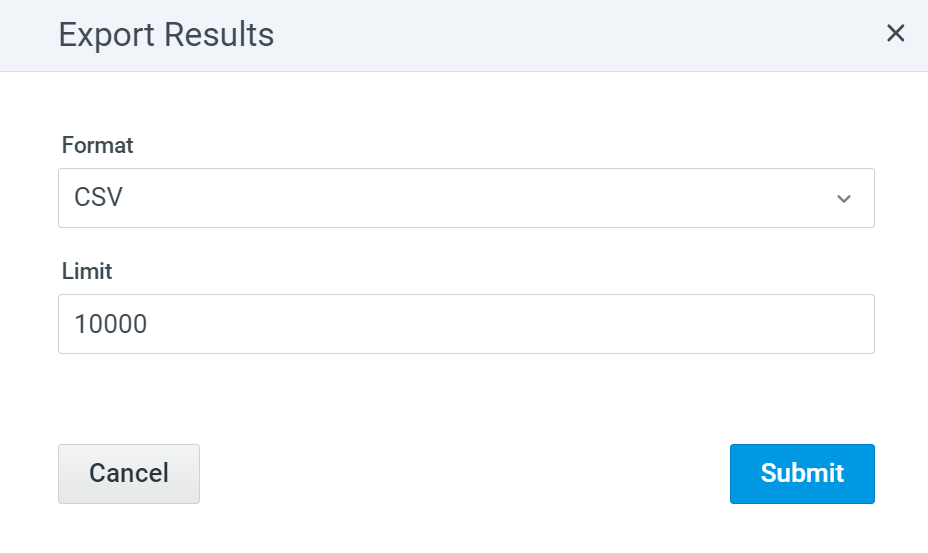
In the Export Results dialog box, select an export format (CSV or JSON) and enter a maximum number of rows you want to export.
-
Click Submit.
Downloading of the lookup table starts immediately.
Delete a Lookup Table
To delete a lookup table:
-
Navigate to Manage > Lookup Table.
-
In the Action column, click the Delete icon (
 ) corresponding with the lookup table you want to delete.
The lookup table is deleted.