About the Copilot Widget 
Use the Copilot widget to gather AI-powered insights on threat hunting, enrichments, integrators, and more, based on data in a dashboard. With the ability to summarize different panels in a dashboard and communicate its chain of thought in a user-friendly chat interface, the Copilot widget represents a comprehensive set of features that security analysts can use to analyze different types of dashboard data, associated trends, and perform advanced analysis.
The Copilot widget leverages the underlying intelligence capabilities of an AI model that employs a Chain-of-Thought process that ensures user transparency by allowing you to examine the sources and thought patterns the AI agent uses to answer your question.
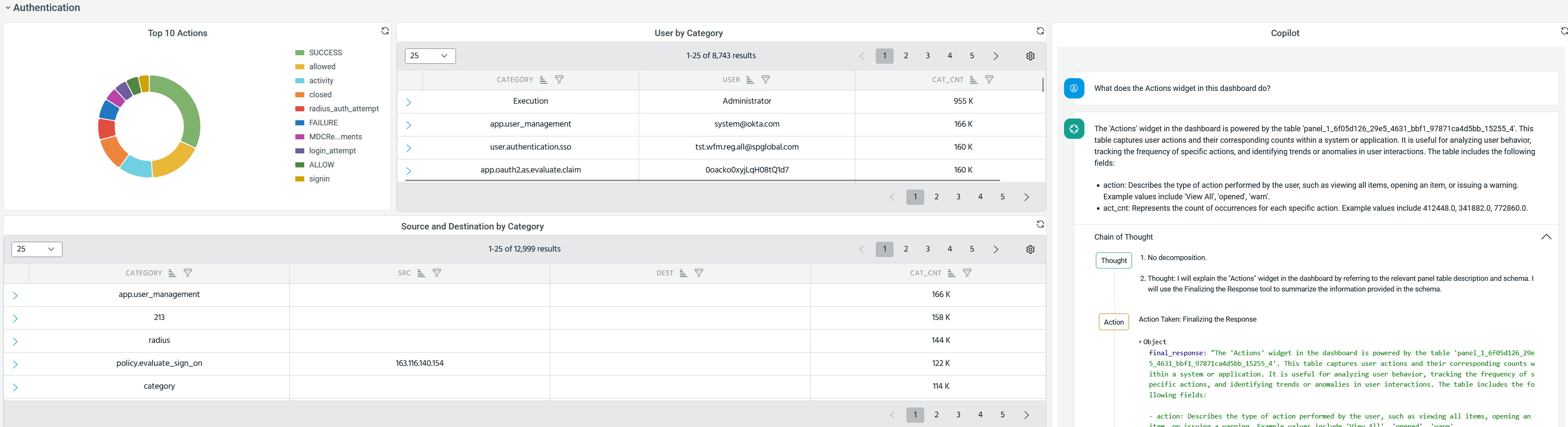
For example, you can analyze the results of a widget by asking Copilot questions about what the widget does, what its results signify, or perform further analysis through more questions about the dashboard data. In the following example, the user asks Copilot about what the Actions widget does and what its results signify.
(Click the image to enlarge it.)
Key features
As a security analyst, you can chat with Copilot within a dashboard to get insights without switching contexts. The Chain of Thought process provides clear transparency on all the context from the dashboard the AI model uses to construct its response.
Note: Copilot preserves the context of a conversation within a session. The widget will reference your current chat transcript in answering your question. The data is not preserved between sessions.
Use cases
The Copilot widget supports a broad range of use cases:
Generate Reports on IOCs:
Copilot leverages its knowledge on any ThreatStream observables, including URLs, file hashes, domains, IP addresses, or emails. Based on this knowledge, it generates summary reports about these observables and their relevant association within the data in the panels of the dashboard that contains this Copilot widget.
This association, therefore, generates sophisticated summaries that provide you with a comprehensive snapshot of ThreatStream observables and related information across all your dashboard panels for further analysis.
Data Enrichment using ThreatStream
Copilot uses ThreatStream to answer any question about threat models and intelligence related to your dashboard data, and deliver precise responses by leveraging Anomali’s resources backed by verified sources and searches.
The dashboard panel agent can ingest, manage, and analyze contextual, relationship, and workflow information for various threat model entities such as actors, malware, infrastructure, observables, and vulnerabilities, so as to:
-
Provide more information about threat actors and their TTPs.
-
Perform enrichment by ingesting threat intelligence data from Anomali ThreatStream, as well as external sources such as VirusTotal.
-
Identify threats and enable proactive threat management.
-
Support SOC analysts in monitoring and defending against threats by centralizing and using aggregated and contextualized threat intelligence.
Therefore, Copilot enables you to quickly access contextual information about your dashboard data and all its different associations across ThreatStream, while eliminating the need for manual observable or threat model entity searches.
In the following example, the user asks Copilot how the Top 10 Actions are associated with the User by Category, to which Copilot responds that while the Top 10 Actions panel captures user behavior trends, the latter focuses on the actual network and system interactions.
(Click the image to enlarge it.)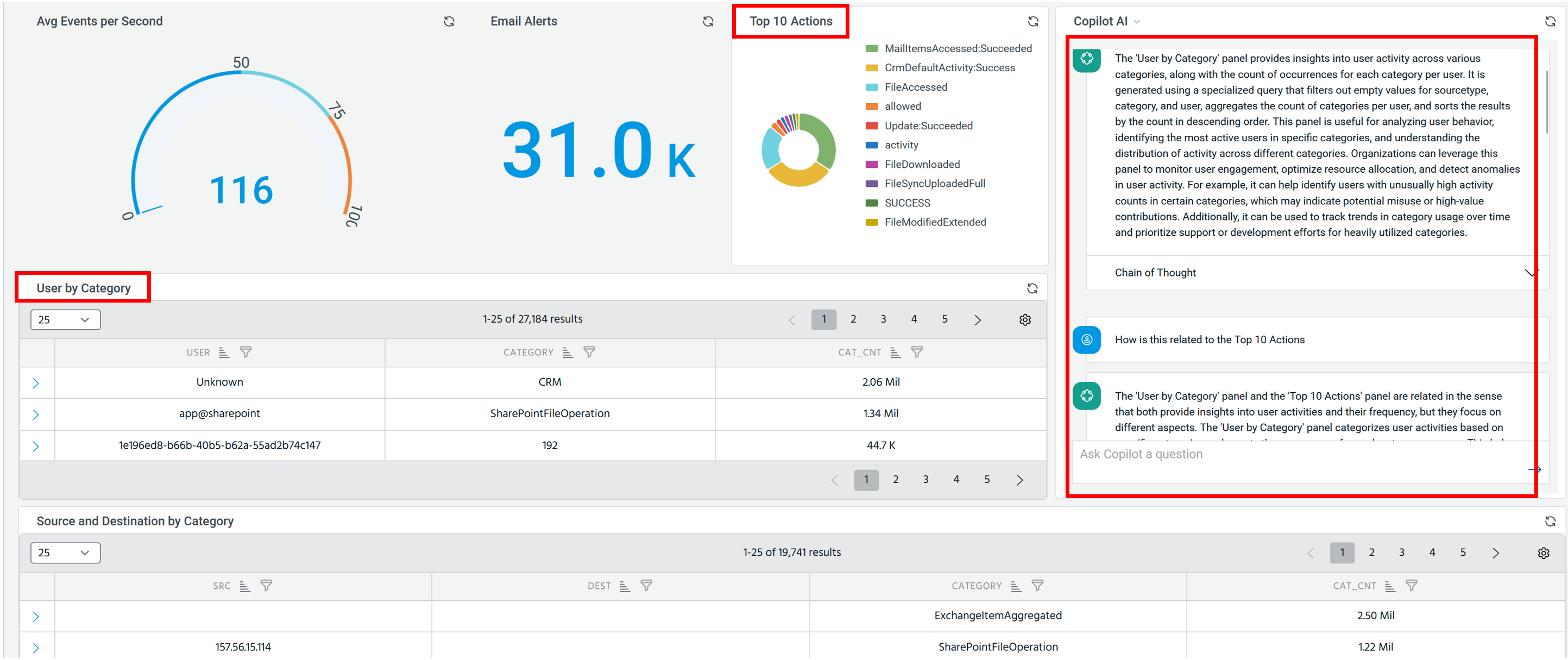
Retrieve Trending Threat Entities
Copilot also allows you to retrieve trending threat entities that provide greater insight into the latest threats and help you strategize incident management. With the ability to capture potential malicious actors, attack patterns, CVEs, or malware, Copilot helps you improve the overall threat management of your organization.
Internet search
Copilot also leverages the world wide web to answer any question that is possibly irrelevant to cybersecurity or those that it cannot answer using ThreatStream alone.
(Click the image to enlarge it.)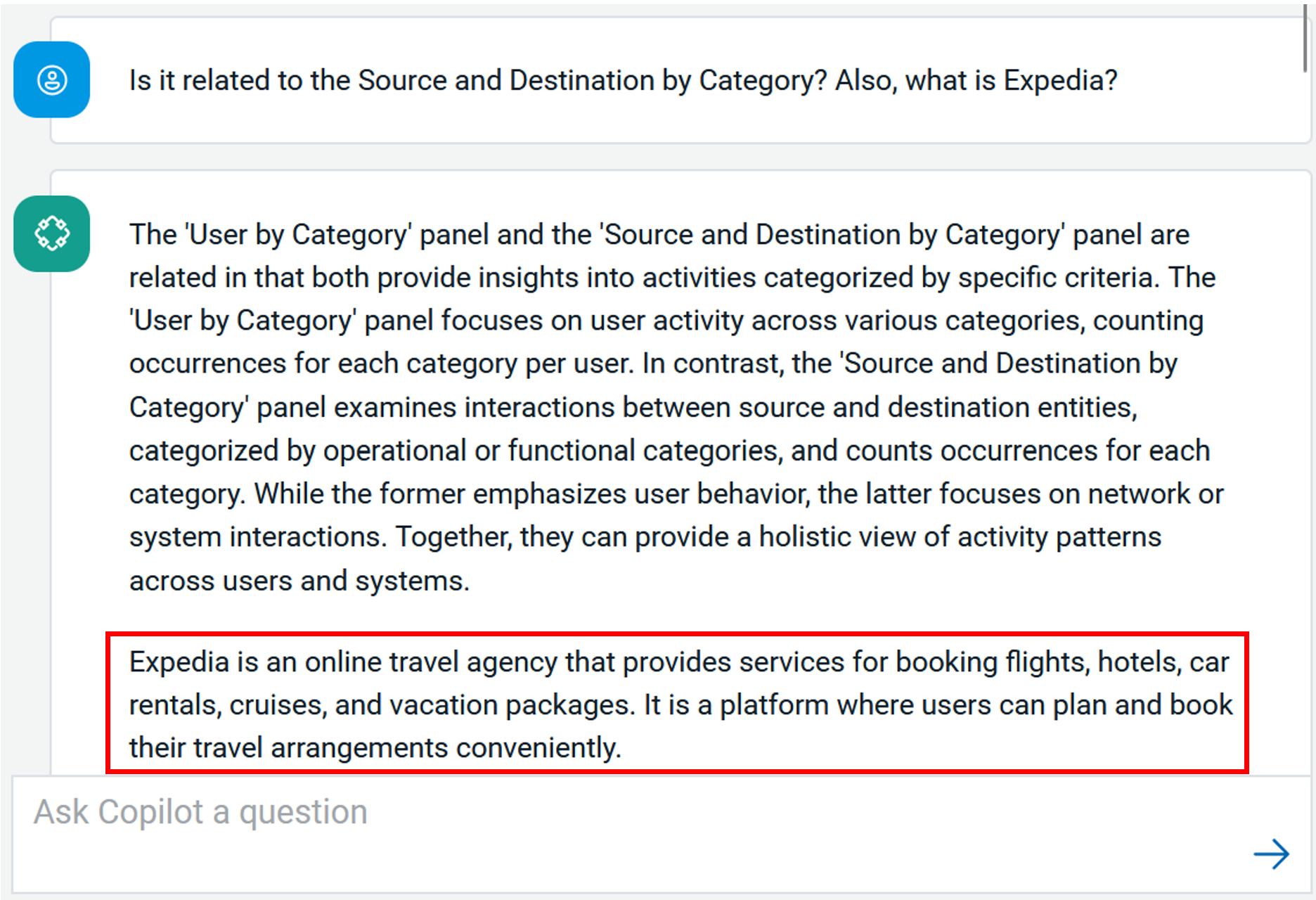
Using Copilot in Dashboards
Note: A dashboard can contain only one Copilot widget.
Within your dashboard, add the Copilot widget as a panel in the dashboard.
(Click the image to enlarge it.)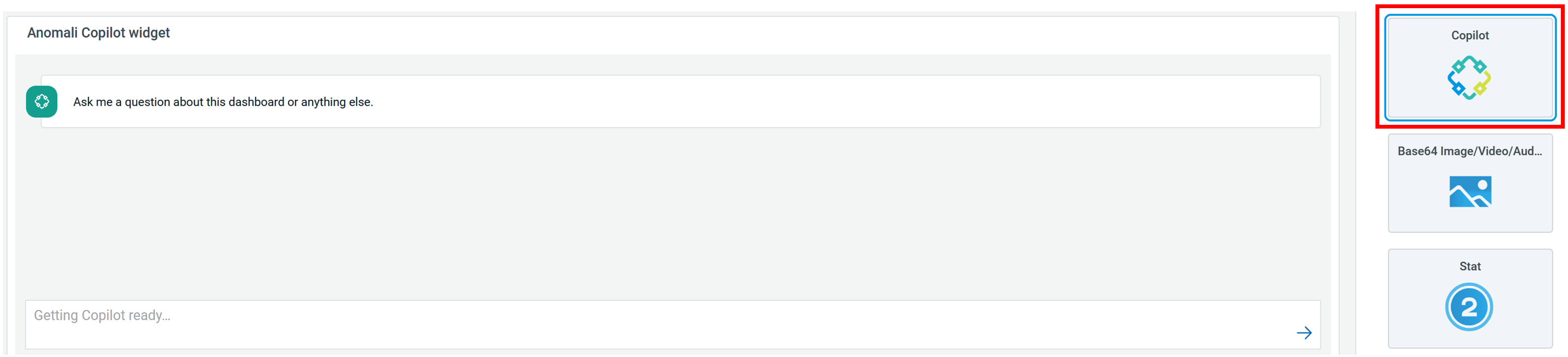
Use the options in the Panel tab to customize the options described in the following table.
| Setting | Description | |
|---|---|---|
| Settings | Panel title | Titles appear at the top of a panel. |
| Description | Descriptions appear as tooltips. Markdown and links are supported. | |
| Transparent | Display panel without a background. | |
| Show Description | Toggle whether to show the description below the panel title. |