Creating a Report Template
On the Template Management tab of the Security Reporting page you can create custom report templates that all users within your organization can use for creating reports. The process involves defining basic details like the template name and description, optionally adding branding such as a logo, and choosing how to build the content—either by creating sections manually or by uploading a file for automatic extraction. Once created, the template is saved and made available for using in the report creation process. To learn how templates are used for report creation, see Creating a Report.
To create a report template:
-
Navigate to ThreatStream Next Gen > Investigations & Analysis > Reporting.
-
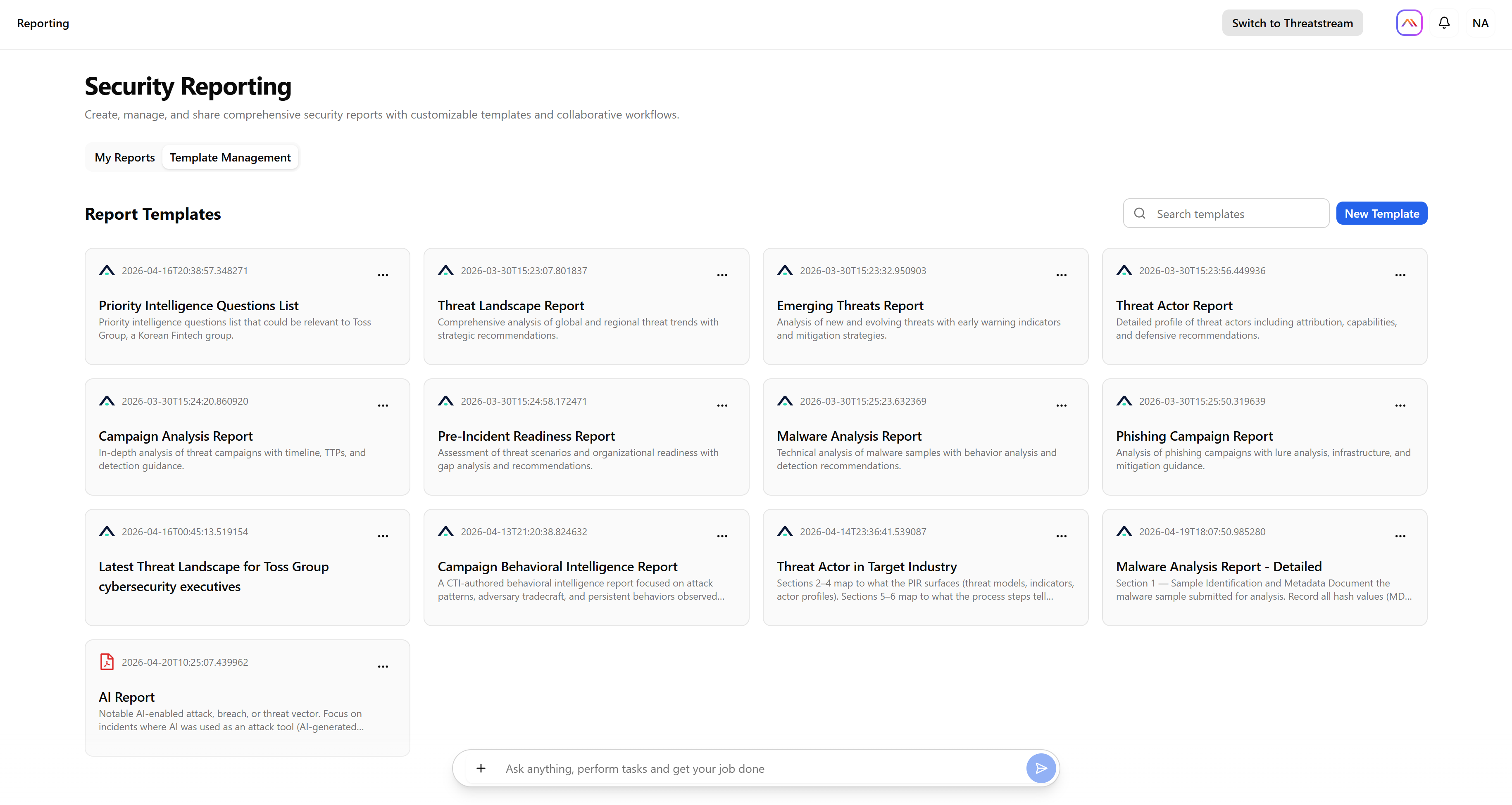
Click the Template Management tab.
-
Click New Template. The Create Template dialog box opens.
-
Enter a unique template name and description.
-
(Optional) Upload a logo. The supported file types are SVG, PNG, and JPG. The logo file size should not exceed 1 MB.
-
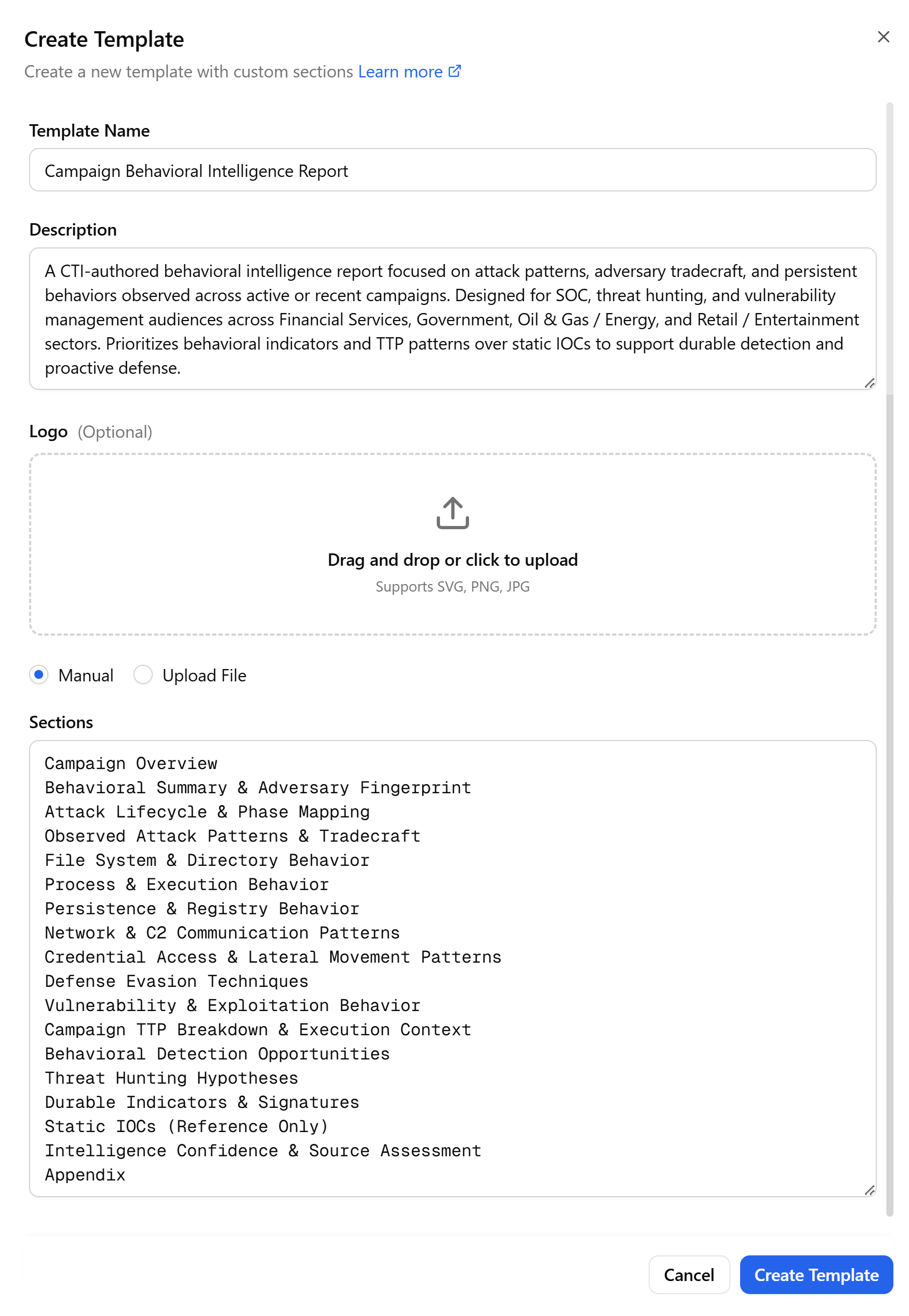
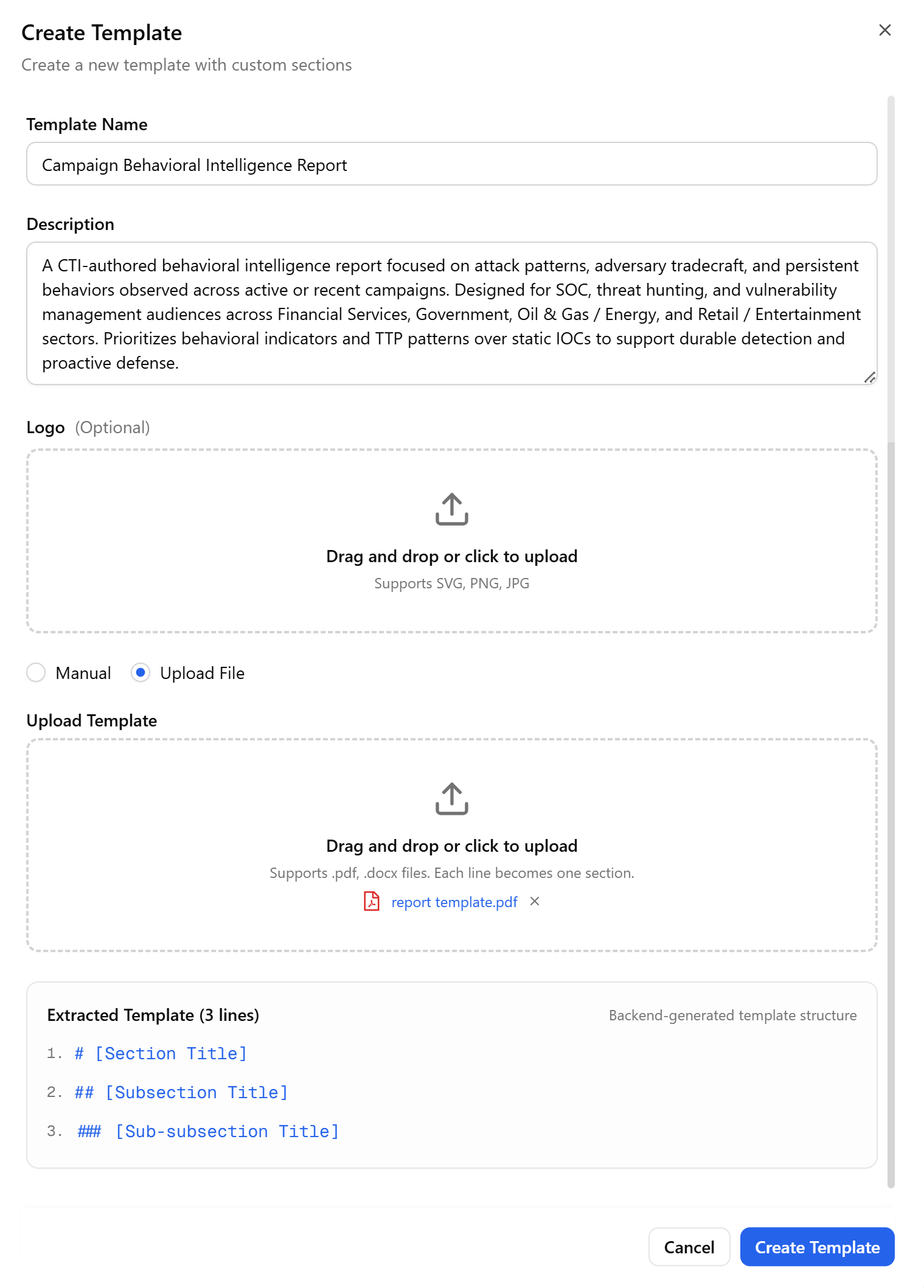
Provide template section names, which will define report headings aimed at helping report authors understand what information needs to be included in the report.
Use one of the following options to add headings to the template.-
Manual—if you want to enter sections (headings) manually.
-
Upload File—if you want to add sections (headings) by uploading a PDF or DOCX file. Anomali will extract the required information for you.
-
-
Click Create Template.
The template is created and added to the list of report templates on the Template Management tab.
Users of your organization can now use it for creating reports.