ServiceNow CMDB
To sync ServiceNow CMDB machine and application assets with the Anomali Agentic SOC Operations for comprehensive IT asset risk assessment, you must first configure the ServiceNow CMDB integration on the Integrations Marketplace page. For details on asset management within the Anomali Agentic SOC Operations, see Assets.
Before You Begin
Before activating the ServiceNow integration, you must create a dedicated service account and assign the following roles to it:
-
itil(orcmdb_readat minimum) -
rest_api_explorer(optional)
For details, see Create a Service Account and Assign Roles.
Configuring the ServiceNow CMDB Integration
To configure the ServiceNow CMDB integration:
-
Navigate to ThreatStream Next Gen > Integrations Marketplace > Entity Sources.
-
Click the three-dot vertical menu on the ServiceNow CMDB tile and then click Configure.
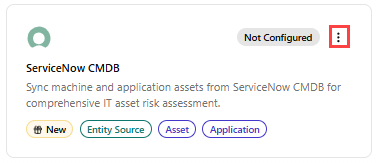
Alternatively, click the ServiceNow CMDB tile and then click Connect. -
On the Configure ServiceNow CMDB page that opens, enter the following details:
Field Name Description Name Name of the integration. Description (Optional) Description for the integration. Credentials Instance URL ServiceNow instance URL. Password ServiceNow password. Username ServiceNow username. Sync Configuration CMDB Tables CI class tables to import. Available CMDB tables and their fields are fetched dynamically after a successful connection test.
Default table:
cmdb_ci_serverOther common tables include:
-
cmdb_ci_server -
cmdb_ci_computer -
cmdb_ci_hardware -
cmdb_ci_vm
Sync Settings Sync Frequency Interval for incremental syncs. Default: Hourly. Run full sync on connect When enabled, all existing ServiceNow records are imported on first connection. The setting is enabled by default. -
-
Click Create.
The ServiceNow CMDB integration is activated. Confirm that the integration status shows Active and health shows Healthy.
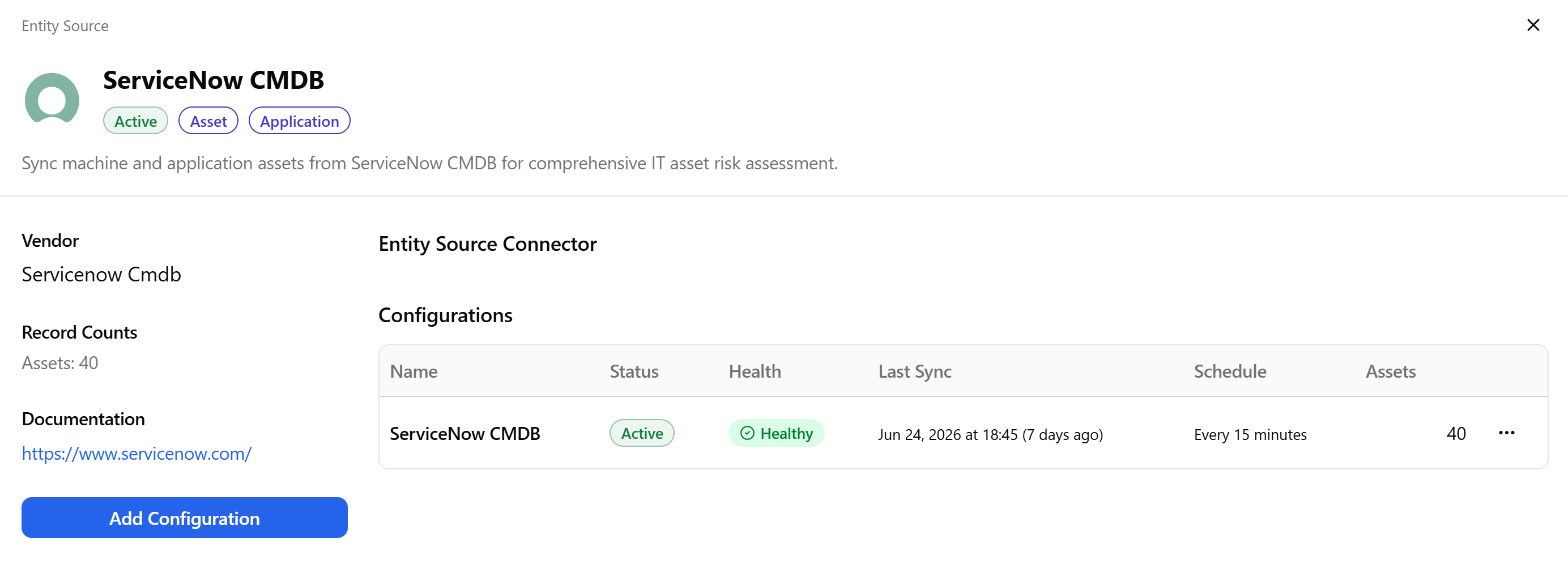
On the integration details page, you can view the integration status, health, the date and time of the last synchronization with the source, the synchronization schedule, and the number of assets discovered in the configuration. From this page, you can also force a synchronization, edit, deactivate, or delete the integration configuration. For details, see Managing Integrations.