Rapid7 InsightVM
To import Rapid7 InsightVM asset and vulnerability data to the Anomali Agentic SOC Operations for asset risk enrichment and vulnerability correlation, you must first configure the Rapid7 InsightVM integration on the Integrations Marketplace page. For details on asset management within the Anomali Agentic SOC Operations, see Assets.
Before You Begin
To configure the Rapid7 InsightVM integration, you need to spicify your Rapid7 InsightVM API Key and data storage region.
You can obtain an API Key from your account on the Rapid7 command platform. See Manage Platform API Keys for more details.
Your InsightVM data storage region is displayed in the upper-right corner on the Insight Platform Home page of the Rapid7 command platform.
Required user permissions
The Rapid7 InsightVM user must have the Platform Administrator role, or a role with View Site Asset Data and View Group Asset Data permissions within InsightVM.
Configuring the Rapid7 Insight VM Integration
To configure the Rapid7 InsightVM integration:
-
Navigate to ThreatStream Next Gen > Integrations Marketplace > Entity Sources.
-
Click the three-dot vertical menu on the Rapid7 InsightVM tile and then click Configure.
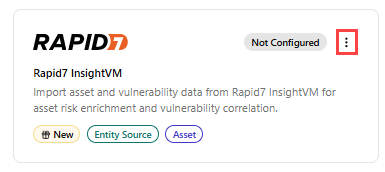
Alternatively, click the Rapid7 InsightVM tile and then click Connect. -
On the Configure Rapid7 InsightVM page that opens, enter the following details:
Field Name Description Name Name of the integration. Description (Optional) Description for the integration. Credentials Access Key Rapid7 InsightVM API key. Region Rapid7 InsightVM data storage region.
Possible values include:
United States - 1
United States - 2
United States - 3
Europe
Canada
Australia
Japan
Sync Settings Sync Frequency Interval for incremental syncs. Default: Hourly. Run full sync on connect When enabled, all existing Rapid7 InsightVM records are imported on first connection. The setting is enabled by default. -
Click Create.
The Rapid7 InsightVM integration is activated. Confirm that the integration status shows Active and health shows Healthy.
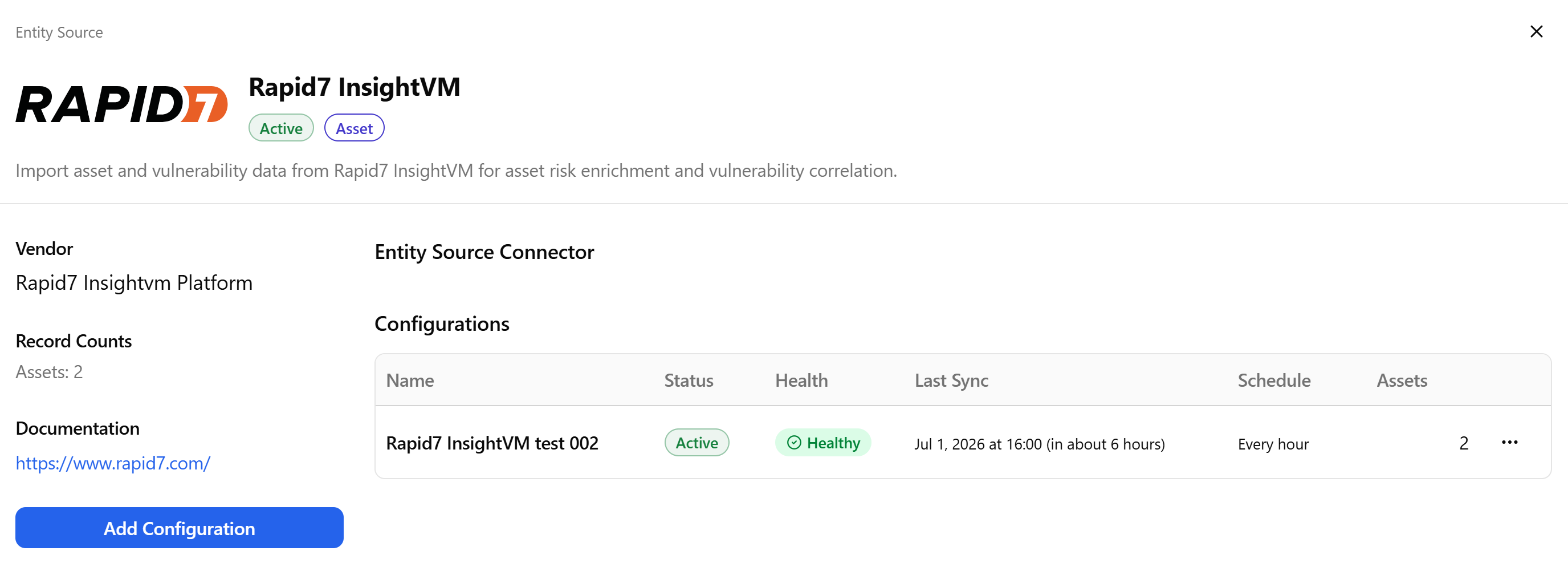
On the integration details page, you can view the integration status, health, the date and time of the last synchronization with the source, the synchronization schedule, and the number of assets discovered in the configuration. From this page, you can also force a synchronization, edit, deactivate, or delete the integration configuration. For details, see Managing Integrations.