Jira Assets (Insight)
To sync assets from Jira Assets (formerly known as Insight) with the Anomali Agentic SOC Operations for IT asset inventory and risk assessment, you must first configure the Jira Assets integration on the Integrations Marketplace page. For details on asset management within the Anomali Agentic SOC Operations, see Assets.
Before You Begin
Before activating the Jira Assets integration, ensure the following prerequisites are in place:
-
Atlassian API Token
An Atlassian API token is required to authenticate the integration. You need to generate a token from your Atlassian account security settings and record your Atlassian site URL (for example,
https://yoursite.atlassian.net). The token is displayed only once at creation, so copy and store it securely.For step-by-step instructions, refer to Manage API tokens for your Atlassian account.
-
API Token Type and Required Scopes
The integration supports both classic (unscoped) and fine-grained (scoped) API tokens. Classic tokens work without additional scope configuration. However, Atlassian is deprecating them, so scoped tokens are recommended.
If you use a scoped token, the following OAuth scopes must be enabled:
Scope Purpose read:servicedesk-requestWorkspace discovery. Required for scoped tokens to locate the workspace ID. read:cmdb-attribute:jiraRead object type attributes. read:cmdb-object:jiraRead and query objects via AQL. read:cmdb-schema:jiraList object schemas. read:cmdb-type:jiraList object types within a schema. For instructions on creating a scoped token and configuring OAuth scopes, refer to Create and manage API tokens with scopes in Manage API tokens for your Atlassian account.
-
Required Permissions
The Atlassian user account (service account) associated with the API token must have access to Jira Service Management Assets, with at minimum the Assets Viewers role in the target workspace.
For information on managing assets roles and permissions, refer to Configuring roles and permissions.
Configuring the Jira Assets Integration
To configure the Jira Assets integration:
-
Navigate to ThreatStream Next Gen > Integrations Marketplace > Entity Sources.
-
Click the three-dot vertical menu on the Jira Assets tile and then click Configure.
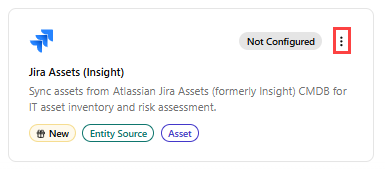
Alternatively, click the Jira Assets tile and then click Connect. -
On the Configure Jira Assets page that opens, enter the following details:
Field Name Description Name Name of the integration. Description (Optional) Description for the integration. Credentials API Token Atlassian API token (classic or scoped). Email Atlassian service account email. Atlassian Site URL Atlassian Cloud site URL. Sync Configuration Object Types Select object types to sync or leave empty to sync all types.
Sync Settings Sync Frequency Interval for incremental syncs. Default: Hourly. Run full sync on connect When enabled, all existing ServiceNow records are imported on first connection. The setting is enabled by default. -
Click Create.
The Jira Assets integration is activated. Confirm that the integration status shows Active and health shows Healthy.
On the integration details page, you can view the integration status, health, the date and time of the last synchronization with the source, the synchronization schedule, and the number of assets discovered in the configuration. From this page, you can also force a synchronization, edit, deactivate, or delete the integration configuration. For details, see Managing Integrations.