Managing Cases
You can apply the following actions to cases created within your organization:
Note: Only case creators, assignees, and Organization Administrators can edit and delete cases.
Editing Cases
You can edit cases in one of the following ways:
Note: Only case creators, assignees, and Organization Administrators can edit cases.
Editing Cases From the Case Management Page
To edit a case from the Case Management page:
-
Navigate to ThreatStream Next Gen > Investigations & Analysis > Case Management.
-
Locate the case you want to edit.
-
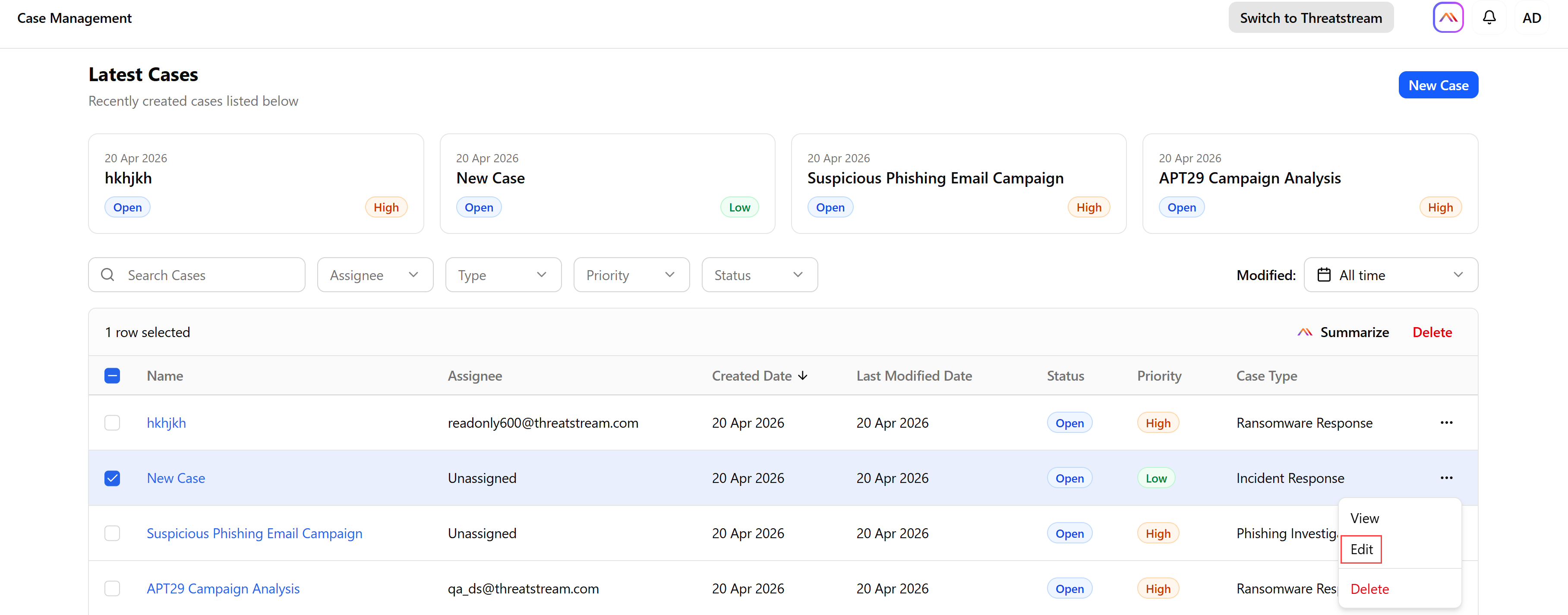
Click the more options menu (...) and click Edit. The case opens in the editing mode.
(Click the image to enlarge it.)
-
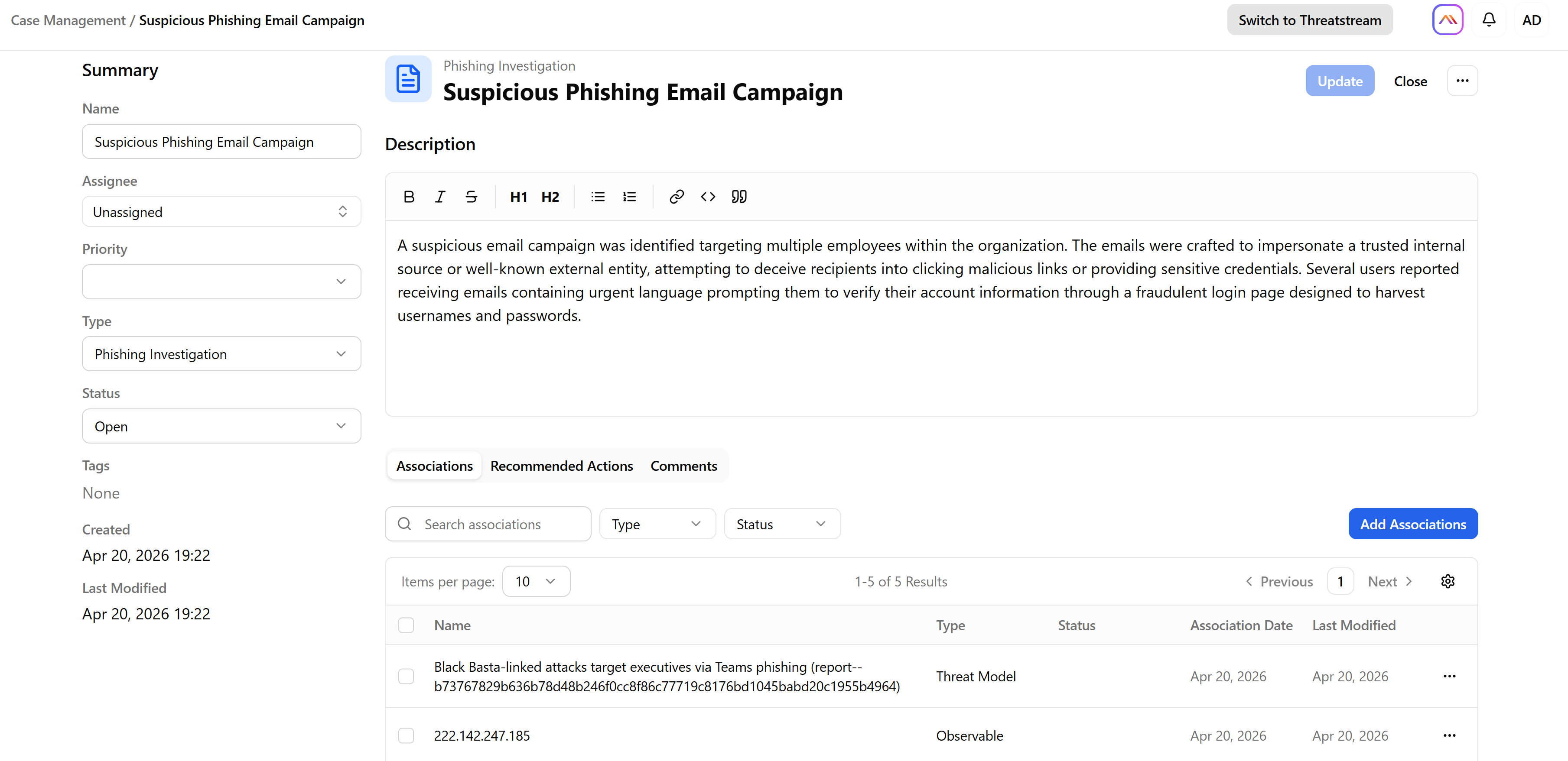
Make the required changes. You can modify case name, assignee, case priority, type, status, and description. Furthermore, you can add or delete case associations, add, modify, or delete recommended actions, and add comments to the case.
For details on how to add associations, see Adding Associations to Cases.
For details on how to add actions, see Adding Actions to Cases.
For details on how to edit, copy or delete actions, see Managing Actions.
(Click the image to enlarge it.)
-
When done editing, click Update.
The case is updated successfully.
Editing Cases From the Case Details Pages
To edit a case from the case details page:
-
Navigate to ThreatStream Next Gen > Investigations & Analysis > Case Management.
-
Locate and click the case you want to edit. The case details page opens.
-
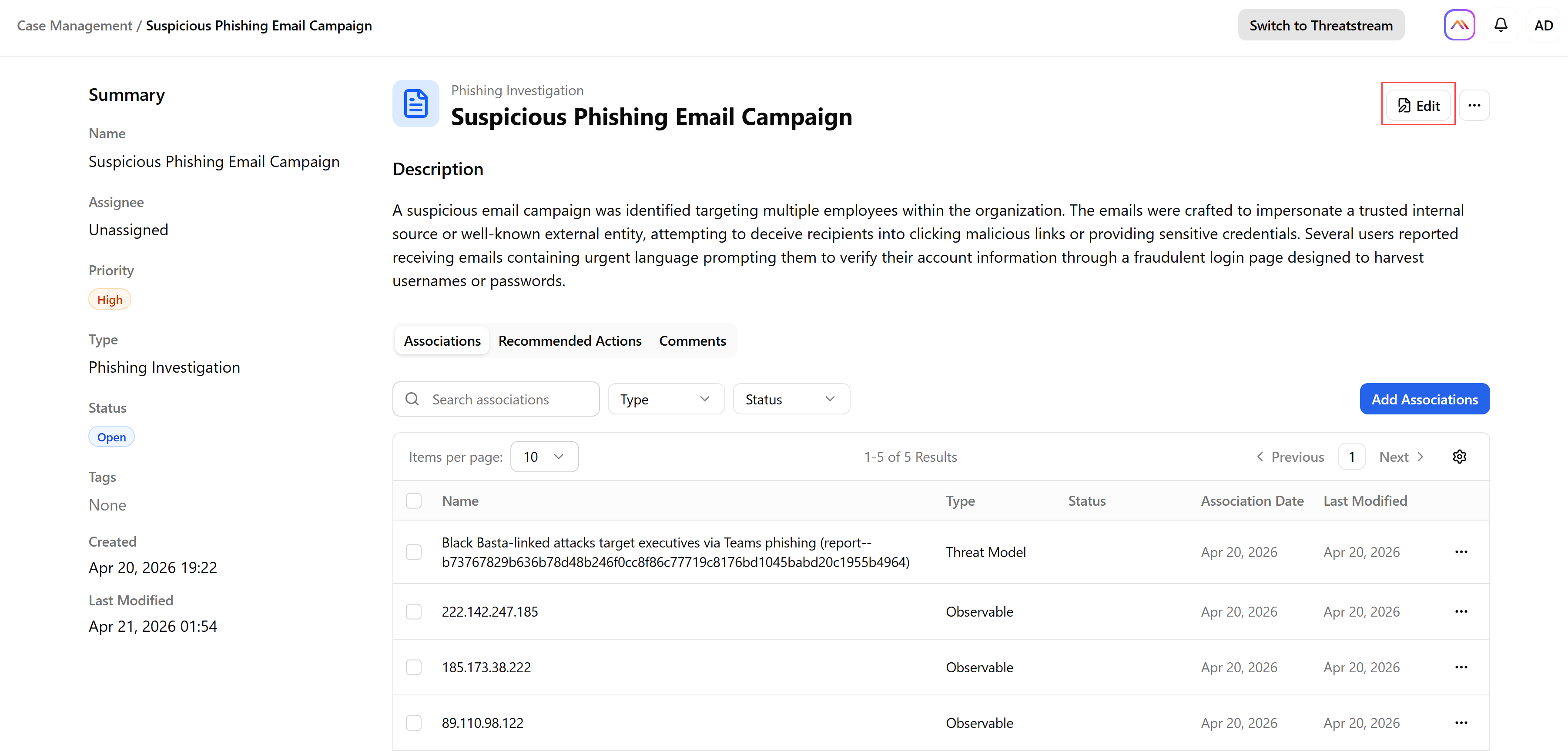
Click Edit. The case opens in the editing mode.
(Click the image to enlarge it.)
-
Make the required changes. You can modify case name, assignee, case priority, type, status, and description. Furthermore, you can add or delete case associations, add, modify, or delete recommended actions, and add comments to the case.
For details on how to add associations, see Adding Associations to Cases.
For details on how to add actions, see Adding Actions to Cases.
For details on how to edit, copy or delete actions, see Managing Actions.
(Click the image to enlarge it.)
-
When done editing, click Update.
The case is updated successfully.
Sharing Cases (Coming Soon)
You can share a link to a case with other users of your organization.
To share a case:
-
Navigate to ThreatStream Next Gen > Investigations & Analysis > Case Management.
-
Locate and click the case you want to edit. The case details page opens.
-
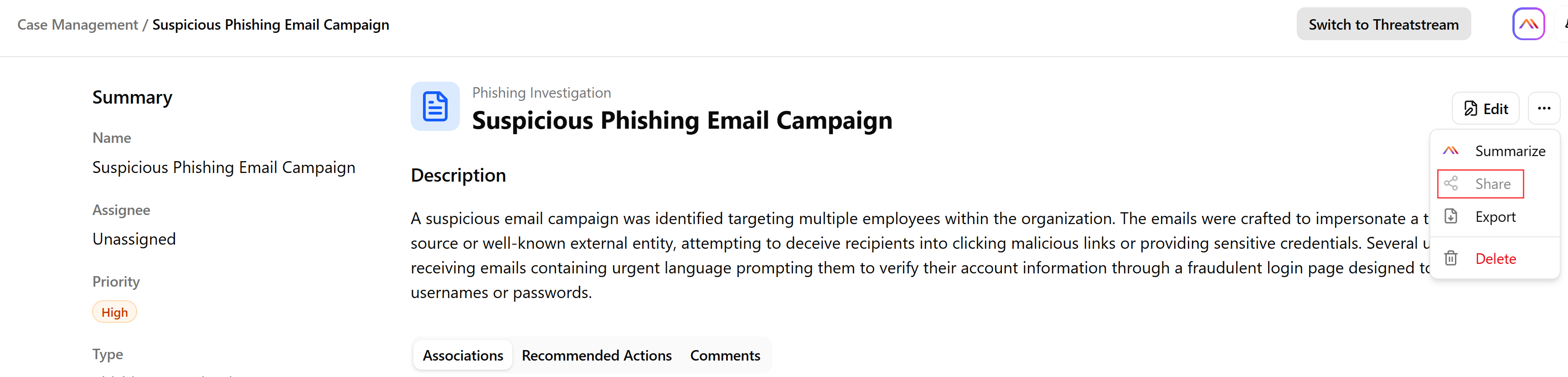
Click the more options menu (...) and select Share. The shareable link to the case is copied to clipboard.
Summarizing Cases
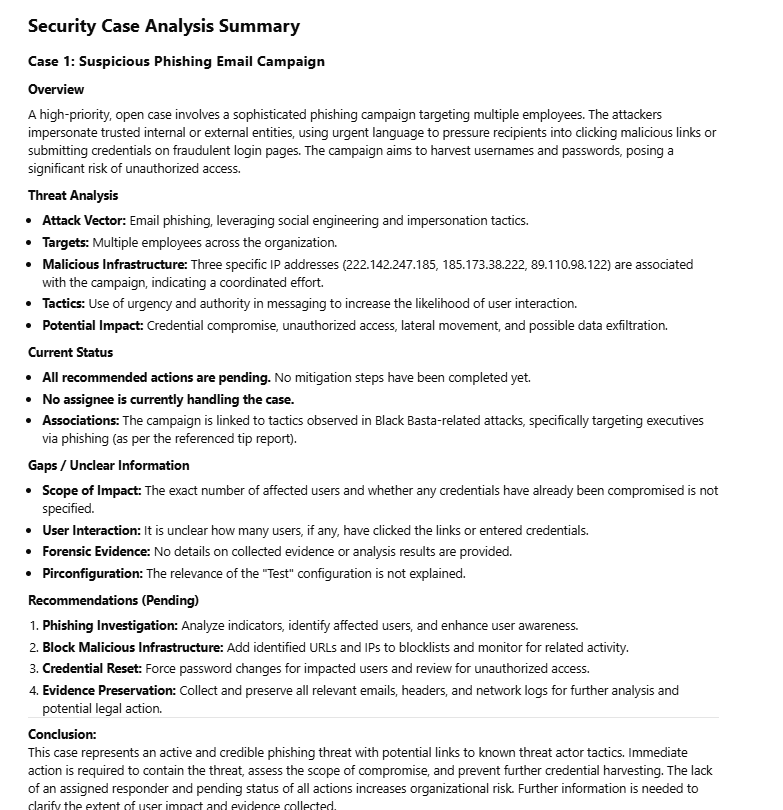
You can generate a short summary of every case created within your organization. A generated summary includes a high-level overview of the case, such as its status, priority, and assignee, along with a concise analysis of the threat or incident. It highlights key observations, recommended actions, and relevant associations. It also calls out any gaps or unclear information and concludes with an overall assessment of risk and next steps.
You can generate a case summary in one of the following ways:
Summarizing Cases From the Case Management Page
To summarize a case from the Case Management page:
-
Navigate to ThreatStream Next Gen > Investigations & Analysis > Case Management.
-
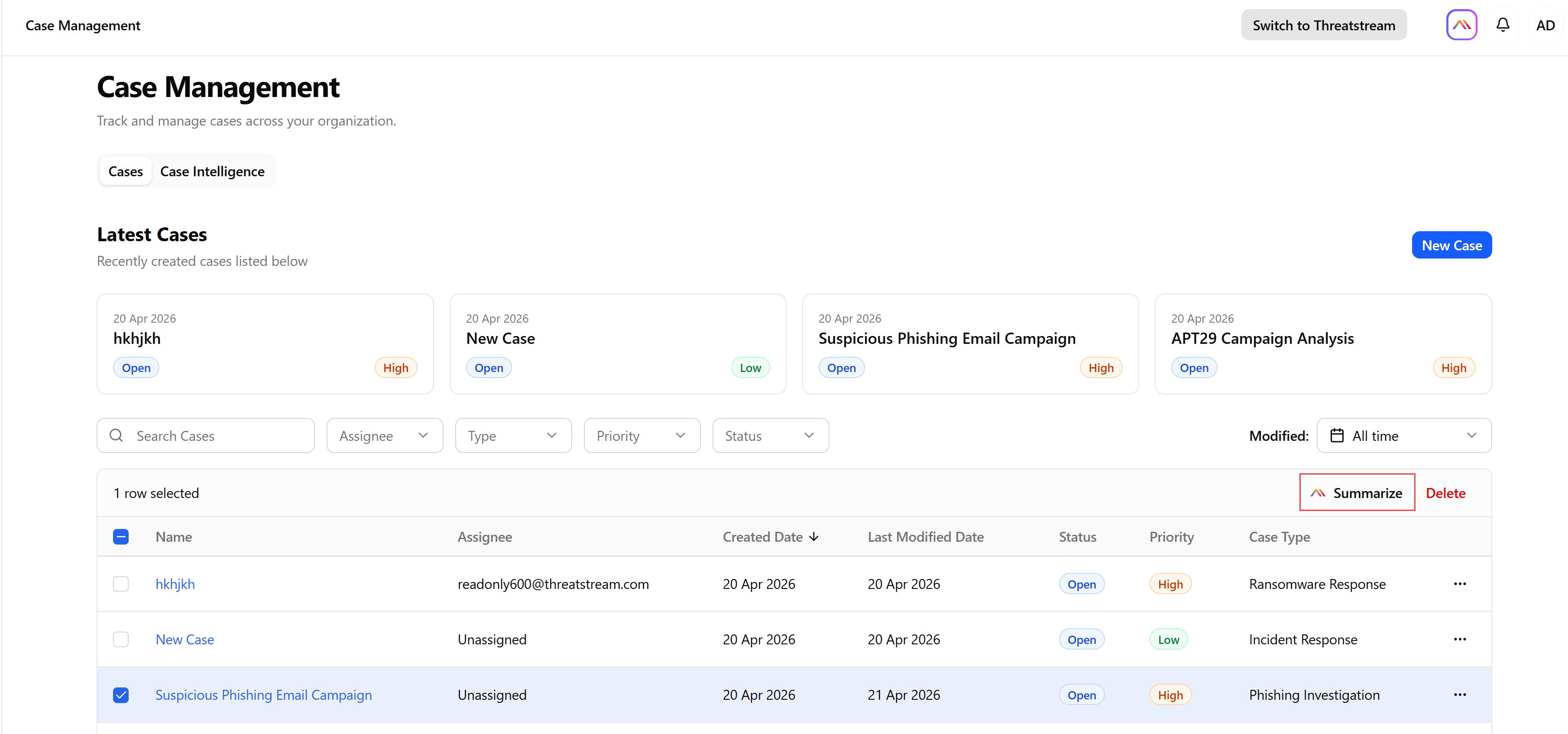
Locate and select the case you want to summarize.
-
Click Summarize.
The Security Case Analysis Summary is created.
(Click the image to enlarge it.)
Summarizing Cases From the Case Details Pages
To summarize a case from a case details page:
-
Navigate to ThreatStream Next Gen > Investigations & Analysis > Case Management.
-
Locate and click the case you want to summarize.
-
Click Summarize.
The Security Case Analysis Summary is created.
-
Below is an example of the case summary generated by Anomali AI.
(Click the image to enlarge it.)
Exporting Cases
You can export cases in PDF format.
- To export a case:
-
Navigate to ThreatStream Next Gen > Investigations & Analysis > Case Management.
-
Locate and click the case you want to export.
-
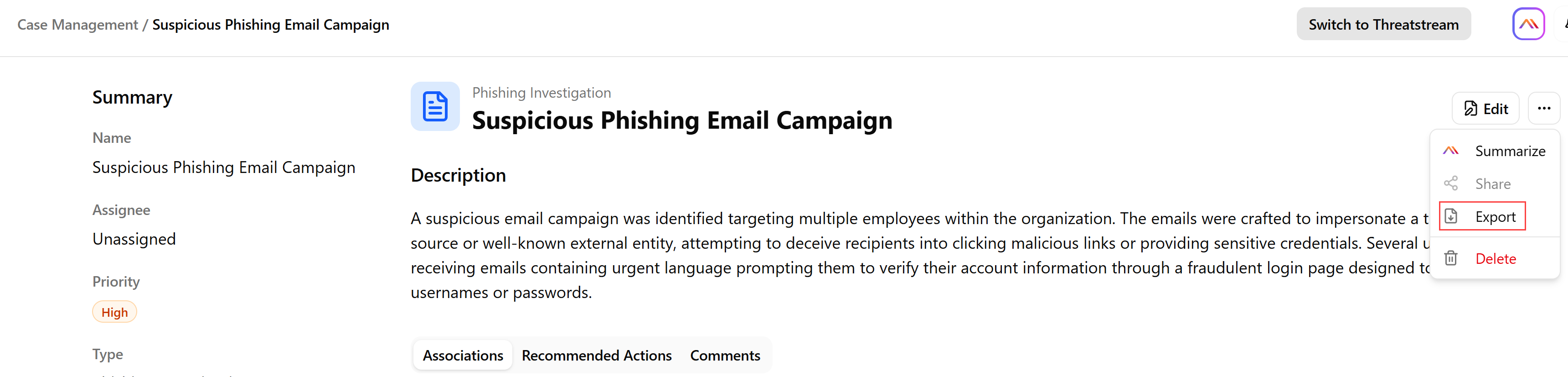
On the case details page, click the more options menu (...) and select Export. The downloading process starts immediately.
-
Deleting Cases
Organization Administrators, case creators and case assignees can delete cases.
Cases can be deleted in the following ways:
Deleting Cases From the Case Management Page
To delete a case from the Case Management page:
-
Navigate to ThreatStream Next Gen > Investigations & Analysis > Case Management.
-
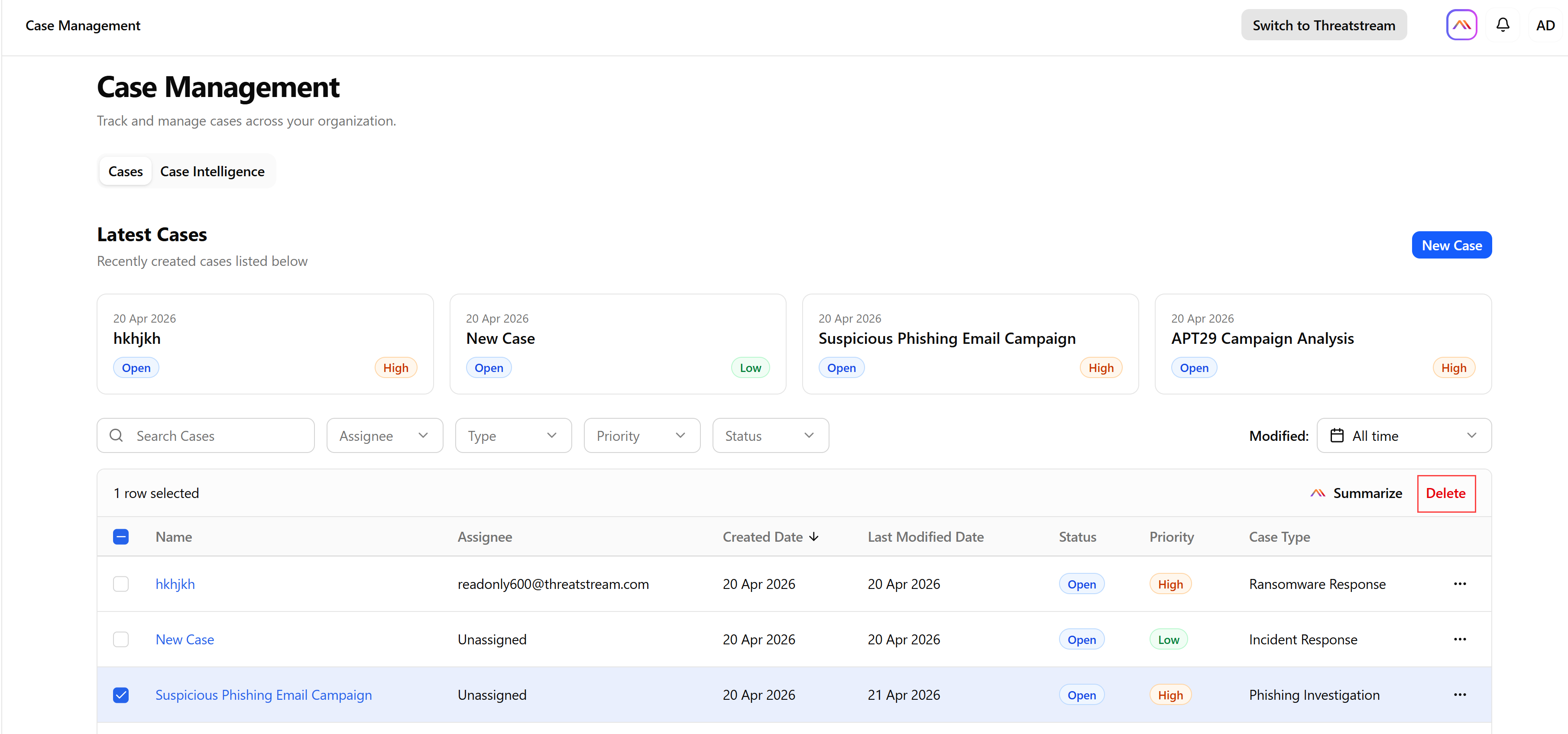
Locate and select the case you want to delete.
-
Click Delete.
(Click the image to enlarge it.)
Alternatively, click the more options menu (...) of the case you want to delete and click Delete.
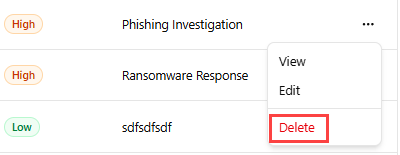
The case is successfully deleted.
Deleting Cases From Case Details Pages
To delete a case from the case details page:
-
Navigate to ThreatStream Next Gen > Investigations & Analysis > Case Management.
-
Locate the case you want to delete.
-
On the case details page, click the more options menu (...) and click Delete.
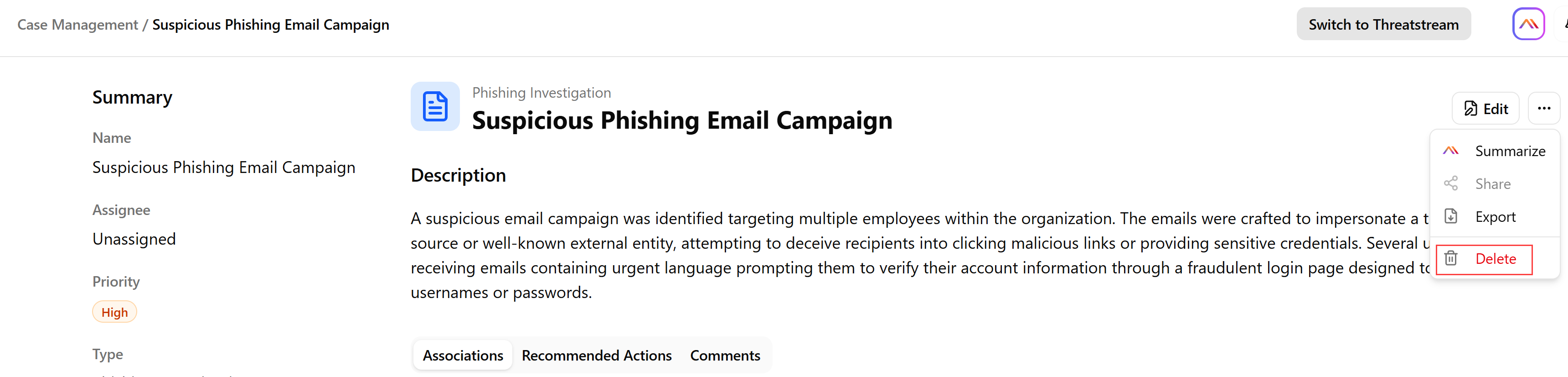
The case is successfully deleted.