Viewing Case Details
On the Case Management page, you can click any of the listed cases to view its details.
On case details pages, you can view a case summary, description, priority, type, status, assignee, assigned tags, associated PIRs, observables, threat models, recommended actions, and comments from users in your organization. On a case details page, you can also add and manage case associations, generate or manually add recommended actions, edit case information, and take key actions such as summarizing, sharing, exporting, or deleting a case.
Below is an example of the Suspicious Phishing Email Campaign case.
(Click the image to enlarge it.)
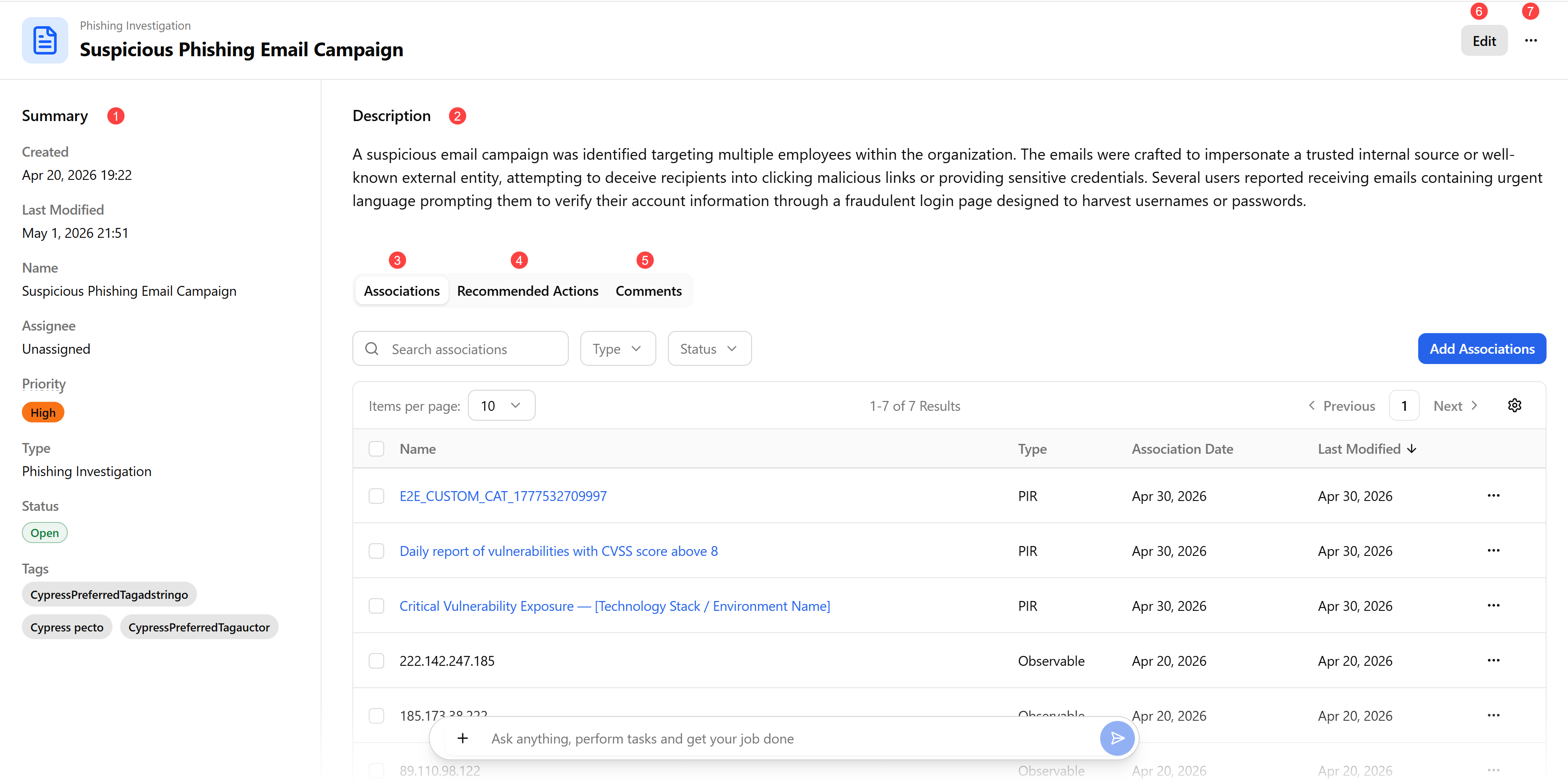
 Summary: Every case summary includes the following details:
| Attribute | Description |
|---|---|
| Created |
Timestamp of when the case was created. |
| Last Modified |
Timestamp of when the case was last modified. |
| Name | Name of the case. |
| Assignee | User to whom the case is assigned for analysis. |
| Priority |
Priority of the case. Possible values include Critical, High, Medium, or Low. |
| Type |
Type associated with the case. |
| Status |
Case status. Possible values include: Open—The case has been created but work hasn’t started yet. It’s waiting to be picked up or assigned. In Progress—The case is actively being investigated or worked on by an analyst. Closed—The case has been completed. All required actions or investigations are finished, and no further work is expected. |
| Tags |
Displays the tags assigned to this case. |
 Description: Description of the case.
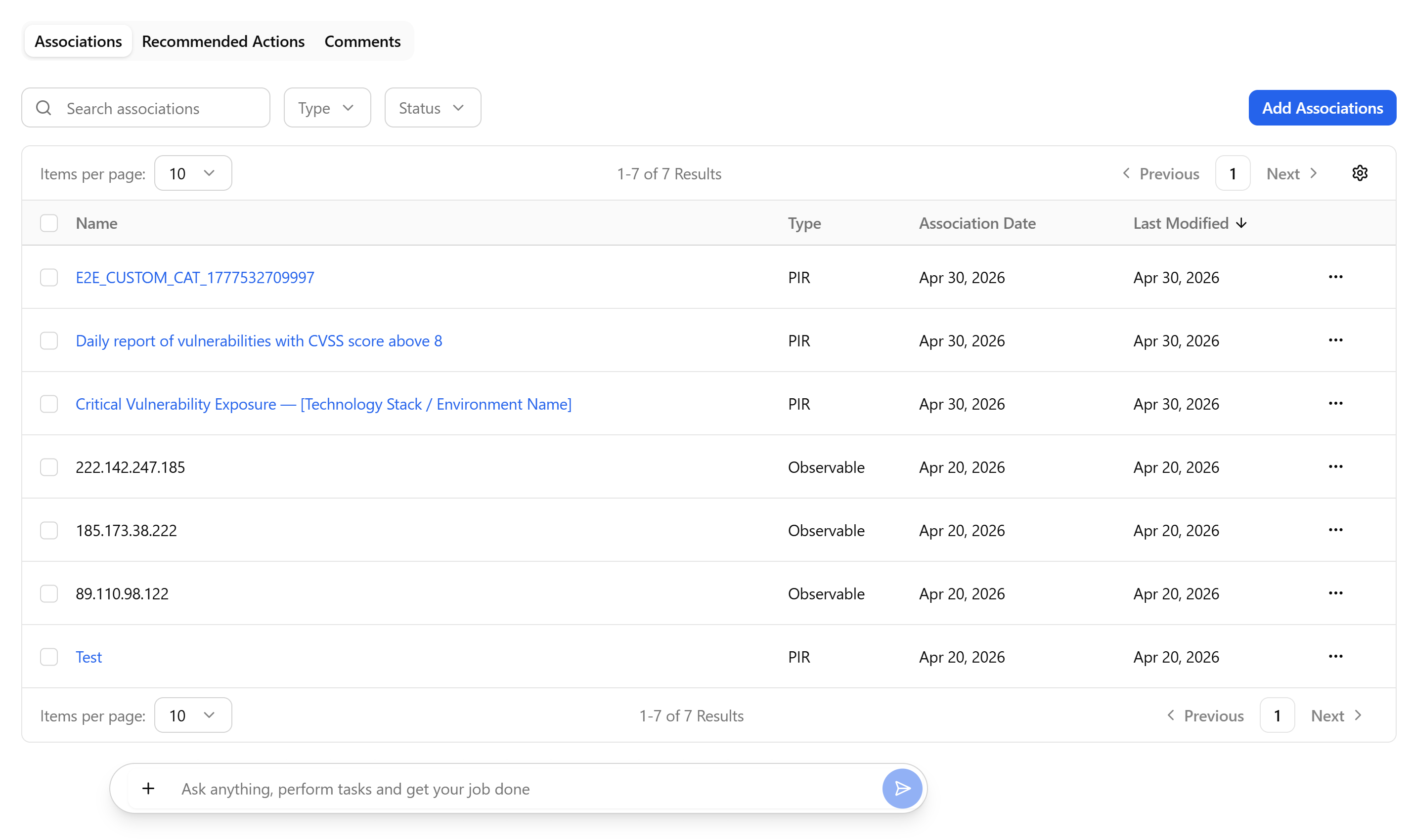
 Associations: View all intelligence and records associated with this case and add more associations. This may include PIRs, cases, observables, threat models, and investigations that are present in your ThreatStream environment. Use the search functionality and filtering options to locate the associations you need.
To learn how to add associations to a case, see Adding Associations to Cases.
To learn how to summarize, share, and delete associations, see Managing Case Associations.
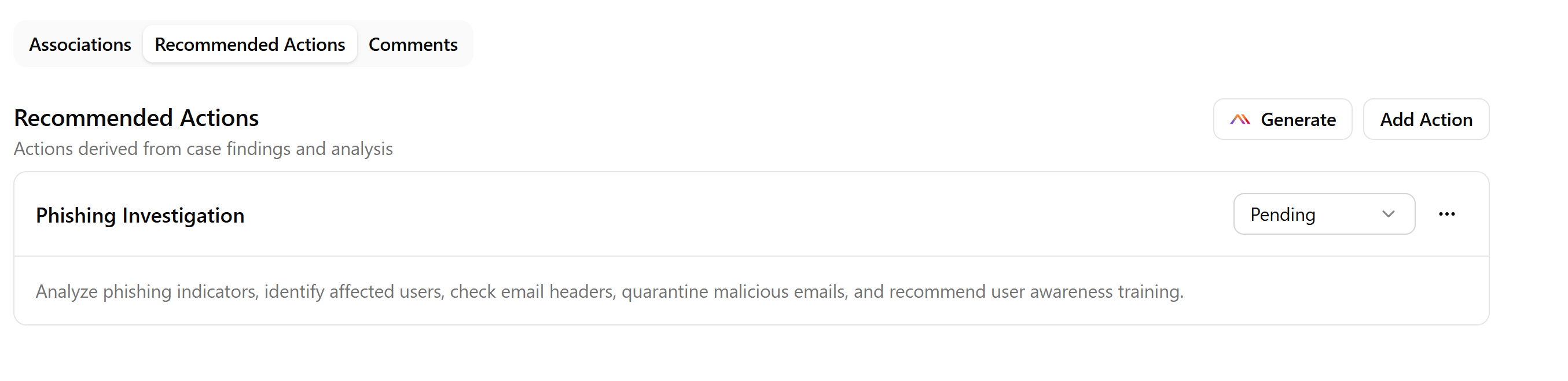
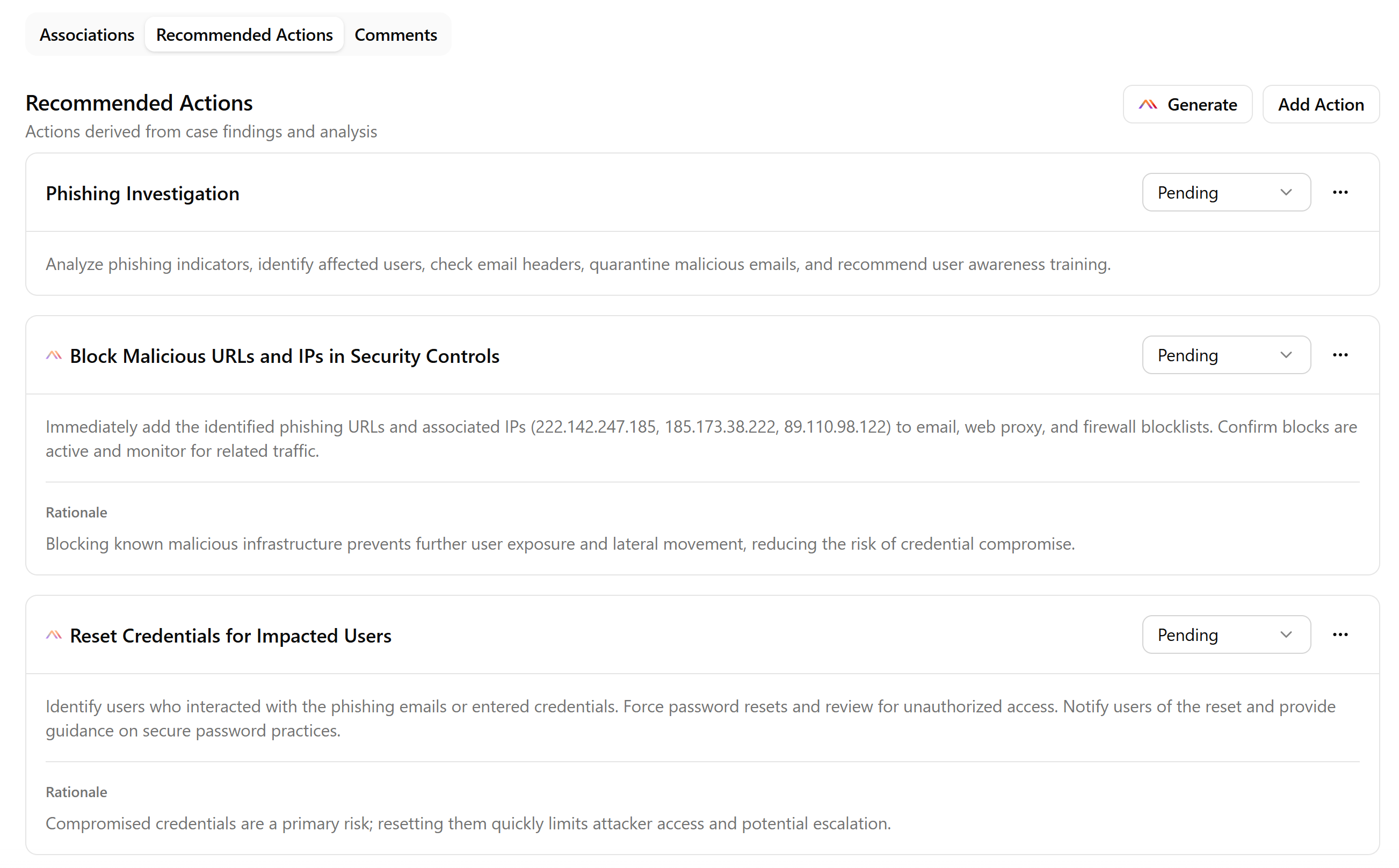
 Recommended Actions: View actions recommended by Anomali-AI based on the case type and add new actions. To learn how to add an action, see Adding Actions to Cases.
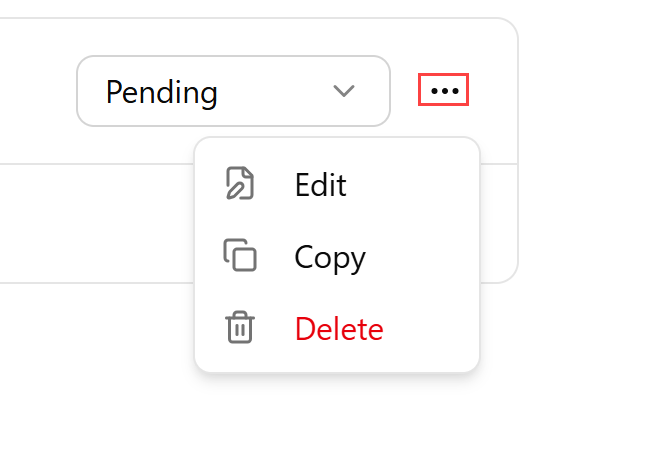
If necessary to edit, copy or delete an action, click the more options menu (...) and select the corresponding menu item.
 Comments: View and add comments related to the case. Note that you can edit or delete only the comments you have added.
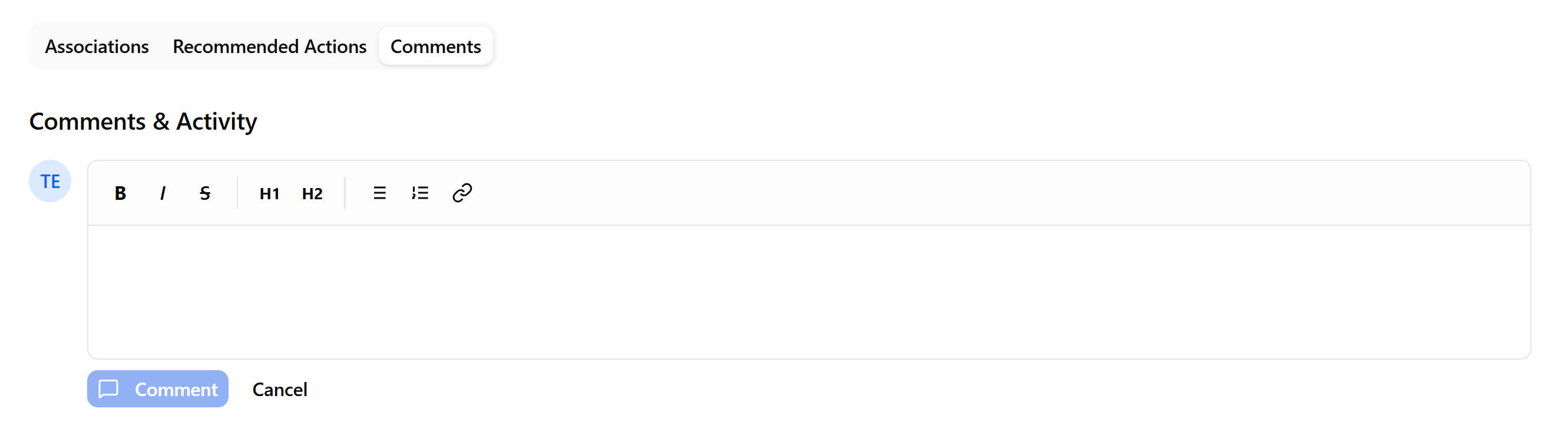
 Edit: Click Edit to modify the case. You can modify case name, assignee, case priority, type, status, and description. Furthermore, you can add or delete case associations, add, modify, or delete recommended actions, and add comments to the case.
Click Update when done.
 Case actions. You can take the following actions from the case details pages.
-
Summarize: Click Summarize to generate a summary of the case.
-
Share: Click Share to copy the link to the case to clipboard. For details, see Sharing Cases (Coming Soon).
-
Export: Click Export to save the case details in the PDF format. For details, see Exporting Cases.
-
Delete: Click Delete if you want to delete the case. For details, see Deleting Cases.
Adding Associations to Cases
On the Associations tab of a case details page, you can link existing PIRs, cases, observables, threat models, and investigations from your ThreatStream environment to the case.
To add an association:
-
On the Associations tab of a case, click Add Associations.
-
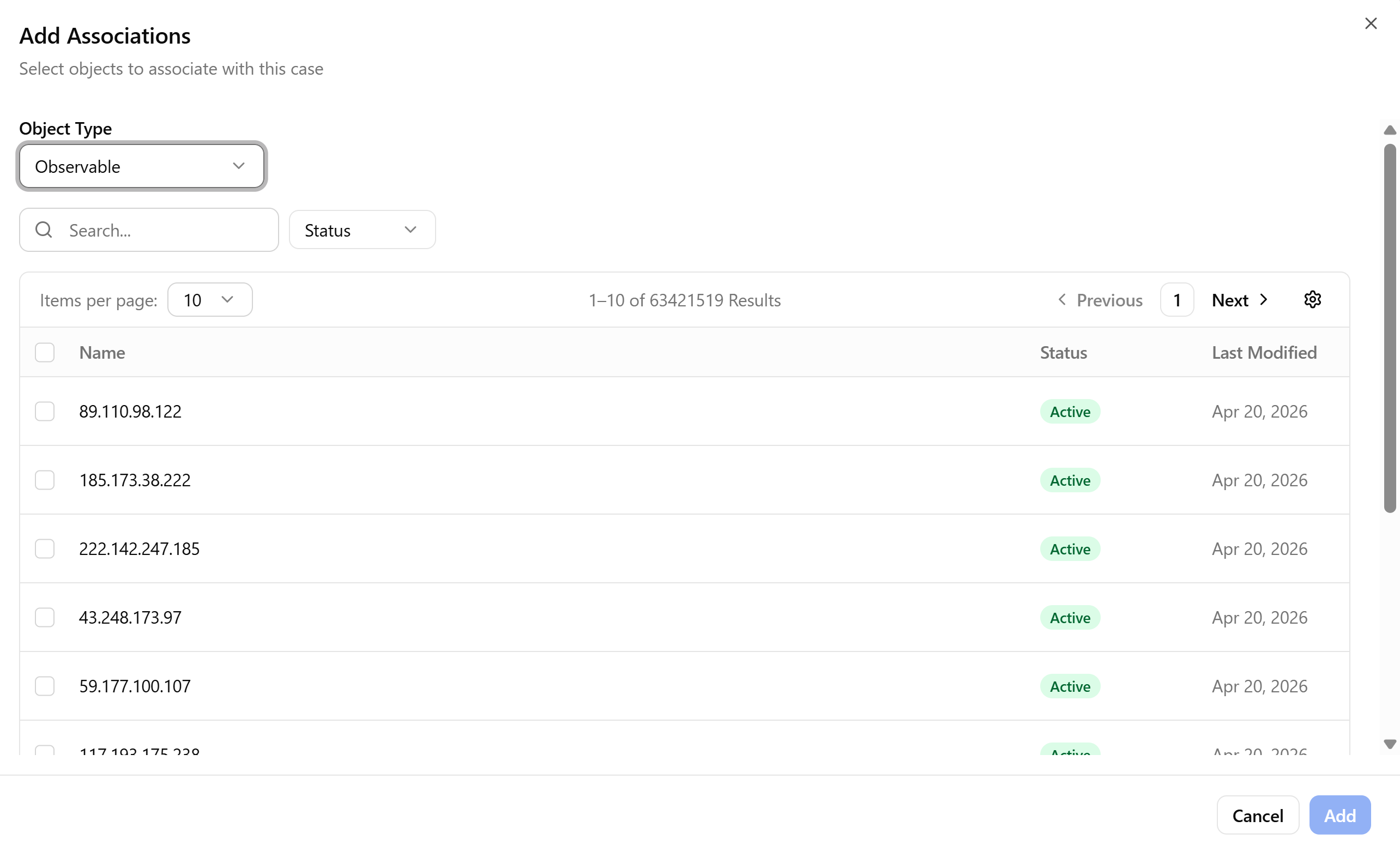
In the add Associations dialog box that opens, select an object type—PIR, Case, Observable, Threat Model, or Investigation. Use the Search functionality and the Status filter to locate the objects you need.
-
Select the objects you want to associate with the case.
-
Click Add.
The associations are added to the case.
Managing Case Associations
By selecting associations of your interest, you can apply the following actions to them by clicking the corresponding action button:
-
Summarize (applicable to PIRs only)
-
Share the link to the association
-
Delete associations
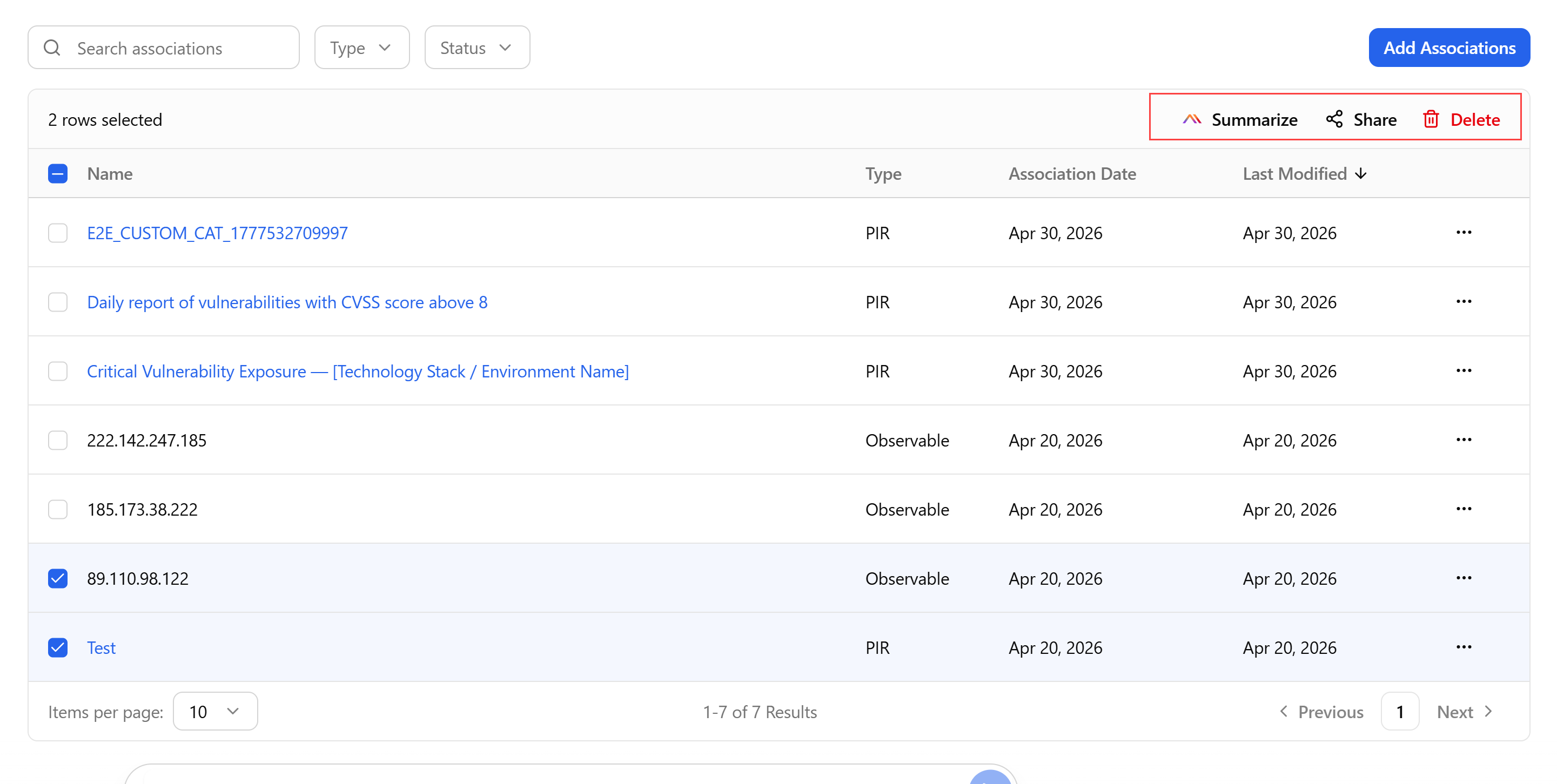
Alternatively, you can use the more actions menu (...) to view details of associations or remove them from the list of case associations.

Adding Actions to Cases
If Anomali AI-generated actions are not sufficient for a case remediation, you can manually add more actions. You can click Generate to add Anomali AI-recommended action or add them manually.
To add Anomali AI-recommended actions:
-
On the Recommended Actions tab of a case, click Generate. Anomali AI generates the list of recommended actions which include an action name, description, and rationale (optionally).
-
(Optional) Select an action status:
Pending—If the action has been created but not yet been started.
In Progress—If the action is currently being actively worked on by an assigned analyst.
Completed—If the action has been fully carried out. The expected outcome has been achieved and no further work is needed for this specific action.
Dismissed—If the action has been reviewed and determined to be unnecessary or irrelevant to the case.
-
(Optional) Using the more actions menu (...), take the following actions:
Edit—If you need to modify name, description, or rationale of an action.
Copy—If you need to copy an action to a clipboard.
Delete—If you need to delete an action.
To add an action manually:
-
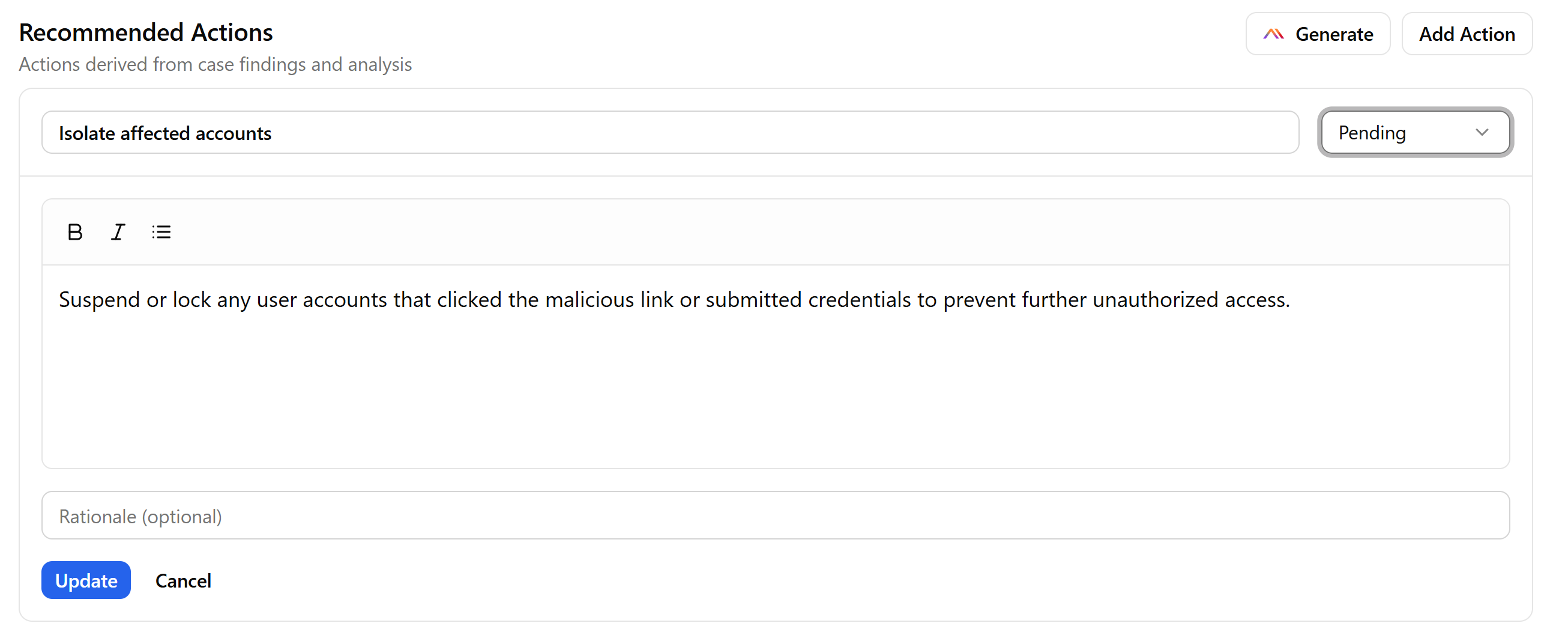
On the Recommended Actions tab of a case, click Add Action.
-
In the dialog box that opens, enter a name and description for the action.
-
(Optional) Provide a rationale for adding this action.
-
Select one of the following action statuses:
Pending—If the action has been created but not yet been started.
In Progress—If the action is currently being actively worked on by an assigned analyst.
Completed—If the action has been fully carried out. The expected outcome has been achieved and no further work is needed for this specific action.
Dismissed—IF the action has been reviewed and determined to be unnecessary or irrelevant to the case.
-
Click Update.
The action is added to the list of actions recommended for the case.