Activating VMRay
ThreatStream enables users with VMRay subscriptions to leverage VMRay for malware detonation. If you have an active VMRay integration on ThreatStream, you can leverage VMRay for malware detonation from the Sandbox screen on ThreatStream. Unlike other sandbox services, VMRay dynamically selects detonation platforms based on the submission you make and enables detonations on multiple platforms per submission.
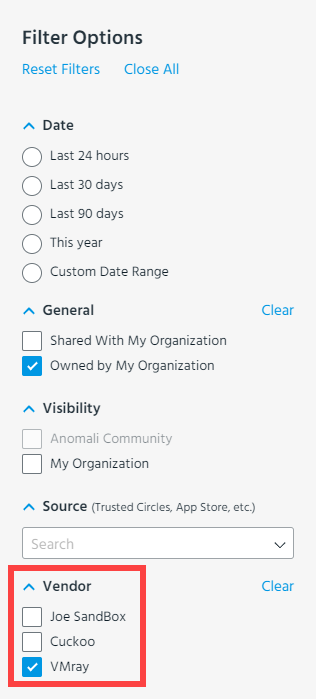
Once activated, VMRay becomes one of the available Sandbox vendors on the ThreatStream Sandbox user interface. Depending on the sandbox services to which your organization subscribes, you can choose between VMRay and other available sandbox services.
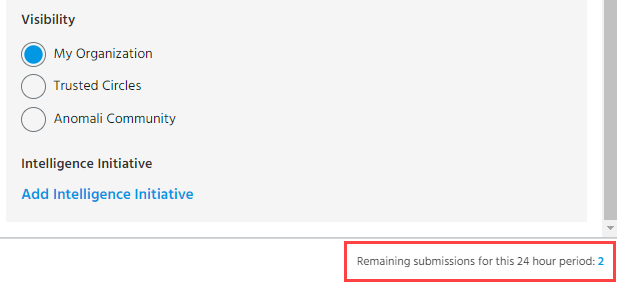
The submission quota allotted to you as a VMRay user depends on the terms of your subscription. When making VMRay submissions, your remaining quota is displayed next to Remaining submissions for this 24 hour period on the Sandbox submission window.
Note: When you detonate archive files—such as .zip, .rar, or .7z files—VMRay attempts to detonate each file contained in the archive. For VMRay premium users, each detonated file is counted towards your quota. Individual reports are returned for each detonated file. If you detonate a URL that points to an archive file, the URL is also detonated.
In order to activate the integration, you must have an active subscription with VMRay and enter your VMRay Analyzer API key on the Integrations tab within ThreatStream settings.
To activate the VMRay integration:
-
Obtain your VMRay Analyzer API Key from the VMRay platform.
-
On the VMRay platform, click Analysis Settings in the user menu.
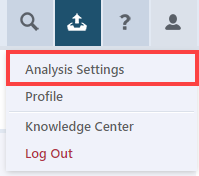
- Click API Keys.
-
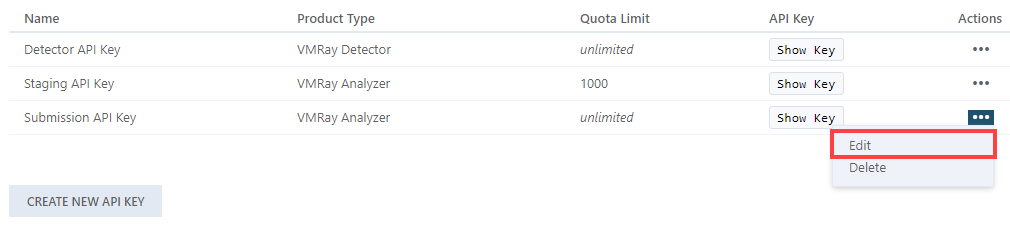
Locate the API Key which displays VMRay Analyzer in the Product Type column and click Show Key. Your API Key is displayed. You will use this API Key to activate the integration on the ThreatStream user interface.
-
-
Ensure Dynamic Analysis is configured for the API Key.
-
Click Edit in the Actions menu for the API Key you will use to activate the integration.
-
Under Advanced Configurations, locate the Max Dynamic Analyses Per Sample setting. Ensure that System default is selected.

-
Click Save.
You are now ready to activate the integration.
-
-
In the bottom-left corner of the side navigation panel, click
 > ThreatStream and then click Integrations.
 -
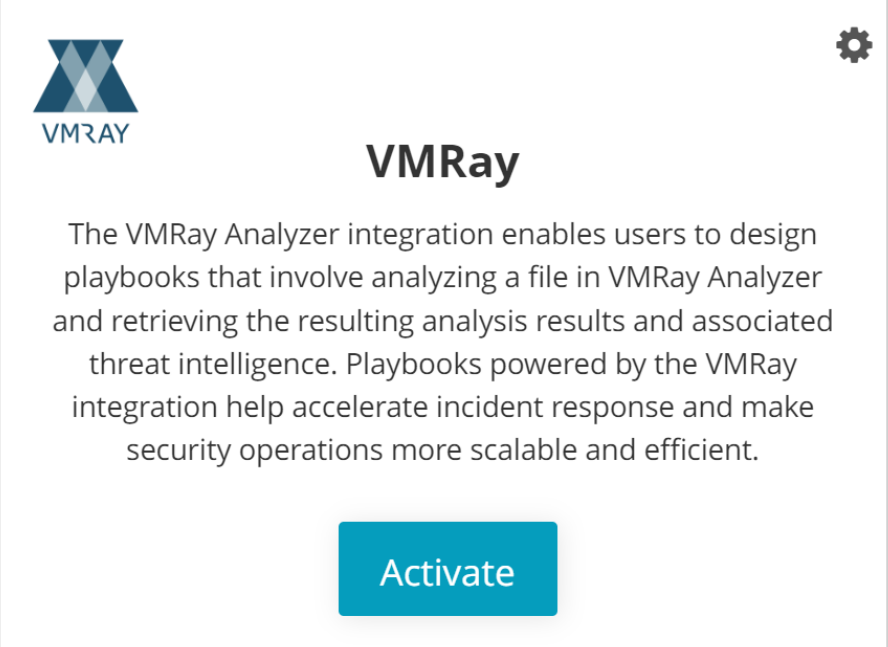
Locate the VMRay tile and click Activate.
-
Enter the following information:
Field Description URL Specify the URL of the VMRay host where your account is based. You can confirm this URL by referencing your VMRay account activation email, as displayed in the following example:
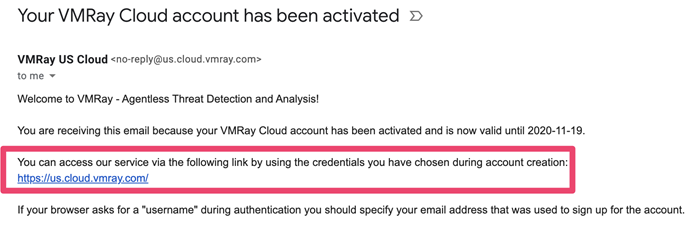
Tip: This is the URL you use to connect to the VMRay user interface.
API Key Your VMRay Analyzer API Key.
Select Number of Detonations Specify the maximum number of detonations you want organization members to make per submission.
Note: VMRay can execute multiple detonations on different operating systems depending on the type of submission. Users can select an upper limit for the number of detonations that VMRay can attempt for each sandbox submission. This parameter sets the highest number users can select at the time of submission.
- Click Save.
Your VMRay integration is active and ready for use. You can leverage VMRay for malware detonation from the Sandbox page on ThreatStream. See Submitting Malware for Detonationfor more information.
Note: After activation, you can configure mailboxes to use VMRay for detonation. See Managing Mailboxes for more information.