Managing Approved Jobs
Approved import jobs are added to your ThreatStream intelligence, but their attributes can be edited even after approval.
To edit attributes of an approved import job:
- Navigate to ThreatStream > Manage > Imports.
-
Click the import job in the Approved status that you want to edit.
The Import Job Details page displays the table with the observables extracted from the import job.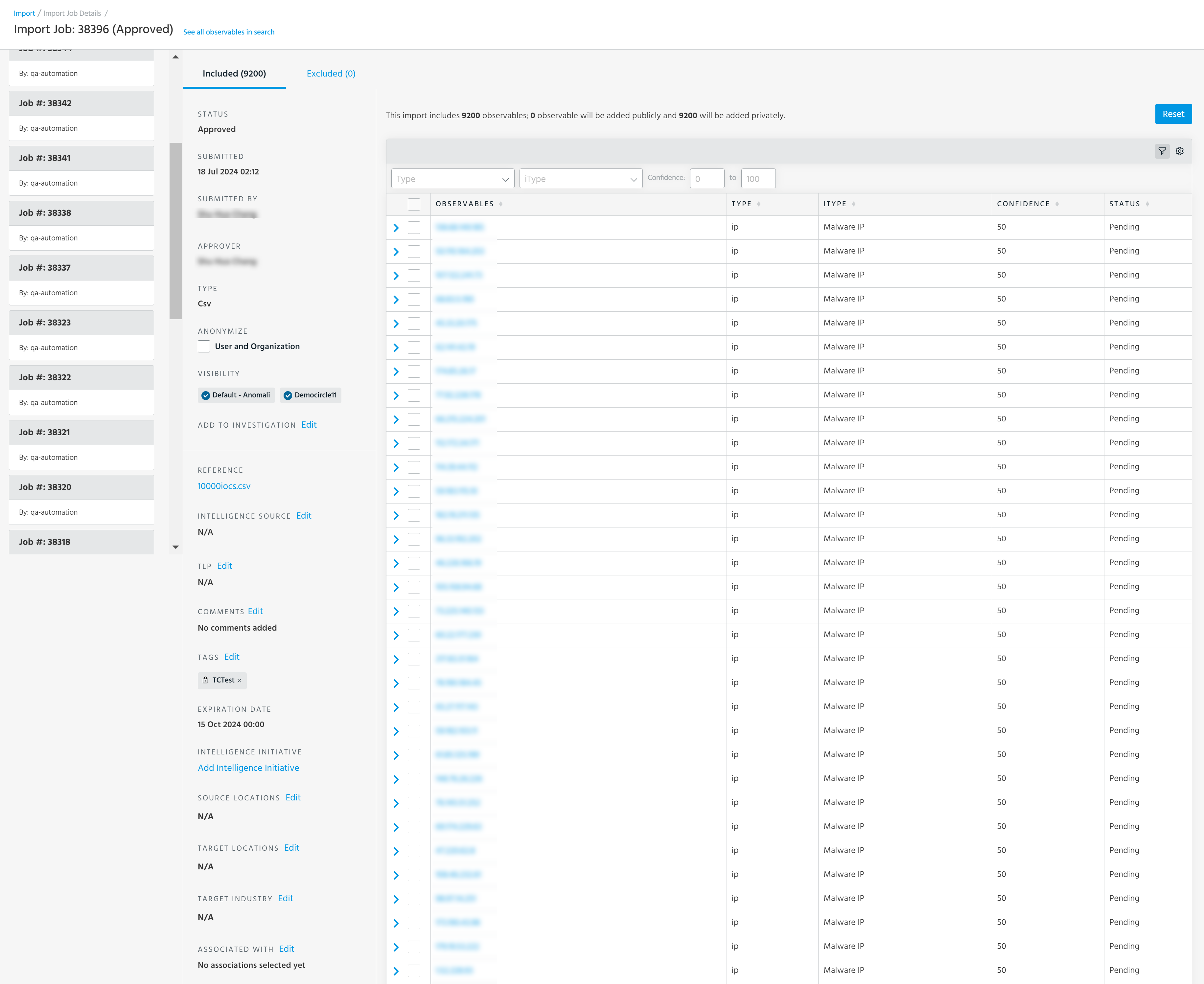
By default, the table displays the Observables, iType, Confidence, and Status columns. To see other columns such as type, Expiration Date, Country, Classification, Organization, Source Created, Source Modified, Notes, and Tags, click the Table Settings gear and select the columns you want to be displayed. Additionally, you can change the order of columns in the table by using the drag-and-drop functionality, specify the number of rows to be displayed per page, and enable/disable horizontal scrolling.
-
In the Anonymize section, select User and Organization if you want to anonymize your user and organization information. Users outside of your organization with access to the observables will see "Analyst" in all the fields that would otherwise display on organization or user name.
- Click Edit next to each section you want to configure in the import job:
Add to Investigation: Add the import job to an investigation or start a new investigation for this import job. See Creating Investigations for details.
Intelligence Source: Add a meaningful label about the source from which the observables were obtained.
TLP: Add the TLP color to associate with the job.
Tags: To add private tags that are only visible to your organization, assign them the My Organizationvisibility setting. Tags assigned the Anomali Communityvisibility setting are visible to any user with access to the observable. See Adding Private Tags to Observables for more information.
Intelligence Initiative: Click the Add Intelligence Initiative link to associate an intelligence initiative with the observable in the import job. For more information about intelligence initiatives, see Attributing Organizational Goals with Intelligence Initiatives.
- Source Locations: Add or remove source locations. ThreatStream supports 325 geographical locations (as defined by STIX 2.1) including 27 regions, 247 countries, 50 US States, and Washington DC.
Target Locations: Add or remove target locations. ThreatStream supports 325 geographical locations (as defined by STIX 2.1) including 27 regions, 247 countries, 50 US States, and Washington DC.
Target Industry: Add or remove target industries. Target industries available for selection are defined by the STIX 2.1 Industry Sector vocabulary.
Associated With: Associate the imported observables with Threat Model entities.