Importing Observables From an Email
You can import observables into ThreatStream without connecting to the ThreatStream platform. This involves sending one or more observable values in the body of an email to a designated email address on ThreatStream. Additionally, you can send observables in PDF, TXT, or CSV attachments to the email.
Once emails are received, they are validated and parsed on ThreatStream. If successfully validated and parsed, import jobs are created. ThreatStream creates a single import job for all observables contained in the body of the email and one additional import job for each attachment. Import jobs must be approved by a user with the Approve Import privilege before the observables become part of your threat intelligence on ThreatStream.The organization administrator is notified of the newly created, pending for approval import job. The sender is also notified of the import job that was created.
Emails received on ThreatStream for observable import are not stored on the platform. Once observables have been extracted from them, emails are deleted.
For more information on creating and configuring import mailboxes, see Mailboxes for Receiving Observables.
Guidelines for Importing Observables From an Email
The following guidelines apply to importing observables from an email:
- Just like other import methods, any ThreatStream user can submit an email to ThreatStream for importing observables. The observables will only become part of your threat intelligence when the import job is approved.
-
Emails can be free-form; no specific format is required. However, the following requirements must be met:
-
Observables must be in the email body text. Observables in the subject line are not parsed.
- Protocols must be included for URLs to be correctly parsed, unless the URL is specified in a structured CSV file and mapped to a URL indicator type.
-
-
Observable values may also be sent in attachments to the email. Attachments must be in CSV, PDF, or TXT format.
Note: CSV files must be formatted according to the guidelines in Guidelines for Structured Data.
- Attachments can be no larger than 10 MB.
-
Emails must be sent from email addresses registered on ThreatStream or those added to the Email Import Addresses list in on the Mailboxes tab within Settings. Otherwise, the email import will be ignored. See Adding Additional Email Import Addresses for more information.
- Emails must be sent to a Feed Mailbox email address on the Email/Phishing tab of Import Assistant. To manage your mailboxes, see Mailboxes for Receiving Observables.
- Only observables are parsed from an email even if the email contains other ThreatStream meta-data such as tags or mapping. Default mappings (as available on the Import UI page) are assigned to the imported observables.
-
For best results, Anomali recommends submitting emails and attachments as plain text. Some email clients add HTML code when emails contained defanged observable values. In these cases, forwarding emails to your ThreatStream mailboxes as unformatted, plain text prevents unexpected import behavior. Alternatively, you can import defanged observables from the ThreatStream user interface or in the body of a TXT file you submit to a mailbox.
- Email messages with extremely deep HTML nesting (more than 2,048 levels) are truncated and only partially processed. As a result, some content may be missing from the stored email body and from any indicators extracted from the message. This behavior is typically limited to emails generated by certain mobile webmail clients that produce unusually deep HTML structures. Standard email clients such as Outlook and Gmail are not affected. If you encounter this behavior, resend or forward the email from a different email client that does not produce deeply nested HTML.
- After parsing is complete, a notification containing the number of observables extracted and a link to the import session is sent to the email address that the observables were submitted from. If submitting from an email not registered on ThreatStream that was added to the Email Import Addresses list, an Org Admin receives the notification.
- By default, observables imported via Import Email mailboxes are assigned the Malware threat type.
To import observables from an email:
-
From anywhere on the ThreatStream user interface, open the import assistant and click Email/Phishing. Your mailboxes configured for receiving observables are displayed under Feed Mailbox.
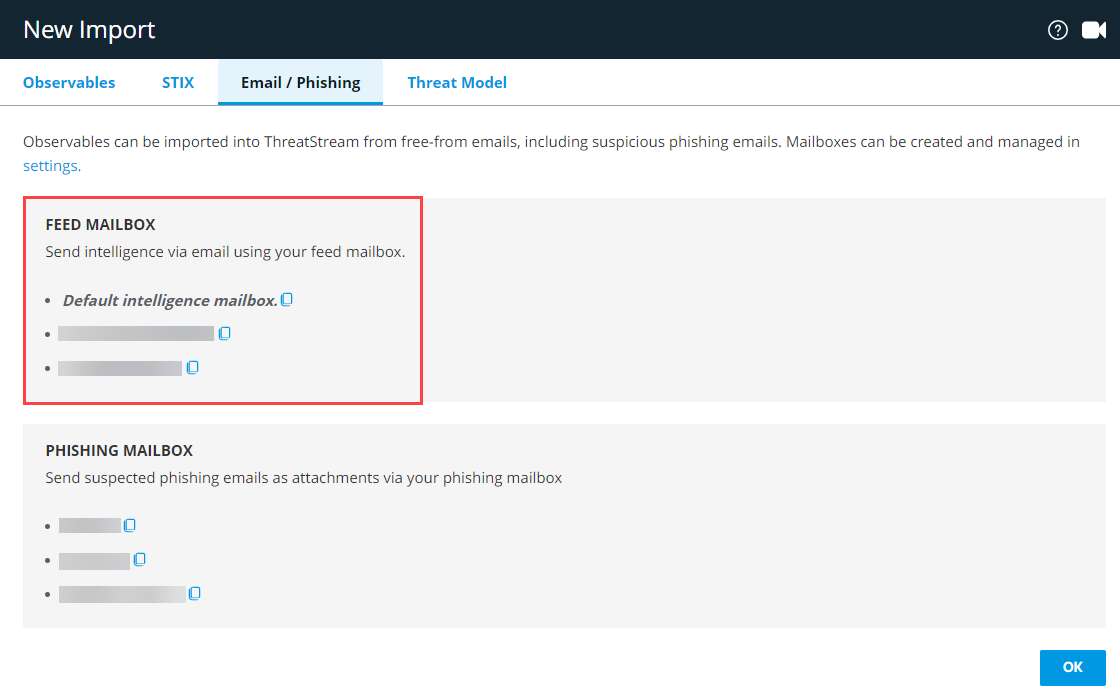
- Click the copy icon next to the mailbox you want to use for receiving observables.
-
Use the copied email address to send an email containing observables to ThreatStream.
Note: Emails must be sent from email addresses either registered on ThreatStream or non-registered email addresses added to the Email Import Addresses list, located in Org Settings.
If observables are successfully parsed, an import job is created on ThreatStream.
- Follow the process described in Approving Import Jobs.