Using Actor Profiles
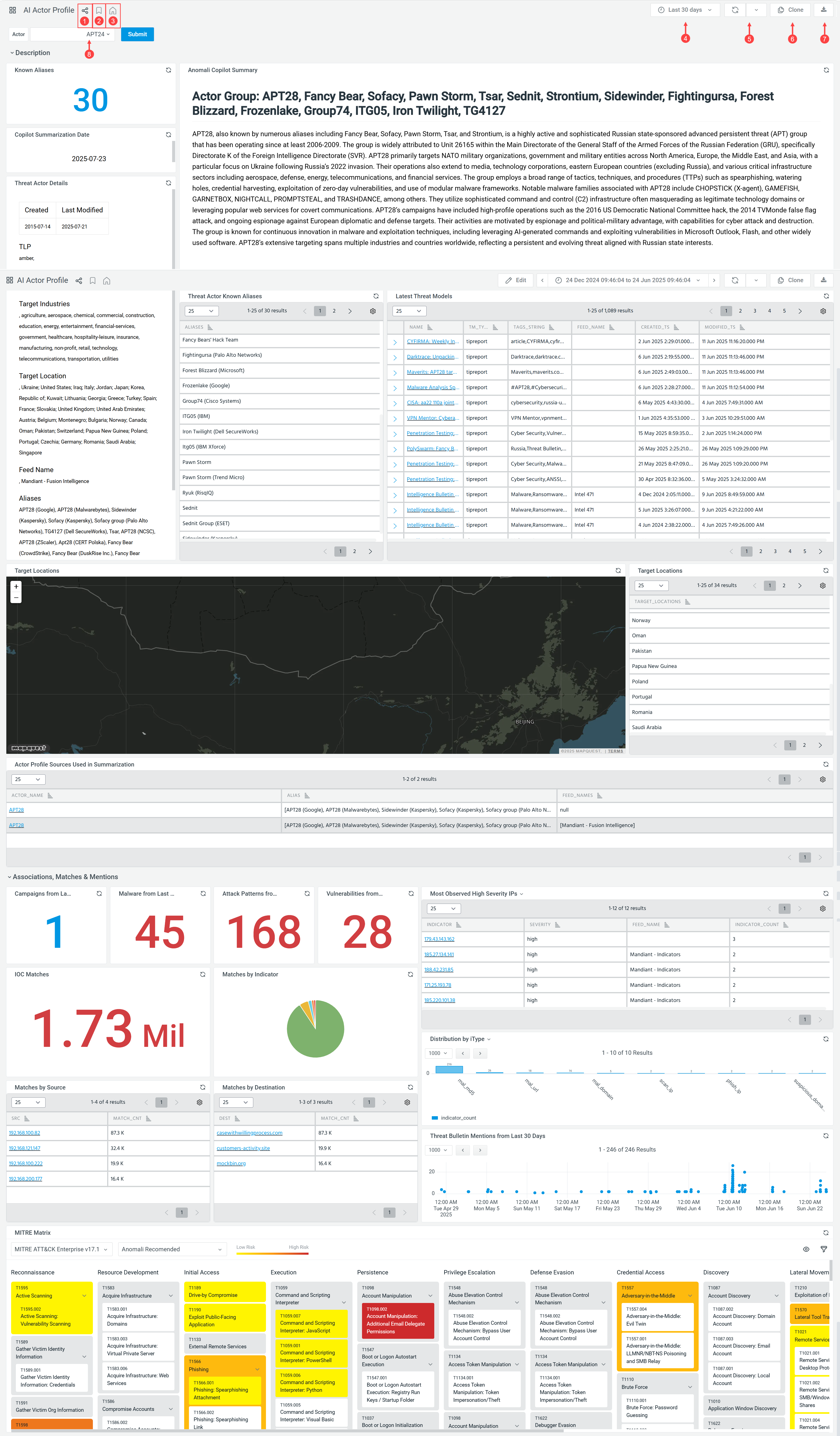
The AI Actor Profile dashboard provides comprehensive data on all known threat actors and their aliases available in ThreatStream. It leverages Anomali Copilot capabilities and MITRE ATT&CK Framework to deliver an overview of threat actors, including their aliases, motivations, objectives, source and target locations, associated campaigns, malware, vulnerabilities, MITRE techniques, and other critical details for threat analysis.
Please note that Actor aliases listed in the dashboard are not all-encompassing—they reflect only the data currently available in your ThreatStream instance. For example, if your organization subscribes to CrowdStrike, you may see an alias for Fancy Bear that maps to APT28, which can appear in your instance but not in others. Additionally, some aliases are AI-generated, therefore review their details for accuracy.
To access the AI Actor Profile dashboard, navigate to Copilot > Actor Profiles.
(Click the image to enlarge it)

|
Share dashboard or panel: Share the dashboard. For details on how to share a dashboard, refer to Sharing Dashboards. Note: Only organization administrators can share this dashboard.
|

|
Mark as favorite: Add the AI Actor Profile dashboard to the list of favorites. All your favorite dashboards can be found in the Bookmarked section of the Dashboard menu. |

|
Set as primary dashboard: Designate the AI Actor Profile dashboard as your primary dashboard. The setting is saved per user, therefore each user in the organization can designate their own primary dashboard. The name of the primary dashboard appears as the first item in the Dashboard menu. |

|
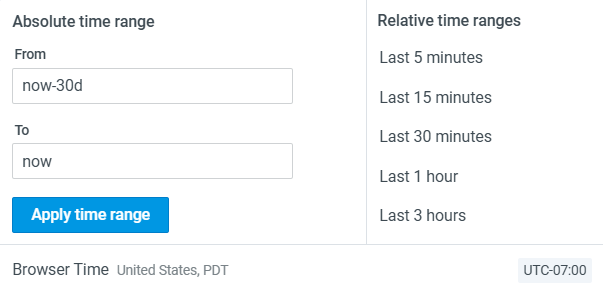
Select a time range for the data displayed on the dashboard. You can select an absolute time range or a relative time range. By default, data for the last 7 days is displayed.
|

|
Refresh dashboard: Select a time range for refreshing the dashboard. Select Off if you don’t want to refresh the dashboard. Click  to force dashboard refresh. to force dashboard refresh. |

|
Clone the dashboard. See Cloning Dashboards for details. |

|
Export the dashboard in PDF format. See Exporting Dashboards in PDF Format for details. |

|
Select an Actor and click Submit. |
AI Actor Profile Dashboard Rows and Panels
The table below lists all rows and panels available on the AI Actor Profile dashboard. Actor profile elements—such as Attack Patterns, Campaigns, Threat Bulletins, TTPs, Malware and Vulnerabilities—are based on data from the past 90 days. Observable data associated with threat actors is derived from the last 30 days. All widget data is refreshed every 7 days.
Data provided in the dashboard panels is sourced from the following lookup tables:
| Panel | Description |
|---|---|
| Known Aliases | Total number of aliases associated with the selected Actor. |
| Anomali Copilot Summary | Summary of the selected Actor generated by Anomali Copilot. |
| Copilot Summarization Date | Date when the dashboard panels were last updated. |
| Threat Actor Details | Details of the selected Actor: date created and last modified, TLP, source location, target industries, target location, feed name, and aliases. |
| Threat Actor Known Aliases | Table with all known aliases associated with the selected Actor. All aliases are displayed in the alphabetical order, with the alias name provided in parenthesis. |
| Latest Threat Models | List of most recent Threat Models that reference the selected Actor or its aliases. |
| Target Locations | Geomap with locations targeted by the selected Actor. Anything that falls outside a country is in the middle of the Atlantic Ocean. |
| Target Locations | List of countries and regions targeted by the selected Actor. |
| Actor Profile Sources Used in Summarization | Actor Profiles that contributed to building the summary for the selected Actor. |
| Campaigns from Last 90 Days | Total number of Campaigns associated with the selected Actor and its aliases detected over the past 90 days. |
| Malware from Last 90 Days | Total number of Malware entities associated with the selected Actor and its aliases detected over the past 90 days. |
| Attack Patterns from Last 90 Days | Total number of Attack Patterns associated with the selected Actor and its aliases detected over the past 90 days. |
| Vulnerabilities from Last 90 Days | Total number of Vulnerabilities associated with the selected Actor and its aliases detected over the past 90 days. |
| IOC Matches |
Total number of observable matches associated with the selected Actor and its aliases. Note: A Security Analytics subscription is required to populate this panel.
|
| Matches by Indicator |
Match count of observables by an individual observable associated with the selected Actor and its aliases. Note: A Security Analytics subscription is required to populate this panel.
|
| Matches by Source |
Total number of matches for the affected Source IPs (source of network traffic) related to observables associated with the selected Actor and its aliases. Note: A Security Analytics subscription is required to populate this panel.
|
| Matches by Destination |
Total number of matches by destinations (destination of network traffic) related to observables associated with the selected Actor and its aliases. Note: A Security Analytics subscription is required to populate this panel.
|
| Most Observed High Severity IPs | Most observed high severity IPs associated with the selected Actor and its aliases. |
| Distribution by iType |
Bar chart displaying the distribution of matched observables by indicator types. |
| Threat Bulletin Mentions from Last 90 Days | Timeline of Threat Bulletins that reference the selected Actor and its aliases over the past 90 days. |
| MITRE Heatmap | MITRE heatmap displaying MITRE ATT&CK tactics and techniques used by the selected Actor and its aliases, measured against a chosen MITRE Security Profile. For more information on MITRE ATT&CK profiles, refer to Using MITRE ATT&CK Profiles in ThreatStream. |
Managing AI Actor Profile Dashboard Panels
All AI Actor Profile dashboard panels—except those powered by Anomali Copilot—include a management menu that allows you to perform the following actions:
-
Open a panel query in Search
-
View a full-screen version of a panel
-
Share a panel with other Anomali platform users in your organization.
-
Inspect panel data
-
Refresh panel data
Refer to Managing Dashboard Panels for details.