Managing Anomali Copilot RSS Feeds
Copilot RSS feeds are offered based on the following subscription types:
-
Community
The Anomali Copilot Community subscription allows you to activate the basic version of the threat intelligence-related news, research, and advisory RSS feeds for free. Additionally, you will receive a source-provided summary (when available) and a link to the original article.
-
Enterprise
The Anomali Copilot Enterprise subscription provides access to the Enterprise version of Anomali Copilot RSS feeds. This subscription type requires an active Anomali Copilot suite subscription. Contact your Anomali account representative for details.When upgraded to the Anomali Copilot Enterprise subscription, in addition to the basic features, you will get access to the following features:
-
Anomali AI generated summary and key takeaways for each ingested article.
-
Automated extraction of observables with relevant contextual information such as iType, confidence & associations for Actors, Malware, TTPs & CVEs.
-
Automatic identification and tagging for target industry, region, and company for ease of operationalization through custom dashboards & alerts.
-
Access to the Anomali Global Security Event (GSE) feed, which provides intelligence related to ongoing major Global Security event.
From the APP Store, you can browse, activate, upgrade, and deactivate Anomali Copilot RSS feeds. When Copilot RSS feeds are activated, they start enriching Threat Bulletins with executive summaries, takeaways, relevant tags, content, associations, and a link to the original content. Additionally, you can add the ATR-curated Copilot RSS Feeds dashboard to receive alerts about new articles, research, and advisories that come from your active Anomali Copilot feeds
For details, refer to the following sections:
Upgrading to the Enterprise Copilot RSS Version
Threat Bulletins Created From RSS Feeds
Deactivating Copilot RSS Feeds
For the list of available Copilot RSS feeds, refer to Available Anomali Copilot RSS Feeds
Activating Copilot RSS Feeds
To activate a Copilot RSS feed:
- Navigate to ThreatStream > APP Store > APP Store.
-
Select the Copilot Subscription type filter.
- Locate the Copilot feed that you want to activate.
If you are using the tile view, flip the switch to the right position.
If you are using the list view, click the name of the feed and then click Activate.
The status changes to Active. You are subscribed to the Copilot RSS feed.
Upgrading to the Enterprise Copilot RSS Version
To upgrade a Copilot RSS feed from the Community to Enterprise version:
- Navigate to APP Store > APP Store.
-
Select the Copilot Subscription Type filter.
- Locate the Community Copilot RSS feed that you want to upgrade.
- Click Get Full Access.
- In the dialog box that opens, click Register Interest.
If you upgrade from an active Community Copilot RSS feed, click Save Changes.
Your Anomali account manager will contact you to provide the information required for subscribing to the Enterprise version of the Copilot RSS feed.
Threat Bulletins Created From RSS Feeds
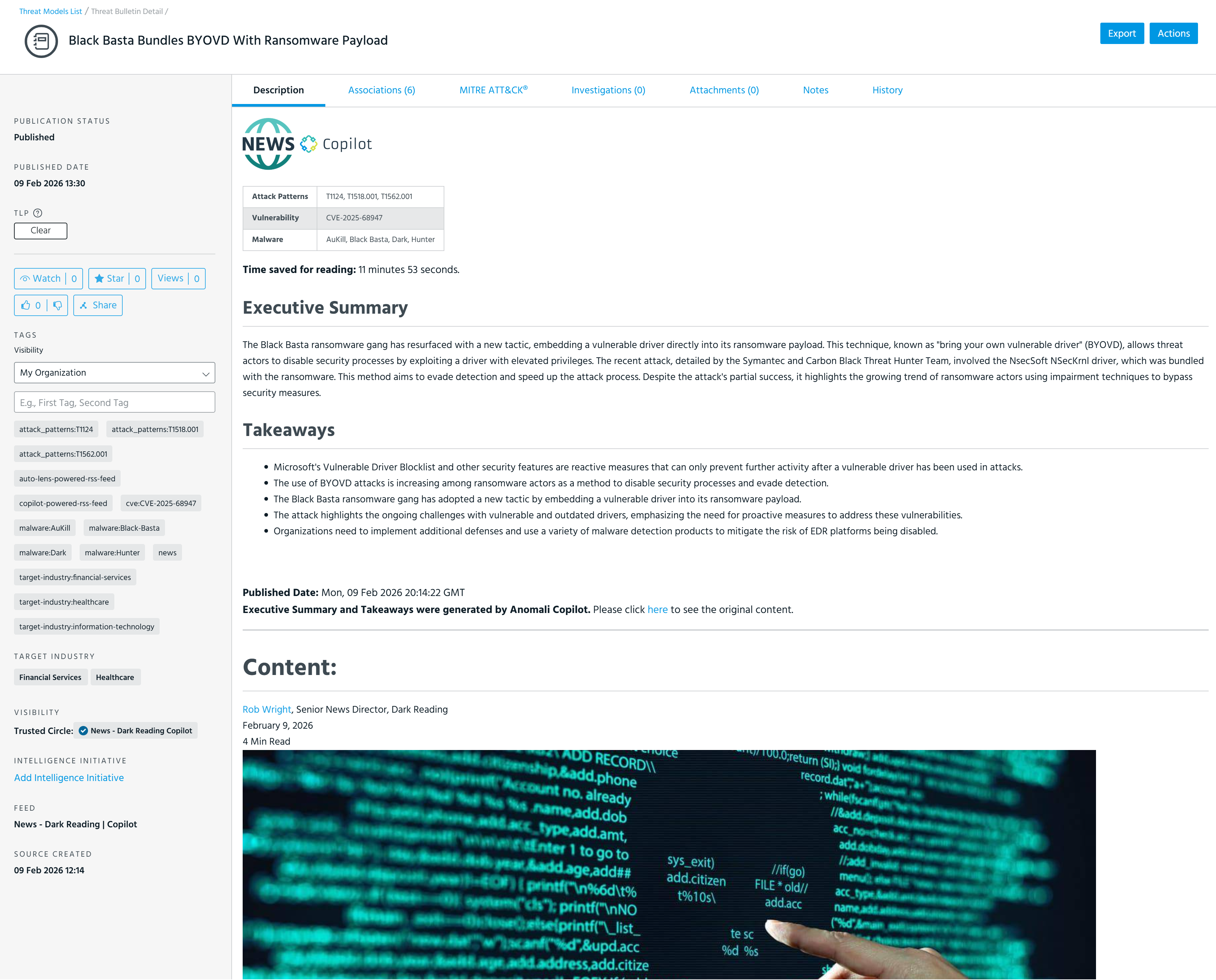
Once Copilot RSS feeds are activated, they will start enriching Threat Bulletins with executive summaries, takeaways, relevant tags, content, associations, and a link to the original content.
When ThreatStream processes an RSS feed, it evaluates the content against observables that are already known to the platform and highlights only the associations that exist in ThreatStream. Any unknown observables found in the article are intentionally skipped. This is by design to give you full control over the data that enters your environment. If you need to determine whether the content contains observables not yet known to ThreatStream, you can manually scan it and import the observables you want. To learn how to manually scan Threat Bulletins and create import jobs with Anomali Copilot, refer to Scanning Pages with Anomali Copilot.
Copilot RSS feeds extract the following contextual information:
| Contextual Information | Tag | Association |
|---|---|---|
| Malware | malware:<family name> | ATR Malware Profile |
| Actor | actor:<actor name> | ATR Actor Profile |
| Vulnerability | vulnerability:<CVE_ID> | Vulnerability Threat Model |
| Country | country:<2 Letter Country Code> | n/a |
| Region | region:<Region Name> | n/a |
| Target Industry | industry:<industry name> | n/a |
| Theme | theme:<theme name> | n/a |
| TTP | mitre-technique:<technique name> | Attack Pattern Profile |
Below is the example of the Threat Bulletin enriched with the content received from the News - Dark Reading feed.
Copilot RSS Feeds Dashboard
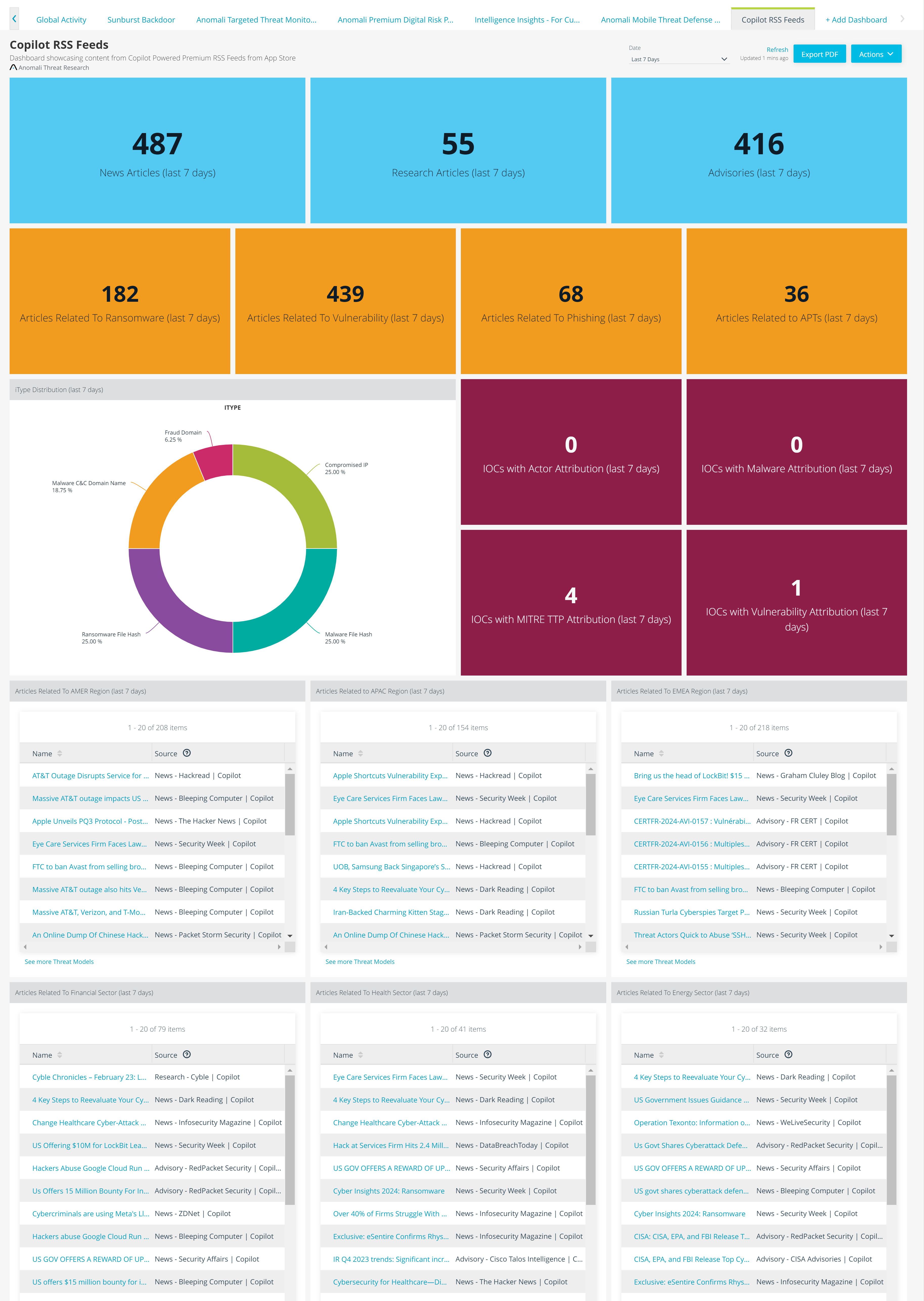
For your convenience, you can also add the ATR-curated Copilot RSS Feeds dashboard to receive alerts about new articles, research, and advisories that come from your active Anomali Copilot feeds. See Adding Themed Custom Dashboards to Your Home Page to learn how to add the Copilot RSS Feeds custom dashboard to your home page.
Below is the example of the Copilot RSS Feeds custom dashboard.
Deactivating Copilot RSS Feeds
To deactivate a Copilot RSS feed:
- Navigate to ThreatStream > APP Store > APP Store.
-
Select the Copilot Subscription Type filter.
- Locate the active Copilot RSS feed that you want to deactivate.
-
If you are using the tile view, click Manage and then click Deactivate.
If you are using the list view, click the name of the feed and then click Deactivate.The status changes to Inactive. You are no longer subscribed to the Copilot RSS feed.