Viewing Attack Flow Details
An attack flow details page shows how the attack patterns, STIX objects, and other elements in an attack flow relate to one another. You can view details for each attack pattern, export the flow to JSON, and add it to an investigation.
Below is an example of the MITRE attack flow v1.0.
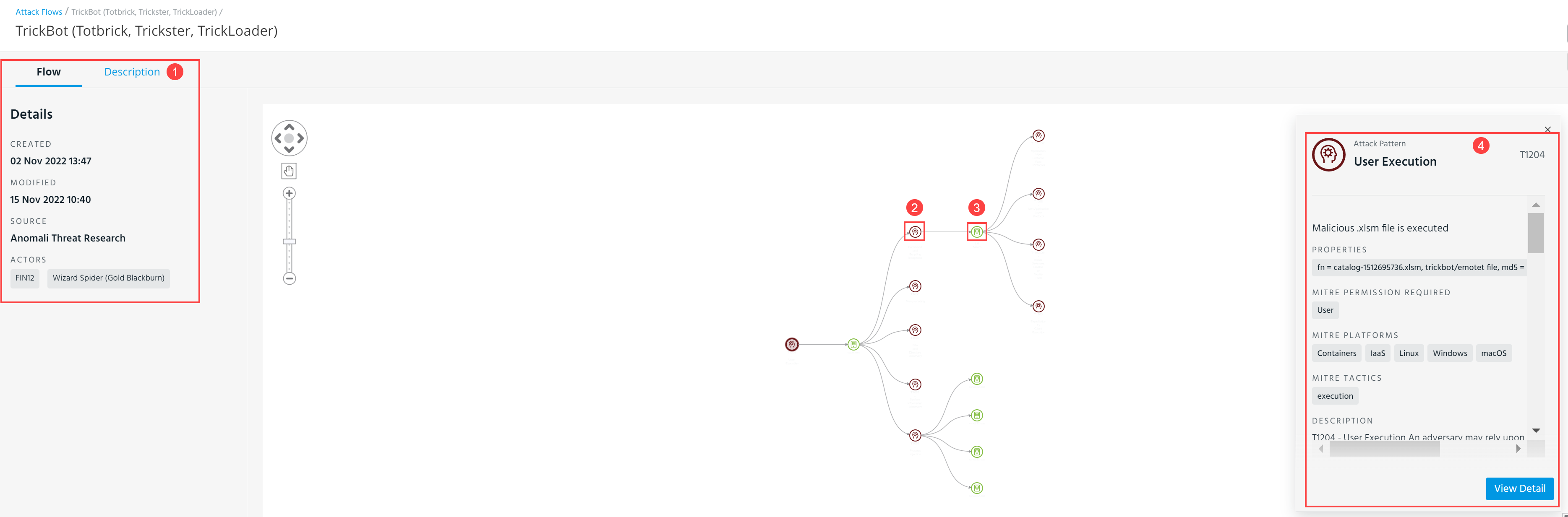
 Description and details of the MITRE attack flow v1.0. The details include the date when the attack flow was created, the date when the attack flow was created, the date when it was modified, the source, and the names of actors and their aliases.
 Initial MITRE attack pattern.
 An artifact that is being attacked, compromised or exploited.
 Attack pattern details. You can view a summary of details of an attack pattern by clicking on an attack pattern icon in an attack flow visual. An attack pattern may contain property details, required MITRE permissions, MITRE tactics, an attack pattern description, and a link to the associated attack pattern in ThreatStream. Click View Details to go to the attack pattern details page. For more information, see Viewing Attack Pattern Details.
 Actions:
-
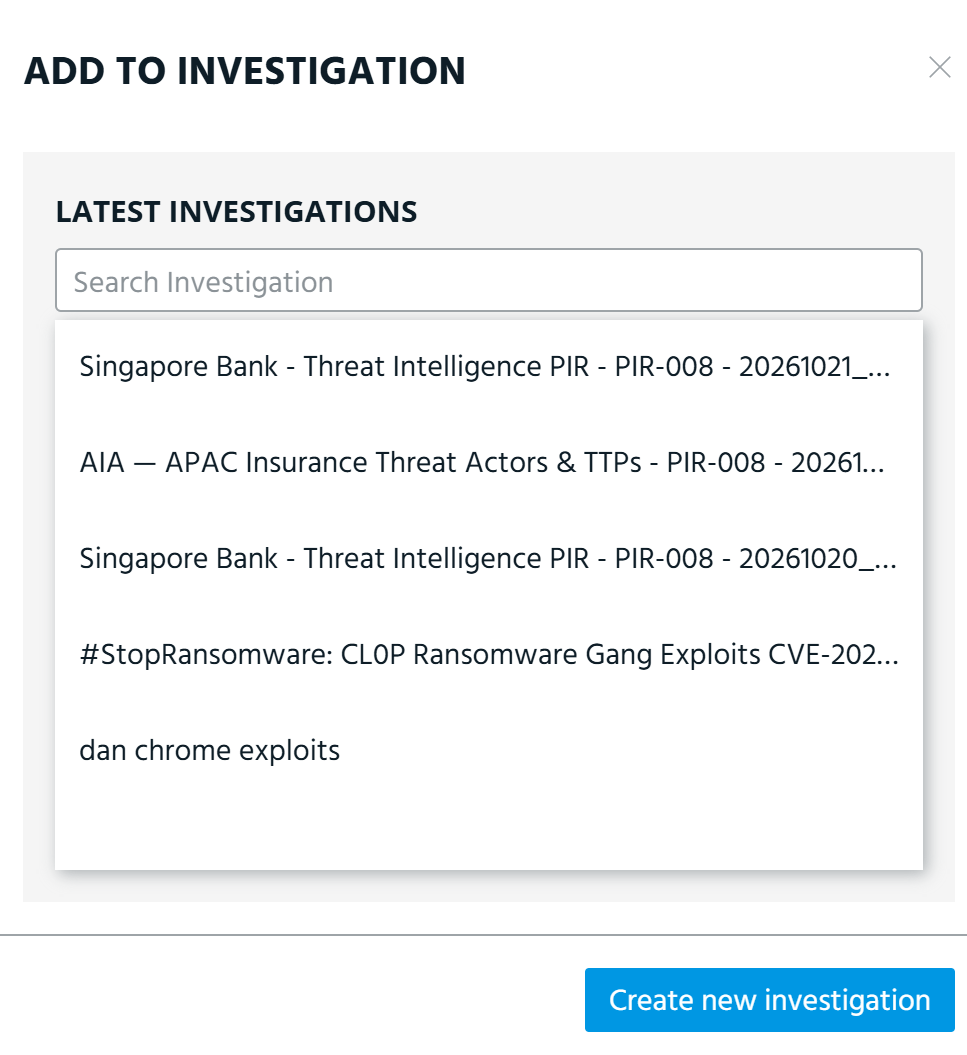
Add to investigation: Add the attack flow to an existing or new investigation.
The attack flow added to an existing investigation appears in the Entities section (Attack Flow layout) of the investigation. See Managing Investigation Entities for details.
For details on creating a new investigation from the attack flow, refer to Creating a New Investigation From an Attack Flow.
Below is an example of the MITRE attack flow v2.0.
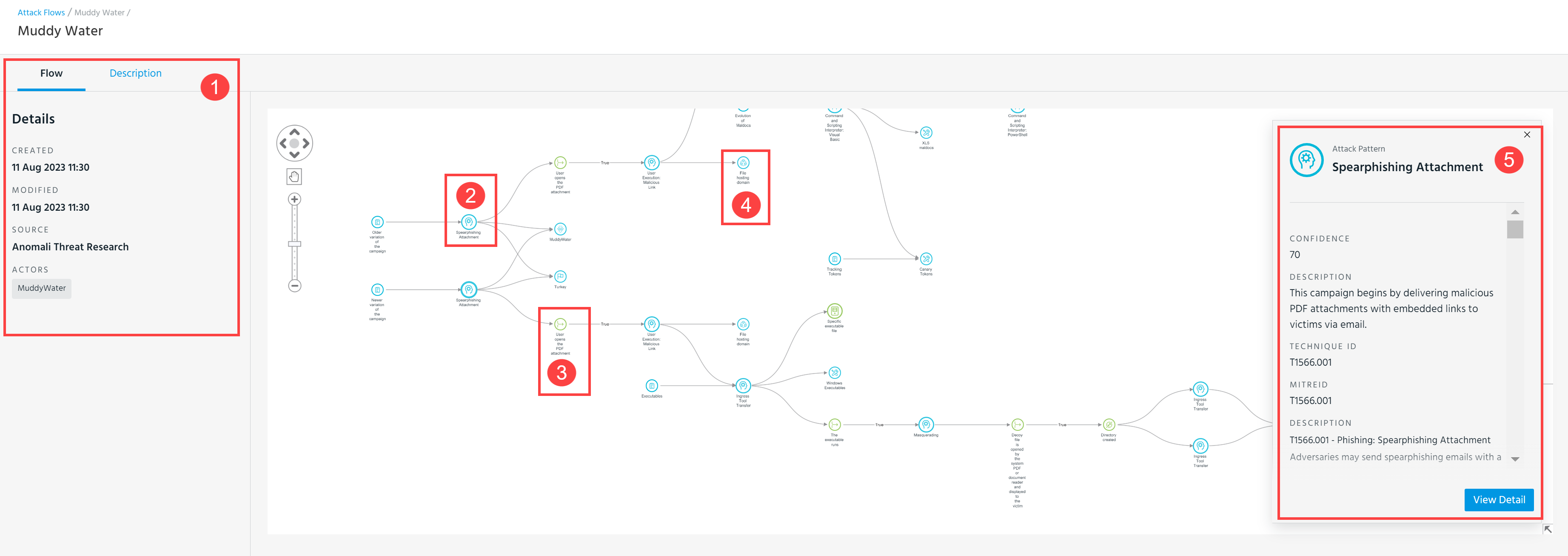
Description and details of the MITRE attack flow v2.0 The details include the date when the attack flow was created, the date when the attack flow was created, the date when it was modified, the source, and the names of actors and their aliases.
Initial MITRE attack pattern.
Attack condition associated with the attack pattern.
An attack flow may include the following elements: actions, assets, conditions, OR operators, and AND operators.
Infrastructure—the STIX object associated with the attack pattern.
An attack flow may include the following STIX objects: attack patterns, tools, intrusion sets, course of actions, infrastructures, notes, groupings, opinions, reports, identities, campaigns, locations, indicators, malware, malware analysis, threat actors, vulnerabilities, and observed data. Additionally, an attack flow may also include such elements as domain name, URL, email address, user account, email message, file, directory, artifact, Windows registry key, mutex, IPv4 address, IPv6 address, network traffic, autonomous system, MAC address, X.509 certificate, process, and software.
Attack pattern details. You can view a summary of details of an attack pattern by clicking the attack pattern icon in the attack flow visual. An attack pattern may include the following summary details: confidence score, description, technique ID, and MITRE ID. Click View Details to go to the attack pattern details page. For more information, see Viewing Attack Pattern Details.
 Actions:
-
Export to JSON: Click Export to JSON to download the file.
-
Add to investigation: Add the attack flow to an existing or new investigation.
The attack flow added to an existing investigation appears in the Entities section of the investigation. See Managing Investigation Entities for details.
For details on creating a new investigation from the attack flow, refer to Creating a New Investigation From an Attack Flow.
Creating a New Investigation From an Attack Flow
To create a new investigation from an attack flow:
-
Navigate to ThreatStream > Analyze > Attack Flow.
-
Open the details page of the attack flow you want to investigate.
-
Click Actions > Add to investigation.
-
In the Add to Investigation dialog, click Create new investigation.
-
In the New Investigation dialog:
-
Enter a unique name for the new investigation.
-
Select users who can access this investigation from the Visibility drop-down list. By default, the investigation is visible only to you. You can expand visibility to all users in your organization (My Organization), workgroups, or a set of individual users in your organization.
-
Select users or workgroups to which you want to assign the investigation.
-
(Optional) Enter a description for the investigation. You can enter a description by using the Rich Text editor. The Rich Text editor enables you to add pre-formatted content. You can copy and paste content including images from .doc, .docx, and .pdf files into the Rich Text editor. All formatting is preserved.
-
-
Click Create.
The new investigation is added to the list of investigations.The attack flow associated with it can be found in the Entities section (Attack Flow layout).