Adding Preferred Tags to Intelligence
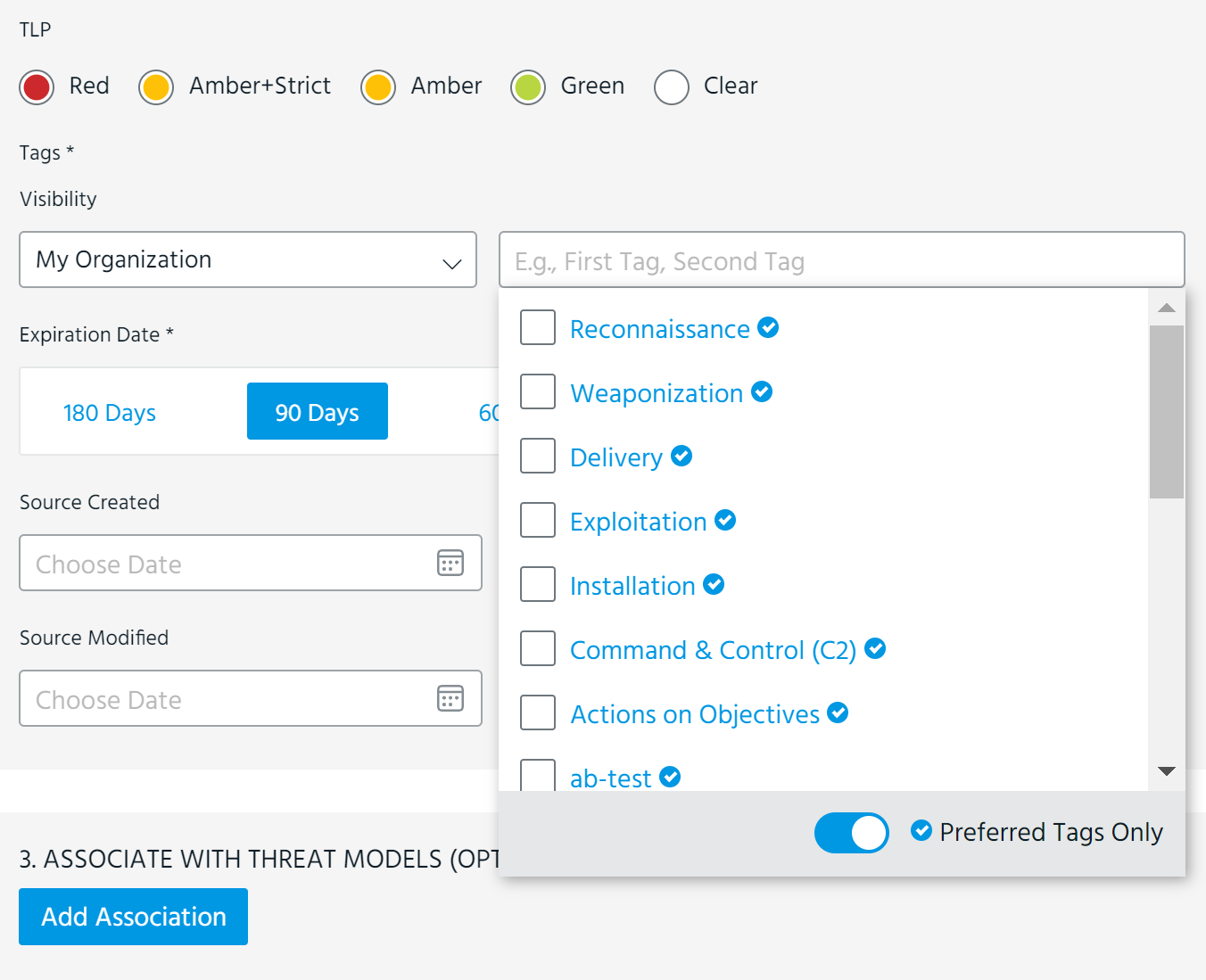
Preferred tags are a list of frequently used tags that can be quickly selected from any Tags field in ThreatStream. Preferred tags are suggested to users alongside recently used tags as they associate tags with intelligence, thus eliminating the need to repeatedly type out frequently used tags. As displayed below, users can enable the Preferred Tags Only toggle to view and search through only the list of preferred tags. Alternatively, users can also enter * to view the list of preferred tags.
Managing Preferred Tags as an Org Admin
Within the ThreatStream settings, Org Admins can:
-
Add and delete preferred tags
-
Allow non-admin users to add tags
-
Choose to show or hide kill chain tags
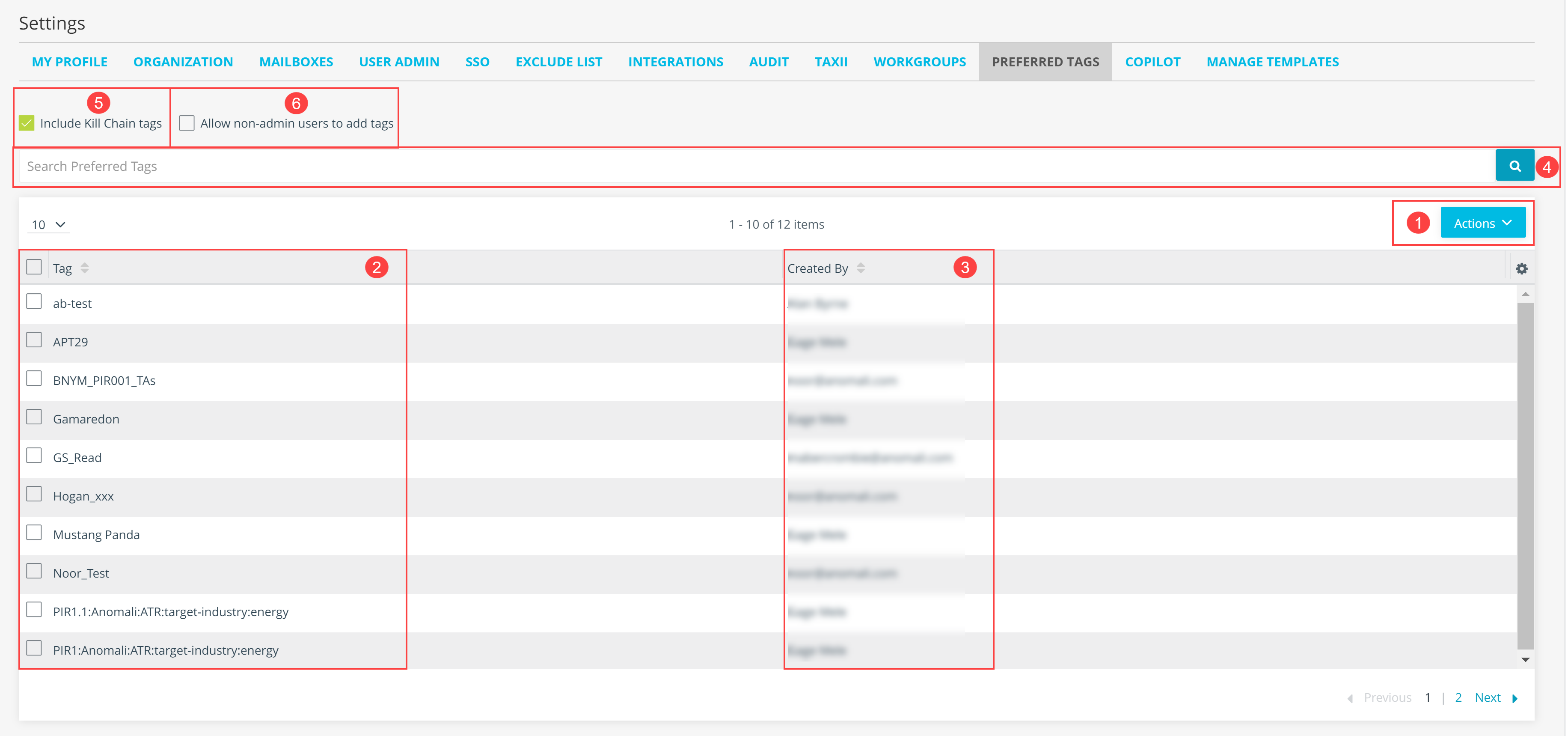
 Add or delete preferred tags
 Configured preferred tags
 Organization user that created the preferred tag
 Search configured preferred tags
 Include or exclude kill chain tags. By default, the setting is enabled.
 Allow non-admin users to add tags. By default, the setting is disabled.
To add preferred tags:
-
In the bottom-left corner of the side navigation panel, click
 > ThreatStream and then click Preferred Tags.
 -
In the Actions menu, click Add.
-
Enter the tags you would like to add as preferred tags. If configuring multiple preferred tags, enter one tag per line. You can configure up to 100 in a single batch.
-
Click Add.
- Duplicate tags are not allowed.
- A maximum of 500 preferred tags can be added.
- Tags must be 2,000 characters or less.
To delete preferred tags:
-
In the bottom-left corner of the side navigation panel, click
> ThreatStream and then click Preferred Tags. -
Select the preferred tags you want to delete.
-
In the Actions menu, click Delete.
To include or exclude kill chain tags:
-
In the bottom-left corner of the side navigation panel, click
> ThreatStream and then click Preferred Tags. -
To exclude kill chain tags, deselect Include Kill Chain Tags. To include kill chain tags, select Include Kill Chain Tags. By default, the setting is enabled.

To allow non-admin users to add tags:
-
In the bottom-left corner of the side navigation panel, click
> ThreatStream and then click Preferred Tags. -
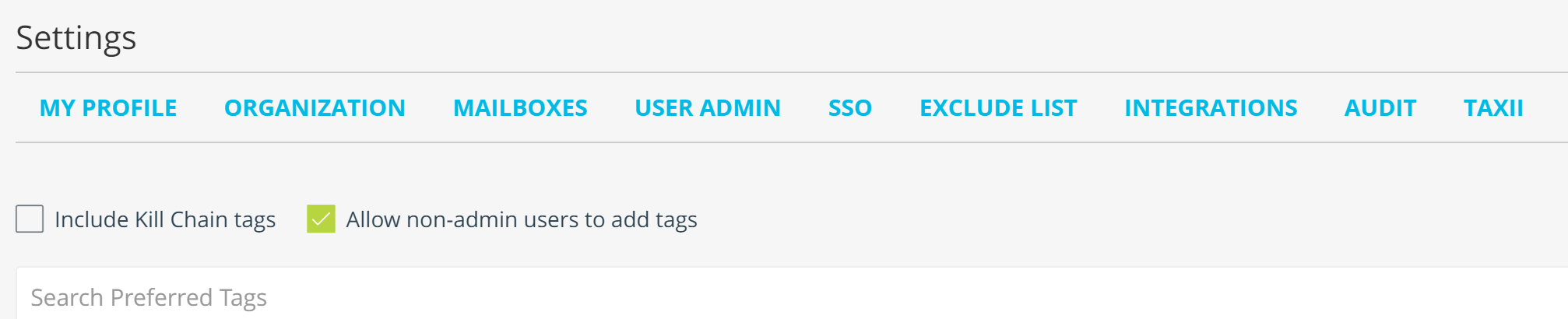
Select Allow non-admin users to add tags. By default, the setting is disabled.
- All added tags are visible to the entire organization.
- Non-admin users are not allowed to delete tags.
Managing Preferred Tags as a Non-admin User
Non-admin users can also add preferred tags if their Org Admin has enabled the setting for their organization. If the setting is enabled, you will see the Preferred Tags tab under Settings  . The tags you add are visible to the entire organization.
To add a new tag:
-
In the bottom-left corner of the side navigation panel, click
> ThreatStream and then click Preferred Tags. -
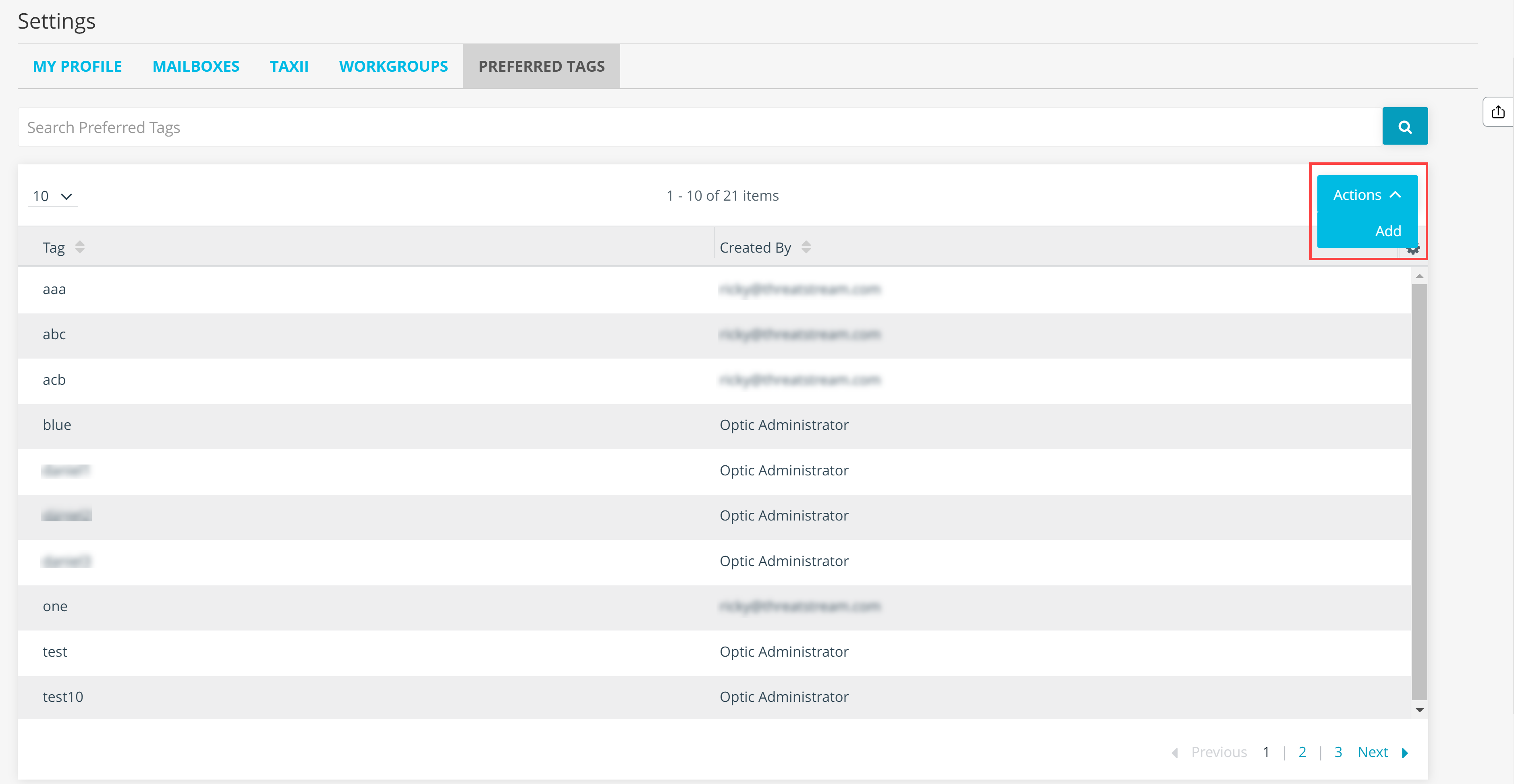
In the Actions menu, click Add.
-
In the dialog box that opens, add each new tag on a new line or separate it by a comma. You can configure up to 100 in a single batch.
-
Click Add.
- Duplicate tags are not allowed.
- A maximum of 500 preferred tags can be added.
- Tags must be 2,000 characters or less.