Integrating with ServiceNow ITSM
ThreatStream provides a bidirectional integration with ServiceNow ITSM, which enables you to quickly and easily pass intelligence between them. The integration allows you to:
-
Create or update ServiceNow ITSM incidents with details and observables from ThreatStream investigations.
-
Create or update ThreatStream investigations from ServiceNow ITSM incidents.
To integrate ThreatStream with ServiceNow ITSM, the following high-level steps must be taken:
-
Install the Anomali ThreatStream ITSM Integration on your ServiceNow system using the steps in the Anomali ThreatStream ServiceNow ITSM Integration Installation and User Guide. To locate this guide and the Anomali ThreatStream ITSM App, search for "Anomali ThreatStream ITSM Integration" on the ServiceNow Store. Look for Installation Guide under Supporting Links and Docs.
Note: For ThreatStream Cloud users, observables sent from ServiceNow SecOps to ThreatStream are added to investigations as candidate observables and not automatically imported. For ThreatStream OnPrem users, observables from ServiceNow SecOps are auto-approved and imported into the ThreatStream database before being attached to the associated ThreatStream investigation.
-
Activate the ServiceNow ITSM integration on ThreatStream using the steps in Activating the ServiceNow ITSM Integration.
-
Grant the following permissions to the ServiceNow user whose username will be used when activating the ServiceNow ITSM integration on ThreatStream:
-
import_transformer
-
snc_platform_rest_api_access
-
sn_incident_read
-
sn_incident_write
-
x_anoma_ts_itsm_in.threatstream_integration_user
-
x_anoma_ts_itsm_in.threatstream_observable_user
-
Activating the ServiceNow ITSM Integration
To synchronize ServiceNow ITSM intelligence with ThreatStream, activate the ServiceNow ITSM integration. You can activate the integration using either your ServiceNow credentials (username and password) or OAuth 2.0 credentials (Client ID and Client Secret).
To obtain your ServiceNow Client ID and Client Secret (OAuth 2.0):
-
Ensure that the OAuth plugin is installed and active on your ServiceNow instance.
-
In the All navigation menu, type
sys_properties.listand press Enter to view the table with system properties. -
Ensure the
com.snc.platform.security.oauth.is.activesystem property exists and is set to true. -
Ensure the
glide.oauth.inbound.client.credential.grant_typesystem property exists. If it does not exist, create it and configure it the following way:-
Set the Application scope to Global.
-
Click New. The System Property New record dialog box opens.
-
In the Name field, enter
glide.oauth.inbound.client.credential.grant_type. -
From the Type drop-down list, select boolen.
-
Set the Value to true.
-
Click Submit.
-
-
Create an OAuth application registry entry:
Navigate to All > System OAuth > Application Registry, and then click New.
-
Configure the application registry record:
-
Give the record a unique name. For example, ThreatStream OAuth Client.
-
Set Client type to Integration as a User.
-
Assign OAuth Application User to the user account typically used for the ServiceNow integration.
-
-
Retrieve client credentials.
After submitting the record, reopen the application registry entry and copy the Client ID and Client Secret. Copy the Client Secret and save it in a safe place.
These values are required for activating the ServiceNow integration in ThreatStream.
To activate the ServiceNow ITSM integration:
-
In the bottom-left corner of the side navigation panel, click
 > ThreatStream and then click Integrations.
 - Click Activate on the ServiceNow tile.
-
Under Instance ID, enter the hostname of your ServiceNow instance.
Example: Enter xyz if the full FQDN of your instance is xyz.example.com.
Note: Specify only the hostname of your instance. FQDNs are not accepted.
- Select your ServiceNow domain. The following domains are available for selection:
- service-now.com (Enterprise)
- servicenowservices.com (Federal)
- service-now.com (Enterprise)
- Choose your authentication method and enter your credentials:
To use your ServiceNow credentials, enter:
- Username
- Password
- To use your ServiceNow OAuth 2.0 credentials, enter:
Client ID
Client Secret
Use Oauth2 Authentication
- Select ITSM.
- Select your ServiceNow user interface. The following UI options are available for selection:
- SIR Legacy UI
- SIR Workspace UI
- SIR Legacy UI
- Click Save.
The ServiceNow ITSM integration is now active.
Creating and Updating ITSM Incidents
After activating the ServiceNow ITSM integration, you can create an ITSM incident in ServiceNow ITSM from an investigation details page.
To create am ITSM incident in ServiceNow from an investigation details page:
-
Navigate to Research > Investigations.
-
Click the investigation of your interest.
-
Click Investigation > Create/Update ITSM Incident in ServiceNow on the investigations details page.
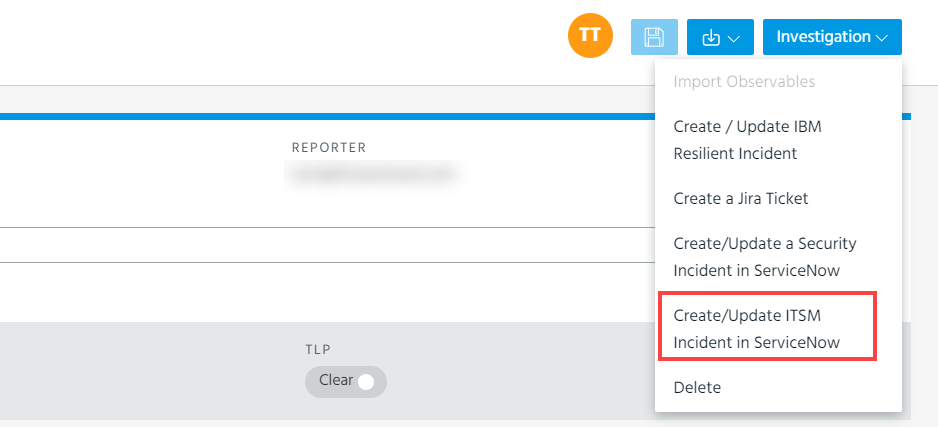
When an incident is created in ServiceNow ITSM, the following tags are added to the investigation in ThreatStream:
Service ITSM ID: <Incident record ID>
Service Now ITSM <Incident ID>
These tags link the investigation to the created ITSM incident, and are used to update the ITSM incident after initial creation.
To update an ITSM incident with the latest investigation information, click Create/Update ITSM Incident in ServiceNow. If the tags on the investigation match an ITSM incident in Service Now, the existing ITSM incident is updated.