Enriching Data with Microsoft Defender Threat Intelligence
This Microsoft Defender Threat Intelligence (MDTI) enrichment enables you to leverage MDTI data from observable details pages and the Explore pivoting tool.
Below is an example of how you can use the MDTI enrichment on the ThreatStream Explore page.
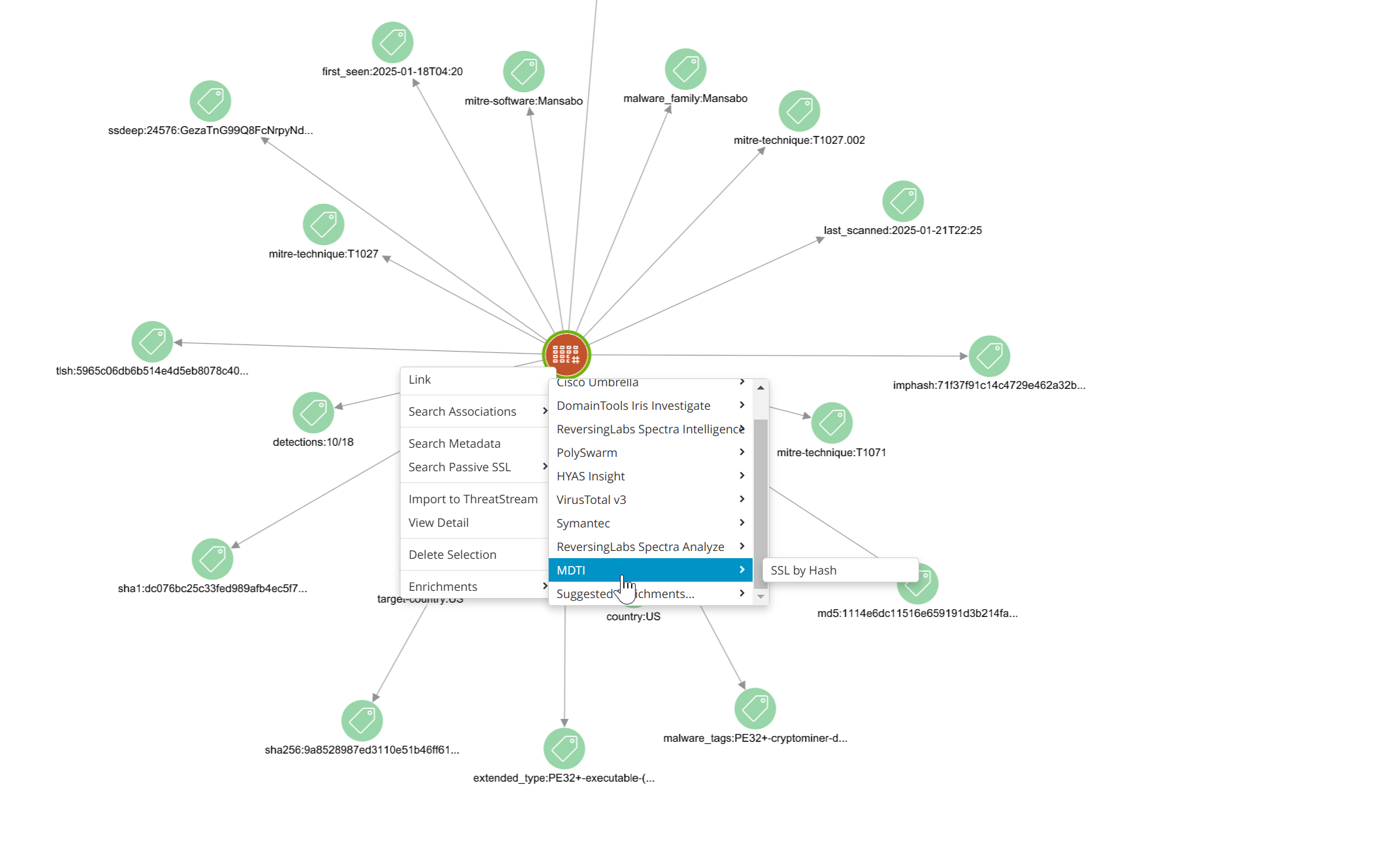
Before activating the MDTI enrichment, you must register MDTI on the Azure portal, grant it the required permissions, and then obtain its Tenant ID, Client ID, and Client Secret.
For details on how to create app registrations, see Register an application with the Microsoft identity platform. After you have created the app registration for MDTI, grant it the required permissions.
To grant the required permissions to MDTI:
-
Log in to your account on the Azure portal.
-
In the portal menu, select Microsoft Entra ID.
-
Click Manage.
-
Click App registrations.
-
Locate and click the app registration for MDTI.
-
Click Manage > API permissions.
-
Click Add a permission.
-
Click Microsoft Graph > Application permissions.
-
Select ThreatIntelligence > ThreatIntelligence.Read.All.
-
Click Add permission.
The permission is added to the list of application API permissions. Note that the admin consent might be required for the permission to become active.
After registering MDTI on the Azure portal, you must obtain its Tenant and Client IDs, and create a Client Secret.
To obtain your MDTI Tenant ID and Client ID:
1. Log in to your account on the Azure portal.
2. In the portal menu, select Microsoft Entra ID.
3. Click Manage.
4. Click App registrations.
5. Locate and click the app registration for MDTI.
Your Client and Tenant IDs are displayed in the Essentials section.
To create a Client Secret:
-
In the Azure portal menu, select Microsoft Entra ID.
-
Click Manage.
-
Click App registrations.
-
Locate and click the app registration for Microsoft Defender Threat Intelligence.
-
In the main menu, click Manage > Certificates & secrets.
-
Click + New client secret.
-
In the dialog box that opens, provide a brief description of the Client Secret and select a time at which the secret will expire and need to be regenerated.
-
Click Add.
You should see your newly-generated Client Secret listed on the Certificates & Secrets page. Copy and save the value of the generated secret because after leaving this page, there is no way to retrieve the value of the Client Secret. If you do not save it, you will need to generate a new Client Secret.
To activate the Microsoft Defender Threat Intelligence enrichment on ThreatStream:
-
On the ThreatStream user interface, navigate to APP Store > APP Store.
- Click Get Access on Microsoft Defender Threat Intelligence Defender tile.
- Click I have credentials.
- Enter your MDTI Tenant ID, Client ID, and Client Secret.
- Click Activate.
The MDTI enrichment is activated.